Most of the design files/concepts that the designers will send you will either be really large (stationery) or will have unnecessary extra space not used (logos).
Cropping: If more than 40% of the image is unused or blank, then that is a sign it needs to be cropped to save space and better resolution on the web.
Resizing: Most of the stationery designs sent by designers and client images are very large (over 1MB). These images need to be resized in order to save disk space and making file sharing/uploading faster.
When resizing less than 3: You will use “Microsoft Office Picture Manager” > Edit Pictures > Resize > Percentage of Original.
When resizing more than 3: You will use “FastStone Resizer” (in desktop already). This is a great software which allows you to resize and rename files in bulk.
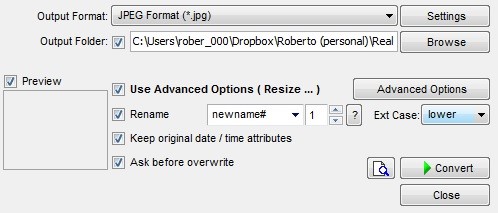
Under “Advanced Options” you will see many resize options, however the easiest and fastest is the resize by percentage.
Knowing the right size to resize: When opening a design file/photo on “Microsoft Office Picture Manager” you will see on the top the screen the “viewing size of the picture,” relative to the original size.

We will use this size as a resize reference using the following parameters:
When using a 19” monitor: The final percent after resizing should be 60%
When using a 21” monitor: The final percent after resizing should be 80%
When using a 23+” monitor: The final percent after resizing should be in the 90% range
What's your Reaction?
You have reacted on"Resizing & Cropping Images"
A few seconds ago


 Subscriptions
 My Orders
 My Wishlist
 Refer & Earn💸
 My Projects
 Conversations
 Website Services
 New Website Request
 Website Addons
 eCommerce Addons
 eCommerce Modules
 Software Development
 Graphic Design
 Video Production
 Content Writing
 Marketing Services
 Marketing Products
 Get a Marketing Plan
 Local SEO Audit
 Sales Automation
 Service Automation
 Operations Automation
 Marketing Automation
 Payments Automation
 Premium Modules
 Support Tickets
 Latest Updates
 Consultation Calls
 Tools & Extensions
 Tech Tips & Tricks
 Domains & Emails









