Our client area offers an intuitive way to manage your orders, ensuring seamless service management and enhanced user experience. This guide will walk you through accessing and managing your orders, along with the benefits of using this feature.
Benefits of Checking Your Orders #
- Stay Updated: Easily track the status of your orders, ensuring you’re always informed about pending, completed, or cancelled orders.
- Efficient Management: Quickly settle pending payments or modify orders if needed.
- Convenience: Reorder products or services effortlessly, saving time and effort.
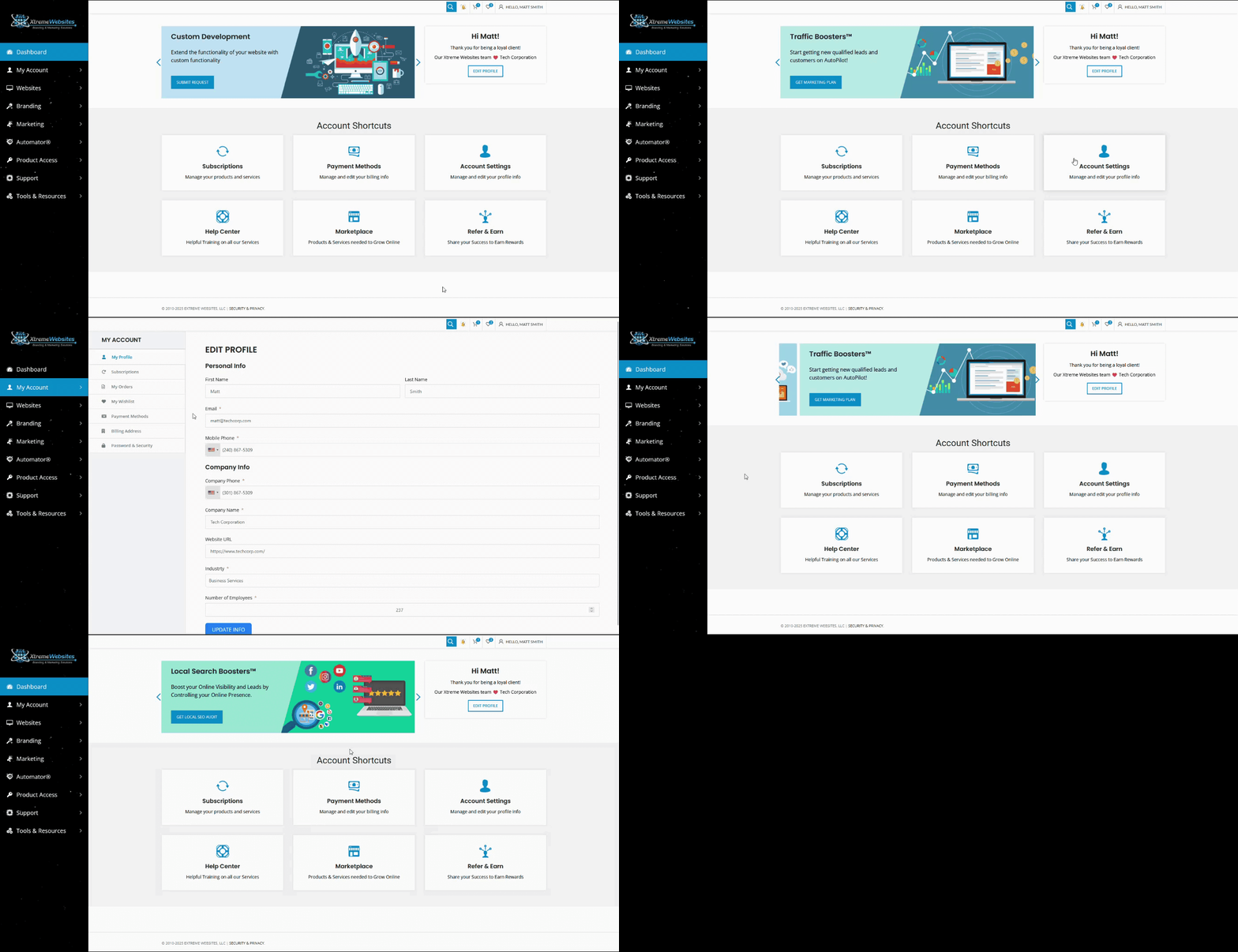
How to Access the Orders Page #
You can access the orders page in three ways:
- Account Shortcuts:
- On the homepage, locate the Account Shortcuts section.
- Click on the Account Settings box.
- In the My Account menu, select My Orders.
- Left Side Menu:
- Hover over the My Account button.
- Click on My Orders in the submenu.
- Top Bar Menu:
- Hover over your name in the top bar.
- Select My Orders from the menu that appears.
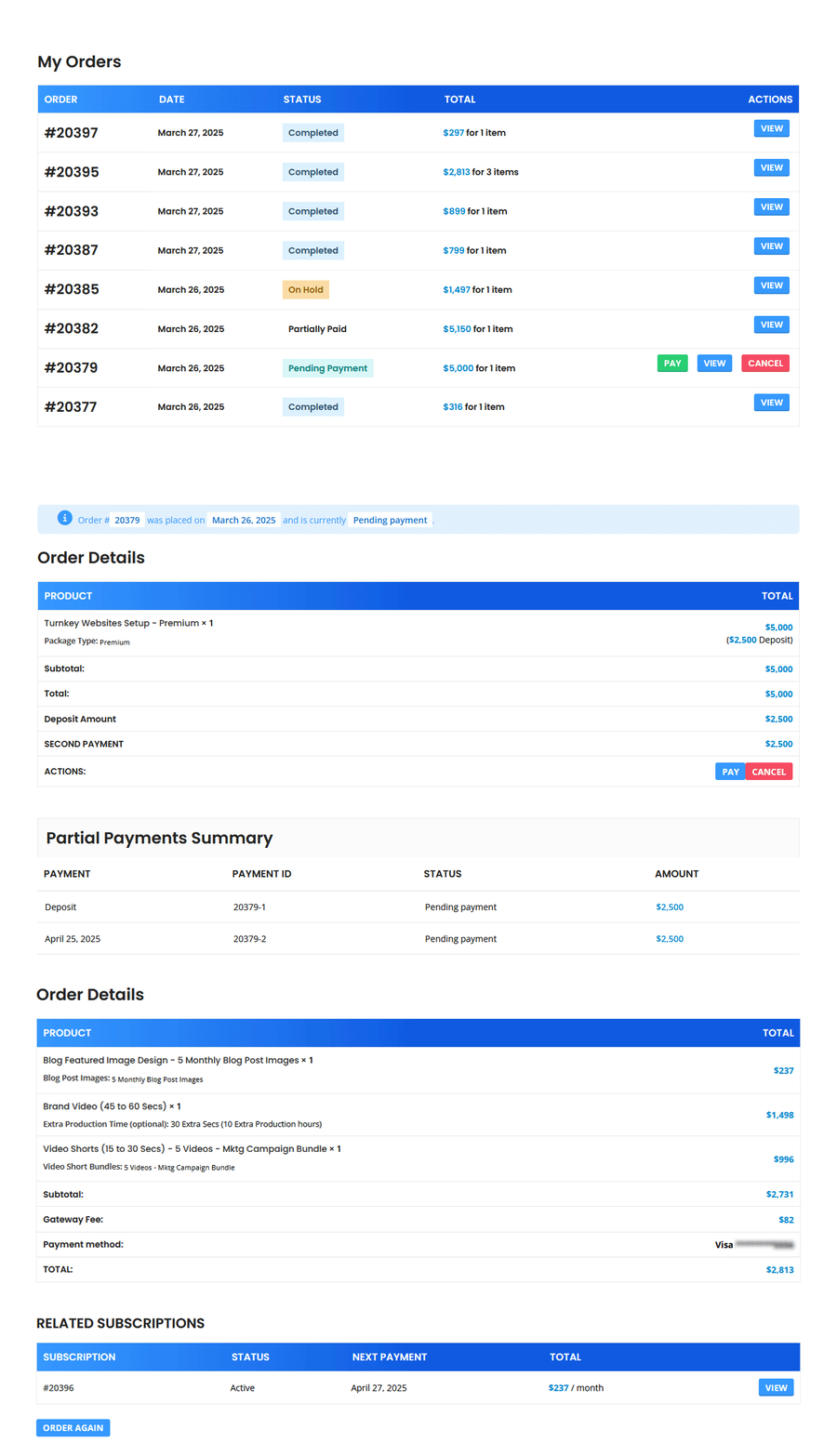
Viewing and Managing Orders #
Once on the My Orders page, you can view detailed information and perform various actions:
- View Order Details:
- Click the View button next to the order you wish to examine. This will take you to the Order Details page where you can manage your order.
- Pay Pending Payment:
- On the My Orders Page: Locate the Pay button next to the corresponding order to complete any pending payments.
- On the Order Details Page: Use the Pay button in the Order ID table under the Actions row to complete pending payments.
Note: This option is available only for orders pending payment.
- Cancel Order:
- On the My Orders Page: Find the Cancel button next to the corresponding order to cancel it.
- On the Order Details Page: Use the Cancel button in the Order ID table under the Actions row to cancel the order.
Note: This option is available only for orders pending payment.
- View Related Subscriptions:
- In the Order Details page, click the View button in the Related Subscriptions table to see subscriptions linked to your order.
Note: This function is available if the order includes a subscription.
- Order Again:
- In the Order Details page, use the Order Again button located above the Billing Address section to reorder products or services quickly.
By regularly checking and managing your orders, you can ensure that your services are always in sync with your needs, enhancing your overall experience with us.
What's your Reaction?
You have reacted on"How Do I Check And Manage My Orders?"
A few seconds ago


 Subscriptions
 My Orders
 My Wishlist
 Refer & Earn💸
 My Projects
 Conversations
 Website Services
 New Website Request
 Website Addons
 eCommerce Addons
 eCommerce Modules
 Software Development
 Graphic Design
 Video Production
 Content Writing
 Marketing Services
 Marketing Products
 Get a Marketing Plan
 Local SEO Audit
 Sales Automation
 Service Automation
 Operations Automation
 Marketing Automation
 Payments Automation
 Premium Modules
 Support Tickets
 Latest Updates
 Consultation Calls
 Tools & Extensions
 Tech Tips & Tricks
 Domains & Emails