Our client area allows you to effectively manage your wishlist, ensuring you have easy access to your desired products and services. This guide will walk you through accessing and managing your wishlist, along with the benefits of utilizing this feature.
Benefits of Managing Your Wishlist #
- Easy Access: Quickly access your favorite products and services for future reference or purchase.
- Organized Shopping: Create multiple wishlists to categorize and organize items according to your preferences.
- Convenient Shopping Experience: Easily add or remove items, making your shopping experience more personalized and efficient.
How to Access the Wishlist Page #
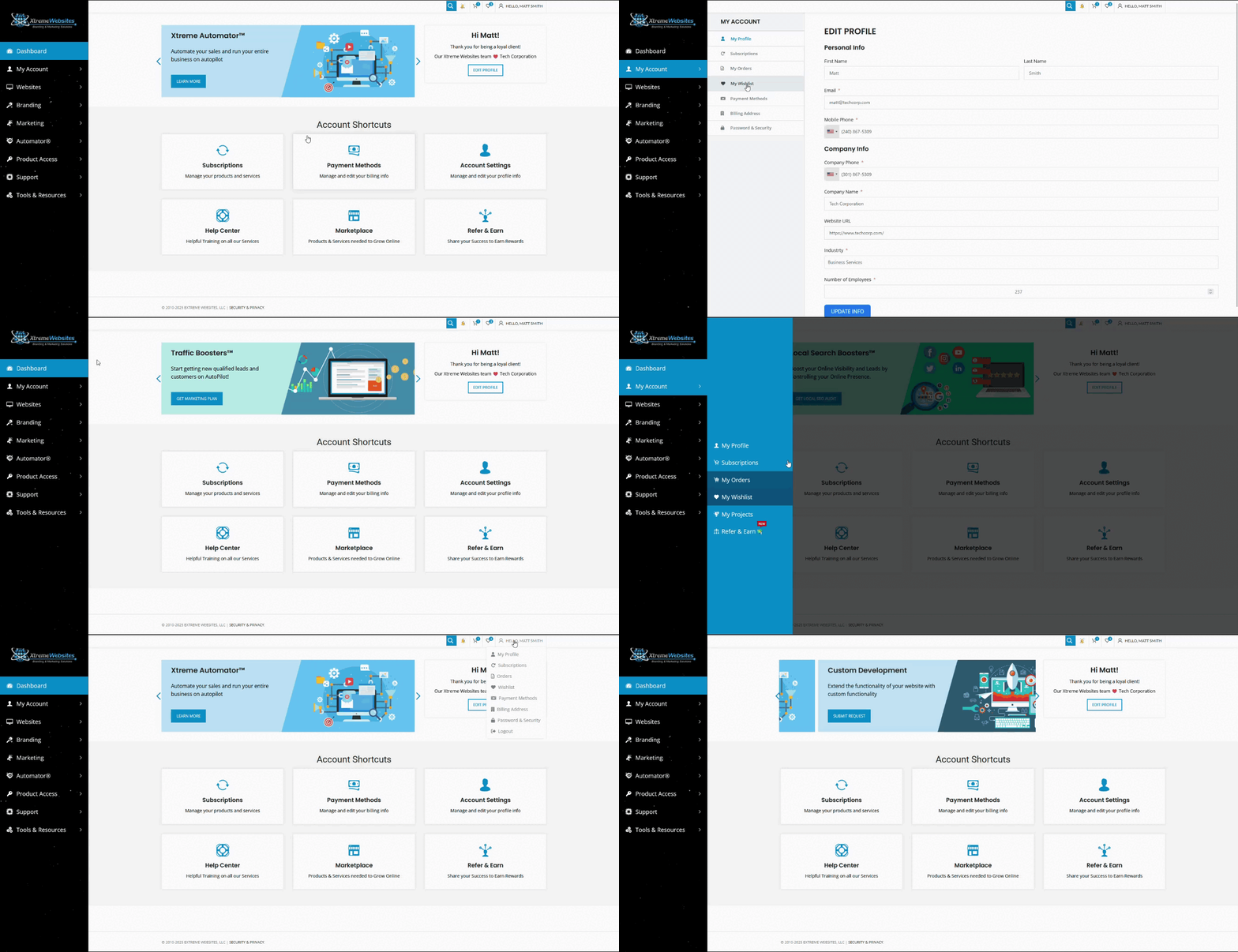
You can access the wishlist page in four ways:
- Account Shortcuts:
- On the homepage, locate the Account Shortcuts section.
- Click on the Account Settings box.
- In the My Account menu, select My Wishlist.
- Left Side Menu:
- Hover over the My Account button.
- Click on My Wishlist in the submenu.
- Top Bar Heart Icon:
- Click on the heart icon located on the top bar.
- Top Bar Menu:
- Hover over your name in the top bar.
- Select Wishlist from the menu that appears.
Managing Your Wishlist #
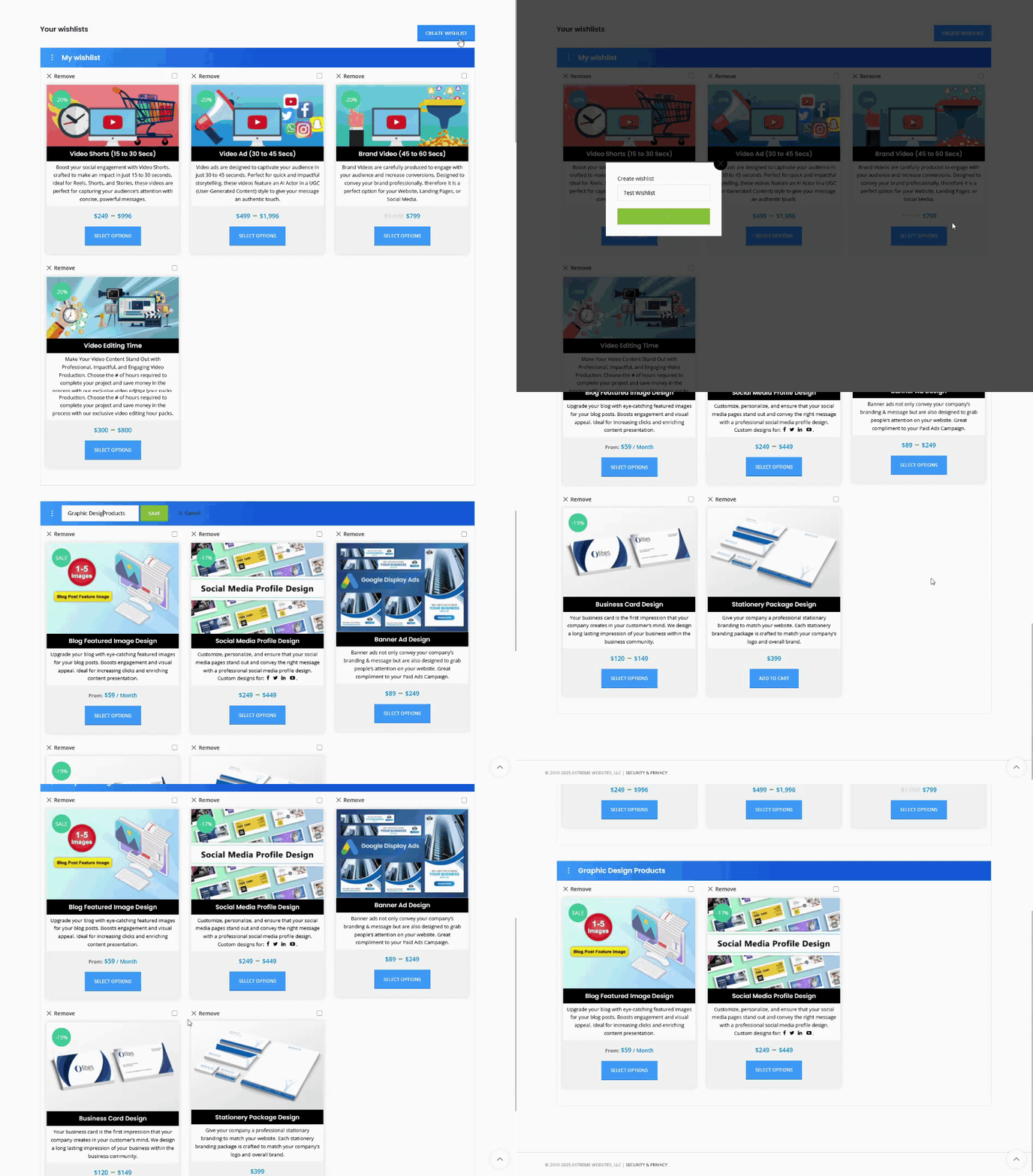
Once on the Wishlist page, you can perform the following actions:
- Create New Wishlists:
- Click the Create Wishlist button to start a new wishlist.
- Remove Wishlists:
- Hover over the three vertical dots next to the wishlist name and click Remove wishlist. Note: You can only remove additional wishlists, not the original one.
- Edit Wishlist Name:
- Hover over the three vertical dots next to the wishlist name and click Edit name to change it.
- Remove Product from Wishlist:
- To remove individual products, click the remove link above the products in the wishlist.
- To remove products in bulk, click the checkbox above the desired products and then click the Remove link that appears below the wishlist’s name.
Adding Products to Your Wishlist #
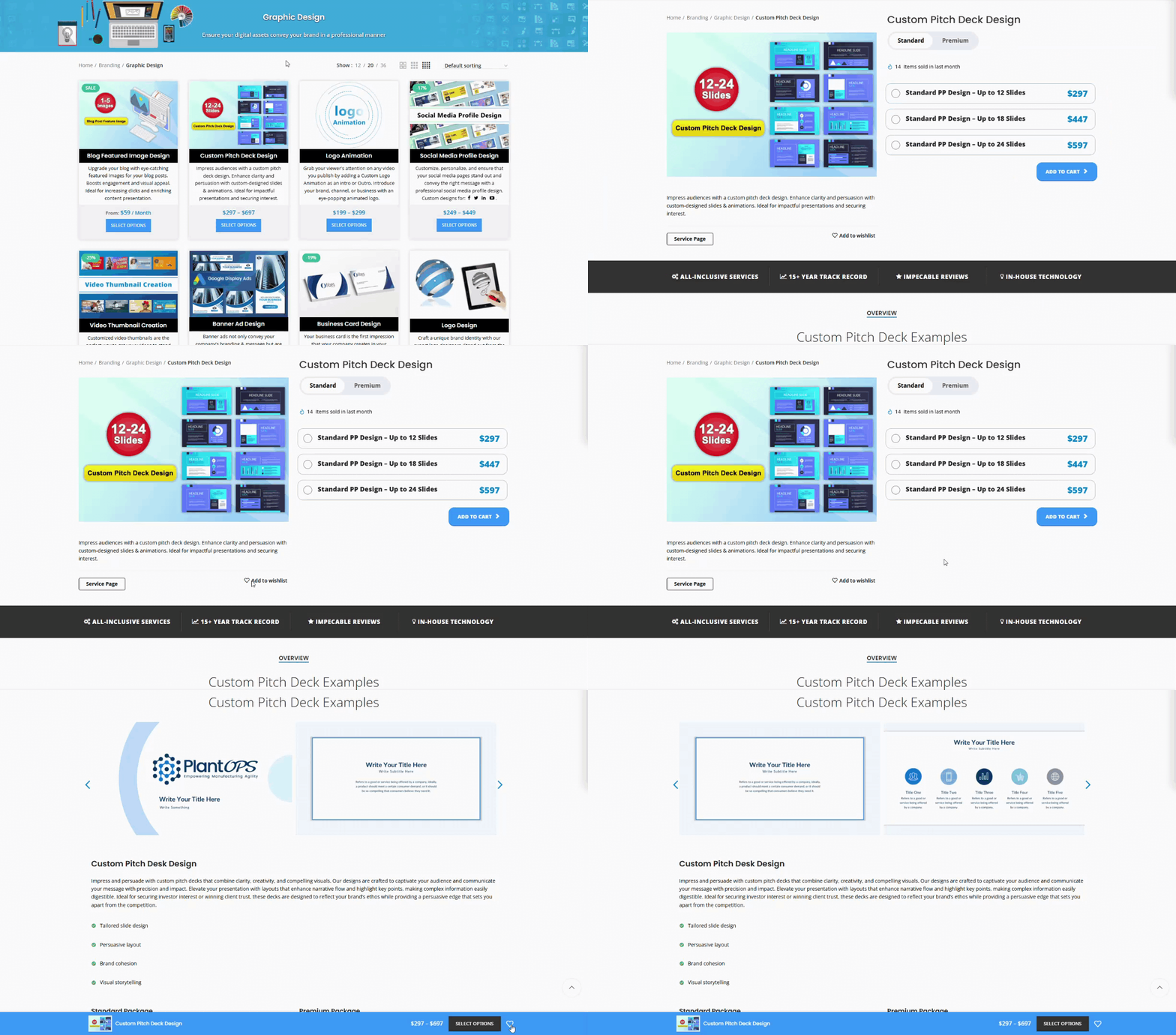
- Product Category Page: Hover over a product and click the heart icon that appears.
- Product Page: Click the heart icon under the product’s short description or in the sticky bottom bar.
By effectively managing your wishlist, you can streamline your shopping experience, ensuring easy access to your favorite products and services, and keeping your selections organized according to your preferences.
What's your Reaction?
You have reacted on"How Do I Mange My Wishlist?"
A few seconds ago


 Subscriptions
 My Orders
 My Wishlist
 Refer & Earn💸
 My Projects
 Conversations
 Website Services
 New Website Request
 Website Addons
 eCommerce Addons
 eCommerce Modules
 Software Development
 Graphic Design
 Video Production
 Content Writing
 Marketing Services
 Marketing Products
 Get a Marketing Plan
 Local SEO Audit
 Sales Automation
 Service Automation
 Operations Automation
 Marketing Automation
 Payments Automation
 Premium Modules
 Support Tickets
 Latest Updates
 Consultation Calls
 Tools & Extensions
 Tech Tips & Tricks
 Domains & Emails