Regularly updating your password in our client area is crucial for ensuring your account’s security and protecting your services. This guide will walk you through accessing and changing your password, and highlight the benefits of maintaining secure credentials.
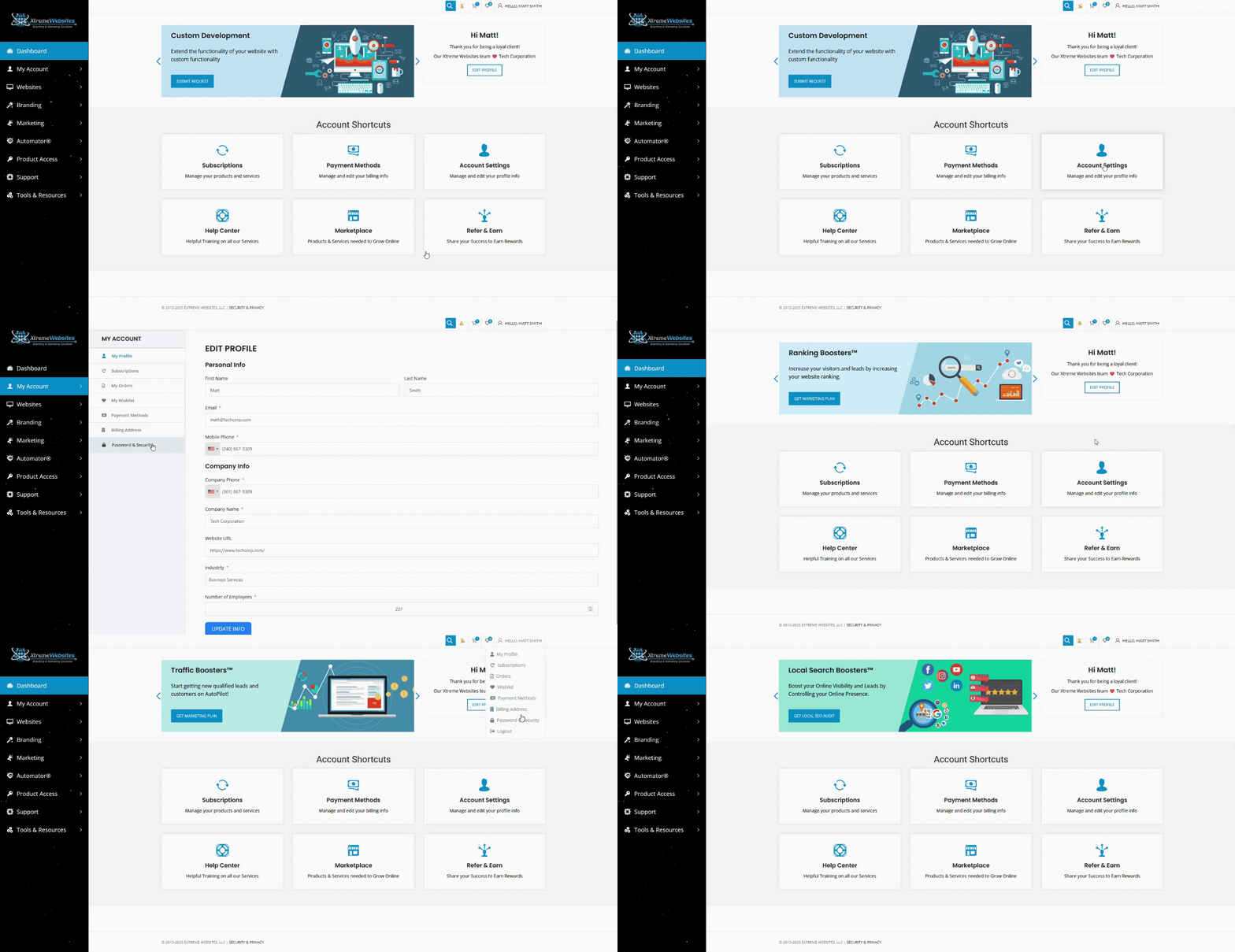
How to Access the Password & Security Page #
You can access the Password & Security page in two ways:
- Account Shortcuts:
- On the homepage, locate the Account Shortcuts section.
- Click on the Account Settings box.
- In the My Account menu, select Password & Security.
- Top Bar Menu:
- Hover over your name in the top bar.
- Select Password & Security from the menu that appears.
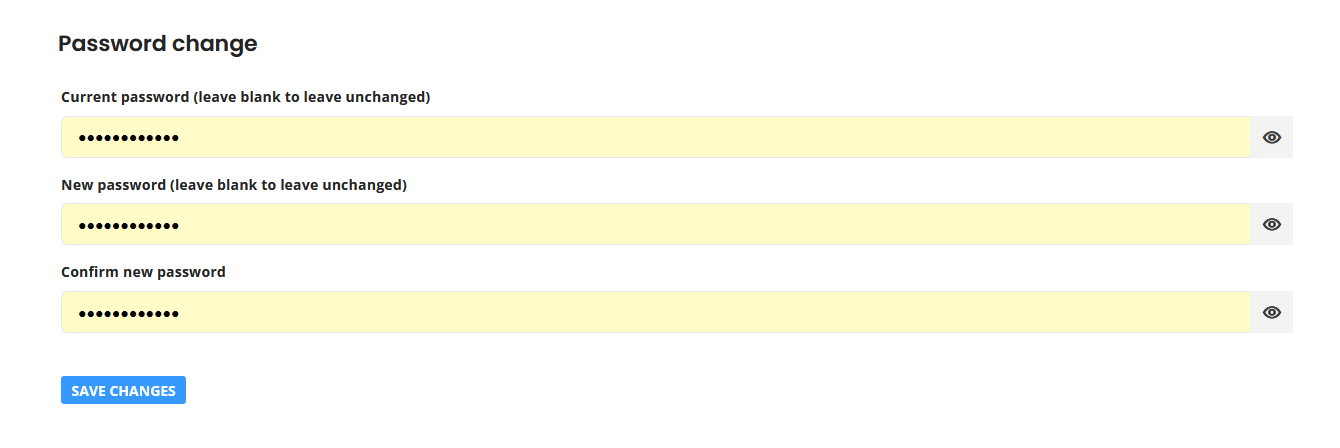
Changing Your Password #
Once on the Password & Security page, follow these steps to update your password:
- Fill Out the Password Change Form:
- Enter your current password.
- Enter your new password, ensuring it meets security guidelines (such as a mix of upper and lower case letters, numbers, and symbols).
- Confirm your new password by entering it again.
- Save Changes:
- Click the Save Changes button to apply the new password.
By regularly updating your password, you can maintain the security and privacy of your account, ensuring that your services remain protected and accessible only to you.
Bonus Tip #
We always recommend using a Password Manager to avoid remembering passwords and allow the ability to manage dozens of passwords securely.
What's your Reaction?
You have reacted on"How Do I Change My Password?"
A few seconds ago


 Subscriptions
 My Orders
 My Wishlist
 Refer & Earn💸
 My Projects
 Conversations
 Website Services
 New Website Request
 Website Addons
 eCommerce Addons
 eCommerce Modules
 Software Development
 Graphic Design
 Video Production
 Content Writing
 Marketing Services
 Marketing Products
 Get a Marketing Plan
 Local SEO Audit
 Sales Automation
 Service Automation
 Operations Automation
 Marketing Automation
 Payments Automation
 Premium Modules
 Support Tickets
 Latest Updates
 Consultation Calls
 Tools & Extensions
 Tech Tips & Tricks
 Domains & Emails









