As part of your All-Inclusive Website Warranty, Domain Management is included. In order for us to manage all technical details of the domain and DNS records we need access to your domain. In this article, we will show the steps necessary in order to transfer your domain to us so you can manage everything from one place.
NOTE: This article shows you how to transfer your domain from any registrar, if your domain is with Godaddy please follow this article before starting a transfer request. Step 1: Get your domain ready for Transfer #
No matter where you have your domain registered, you will always have to perform the following steps to ensure the transfer process can get started:
1. Unlock Domain: Also referred as “Registrar’s Lock” – you need to ensure the domain is unlocked in order for the transfer to process.
> This can usually be found under your domain registrar’s domain settings.
2. Get Authorization Code: Also referred to “Auth Code” or “EPP Code” – this code is required for us to begin the transfer process.
> Most companies will send you this code via email upon request to the email used when you registered the domain. This can usually be found under your domain registrar’s domain settings.
NOTES:
- Some of these features require email confirmation. Make sure that you have access to the email shown on the domain’s “Administrative Contact”. You need access to this before proceeding.
- Once you receive the domain transfer related emails, you will have to click on the respective “authorization link”. If you are not sure how to proceed, simply forward these emails to us and we will take care of it for you.
IMPORTANT: Please DO NOT change your domain contact details during this process, if you do this your domain will be locked with your registrar for 60 Days as per ICANN rules.
Step 2: Complete Transfer Order #
Now that you have prepared the domain for transfer, you are now ready to order the domain transfer on our end. Simply go to “Transfer Domain to Us” under the “Domains” tab.
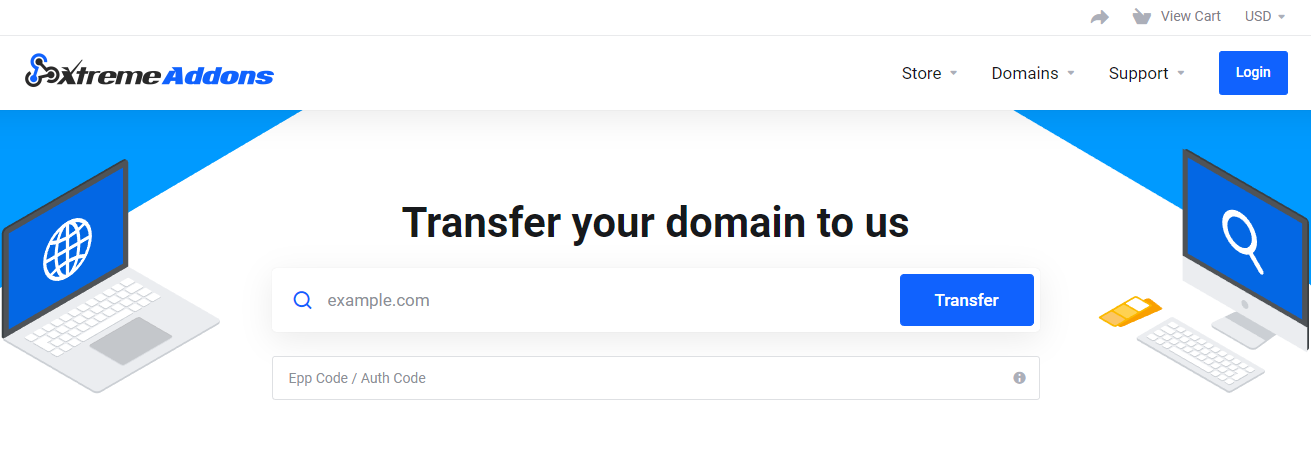
> The first think you will be prompted to do is to type the domain you would like to transfer (no need of “www” or “http”). Once you “Add To Cart” you will be prompted to complete your Domain Transfer order and initiate the Domain Transfer Process.
NOTES:
- You will have to pay for 1 year of domain registration in order to process the transfer request.
- If you have previously paid for your domain registration for multiple years you will NOT loose these years as the time you purchased will be honored, you will simply extend another year to the previous registration.
Step 3: Admin Approval #
a. After you have placed the Transfer Order, the Administrative Contact for the domain name will receive an e-mail from us for the Transfer Authorization process, which needs to be approved within 5 days.
NOTE: If the Administrative Contact does not approve the Transfer within 5 days, it is assumed that the Admin Contact does not wish for the Transfer to complete and the Order is deleted in our system.
b. After clicking the approval link in the Transfer Authorization email, the Administrative Contact needs to provide the Domain (Transfer) Secret Key/Authorization Code.
Step 4: Registrar Approval #
Once the mail has been approved by the Administrative Contact and the Domain (Transfer) Secret Key/Authorization Code submitted, the Current Registrar will be notified regarding the transfer. It usually takes them 3 to 5 business days to complete the transfer. You will be notified via email once your Registrar has completed this step.
IMPORTANT: If you have a website with us and prefer to get help with the following steps you can provide us with temporary access to your current registrar and we will take care of everything at no extra cost. If you have Godaddy you can follow this tutorial >
What's your Reaction?
You have reacted on"How do I transfer a domain to Xtreme?"
A few seconds ago


 Subscriptions
 My Orders
 My Wishlist
 Refer & Earn💸
 My Projects
 Conversations
 Website Services
 New Website Request
 Website Addons
 eCommerce Addons
 eCommerce Modules
 Software Development
 Graphic Design
 Video Production
 Content Writing
 Marketing Services
 Marketing Products
 Get a Marketing Plan
 Local SEO Audit
 Sales Automation
 Service Automation
 Operations Automation
 Marketing Automation
 Payments Automation
 Premium Modules
 Support Tickets
 Latest Updates
 Consultation Calls
 Tools & Extensions
 Tech Tips & Tricks
 Domains & Emails