Efficient order management is crucial for maintaining customer satisfaction and ensuring smooth operations in your Turnkey eCommerce™ store. Here’s how you can manage orders effectively.
Viewing Orders #
To view your store’s orders:
- Access Orders:
- In the side panel, click Sell Online, then select Store Management.
- Click Orders.
- Order Details:
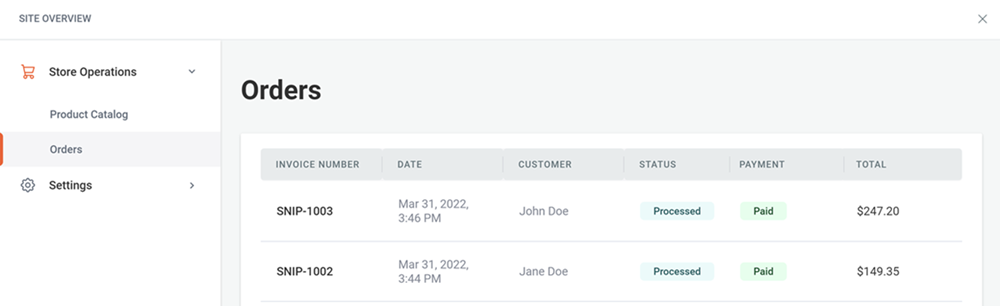
- Orders are listed in reverse chronological order and include:
- Invoice Number: A unique identifier generated upon order completion.
- Date: When the order was placed.
- Placed By: Shopper’s first and last name.
- Status: Includes various states such as Open or Canceled.
- Payment Status: Options include Paid, Deferred, Charged Back, Refunded, Authorized.
- Fulfillment Status: Options include Unfulfilled or Fulfilled.
- Shipping Method: Method chosen for delivery.
- Amount: Total order cost, including shipping and taxes.
Filtering Orders by Purchase Type #
- Filter Orders:
- In the side panel, click Store Operations, then Orders.
- Click Filters, select Purchase Type, and choose One-Time and/or Subscriptions.
- View Details:
- Hover over and click on an order to view detailed information, including shipping and billing details.
- For subscription orders, click View Subscription Details for more information.
Order Details Page #
The Order Details page provides comprehensive information about a specific order:
- Invoice Number
- Order Status
- Items Purchased: Includes name, quantity, individual price, total price, and SKU.
- Taxes Applied
- Shipping Information: Customer name, email, address, method, and cost.
- Billing and Payment Information: Customer name, email, billing address, currency, payment method, and last four digits of the credit card.
Refund Orders #
Easily process refunds for orders:
- Initiate Refund:
- In the side panel, click Sell Online, then Store Management.
- Click Manage Orders and select the desired order.
- Process Refund:
- Click Refund Order.
- Select the quantity to refund and toggle Refund Shipping, if applicable.
- Enter a reason for the refund if desired and click Refund.
- Confirm the refund. The order status will update, and the refund will be processed in your payment account.
Cancel Orders #
To cancel an order:
- Cancel Process:
- In the side panel, click Sell Online, then Store Management.
- Click Orders and select the desired order.
- Complete Cancellation:
- Click the three horizontal dots and select Cancel Order.
- Choose whether to refund immediately or later.
- Optionally, enter a cancellation reason and choose to restock inventory.
- Click Cancel Order. The order status updates to Canceled and Refunded (if applicable), and the customer receives an email notification.
Export Orders #
Export orders for integration with other systems:
- Export Process:
- In the side panel, click Sell Online, then Store Management.
- Click Manage Orders and select Export.
- CSV File Contents:
- The exported file includes invoice number, email, status, currency, item details, order creation date, billing and shipping information, payment details, order totals, and device information.
Print Packing Slip #
Create packing slips for order processing:
- Generate Packing Slip:
- In the side panel, click Sell Online, then Store Management.
- Click Orders and select the desired order.
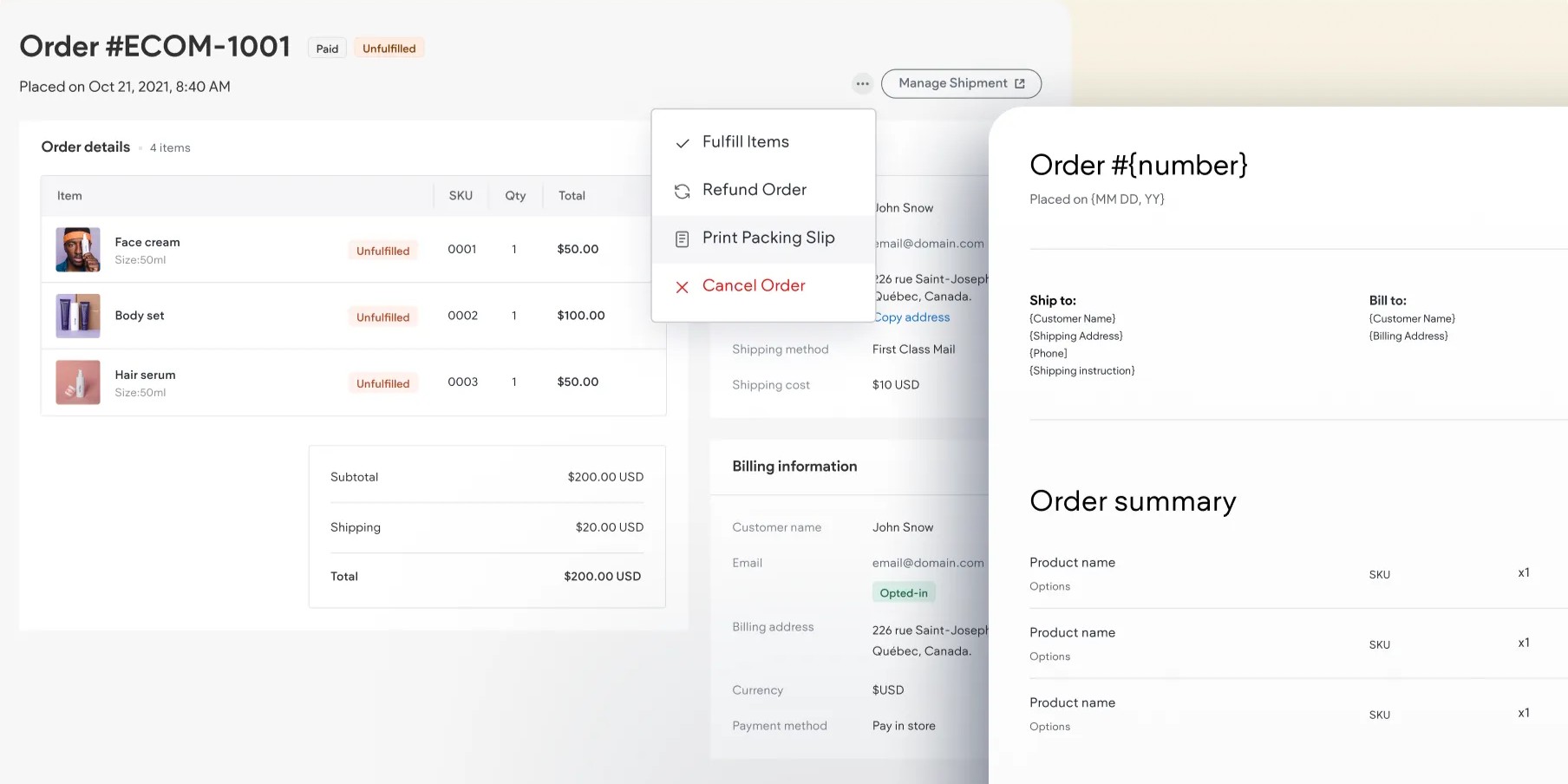
- Click the three horizontal dots and select Print packing slip.
- Packing Slip Details:
- Includes order ID, shipping and billing information, and product details.
Customer Order Confirmation Email #
After a purchase, customers receive a confirmation email with order details. Merchants cannot customize this email but can enable email notifications for themselves in the Store Emails section.
Digital Products Order Email with Download Link #
For digital product purchases, customers receive a download link in their confirmation email. To resend:
- Resend Links:
- In the side panel, click Sell Online, then Store Management.
- Click Orders and select the order.
- Click the three horizontal dots and select Resend Download Links.
Enable Merchant Email Notification #
Manage email notifications for customer communications:
- Set Up Notifications:
- In the side panel, click Sell Online, then Store Management.
- Click Shipping & Pickup and expand Store Emails.
- Add or manage recipients and click Save.
By following these steps, you can efficiently manage orders in your Turnkey eCommerce™ store, ensuring a smooth and professional experience for both you and your customers.
What's your Reaction?
You have reacted on"Managing Store Orders"
A few seconds ago


 Subscriptions
 My Orders
 My Wishlist
 Refer & Earn💸
 My Projects
 Conversations
 Website Services
 New Website Request
 Website Addons
 eCommerce Addons
 eCommerce Modules
 Software Development
 Graphic Design
 Video Production
 Content Writing
 Marketing Services
 Marketing Products
 Get a Marketing Plan
 Local SEO Audit
 Sales Automation
 Service Automation
 Operations Automation
 Marketing Automation
 Payments Automation
 Premium Modules
 Support Tickets
 Latest Updates
 Consultation Calls
 Tools & Extensions
 Tech Tips & Tricks
 Domains & Emails