Structuring your products with categories and subcategories enhances the shopping experience by helping customers find what they need quickly and easily. These categories are accessible from the Category page.
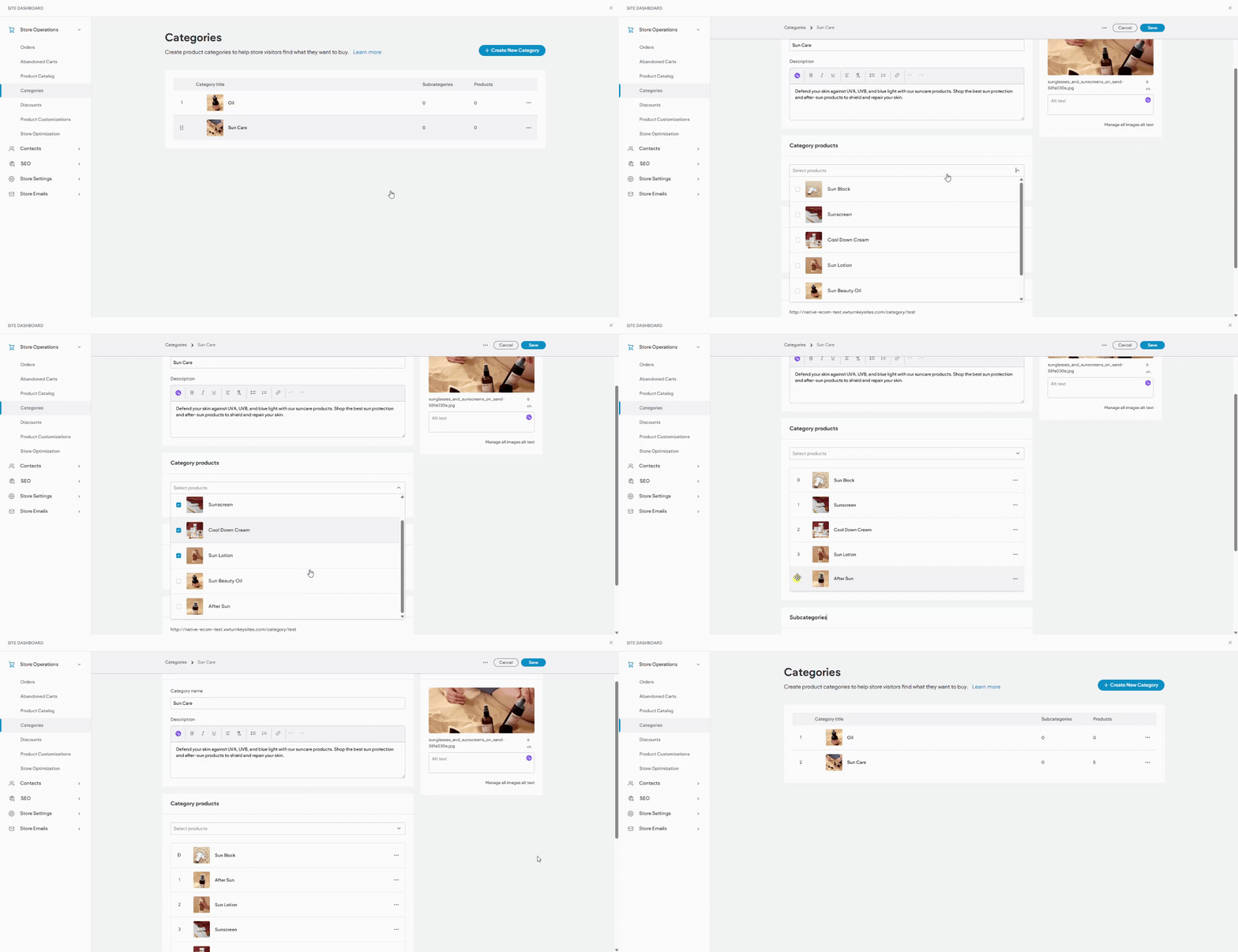
Creating a Category or Subcategory #
To establish a new category or subcategory:
- Access Store Management:
- In the side panel, click Sell Online, then select Store Management.
- Manage Categories:
- Click Manage Categories.
- Select Create a new category.
- Choose Category Type:
- Use the dropdown menu to choose A new category or A new subcategory.
- If creating a subcategory, specify the parent category.
- Define Category Details:
- Enter a category name, which will appear in the Product Gallery widget if configured.
- Provide a category description.
- Assign Products:
- Use the dropdown menu to select products for the category or subcategory.
- To remove a product, click the three horizontal dots icon and select Remove product from category, then confirm with Remove Product.
- Note: Products can belong to multiple categories or subcategories.
- Add Media:
- Upload an image for the category. Choose from site images or upload new ones.
- Click Done after selecting an image.
- Save the Category:
- Click Save to finalize your category setup.
Reordering Categories or Subcategories #
To change the display order of categories in the Product Gallery widget:
- Access Store Management:
- Click Sell Online, then select Store Management.
- Manage Categories:
- Click Manage Categories.
- Hover over the category and use the six-dot icon to drag it to the desired position.
- Note: Subcategories can only be reordered within their parent category.
Deleting a Category or Subcategory #
If you need to delete a category or subcategory, be aware that this action is irreversible. Products in a deleted subcategory will move to the next level up.
- Access Store Management:
- Click Sell Online, then select Store Management.
- Manage Categories:
- Click Manage Categories.
- Use the three horizontal dots icon next to the category or subcategory, and select Delete category.
- Confirm the deletion in the pop-up by clicking Delete category.
By efficiently managing categories and subcategories, you can maintain a well-organized store that facilitates easy product discovery for your customers.
What's your Reaction?
You have reacted on"Store Category Management"
A few seconds ago


 Subscriptions
 My Orders
 My Wishlist
 Refer & Earn💸
 My Projects
 Conversations
 Website Services
 New Website Request
 Website Addons
 eCommerce Addons
 eCommerce Modules
 Software Development
 Graphic Design
 Video Production
 Content Writing
 Marketing Services
 Marketing Products
 Get a Marketing Plan
 Local SEO Audit
 Sales Automation
 Service Automation
 Operations Automation
 Marketing Automation
 Payments Automation
 Premium Modules
 Support Tickets
 Latest Updates
 Consultation Calls
 Tools & Extensions
 Tech Tips & Tricks
 Domains & Emails