In Turnkey eCommerce™, you can manually set up shipping zones. Additionally, you can offer pickup in-store as a convenient option for customers.
Shipping Zones #
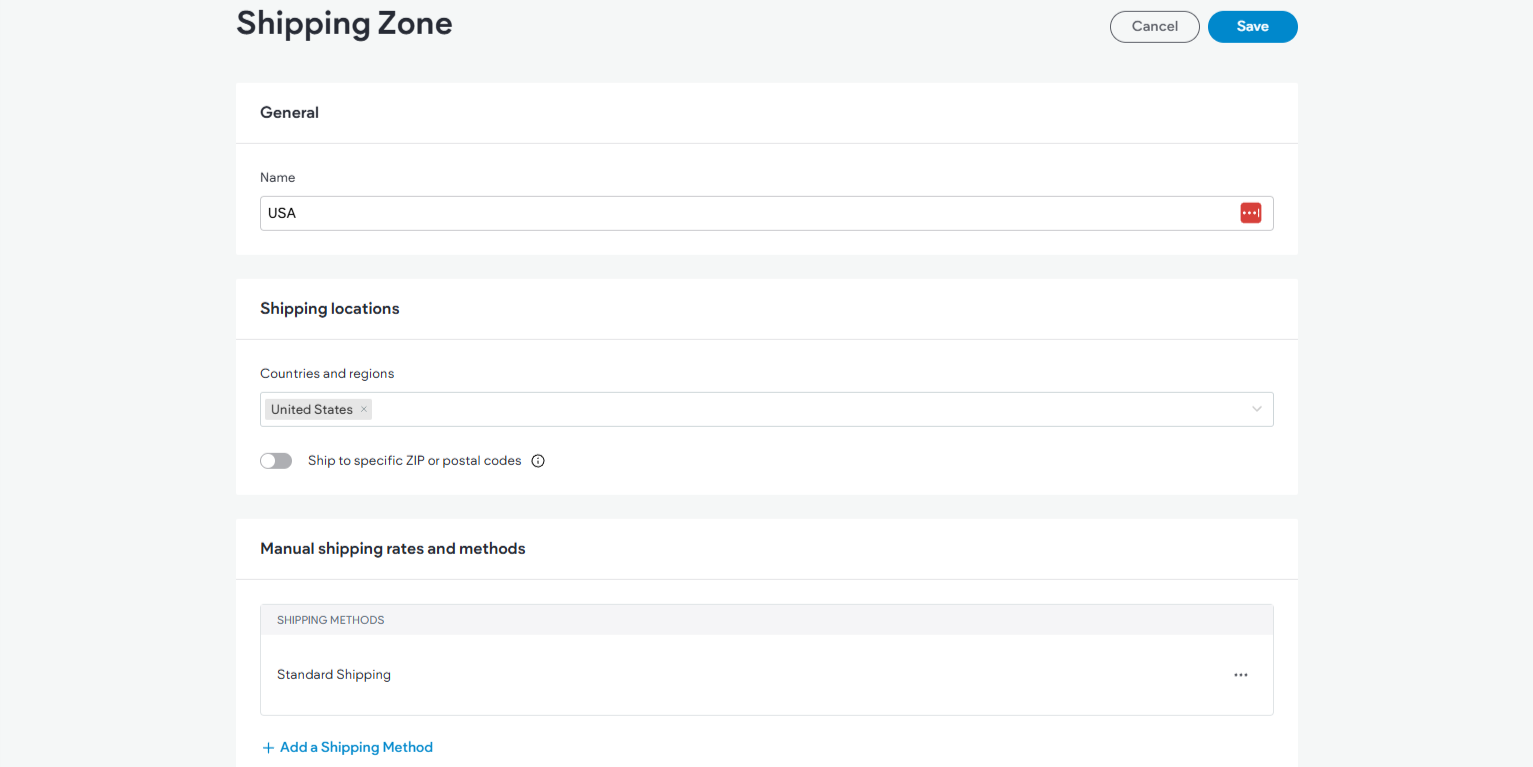
Shipping zones define where you ship and how shipping rates are calculated at checkout.
Create Shipping Zone #
To create shipping zones:
- Access Shipping Settings:
- In the side panel, click Sell Online, then select Store Management.
- Click Shipping.
- Add Shipping Zone:
- Click +Add Shipping Zone.
- Enter a name in the Name field for your shipping method, visible to shoppers at checkout.
- Select your country and region (if applicable) from the Shipping Locations dropdown menu.
- Define Specific Regions (Optional):
- Enable the Ship to ZIP or postal codes toggle for delivery to limited regions.
- Enter individual ZIP/postal codes separated by a comma, or use an asterisk for ranges (e.g., 900*).
- Add Shipping Method:
- Click + Add a Shipping Method under Manual shipping rates and methods.
- Fill out the Name field and optionally enter estimated delivery times and minimum order value.
- Choose a shipping rate type from the dropdown menu: Free shipping, Flat Rate, Rate by Weight.
- Save and Create:
- Click Save and then Create.
Edit Shipping Zone #
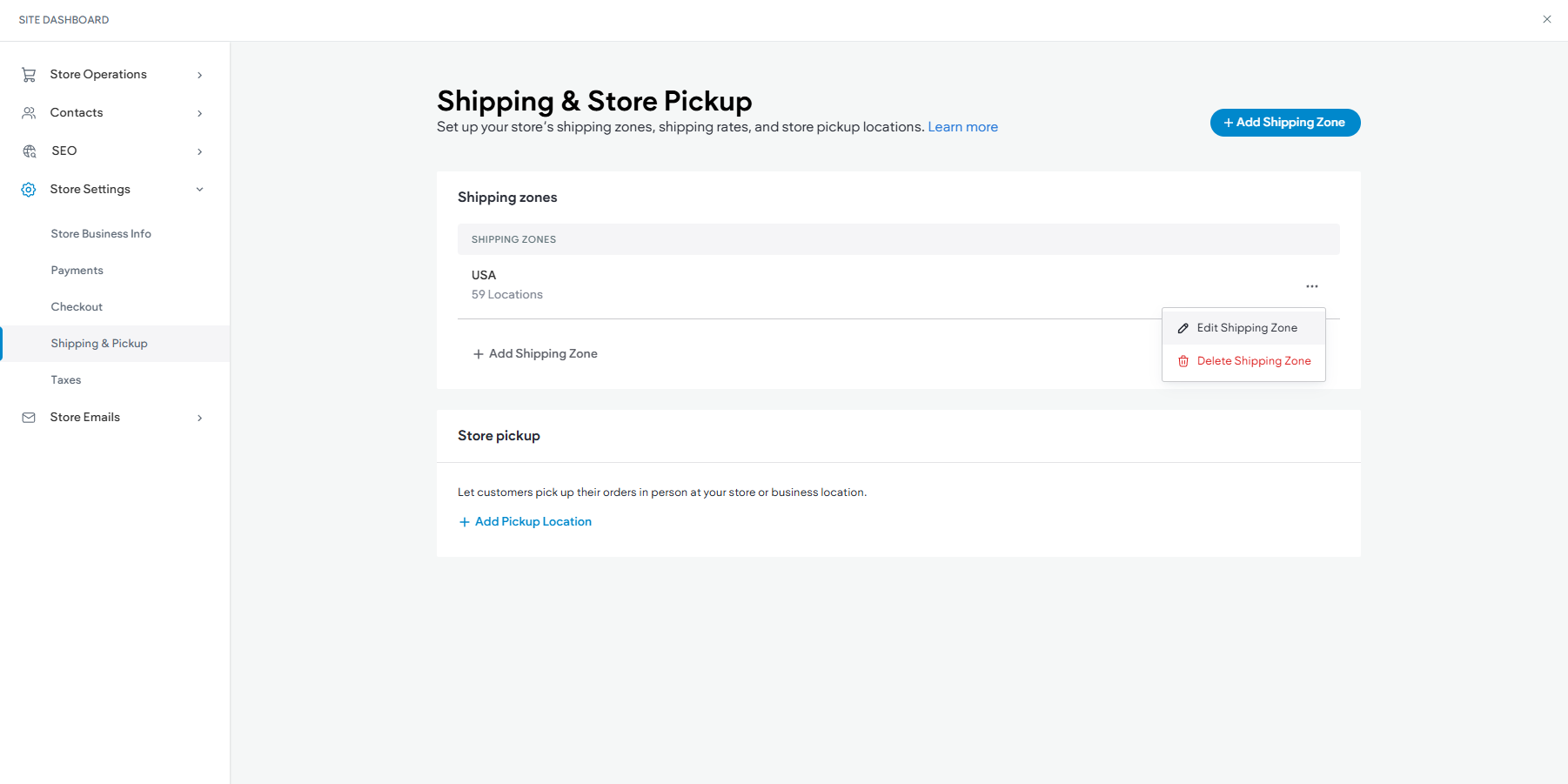
To edit shipping zones:
- Access Shipping Settings:
- In the side panel, click Sell Online, then select Store Management.
- Click Set up shipping.
- Edit Zone:
- Click the three horizontal dots next to the shipping zone and select Edit Shipping Zone.
- Click Save after making edits.
Delete Shipping Zone #
To delete shipping zones:
- Access Shipping Settings:
- In the side panel, click Sell Online, then select Store Management.
- Click Set up shipping and select Shipping.
- Delete Zone:
- Click the three horizontal dots next to the shipping zone and select Delete shipping zone.
- Confirm by clicking Delete in the popup.
Pickup in Store #
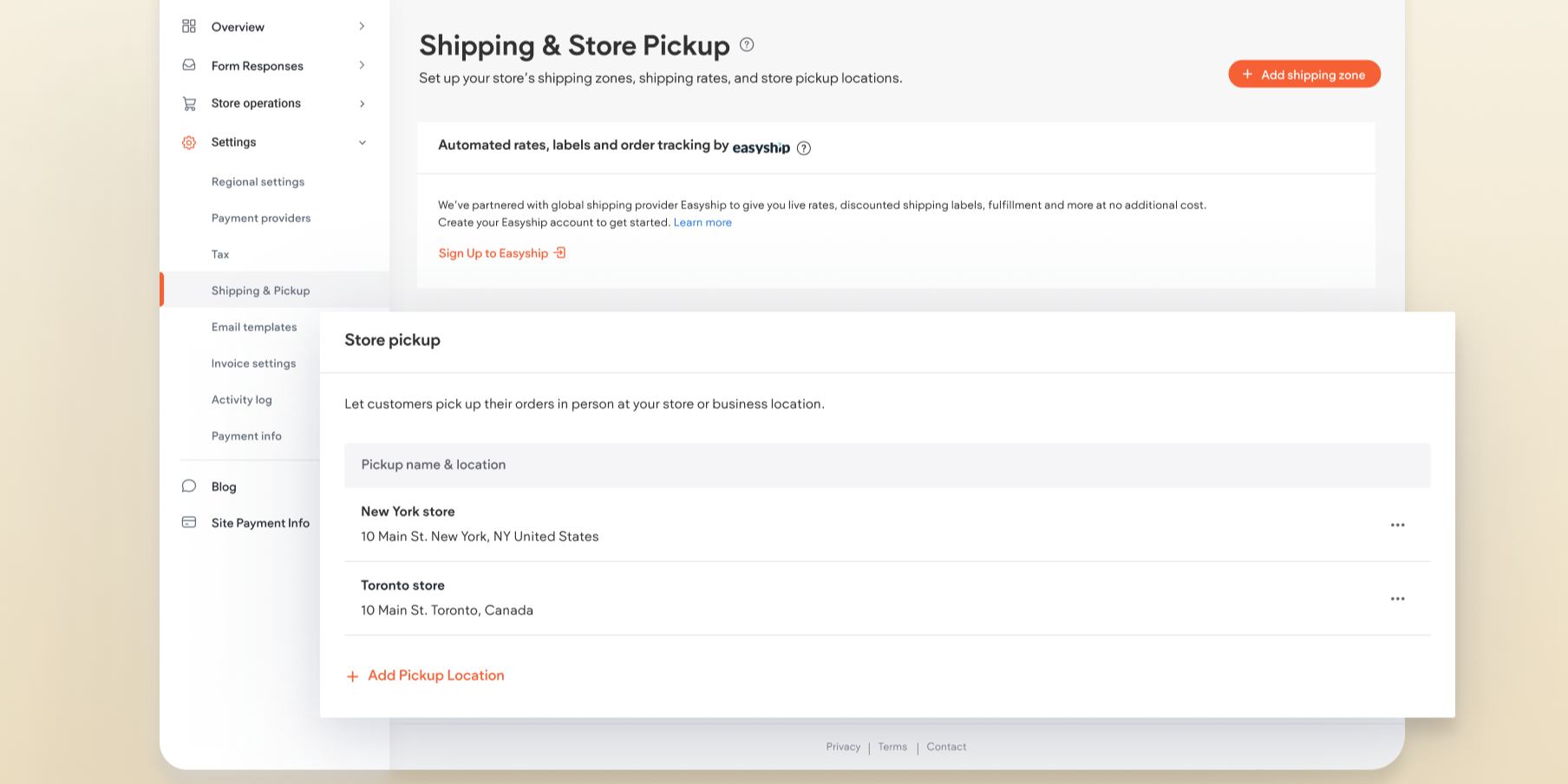
Offering Pickup in Store provides a convenient option for customers to collect purchases directly from your physical location.
Add Pickup Location #
To add an in-store pickup option:
- Access Shipping Settings:
- In the side panel, click Sell Online, then select Store Management.
- Click Shipping.
- Add Pickup Location:
- Click + Add Pickup Location at the bottom of the page.
- Enter your pickup location name, address details, and optional pickup instructions.
- If using the same address as your business, select the checkbox to auto-fill details.
- Click Save.
Mark an Item as Ready for Pickup #
To mark an order as ready for pickup:
- Access Orders:
- In the side panel, click Sell Online, then select Store Management.
- Click Orders.
- Update Status:
- Select the desired order and click Mark as Ready for Pickup.
- Confirm in the popup.
Mark Order as Picked Up #
To mark an order as picked up:
- Access Orders:
- In the side panel, click Sell Online, then select Store Management.
- Click Orders.
- Update Status:
- Select the desired order and click Mark as picked up.
- Confirm in the popup.
Edit or Delete Pickup in Store Option #
To edit or delete the in-store pickup option:
- Access Shipping Settings:
- In the side panel, click Sell Online, then select Store Management.
- Click Shipping.
- Manage Pickup Location:
- Click the three-dot icon next to your in-store pickup location.
- Select Edit Pickup Location or Delete Pickup Location.
By carefully managing your shipping and pickup options, you can provide flexibility and convenience to your customers, enhancing their shopping experience.
What's your Reaction?
You have reacted on"Shipping and Pickup Management"
A few seconds ago


 Subscriptions
 My Orders
 My Wishlist
 Refer & Earn💸
 My Projects
 Conversations
 Website Services
 New Website Request
 Website Addons
 eCommerce Addons
 eCommerce Modules
 Software Development
 Graphic Design
 Video Production
 Content Writing
 Marketing Services
 Marketing Products
 Get a Marketing Plan
 Local SEO Audit
 Sales Automation
 Service Automation
 Operations Automation
 Marketing Automation
 Payments Automation
 Premium Modules
 Support Tickets
 Latest Updates
 Consultation Calls
 Tools & Extensions
 Tech Tips & Tricks
 Domains & Emails