Effectively managing tax zones and rates is crucial for compliance and accurate pricing in your Turnkey eCommerce™ store. You can manually set up, edit, or delete tax zones and rates.
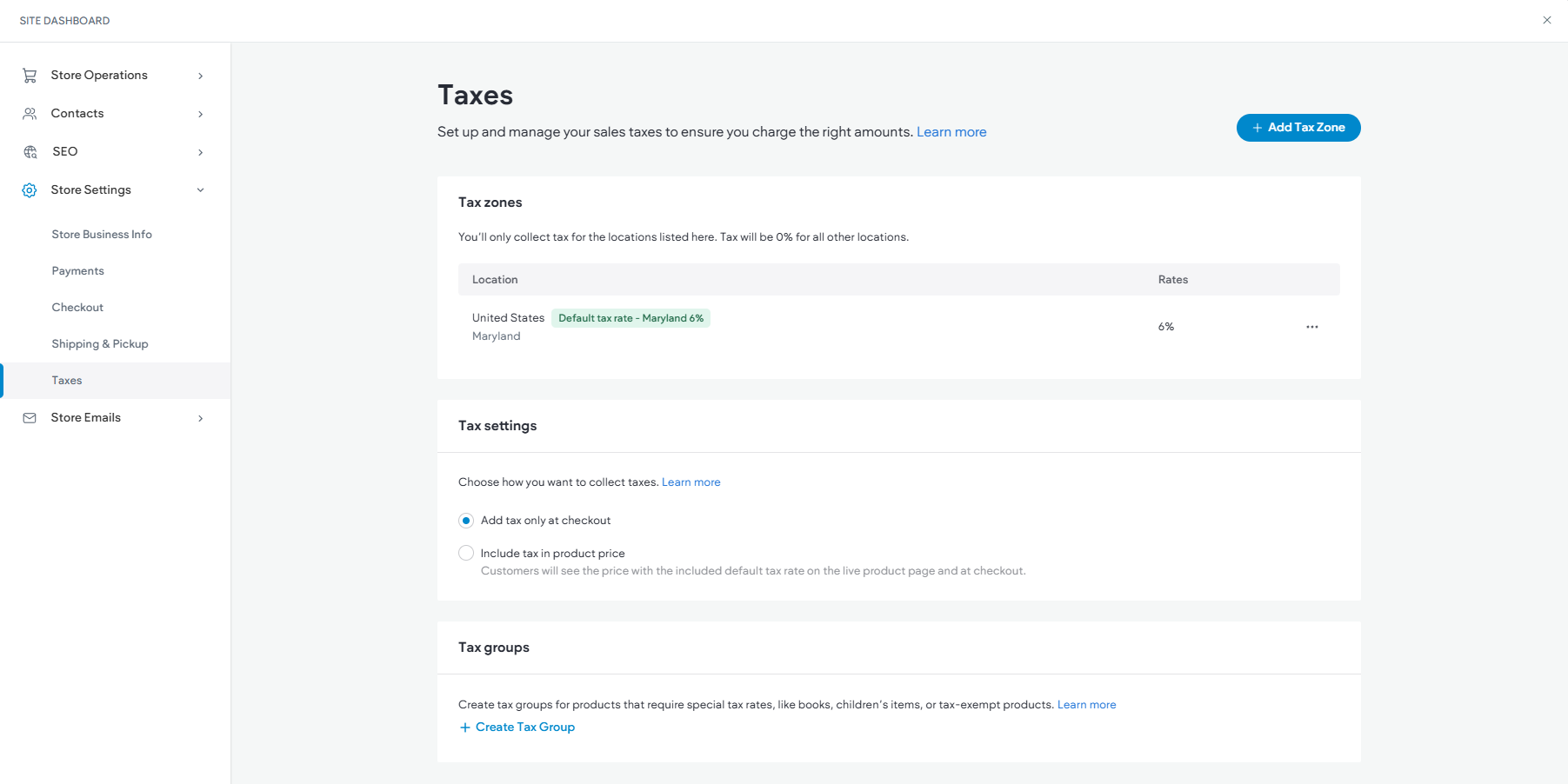
Setting Up Tax Zones and Rates #
To set up tax zones and rates manually:
- Access Store Management:
- In the side panel, click Sell Online, then select Store Management.
- Set Up Taxes:
- Add a Tax Zone:
- Click +Add tax zone.
- Select your country and region, if applicable, from the dropdown menu.
- Complete Tax Details:
- Enter the Tax Name (appears on invoices).
- Enter the Tax Number (appears on invoices).
- Enter the Tax Rate.
- Save Changes:
Editing Tax Zones and Rates #
If your customer base expands, you might need to update tax rates or add regions:
- Edit Tax Zones:
- Click the three horizontal dots next to the tax zone and select Edit Tax Rate.
- Make your changes and click Save.
Deleting Tax Zones and Rates #
- Delete Tax Zones:
- Click the three horizontal dots next to the tax zone and select Delete tax rate.
- Confirm by clicking Delete in the popup.
Including Taxes in Product Price #
You can include taxes in the product price to comply with certain regional laws:
- Manage Products:
- In the side panel, click Sell Online, then Manage Products.
- Click Taxes.
- Set Default Tax Zone:
- Ensure you’ve set up at least one tax zone.
- If you have multiple zones, set one as the default by clicking the three-dot icon and selecting Set as default tax rate.
- Include Tax in Price:
- Scroll to Tax Settings and select Include tax to Product Price.
Tax Groups #
Tax groups allow different rates for specific products:
- Create Tax Group:
- Click + Create Tax Group.
- Name the tax group and select products to add from the catalog.
- Click Create Tax Group.
- Edit/Delete Tax Group:
- Click the three-dot icon next to the group to edit or delete.
- Override Tax Rates:
- Navigate to the applicable tax zone, scroll to Tax groups override, and enter a tax rate.
Taxes on Shipping Fees #
Customize taxes on shipping per zone:
- Access Shipping Tax:
- Open the desired tax zone and scroll to Shipping tax override.
- Override Shipping Tax:
- Enable the toggle and enter a tax rate. Use 0% for exempt regions.
- Save Changes:
These steps ensure your Turnkey eCommerce™ store remains compliant and transparent in its pricing and tax handling.
What's your Reaction?
You have reacted on"Managing Store Taxes"
A few seconds ago


 Subscriptions
 My Orders
 My Wishlist
 Refer & Earn💸
 My Projects
 Conversations
 Website Services
 New Website Request
 Website Addons
 eCommerce Addons
 eCommerce Modules
 Software Development
 Graphic Design
 Video Production
 Content Writing
 Marketing Services
 Marketing Products
 Get a Marketing Plan
 Local SEO Audit
 Sales Automation
 Service Automation
 Operations Automation
 Marketing Automation
 Payments Automation
 Premium Modules
 Support Tickets
 Latest Updates
 Consultation Calls
 Tools & Extensions
 Tech Tips & Tricks
 Domains & Emails