Turnkey eCommerce™ provides versatile payment gateway options to ensure a seamless shopping experience for your customers. Here’s how to manage these payment options effectively.
Online Payments #
Your store supports multiple online payment methods through different gateways.
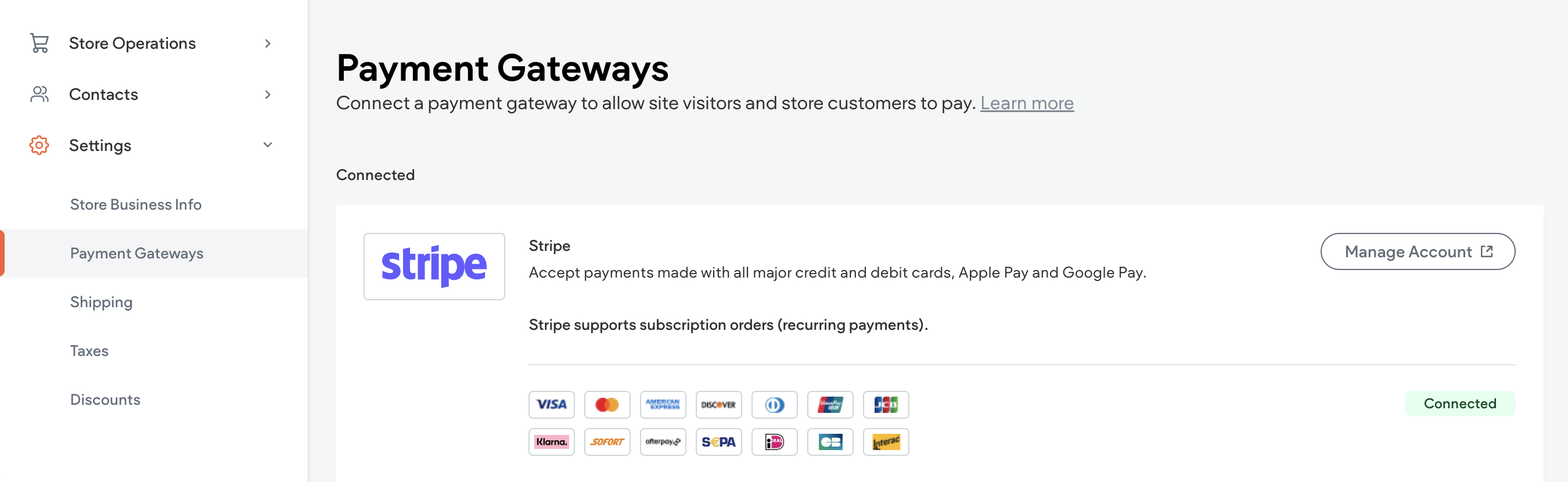
Stripe #
- Connection:
- Click Sell Online in the side panel, then Store Management.
- Select Payment Gateways.
- Click Connect Account next to Stripe and follow the prompts to connect your Stripe account.
- A green connected badge will appear once successfully connected.
- Payment Methods:
- Supported methods include Klarna, Sofort, AfterPay, SEPA Direct Debit, iDeal, AliPay, Apple Pay, Google Pay, Cash App Pay, WeChat Pay, and many more.
- Note: Ensure Stripe merchant account matches the customer’s country and currency for Klarna or AfterPay.
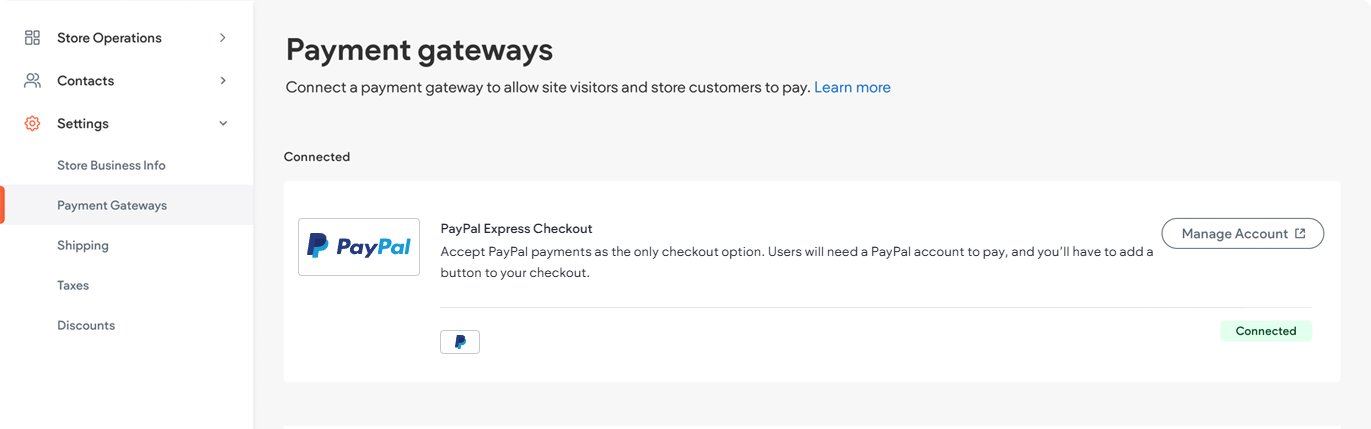
PayPal #
- Options:
- Express Checkout: Redirects shoppers to PayPal for payment.
- Advanced Credit Card Payments: Allows payment directly on your site.
- Connection:
- Click Sell Online in the side panel, then Store Management.
- Select Payment Gateways.
- Click Connect Account next to PayPal and follow the prompts to connect.
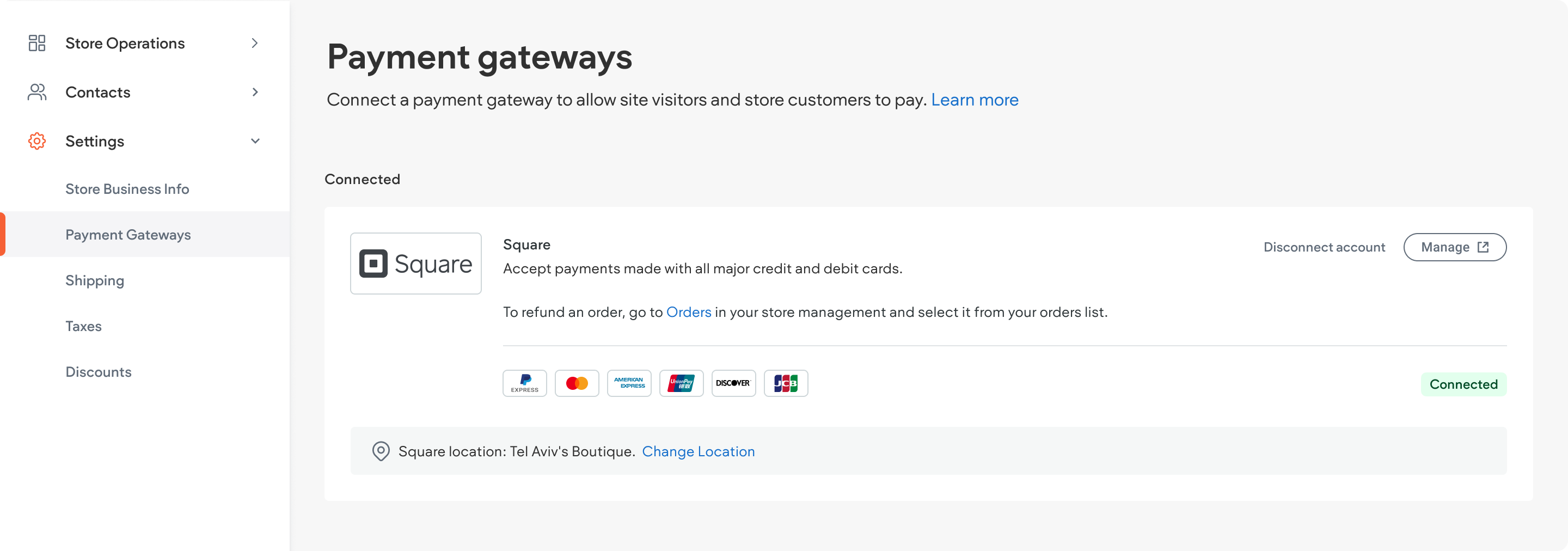
Square #
- Availability: Only in select countries.
- Connection:
- Click Sell Online in the side panel, then Store Management.
- Select Payment Gateways.
- Click Connect Account next to Square and follow the prompts to connect.
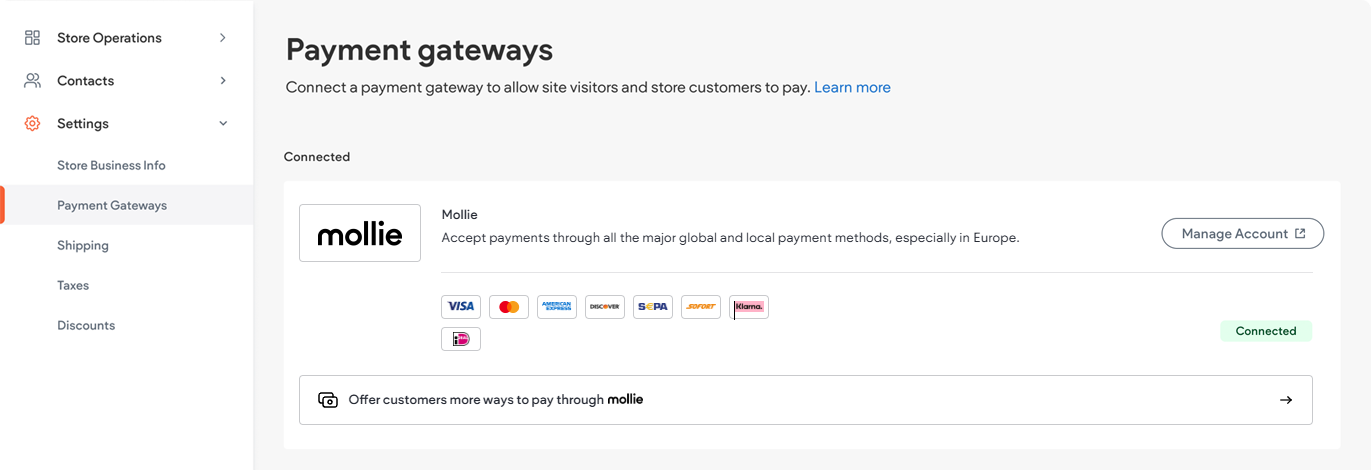
Mollie #
- Features: Popular in Europe, supports a wide range of methods including Apple Pay, Bancontact, and more.
- Connection:
- Click Sell Online in the side panel, then Store Management.
- Select Payments.
- Click Connect next to Mollie and follow the prompts.
Manual (Offline) Payments #
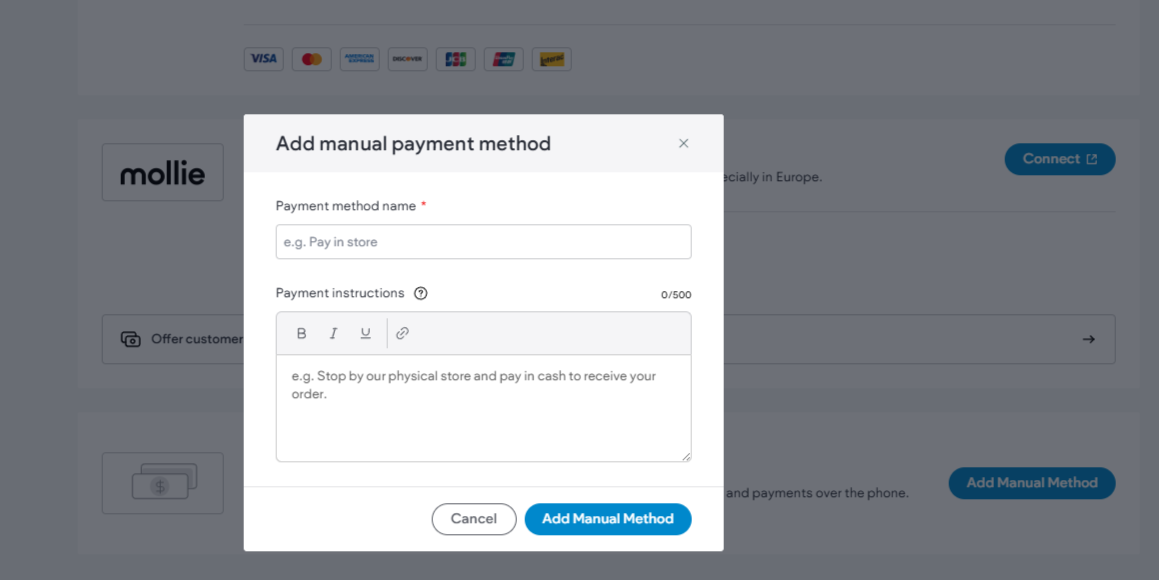
Manual payments allow customers to pay outside of online systems, which can help avoid transaction fees.
- Types: Bank transfer, Pay in Store, Cash on Delivery, Checks, Offline Credit Card Processing.
- Add Manual Payment:
- Click Sell Online in the side panel, then Manage Store.
- Select Payments.
- Click + Add Manual Payment and provide payment method details.
- Edit or Delete Manual Payment Method:
- Click Sell Online in the side panel, then Manage Store.
- Click Payments.
- Click the three horizontal dot icon next to the desired manual payment method.
- Select Edit Manual Payment or Delete.
- For editing, make the desired changes and click Edit Manual Payment.
- For deleting, click Delete Payment Method in the popup.
- Manual Payment for Digital Products:
- When a shopper selects a manual payment option for a digital product, their order confirmation email will not include a download link. The merchant must mark the order as paid or fulfilled to send the download link.
- Click Sell Online in the side panel, then Manage Store.
- Click Orders, then select the order from the list.
- Do one of the following:
- Click Mark as Paid, then confirm in the popup. Comments are visible only to you.
- Click the three horizontal dot icon and select Mark as Fulfilled, then confirm in the popup.
- The shopper will instantly receive an email with their download link.
Discounts (Coupons) #
Discounts encourage more spending by offering set or percentage reductions.
- Create Discount:
- Click Sell Online in the side panel, then Store Management.
- Select Set up payment gateways, then Discount.
- Click +Add discount and fill in the required fields.
By effectively managing these payment options, you can provide a versatile and user-friendly shopping experience on your Turnkey eCommerce™ store.
What's your Reaction?
You have reacted on"Payment Gateway Integrations"
A few seconds ago


 Subscriptions
 My Orders
 My Wishlist
 Refer & Earn💸
 My Projects
 Conversations
 Website Services
 New Website Request
 Website Addons
 eCommerce Addons
 eCommerce Modules
 Software Development
 Graphic Design
 Video Production
 Content Writing
 Marketing Services
 Marketing Products
 Get a Marketing Plan
 Local SEO Audit
 Sales Automation
 Service Automation
 Operations Automation
 Marketing Automation
 Payments Automation
 Premium Modules
 Support Tickets
 Latest Updates
 Consultation Calls
 Tools & Extensions
 Tech Tips & Tricks
 Domains & Emails