The Social Planner allows you to add and manage all your Facebook pages, even from different profiles. This will help you control your social media presence and be more consistent with your posting schedule.
Connecting Your Facebook #
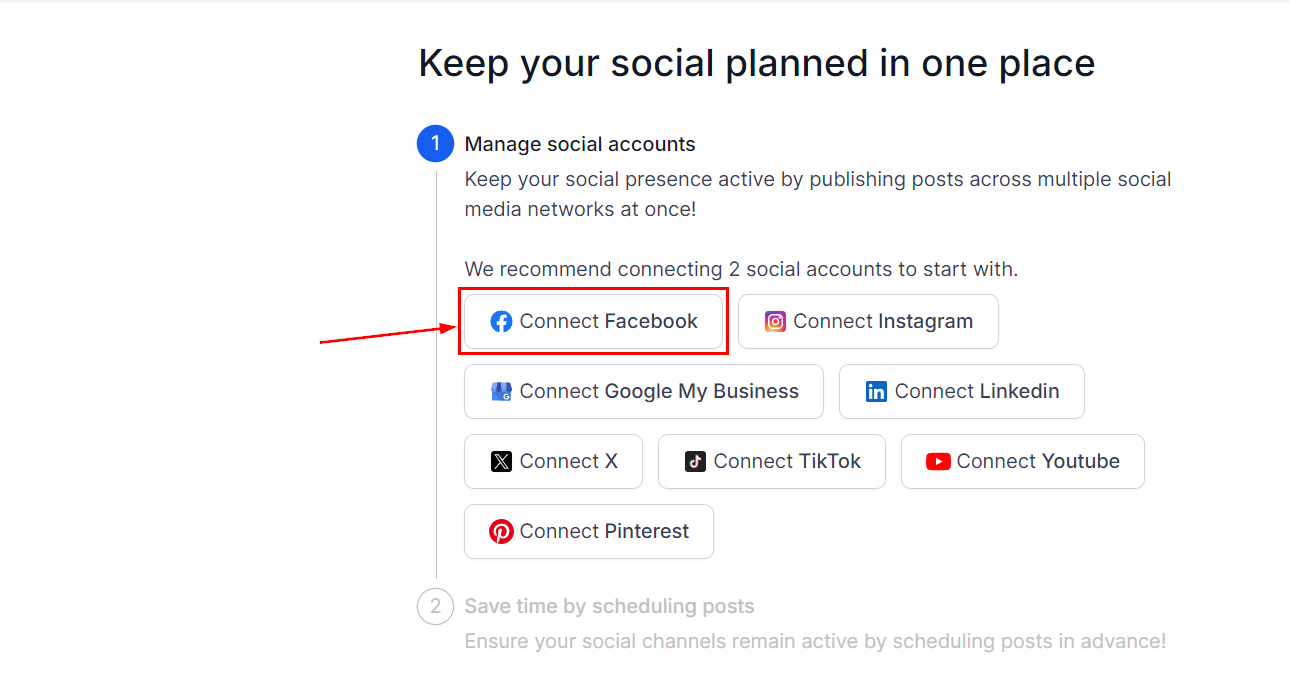
If you haven’t connected any social media accounts, click the Facebook icon in the wizard with the Connect option to begin setting up.
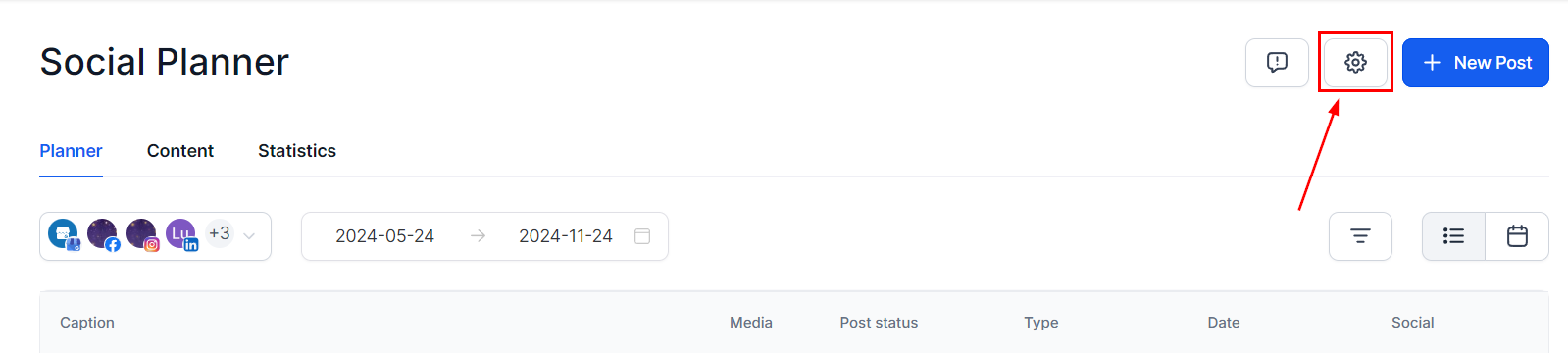
If you are already connected to other social media accounts, click the Gear icon to start the setup.
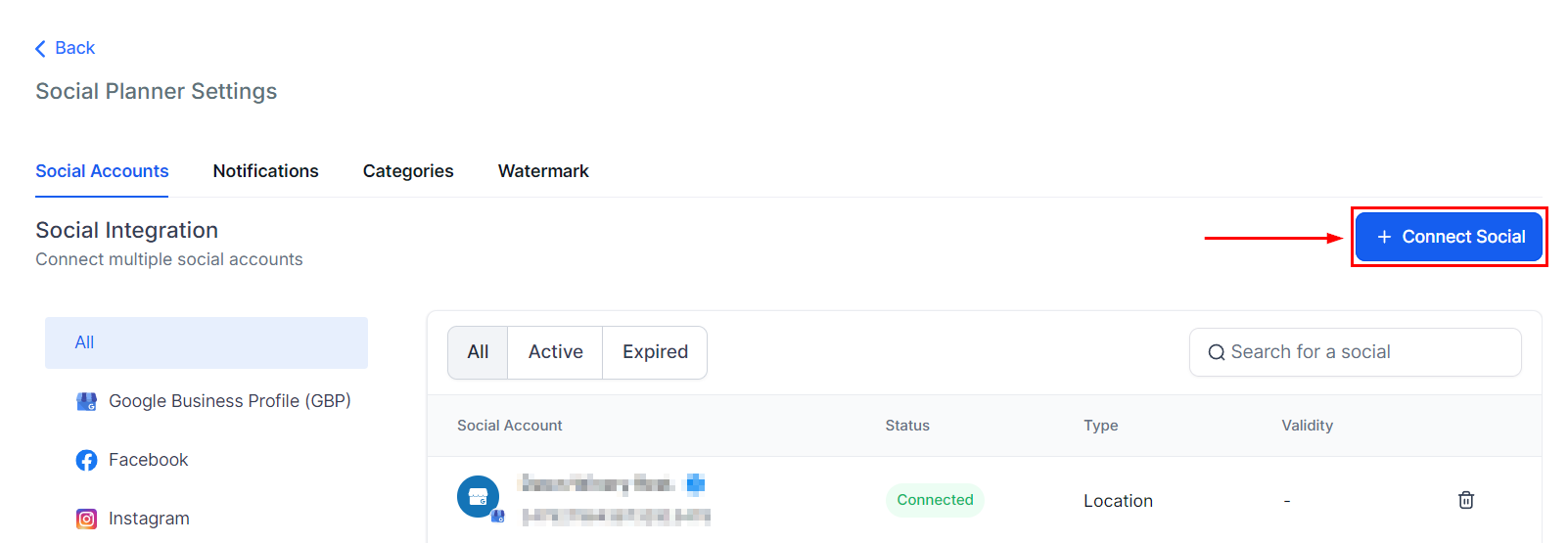
After clicking +Connect Social, select the Facebook option.
Log into the Facebook Page #
Log in to your Facebook account and provide the required permissions for Social Planner. This needs to be a personal Facebook profile with admin rights to the Facebook Page you’re connecting.

Note: You can not connect Facebook personal profiles, however, you can add pages/groups from different profiles.
Select Facebook Business Page #
Select the Facebook Business Page(s) you’d like to connect by clicking Add. Once connected you’ll be able to check the account and schedule posts.

Connecting your Facebook Business Page allows you to reach greater audiences by simplifying the posting process, resulting in a dependable social media presence. Thus, keeping a consistent schedule will push your posts to the top, engage interested viewers, and promote brand recognition.
What's your Reaction?
You have reacted on"Connecting Facebook Pages"
A few seconds ago


 Subscriptions
 My Orders
 My Wishlist
 Refer & Earn💸
 My Projects
 Conversations
 Website Services
 New Website Request
 Website Addons
 eCommerce Addons
 eCommerce Modules
 Software Development
 Graphic Design
 Video Production
 Content Writing
 Marketing Services
 Marketing Products
 Get a Marketing Plan
 Local SEO Audit
 Sales Automation
 Service Automation
 Operations Automation
 Marketing Automation
 Payments Automation
 Premium Modules
 Support Tickets
 Latest Updates
 Consultation Calls
 Tools & Extensions
 Tech Tips & Tricks
 Domains & Emails












