A professional email signature is more than just a name and title—it’s a valuable tool for branding, communication, and creating a lasting impression. Setting up your email signature in the CRM ensures consistency across all communications while giving you the flexibility to customize it to suit your style and brand. Follow these simple steps to create a signature that reflects your professionalism and helps strengthen your business identity.
Add Your Signature #
Start by accessing the CRM’s main dashboard and navigating to the Settings menu. From there, click on the “My Profile” section. Scroll down until you find the email signature area. In this section, you can type your desired signature directly into the editor.

NOTE: If you already have an email signature that you use in another email system, you can copy and paste it directly into the signature box. After pasting, you might need to make minor adjustments to the formatting to ensure it looks just right.
Include Images (Optional) #
If you want to add visual elements like your company logo, click on the image icon, then select files from the CRM’s media to add the image file into the editor. Remember to resize the image to fit the signature space appropriately.

Once you’re satisfied with your signature, make sure to save your changes to apply them by clicking the Update Profile button.

Utilizing Your Email Signature #
With your signature set up, you can start using it in your emails. There are two main ways to do this:
Manual Insertion #
If you prefer to add your signature to specific emails manually, you can use the custom value {{user.email_signature}} at the end of your email content.
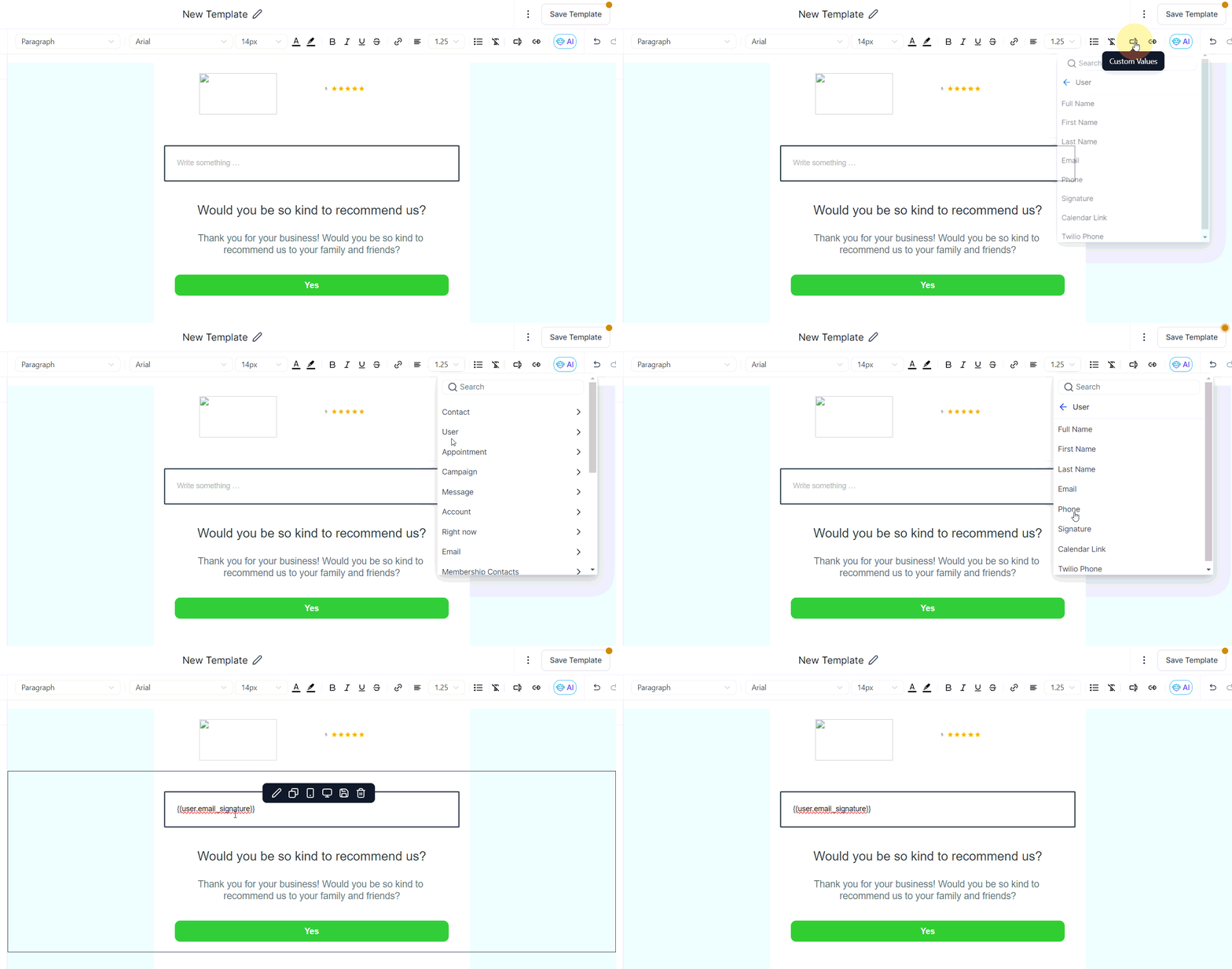
Automatic Inclusion #
For convenience, you can opt to have your email signature automatically included in all outgoing replies. This setting ensures that your signature is consistently used without the need for manual insertion.

NOTE: Your signature will only appear in emails if you are assigned to the contact you’re emailing. This ensures that the correct signature is used when multiple users are sending emails from the same CRM account.
Your email signature is a subtle yet powerful way to leave a professional mark on every interaction. Whether you prefer manual control or automatic inclusion, the CRM offers flexibility to match your workflow. By taking the time to set up a clear, visually appealing signature, you not only enhance your brand but also build trust and credibility with your contacts.
Troubleshooting and FAQs #
Q: My signature formatting looks off. What can I do?
- Try simplifying your signature design or reducing the size of images. Sometimes, less complex signatures translate better across different email platforms.
Q: Do you have email signature templates?
- Here is a free tool you can use to customize your email signatures – Once you finish customizing, simply copy the preview on the Email Signature section of your account.
Q: How do I update my signature?
- You can edit your signature at any time by navigating to “My Profile” and making your changes.
Q: Can I include links in my email signature?
- Yes, you can include hyperlinks in your signature. This is a great way to direct recipients to your website, social media profiles, or other important links.
What's your Reaction?
You have reacted on"Creating and Utilizing Email Signatures"
A few seconds ago


 Subscriptions
 My Orders
 My Wishlist
 Refer & Earn💸
 My Projects
 Conversations
 Website Services
 New Website Request
 Website Addons
 eCommerce Addons
 eCommerce Modules
 Software Development
 Graphic Design
 Video Production
 Content Writing
 Marketing Services
 Marketing Products
 Get a Marketing Plan
 Local SEO Audit
 Sales Automation
 Service Automation
 Operations Automation
 Marketing Automation
 Payments Automation
 Premium Modules
 Support Tickets
 Latest Updates
 Consultation Calls
 Tools & Extensions
 Tech Tips & Tricks
 Domains & Emails









