If you’re creating campaigns for the first time, you will have both options for creating a new campaign.
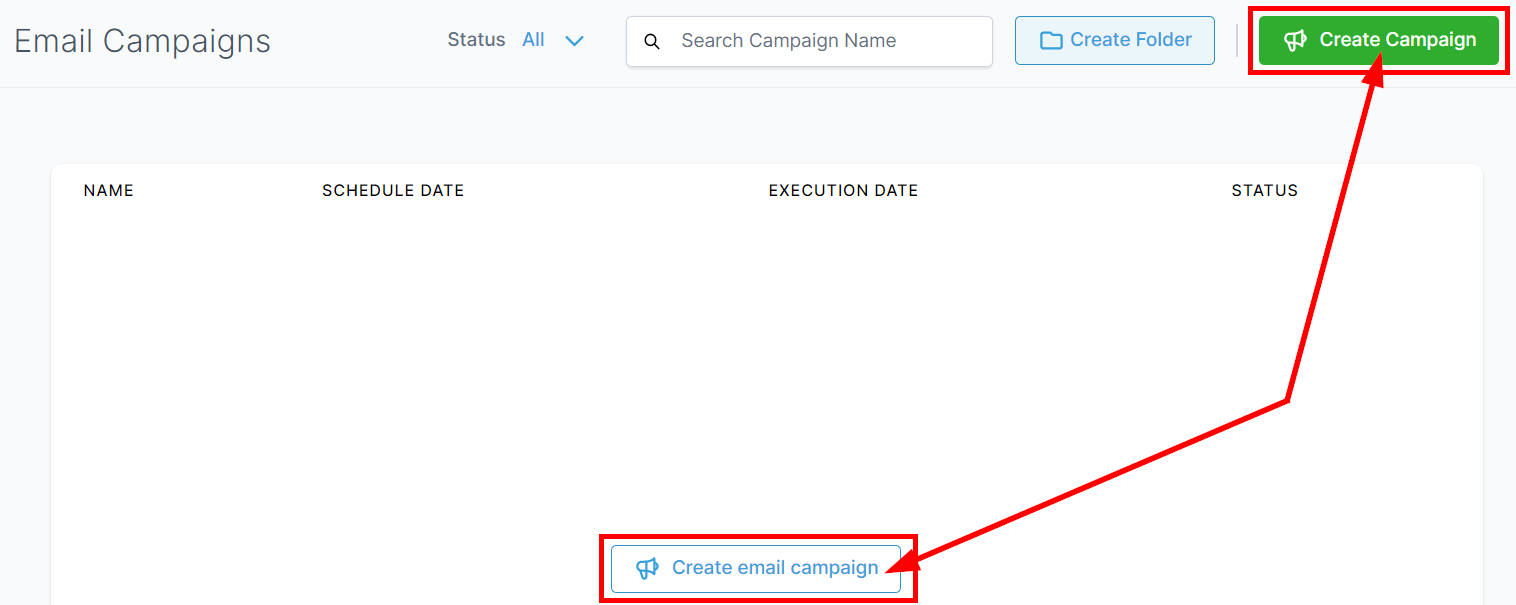
Click to create campaign
Choosing Campaign Templates #
- Back- You can use this to return to the email campaigns menu.
- Campaign Name- Here you can name your campaign.
- Choosing Template- You can select the template to work with from the existing campaigns from the list.
- Searching Email Template- With this tab, you can search for the existing email templates you have created in your system.
- Title- This shows the title given to each campaign in the list.
- Last Updated- This lets you know the date and time the individual campaign was last updated and who made the updates.
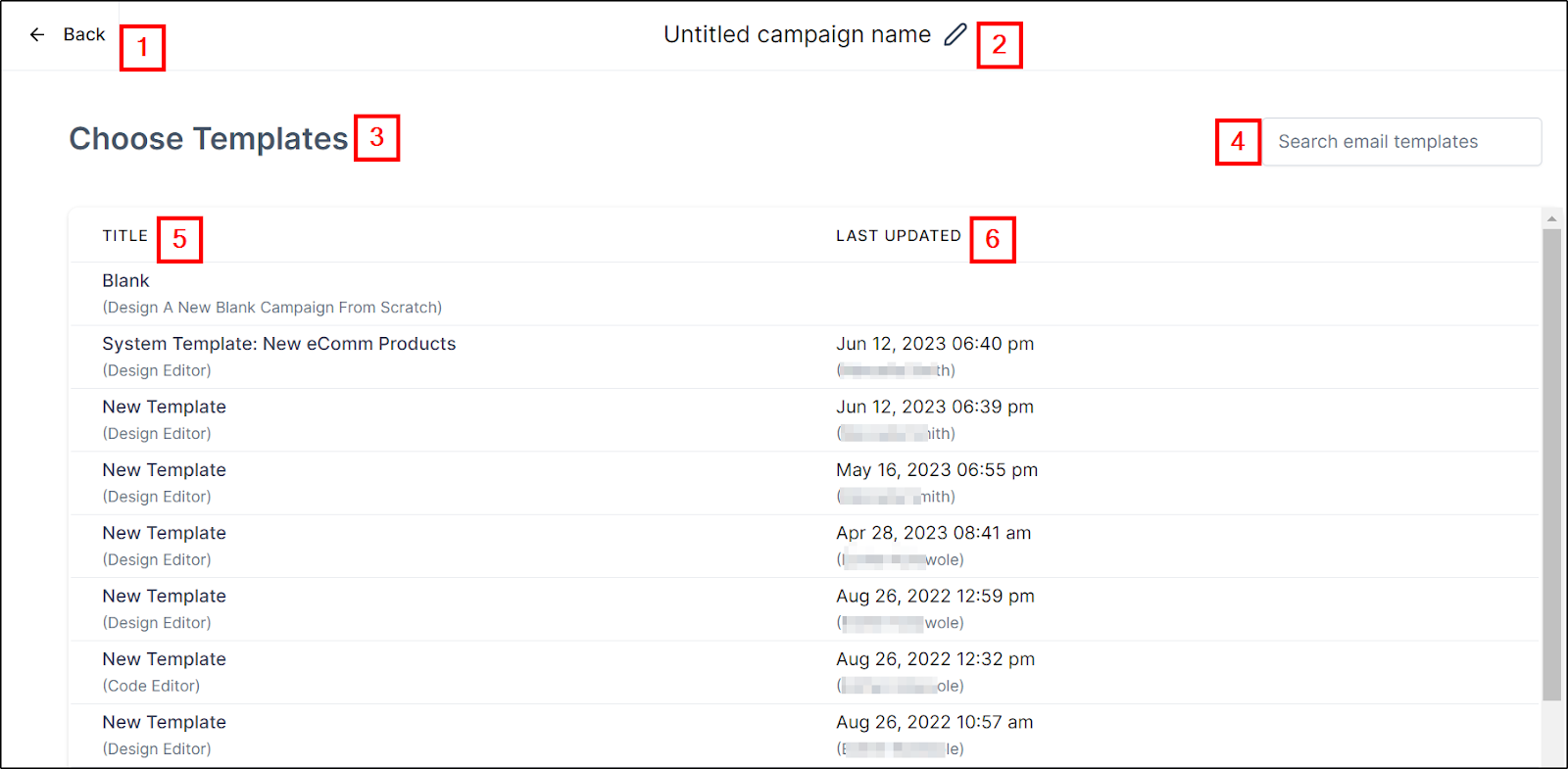
Campaign template overview
Designing a New Campaign From Scratch #
If you are not willing to use any of the existing templates or if this is the first time you are building the campaign then you can go ahead and use the “Blank” option (see the image below) to create the campaign from scratch.
Edit #
To edit any of the templates or the blank page, click on the “Checkmark” button which directs you to select your Editing Experience:
Choose to build using the visual drag-and-drop design editor or powerful code editor.
Preview #
If you want to preview any template, click on the “Preview” button.
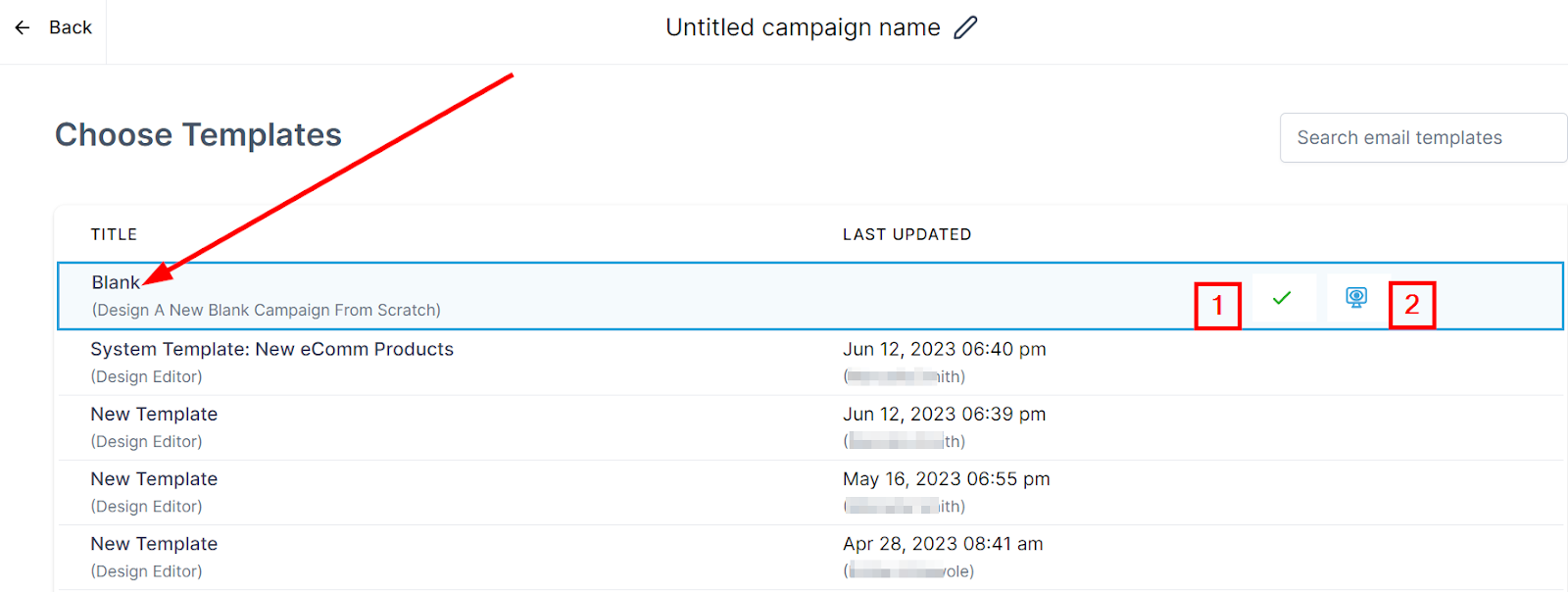
Select Blank to create from the scratch
Campaign Builder #
This is where you will design your content and place the necessary campaign elements. In Email Campaign Builder, you can duplicate, delete, and rearrange different types of element blocks quickly.
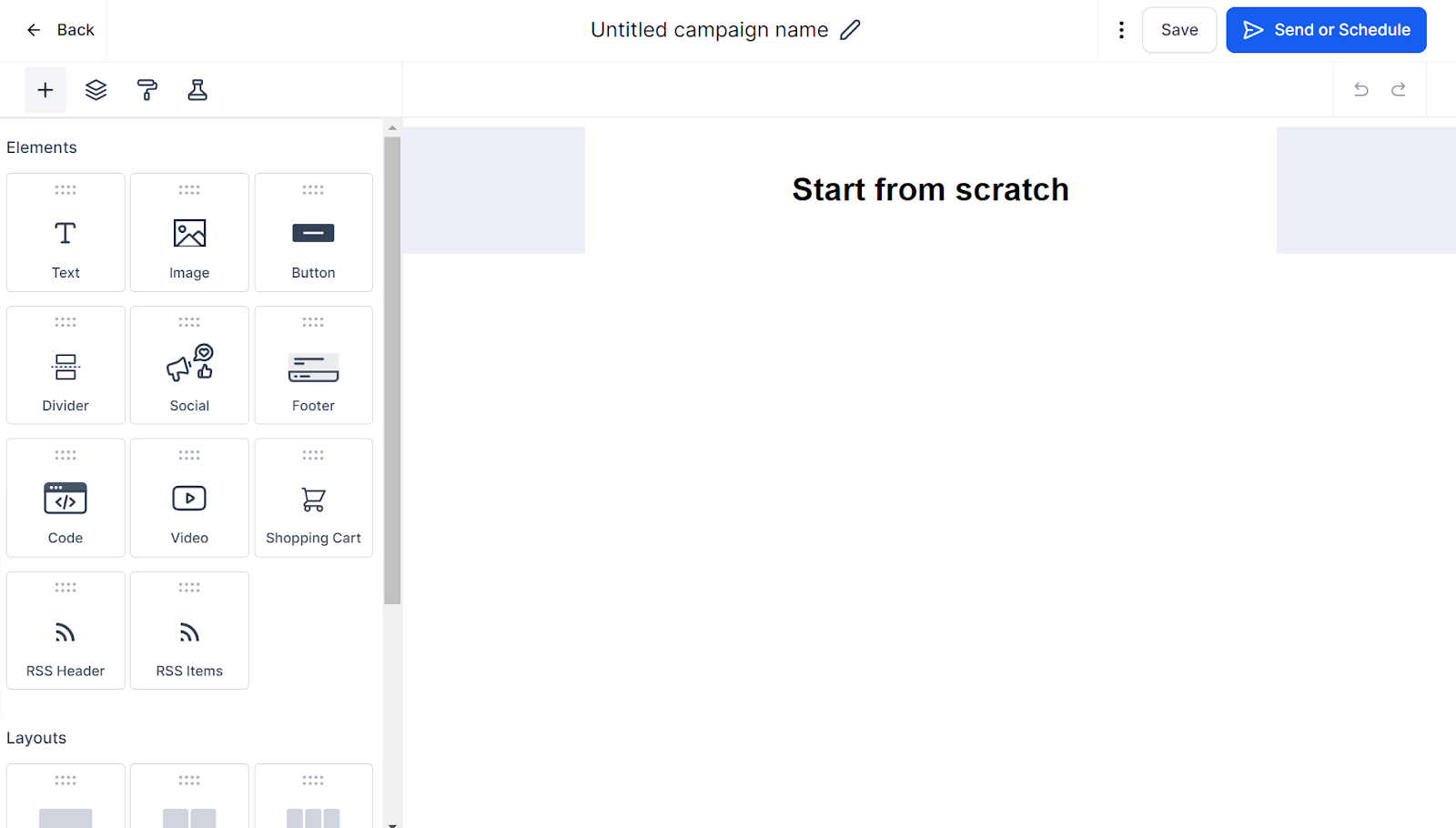
campaign editor page
Campaign Editor Menu #
Here are some additional options for you before you send your campaign.
Test Email- Before sending an email campaign, use this to test how your campaign will look like
Preview Template- This lets you preview the template.
See Version History- This lets you view the changes you have made to your campaign.
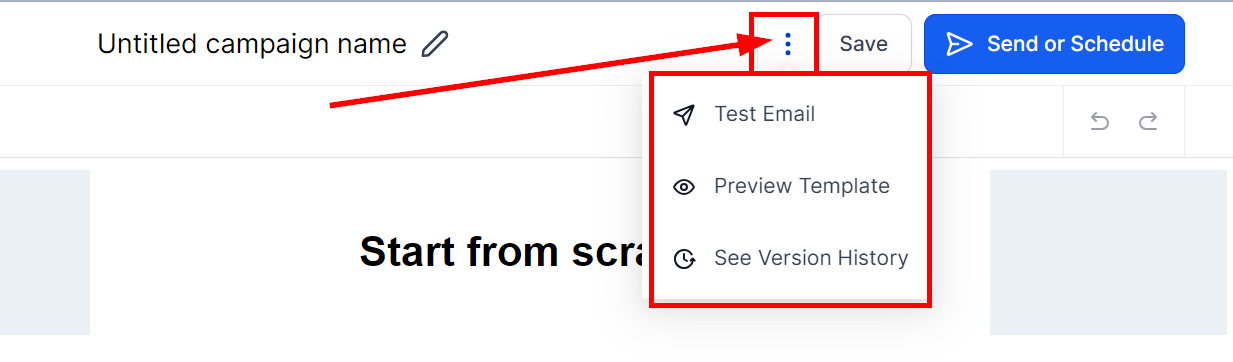
campaign editor menu
Saving the changes #
Use this to save the changes you have made in the campaign. This will ensure that you don’t lose any of the work you have done.
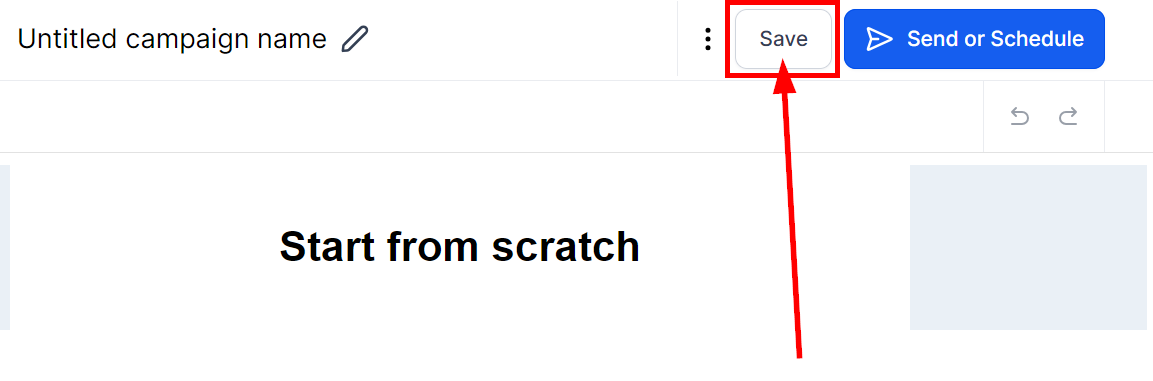
Click to save campaign


 Subscriptions
 My Orders
 My Wishlist
 Refer & Earn💸
 My Projects
 Conversations
 Website Services
 New Website Request
 Website Addons
 eCommerce Addons
 eCommerce Modules
 Software Development
 Graphic Design
 Video Production
 Content Writing
 Marketing Services
 Marketing Products
 Get a Marketing Plan
 Local SEO Audit
 Sales Automation
 Service Automation
 Operations Automation
 Marketing Automation
 Payments Automation
 Premium Modules
 Support Tickets
 Latest Updates
 Consultation Calls
 Tools & Extensions
 Tech Tips & Tricks
 Domains & Emails





