Your Social Media helps you reach new audiences and grow your online presence. However, the biggest obstacle to maintaining relevance is being constant, which can get a little hard. Category Queues are one of the best tools your system offers you to capture the needed frequency.
Why Should I Use Category Queues? #
This passive tool breathes new life into older content, creating groups based on their themes so they are automatically repurposed in the future. Providing you with an easy way to reorganize your marketing strategies or prioritize other tasks without losing your audience.
Additionally, since some algorithms prioritize recently posted content this will extend the lifespan of your content and ensure it receives the maximum exposure. Providing a great opportunity to highlight important announcements, promotions, or valuable resources, and reinforce your brand’s message and key points!
How to Create Evergreen Content Buckets #
Creating Categories #
Navigate to the Social Planner inside the Marketing section and click the gear icon to access the settings.

Switch to the Categories tab and click Add New Category.

Give a name to your category pick a color for it, then click Add

Adding Posts to Categories #
To add a post start by creating a new post as normal.
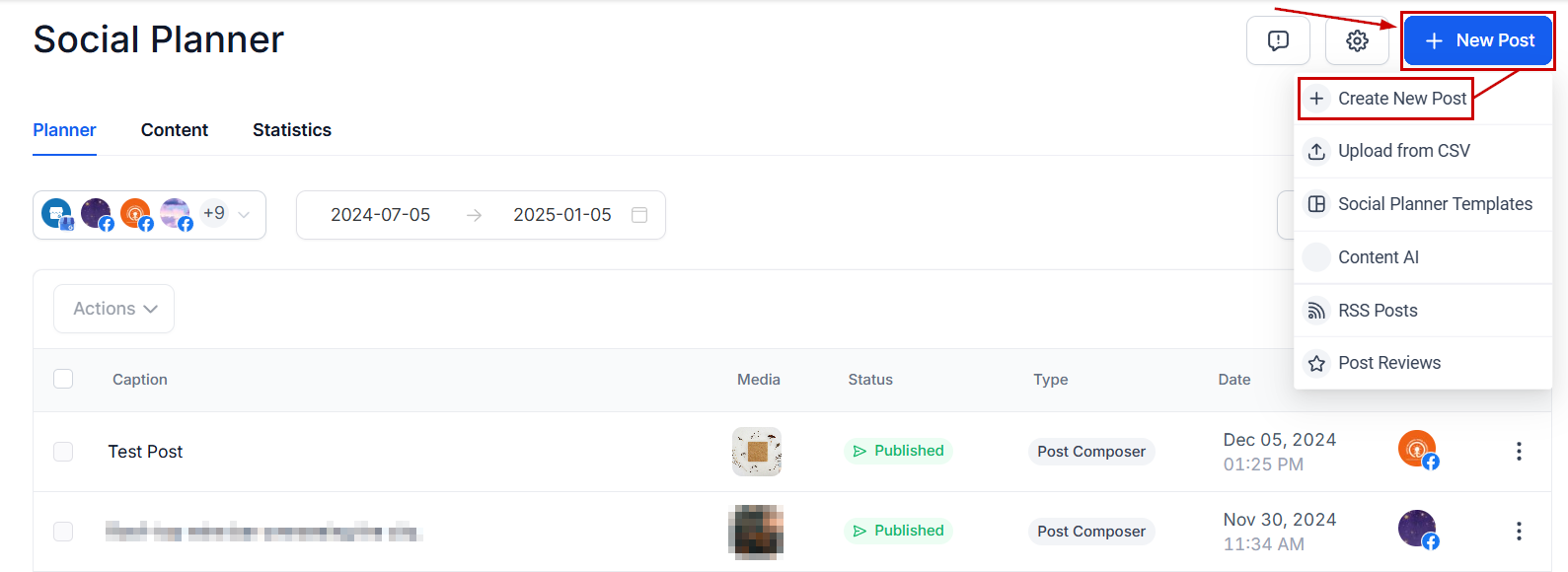
Once you’re inside the post-builder and you’ve selected the socials you want to post scroll to Advanced Options.

Choose a category to add the post, then publish or schedule it.
Note: You can only select one category for each post.

Posting With Category Queues #
Navigate to the Social Planner inside the Marketing section, click +New Post then select Category Queue.
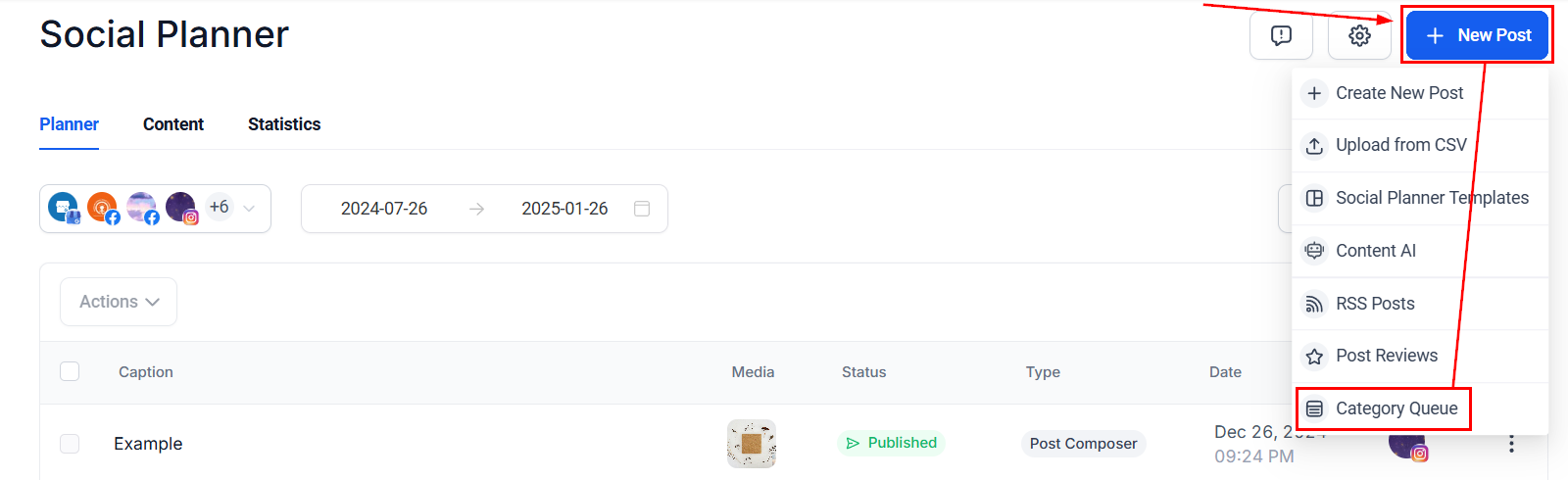
Select a category from the drop-down menu.

Check the box next to the preferences to enable them. These options are:
- Future Posts Queuing: Adds new content created in the category to the queue.
- Prioritize New Content: The new content will go to the front of the queue to publish first.

Select the preferred Days by clicking on them, then add the times you’d like the content to be posted.

Click the plus sign icon to add more times if you like to post more than once a day.

Review and edit the Media or Content of the posts as needed. Drag and drop the posts to reorder the queue. You can click the plus sign icon to add post variations or reset the post to start over.

Once satisfied, click Queue Posts to schedule the content.

How To Manage Queues #
In the Social Planner tab switch to the content section. Select the Category Queue area to access your publishing lists.

Toggle the button to pause or restart a posting list.

Click the three dots next to your desired category to edit its content or delete the queue.

The scheduled posts will ensure that your brand stays present, consistent, and relevant even if you take a social media break. Providing you with a hands-off approach to content creation that gives you time to focus on creating new ideas or managing new leads.
A Few Helpful Notes #
- Published Queues can’t be edited or rescheduled for different timeframes. Only those still under Draft have the option, however, deleting a queue doesn’t remove the posts added to its category.
- If the option Enable Future Post Queuing is not enabled future posts will not be included.
- Category queues can be paused or resumed at any point, and they will post on the closed day of the week you selected.
What's your Reaction?
You have reacted on"How to Create Evergreen Content Buckets"
A few seconds ago


 Subscriptions
 My Orders
 My Wishlist
 Refer & Earn💸
 My Projects
 Conversations
 Website Services
 New Website Request
 Website Addons
 eCommerce Addons
 eCommerce Modules
 Software Development
 Graphic Design
 Video Production
 Content Writing
 Marketing Services
 Marketing Products
 Get a Marketing Plan
 Local SEO Audit
 Sales Automation
 Service Automation
 Operations Automation
 Marketing Automation
 Payments Automation
 Premium Modules
 Support Tickets
 Latest Updates
 Consultation Calls
 Tools & Extensions
 Tech Tips & Tricks
 Domains & Emails












