A brand board serves as a set of brand guidelines that define design elements such as colors, typography, and imagery. It is instrumental in maintaining a consistent brand identity across emails, funnels, and other marketing materials. Brand boards are an essential tool for maintaining consistency and organization in your brand’s visual identity. This article will provide a step-by-step guide for creating and customizing your brand board, ensuring your brand’s look and feel remain cohesive across all platforms.
Why You Need a Brand Board #
- Brand Consistency: A brand board consolidates all your visual elements, ensuring that your logo, colors, and fonts are consistently applied across your website, emails, and social media platforms.
- Time Efficiency: With a brand board, you can easily access your brand assets without the need to search for files or recall color codes. This streamlines the creation of new materials, making the process faster and more efficient.
- Simplified Management: Managing your brand’s visual elements becomes effortless with a brand board. It allows you to quickly locate and use your logos, colors, and fonts, ensuring that all materials remain on-brand.
How to Create a Brand Board #
Creating a brand board is straightforward. Follow these steps:
Access the Brand Board Section #
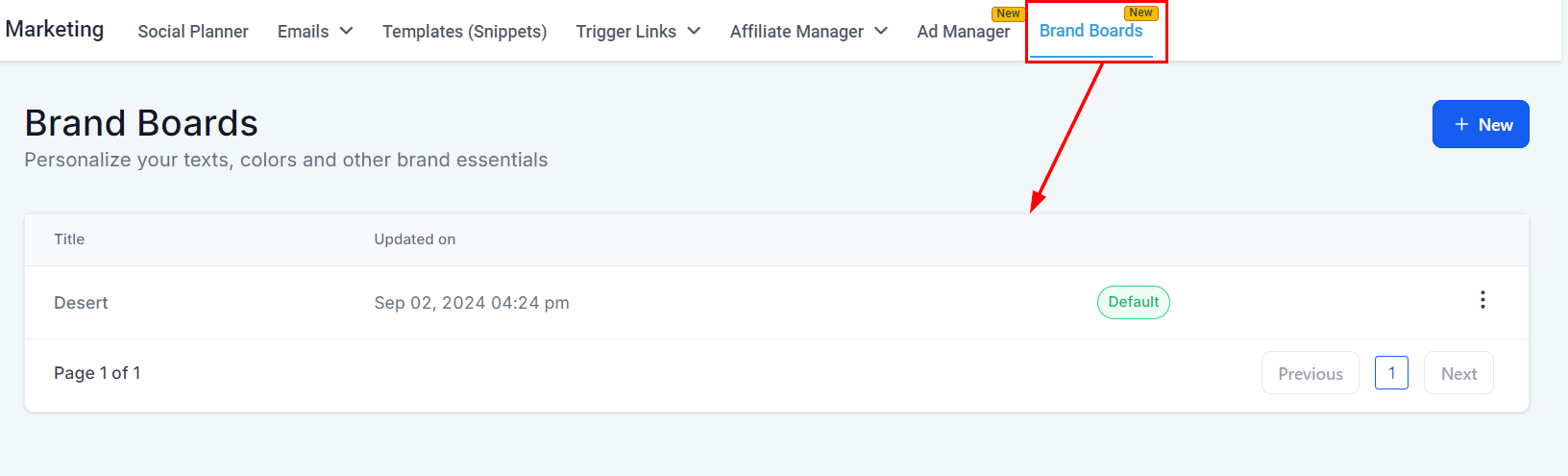
Go to the Marketing tab from your dashboard and select Brand Boards.
Start a New Brand Board #
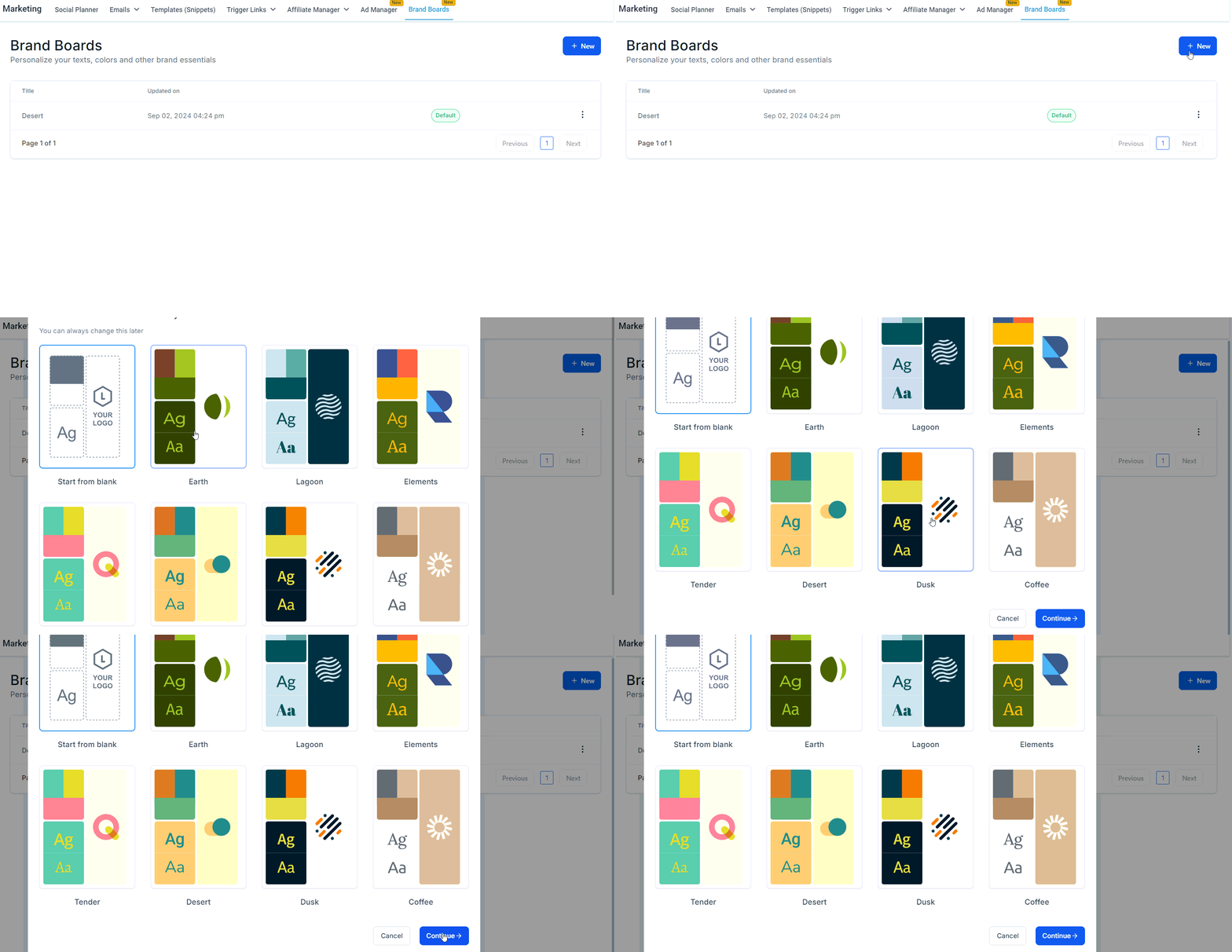
To start a new brand board, click the “New” button, and choose either a template or start with a blank board by clicking “Continue.”
Name Your Brand Board #
Update the name of your brand board to accurately represent the configured brand identity.

Add Your Logo #
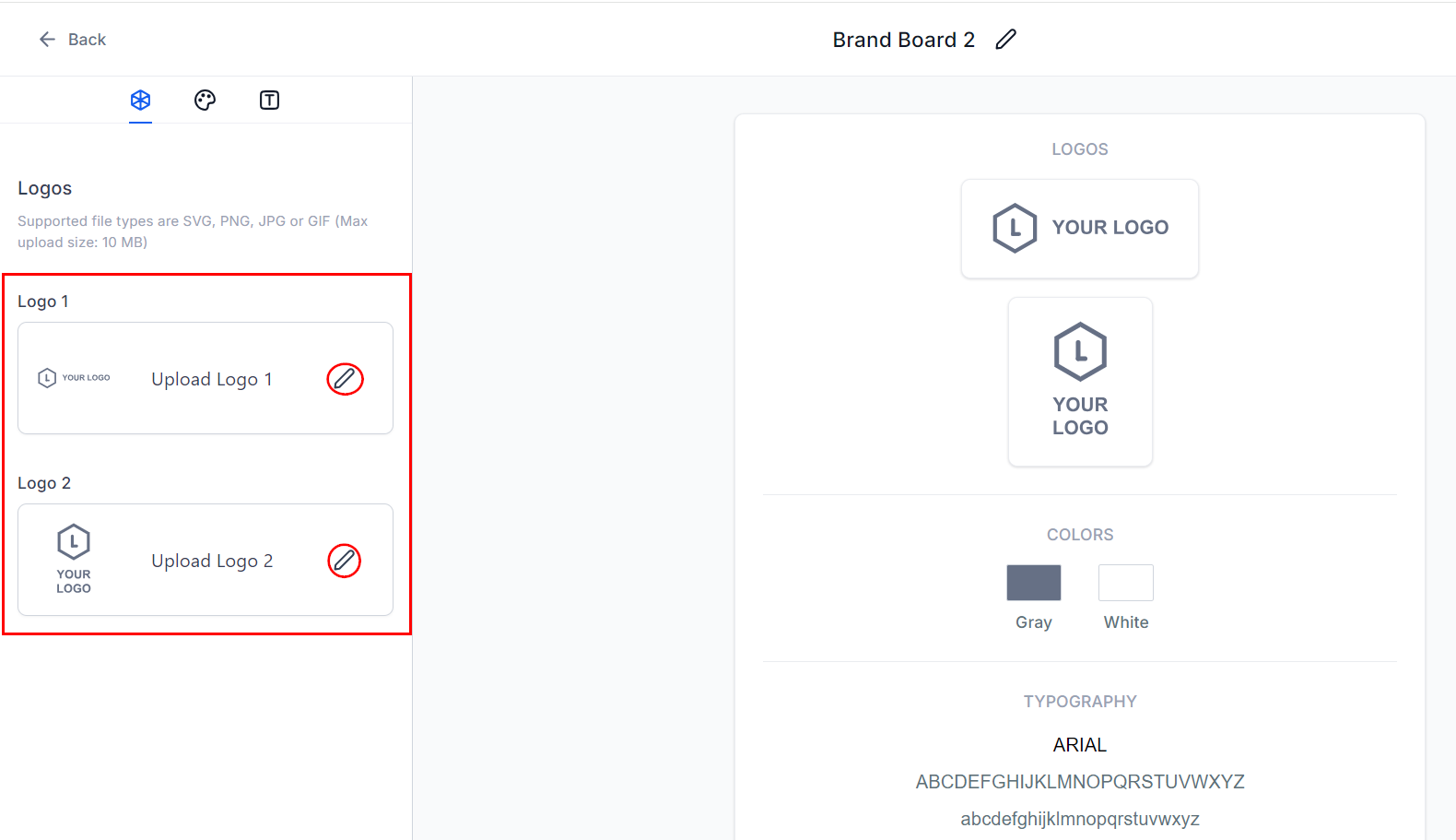
Click the edit icon in the logo section to select your logo images from the media library. You can upload up to two logos.
Add Your Brand Colors #
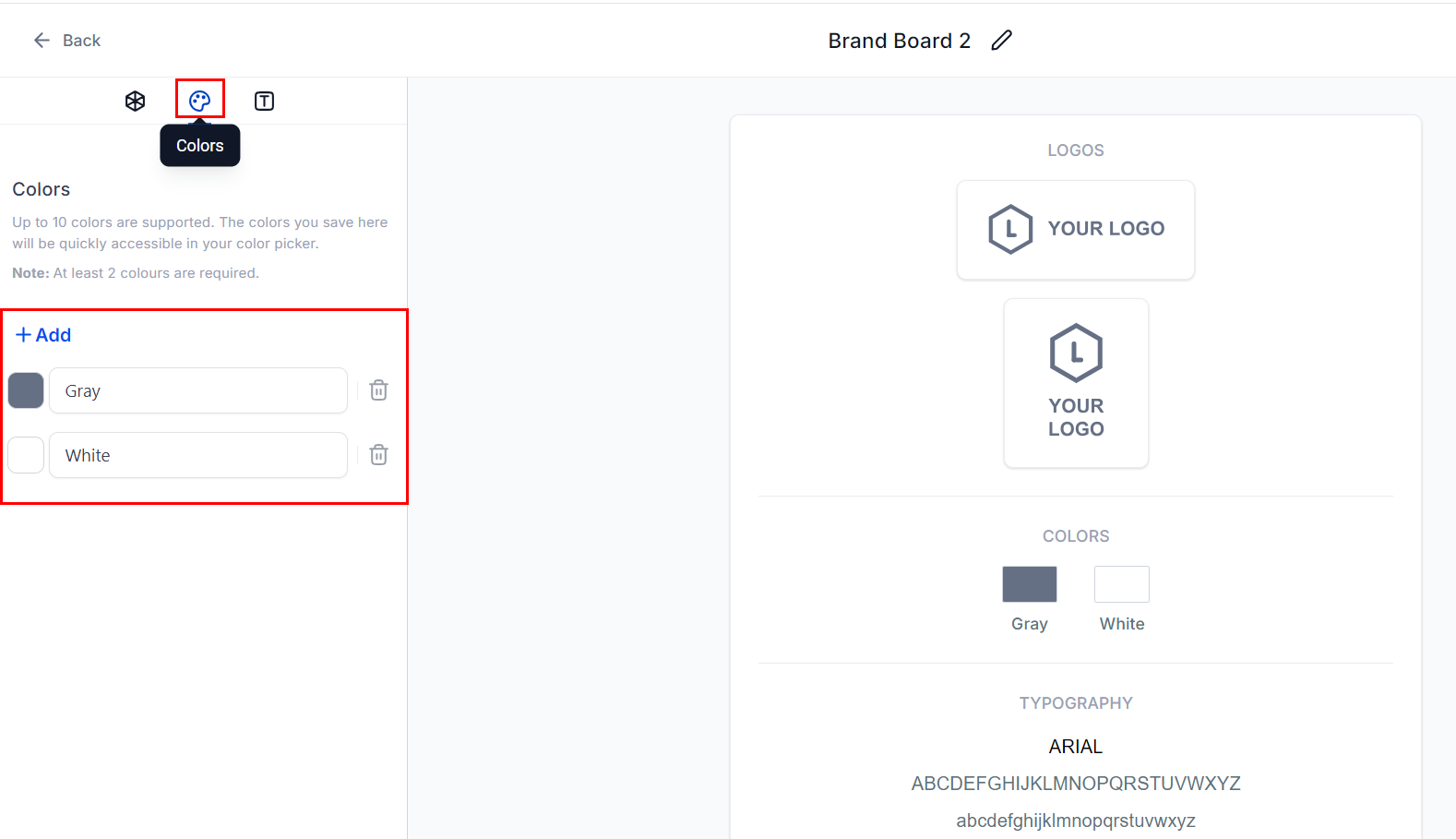
For brand colors, go to the Colors section and click “Add” to include your brand colors; you can add up to 10 colors. Click on each color to edit, and rename them as necessary.
Set Up Your Fonts #
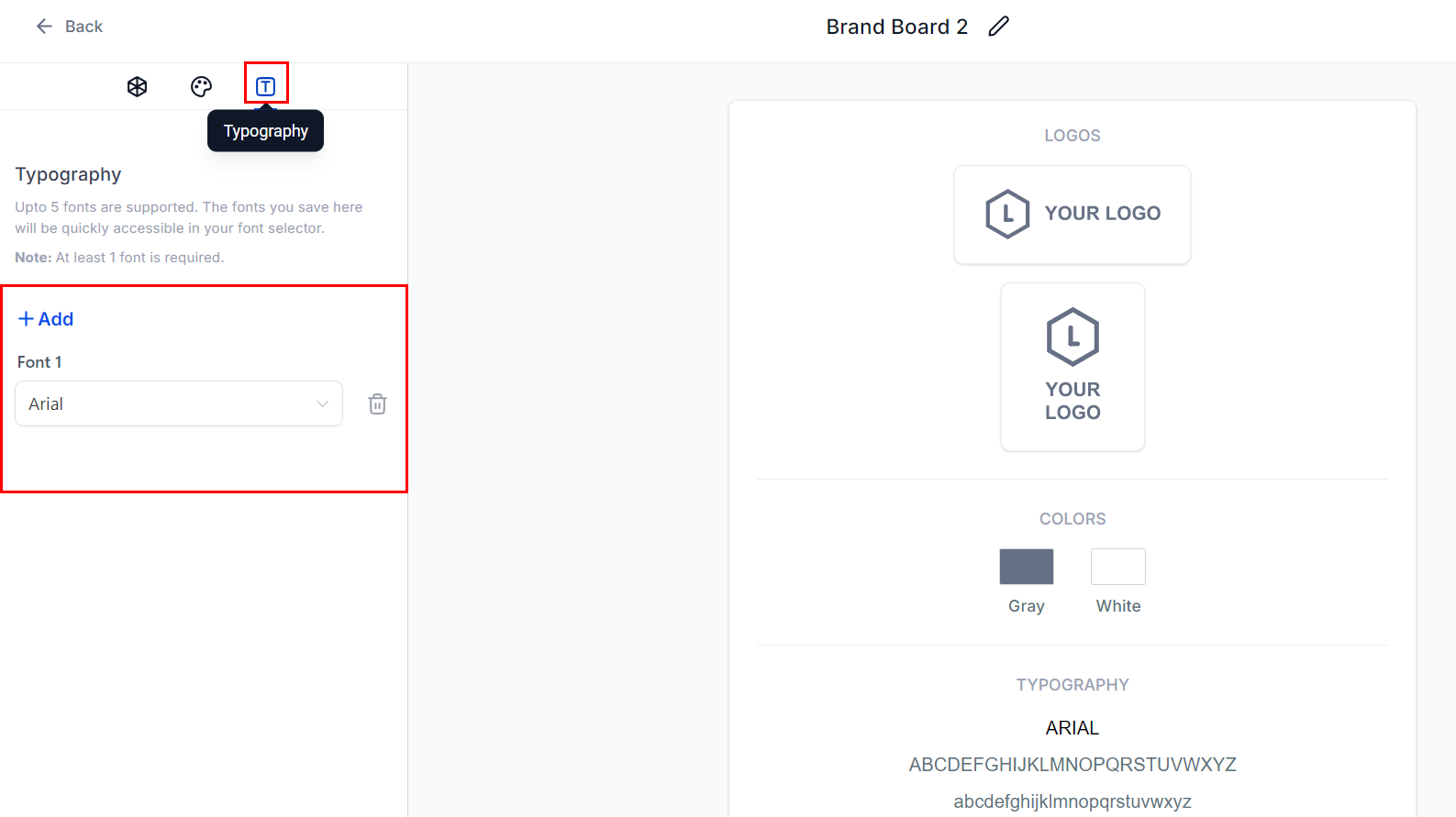
Set up your fonts by navigating to the Typography section and clicking “Add” to choose your brand fonts. You can include up to five fonts, selecting each from the drop-down menu.
To preserve your changes, select the “Save Board” option located in the upper right-hand corner of the page.
With your brand board complete, all your branding elements will be neatly organized and easily accessible, making it effortless to maintain your brand’s visual consistency.
Frequently Asked Questions #
Q: Will changing the colors in the brand board retrospectively change colors in existing emails or funnels?
- No, changes made to the brand board colors will not retroactively update existing emails or funnels. The brand board’s color section is for quick access, and the updated colors will only affect future designs.
Q: What is the limit for adding colors and fonts in a board?
- You can add up to five fonts, 10 colors, and two logos to a brand board.
Q: Where will I see the logos added?
- A folder with the Brand Board name will be created in your media library for quick access. You may also delete old logos from the media library if needed.
What's your Reaction?
You have reacted on"How to Create a Brand Board"
A few seconds ago


 Subscriptions
 My Orders
 My Wishlist
 Refer & Earn💸
 My Projects
 Conversations
 Website Services
 New Website Request
 Website Addons
 eCommerce Addons
 eCommerce Modules
 Software Development
 Graphic Design
 Video Production
 Content Writing
 Marketing Services
 Marketing Products
 Get a Marketing Plan
 Local SEO Audit
 Sales Automation
 Service Automation
 Operations Automation
 Marketing Automation
 Payments Automation
 Premium Modules
 Support Tickets
 Latest Updates
 Consultation Calls
 Tools & Extensions
 Tech Tips & Tricks
 Domains & Emails









