Posting on Google My Business (GMB) is a powerful way to engage with your audience, showcase your products or services, and enhance your online presence. Using the Social Planner, you can streamline the process and ensure your content is effectively shared across your GMB listings. This guide provides step-by-step instructions to help you create and manage posts.
Creating a New GMB Post #
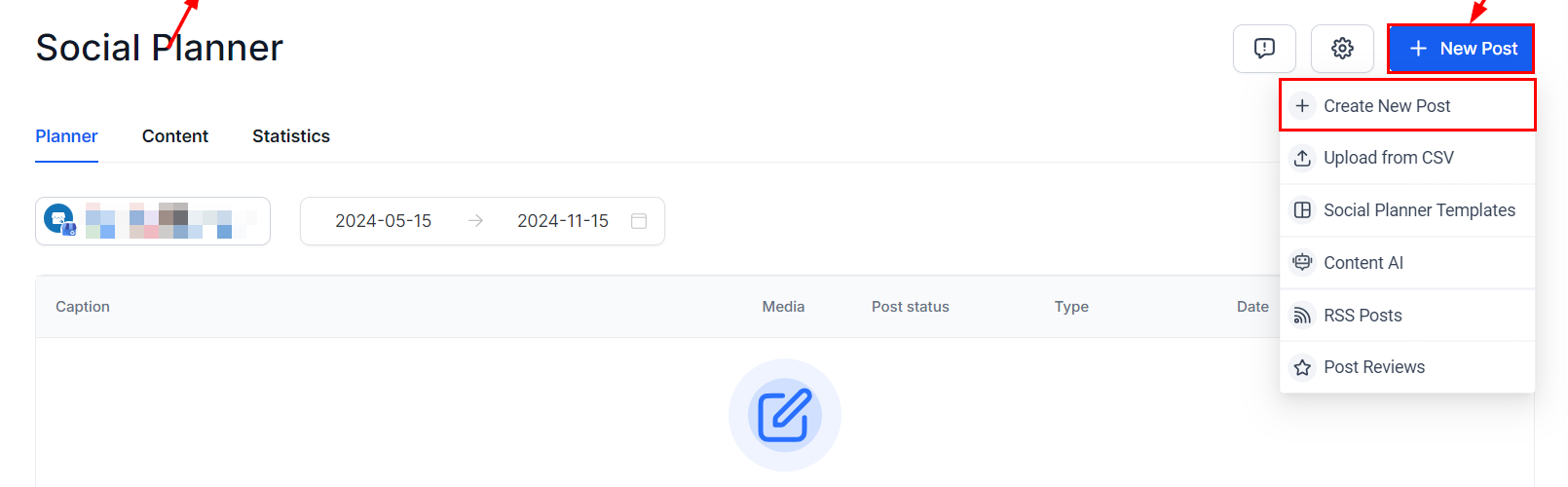
To begin posting on GMB, start by selecting the blue “New Post” button located at the top right corner of the Social Planner, then choose the option to create a new post.
Post To #
Select the Google My Business option as the platform where you’d like to publish your content.

Type Content #
In the content field, type your message, include rich media, and add relevant hashtags. Enhance your post by utilizing formatting options such as bold and italic text, and integrating images. Additionally, consider employing custom values or Content AI to refine your post. Ensure that you do not exceed the 1500-character limit!

Advanced Options #
Expand the Advanced Options section to select a category and add tags to your post for better organization and visibility.

Select Google My Business Options #
Select the type of content you want to add to your post—Call to Action, Event, or Offer—and then provide the necessary details.

Preview In #
Before publishing, preview your content to ensure everything looks as intended.

Save for Later #
If you are not ready to publish immediately, you can save the post as a draft and return to it later.

Post Options #
To publish the post immediately, schedule it for a later time, or submit it for approval, click the “Post” button. Once clicked, the following options will appear:
- Post Now: Send your post to the selected GMB listings immediately.
- Schedule Post: Set a specific date and time for your post to be published.
- Send Post for Approval: Send the post for internal approval. You can choose a specific approver and add any necessary notes.
- Schedule Recurring Posts: Choose the date range and times for your post to be automatically republished on your Google My Business account.
- Delete: Permanently discard the post configurations by selecting this button.

Uploading Content via CSV #
You can also upload posts in bulk using a CSV file. Here’s how:
Upload from CSV #
Click the “New Post” button and select the “Upload from CSV” option.

- Ensure your CSV file follows the accepted date format: YYYY-MM-DD HH:mm using a 24-hour format.
- The text column supports captions and hashtags, while the link column accepts one link per post.
- The image and video column can include multiple items, separated by commas. GIFs are limited to one per post.
- CSV imports can handle up to 90 posts per file.
After meeting these requirements, click “Upload a File” to select a file from your device, or simply drag and drop the file into the dashed area.

Select the “Next” button to proceed to select your social account.

Select Socials #
Once the CSV is uploaded, select the GMB account to which you want to publish the posts.

Adjust your approval preferences as needed, then click the “Process CSV” button.
After the posts are imported, they will be sent for approval if an approver is designated.
GMB Requirements #
When posting on GMB, there are specific image requirements to ensure your content displays correctly:
Images:
- Format: JPG or PNG
- Size: Between 10 KB and 5 MB
- Minimum Resolution: 250×250 pixels
- Relevance: Ensure that the images are related to your business or product
- Aspect Ratio: Must be between 720*720 and 3000*3000.
By following this guide, you can effectively create and manage your Google My Business posts. Whether you’re publishing immediately, scheduling for later, or uploading in bulk, these steps will help ensure your content reaches your target audience efficiently.
Frequently Asked Questions #
Q: How do I verify my GMB location before posting?
- Navigate to “Manage location” in your GMB account to check if your location is marked as “verified.” Verification is required before publishing posts.
Q: Why can’t I post content for businesses with multiple locations on GMB?
- GMB restricts posting through its API for businesses with over 10 locations. To resolve this, ensure you’re selecting fewer than 10 locations for each brand during integration.
What's your Reaction?
You have reacted on"Posting to Google My Business"
A few seconds ago


 Subscriptions
 My Orders
 My Wishlist
 Refer & Earn💸
 My Projects
 Conversations
 Website Services
 New Website Request
 Website Addons
 eCommerce Addons
 eCommerce Modules
 Software Development
 Graphic Design
 Video Production
 Content Writing
 Marketing Services
 Marketing Products
 Get a Marketing Plan
 Local SEO Audit
 Sales Automation
 Service Automation
 Operations Automation
 Marketing Automation
 Payments Automation
 Premium Modules
 Support Tickets
 Latest Updates
 Consultation Calls
 Tools & Extensions
 Tech Tips & Tricks
 Domains & Emails










