Abandoned checkouts are prominently listed on the Orders page, allowing business users to efficiently track and manage incomplete transactions. This capability provides detailed insights into customer activity and helps streamline efforts to recover lost sales.
Accessing Abandoned Checkouts #
To view abandoned checkouts, follow these steps:
- Go to Payments: Click on the ‘Payments’ tab.
- Choose Abandoned Checkouts: From the Orders dropdown menu, choose ‘Abandoned Cart’. This section displays detailed information including customer details and items added to the cart of abandoned card orders.
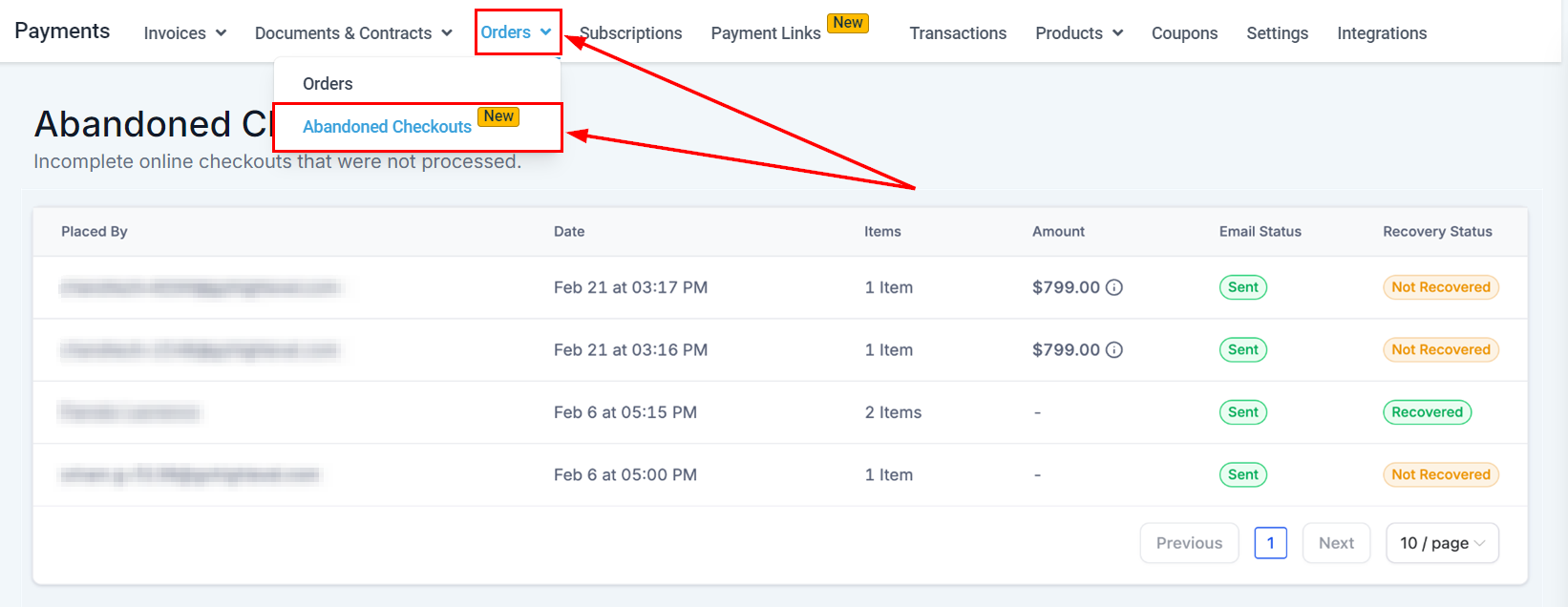
Placed By #
This column displays the name of the customer who abandoned the checkout. If the name is not available, their email address will be shown instead.

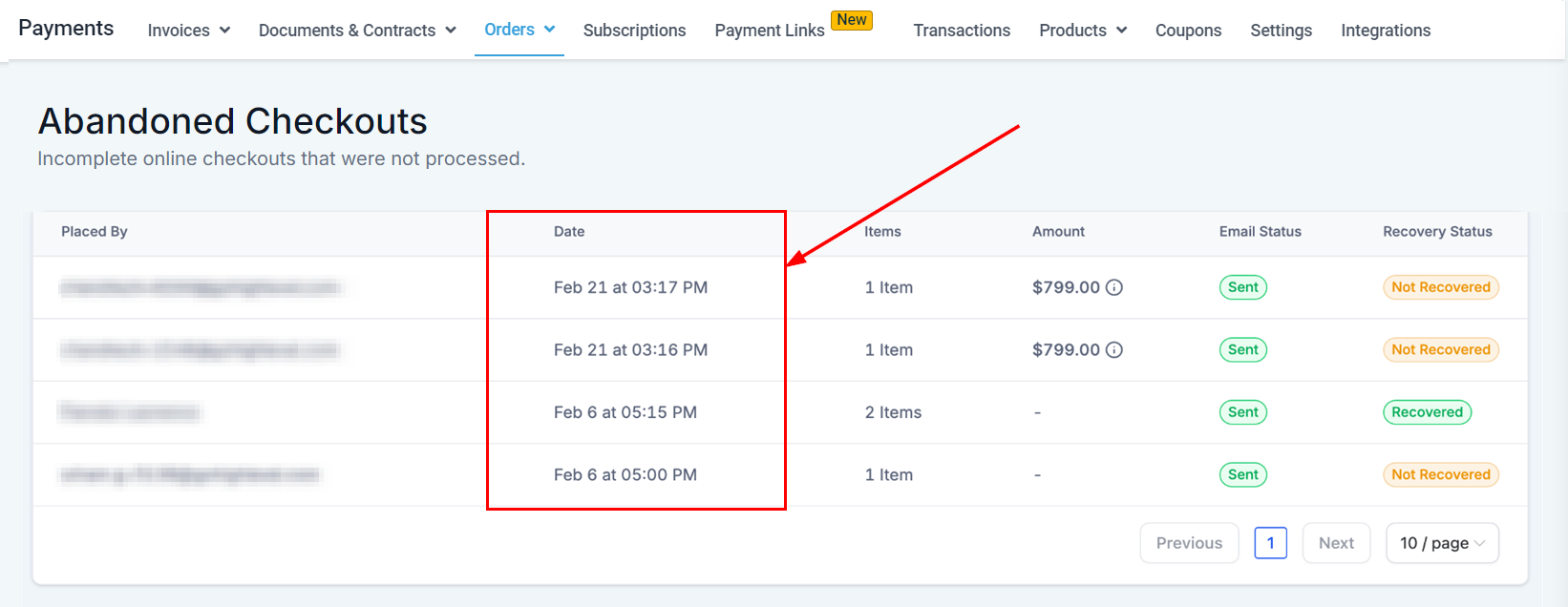
Date #
This column displays the date on which the customer abandoned the checkout.
Items #
The quantity of items in the cart will be displayed in this section.

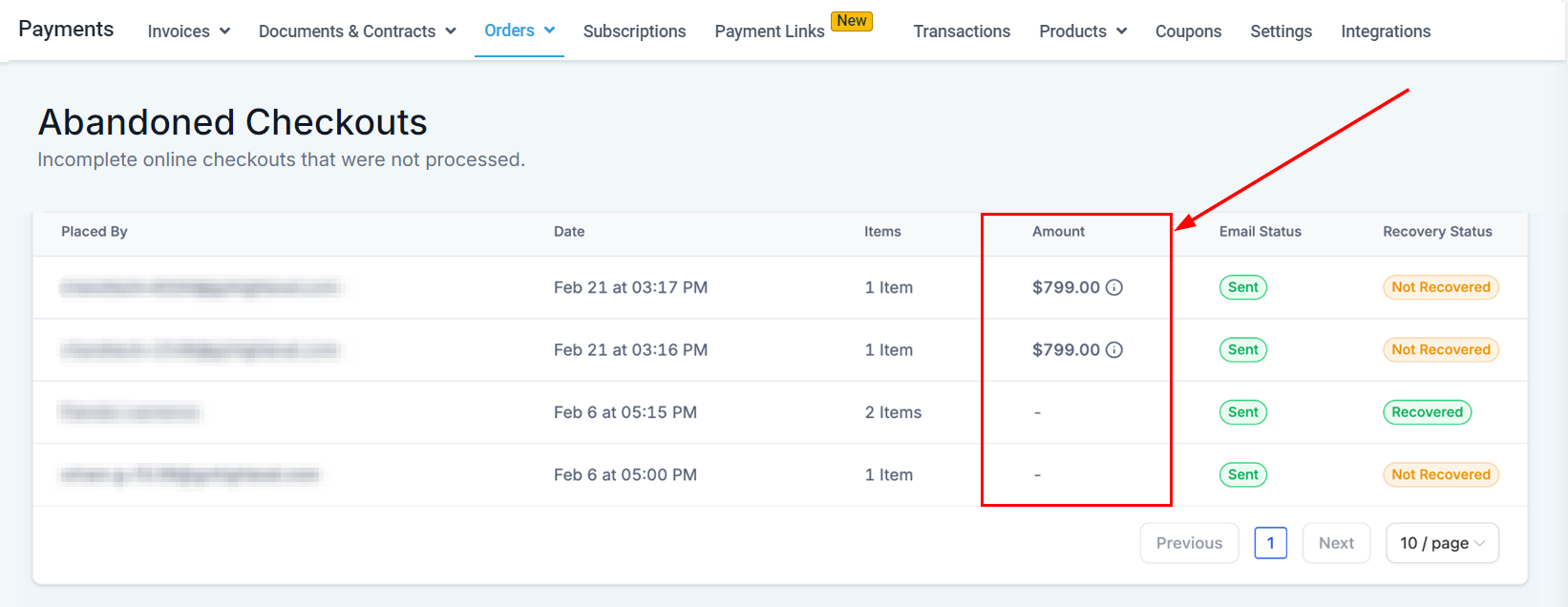
Amount #
This section displays the total cost of the items in the cart.
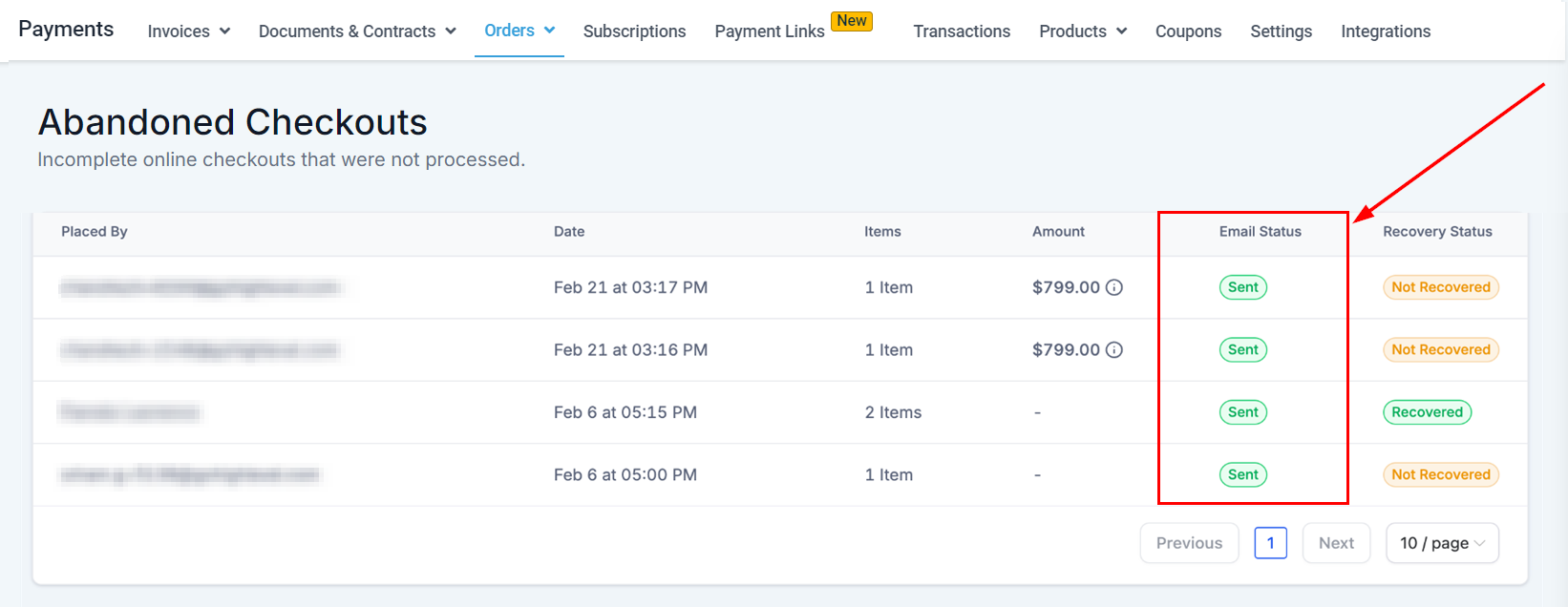
Email Status #
The email status section indicates whether an automatic notification about the abandoned cart has been sent to the customer.
Recovery Status #
If the transaction was completed after initially being abandoned, it will be marked as ‘recovered’ in this section.
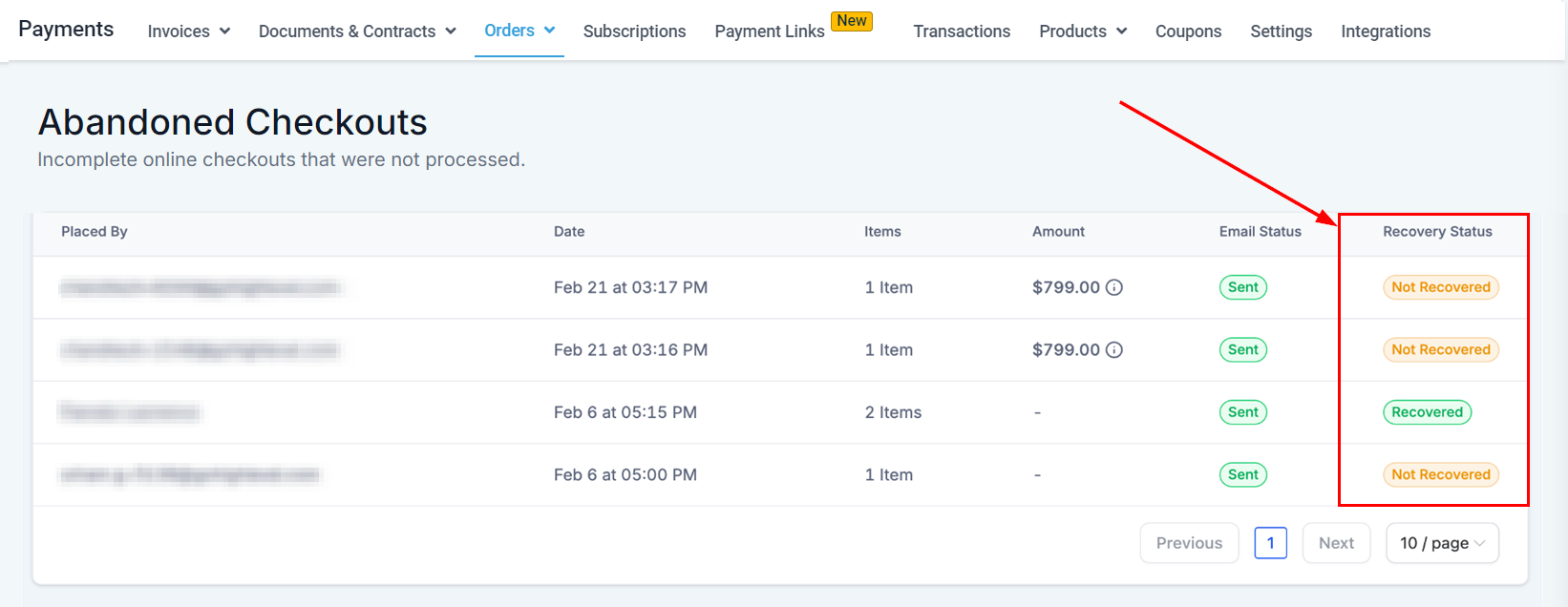
By utilizing the abandoned checkout feature, business users can better manage and recover lost sales, improving overall store performance and customer engagement.
FAQs #
Q: What are abandoned checkouts?
- Abandoned checkouts refer to transactions where a customer added items to their cart but did not complete the purchase. These are listed on the Orders page to help businesses track and recover these sales.
Q: How can I configure automatic notifications for abandoned carts?
- Configure automatic notifications by going to Settings -> Notifications and adjusting the relevant settings.
Troubleshooting Tips #
No Abandoned Checkouts Listed
- If you do not see any abandoned checkouts, ensure that your online store is correctly configured to capture these events. Check that the feature is enabled in your settings and that there has been customer activity in your store.
Email Status Not Updating
- If the email status does not update correctly, verify that your notification settings are correctly configured. Ensure that your email system is functioning properly and that automatic notifications are enabled.
Inaccurate Recovery Status
- If the recovery status is not reflecting accurately, review the process used to recover the checkout. Confirm that the transaction has been properly completed and that all relevant details are up-to-date.
What's your Reaction?
You have reacted on"Abandoned Checkout in Orders"
A few seconds ago


 Subscriptions
 My Orders
 My Wishlist
 Refer & Earn💸
 My Projects
 Conversations
 Website Services
 New Website Request
 Website Addons
 eCommerce Addons
 eCommerce Modules
 Software Development
 Graphic Design
 Video Production
 Content Writing
 Marketing Services
 Marketing Products
 Get a Marketing Plan
 Local SEO Audit
 Sales Automation
 Service Automation
 Operations Automation
 Marketing Automation
 Payments Automation
 Premium Modules
 Support Tickets
 Latest Updates
 Consultation Calls
 Tools & Extensions
 Tech Tips & Tricks
 Domains & Emails









