Public documents offer a convenient solution for sharing and collecting signatures on important files. This feature simplifies the process by allowing you to publish documents, share them with recipients, and manage their responses efficiently. Below is a guide to help you get started with public documents.
Creating a Public Document #
To start head to “Data Collect” > “Proposals & Docs” to manage your documents and contracts.
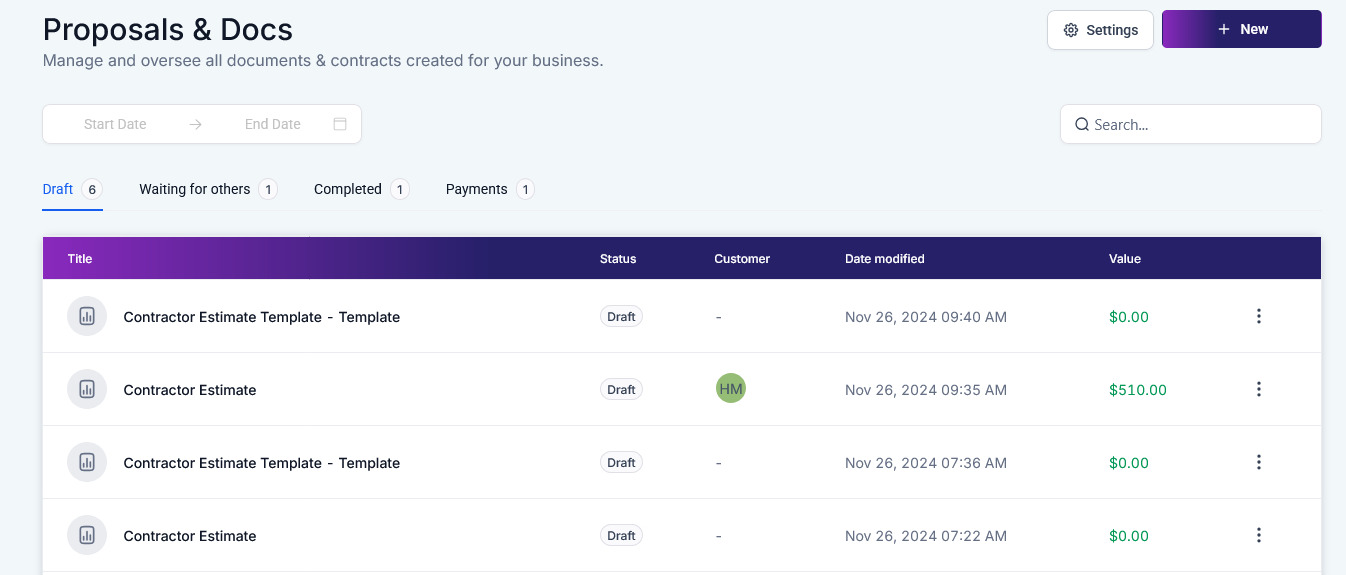
From there, click “New” followed by Create Public Document to initiate the process.

Use the Document Builder to add the elements you wish to include, ensuring that a Contact signature field is added. Remember to rename the document to reflect its purpose!

Once completed, save then publish your document.

Sharing the Document #
After publishing, generate a unique link for your document.

Copy the link to share it directly with recipients, allowing them to access the document for signing.

The Signing Process #
When recipients open the link, they will be prompted to enter their first name, last name, and email address to access the document.

Each recipient must then sign the document indicating that they agree to make the payment.

Once they complete the signing process, a signed copy is automatically emailed to them for their records and an invoice is created in the system. The client will be prompted to complete the payment promptly; however, the transaction can be deferred to a mutually agreed-upon date or time frame.
Managing Responses #
All signed documents and recipient responses can be accessed through the Responses section. This allows you to review and download the signed documents at any time, ensuring you have complete oversight of the process.

Unpublishing Documents #
If you no longer wish to receive signatures on a particular document, you can unpublish it within the template builder. This will immediately stop any further submissions and ensure the document is no longer accessible for signing.

Note: You will also need to unpublish templates to modify them.
Workflow Integration #
Templates used as public documents remain fully functional within workflows. This means you can continue using the same templates for automation purposes without any interruptions or additional configurations.
Public documents make sharing, signing, and managing important files simple. With its seamless integration and efficient management tools, this feature allows you to streamline your signature collection process while maintaining full control over your templates and responses.
What's your Reaction?
You have reacted on"How to Create a Public Document"
A few seconds ago


 Subscriptions
 My Orders
 My Wishlist
 Refer & Earn💸
 My Projects
 Conversations
 Website Services
 New Website Request
 Website Addons
 eCommerce Addons
 eCommerce Modules
 Software Development
 Graphic Design
 Video Production
 Content Writing
 Marketing Services
 Marketing Products
 Get a Marketing Plan
 Local SEO Audit
 Sales Automation
 Service Automation
 Operations Automation
 Marketing Automation
 Payments Automation
 Premium Modules
 Support Tickets
 Latest Updates
 Consultation Calls
 Tools & Extensions
 Tech Tips & Tricks
 Domains & Emails









