When designing your layout, understanding how to effectively use rows and columns is key to creating a visually appealing and functional design. Columns play a crucial role in organizing content, and knowing how to customize them can significantly enhance your design process. This guide will walk you through the steps to edit columns, explore additional settings, and provide tips for creating a cohesive layout.
You can either start from scratch or access an existing layout in the Funnels/Sites section of your CRM. For this example, we’ll focus on creating a new layout from scratch
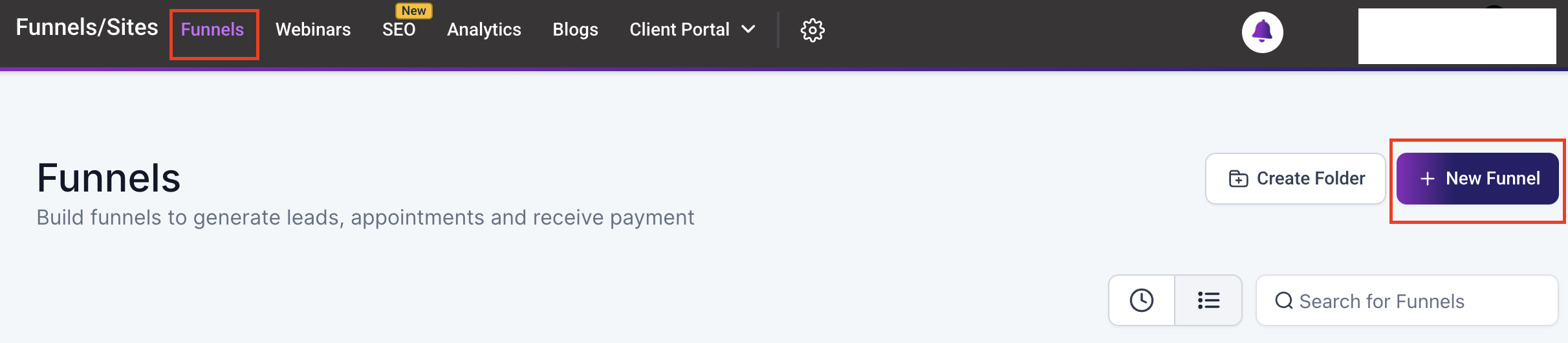
Open the funnel or website builder. Click on the “+” button and select Sections to create a new section. Within the section, click on the + Add Row button to insert a row. Once the row is added, click on it to access the column editing options.

In the column editing step of your design, you have total control over how many columns to include in a row. Depending on your design needs, You can add anywhere from 1 to 6 columns per row.
- Rows and Columns: Rows act as containers for columns, and columns hold the elements of your design. The number of columns you choose determines how many elements (e.g., text, images, buttons) can be added to each row.
- Adding Elements: Once columns are created, you can drag and drop elements like text boxes, images, or buttons into each column.

General Settings #
You can further customize the Column Layout in the General Settings.
Column Layout #
- Content Alignment: Choose to align your content vertically or horizontally.
- Content Spacing: Adjust the spacing between elements to create a balanced design.
- Content Position: Position content at the start, center, or end of a column.
- Use the Same Layout For Mobile: Toggle this option to maintain consistency across mobile devices.

Columns are the building blocks of great design. Whether you’re working with a single column or stretching up to five, you can create layouts that are both clean and dynamic. Tweak the alignment, spacing, and positioning until it feels just right. With these tools in your toolkit, you’ll be designing layouts that look polished and professional in no time.
What's your Reaction?
You have reacted on"Columns"
A few seconds ago


 Subscriptions
 My Orders
 My Wishlist
 Refer & Earn💸
 My Projects
 Conversations
 Website Services
 New Website Request
 Website Addons
 eCommerce Addons
 eCommerce Modules
 Software Development
 Graphic Design
 Video Production
 Content Writing
 Marketing Services
 Marketing Products
 Get a Marketing Plan
 Local SEO Audit
 Sales Automation
 Service Automation
 Operations Automation
 Marketing Automation
 Payments Automation
 Premium Modules
 Support Tickets
 Latest Updates
 Consultation Calls
 Tools & Extensions
 Tech Tips & Tricks
 Domains & Emails










