Pipelines are a crucial feature, designed to automate various processes within your business workflows. They allow you to establish structured sequences of actions that guide leads or customers through predefined stages, ensuring efficient communication and consistent engagement.
Access the Pipelines section from the Opportunities tab. Here, you can create, modify, and delete pipelines as needed.
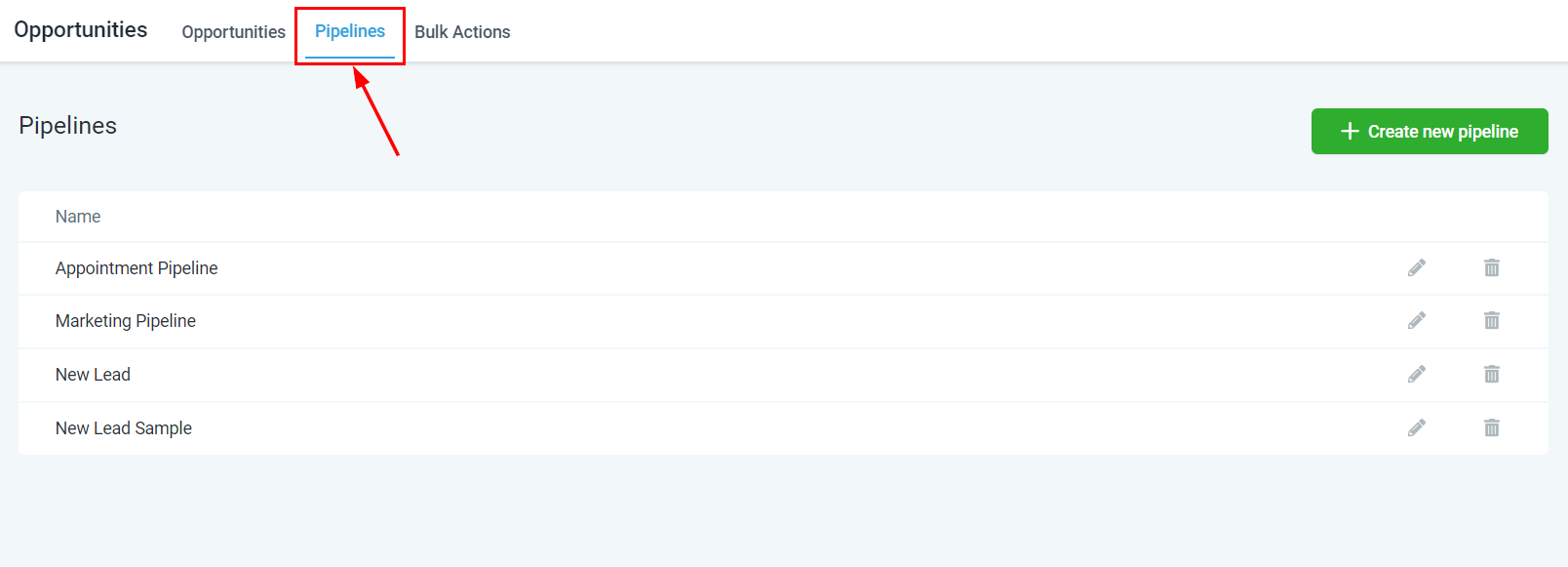
Pipeline List #
View and access all created pipelines in the pipeline list, which provides a comprehensive and organized overview.

Edit Pipeline #
Modify an existing pipeline by updating its name, adding or removing stages, and making other adjustments as needed.

Delete Pipeline #
To remove a pipeline, click the trash can icon. Once a pipeline is deleted, it cannot be recovered.
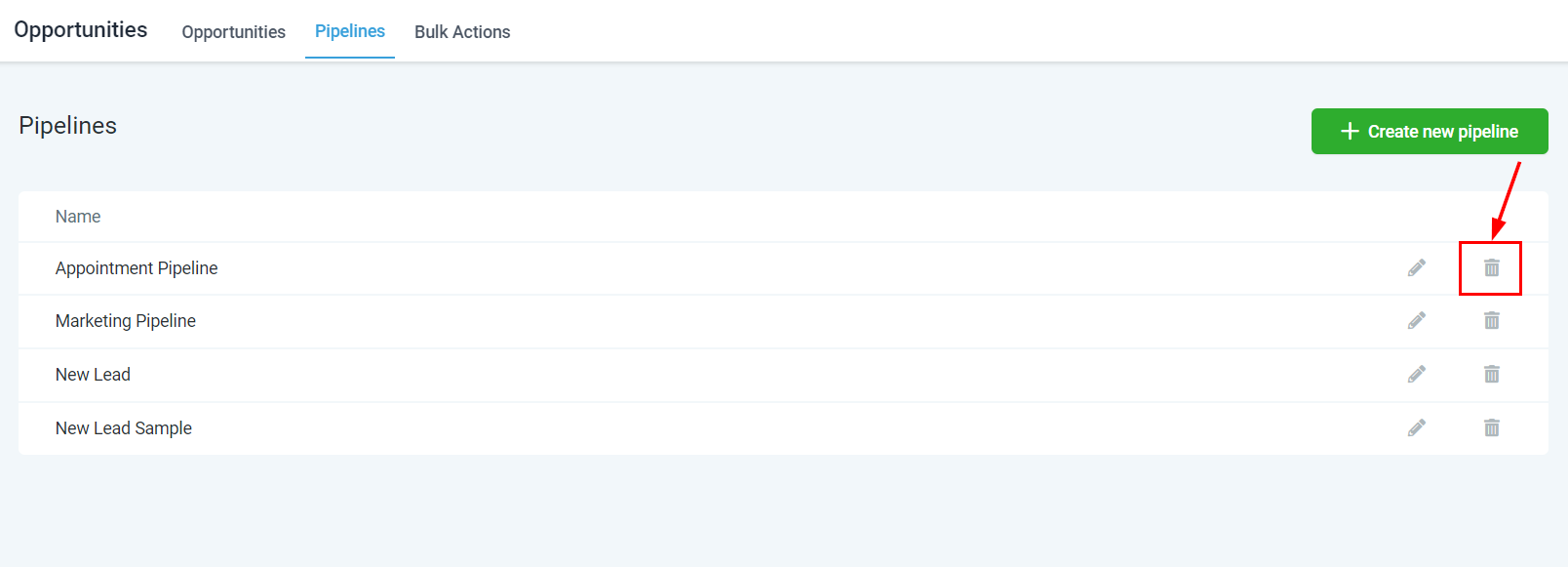
Create New Pipeline #
To create a new pipeline, click the green “+ Create New Pipeline” button in the top-right corner. Follow the prompts to name your pipeline, add stages, and configure display options for the stage funnel chart and stage pie chart.

Pipeline Name #
Assign a name to your pipeline based on its purpose or lead source, such as “Google Ads,” “Facebook Ads,” or “Website Leads.”

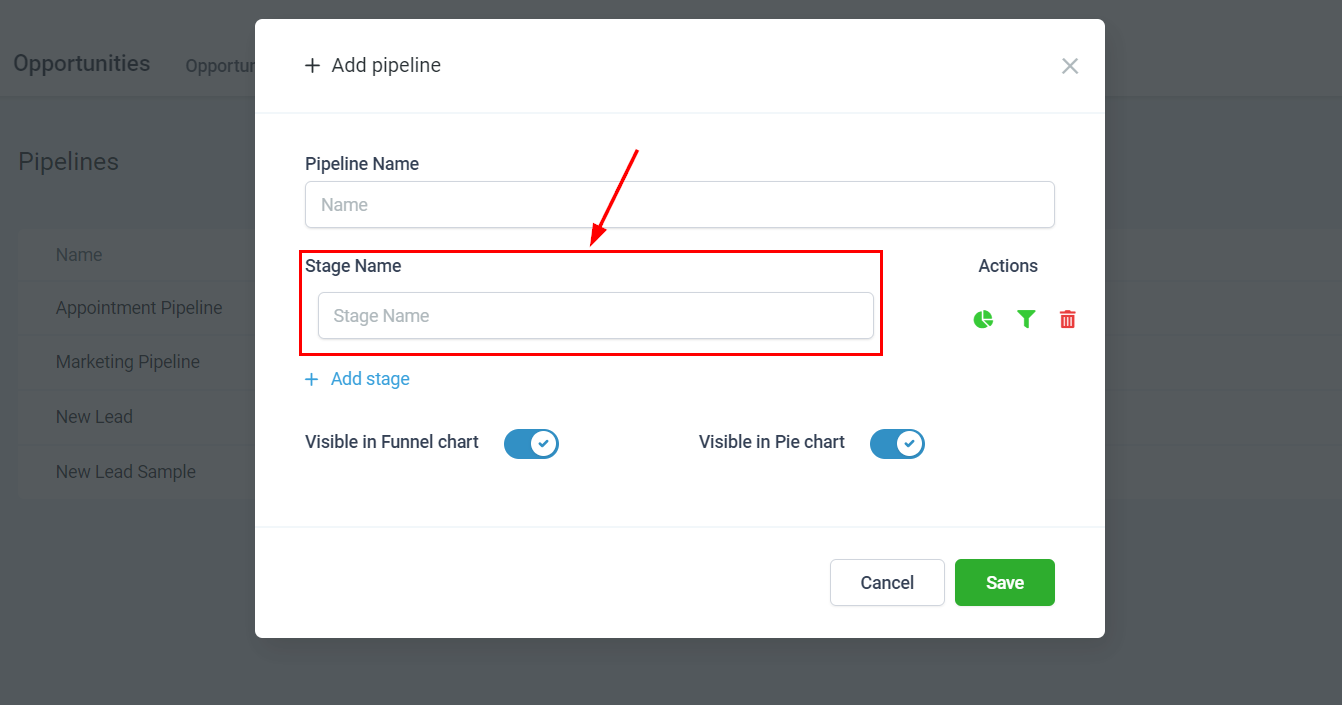
Stage Name #
Stages represent the steps in your pipeline process. Name each stage to reflect the lead’s progress, such as “New Lead,” “Registered,” or “Paid.”
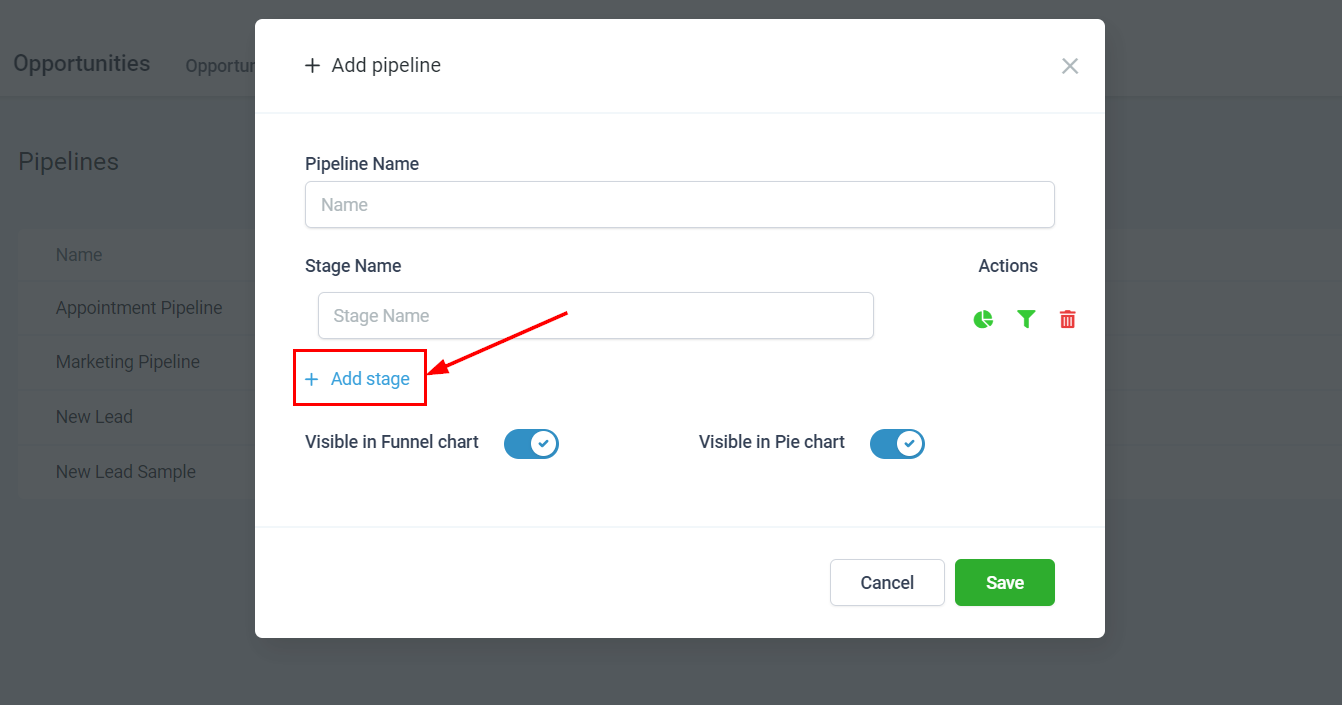
- + Add Stage: Click this button to add and name a new stage.
Actions #
In the Actions section, you can manage various aspects of your stage:
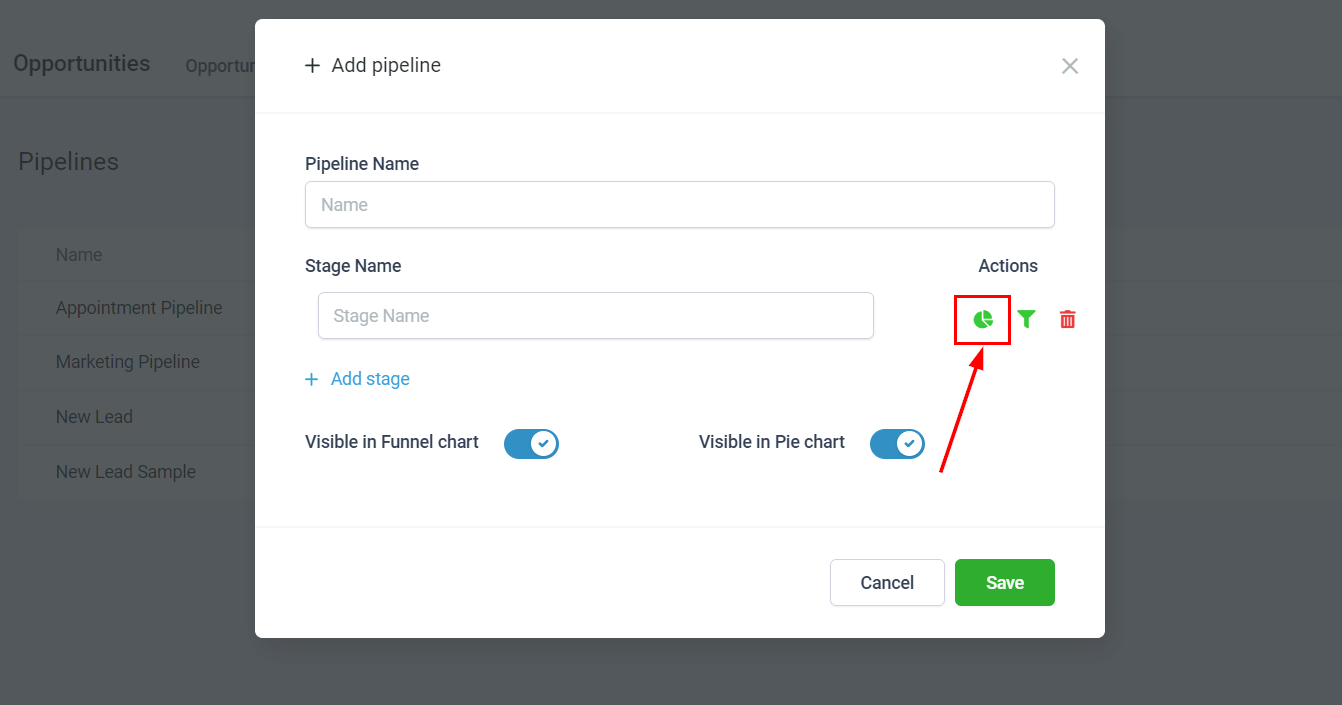
- Stage Pie Chart: Show/Hide: Toggle this option to include or exclude the stage from dashboard pie charts.
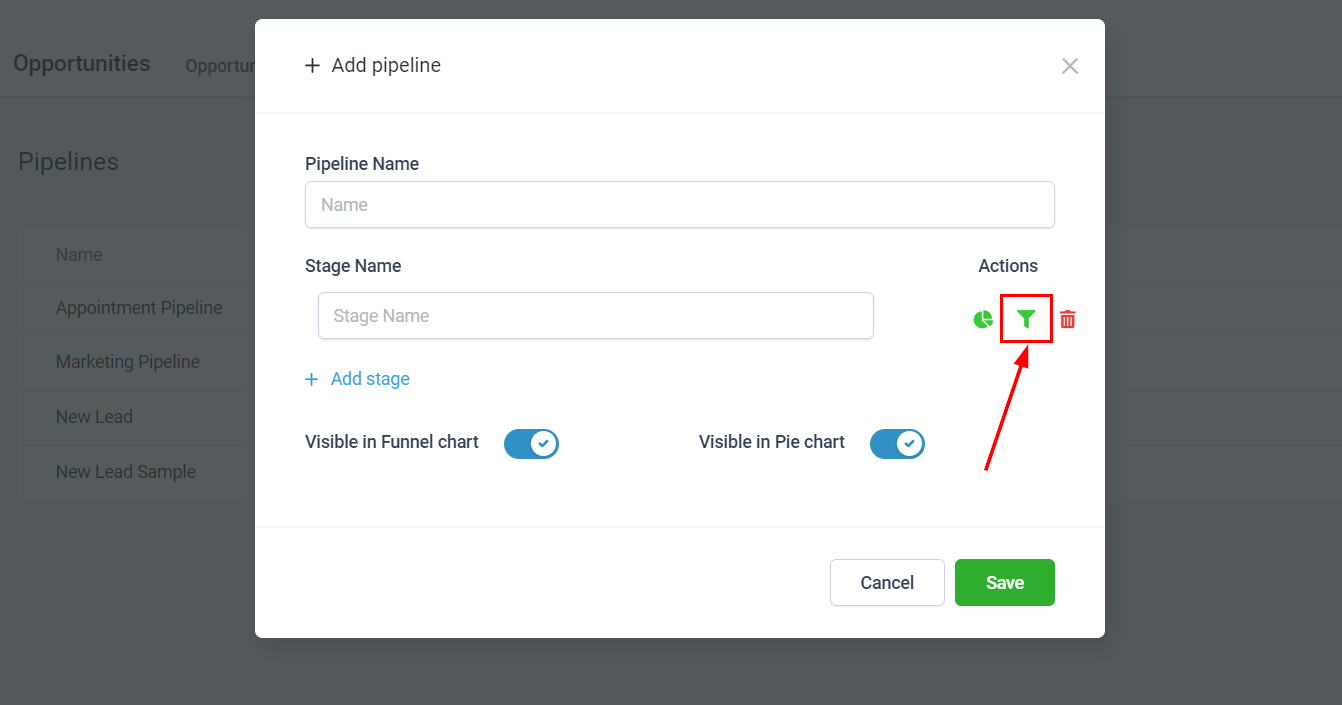
- Stage Funnel Chart: Show/Hide: Toggle this option to include or exclude the stage from dashboard funnel charts.
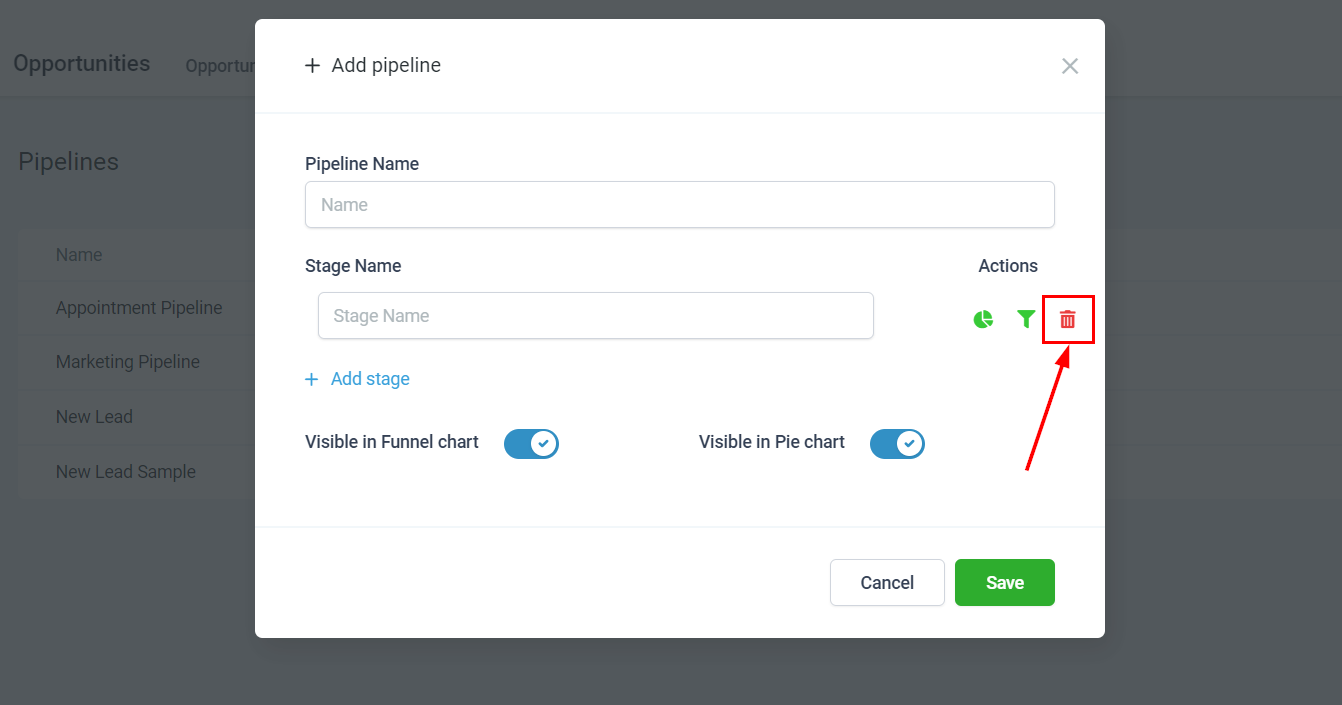
- Delete Stage: Click the garbage can icon to permanently delete a stage.
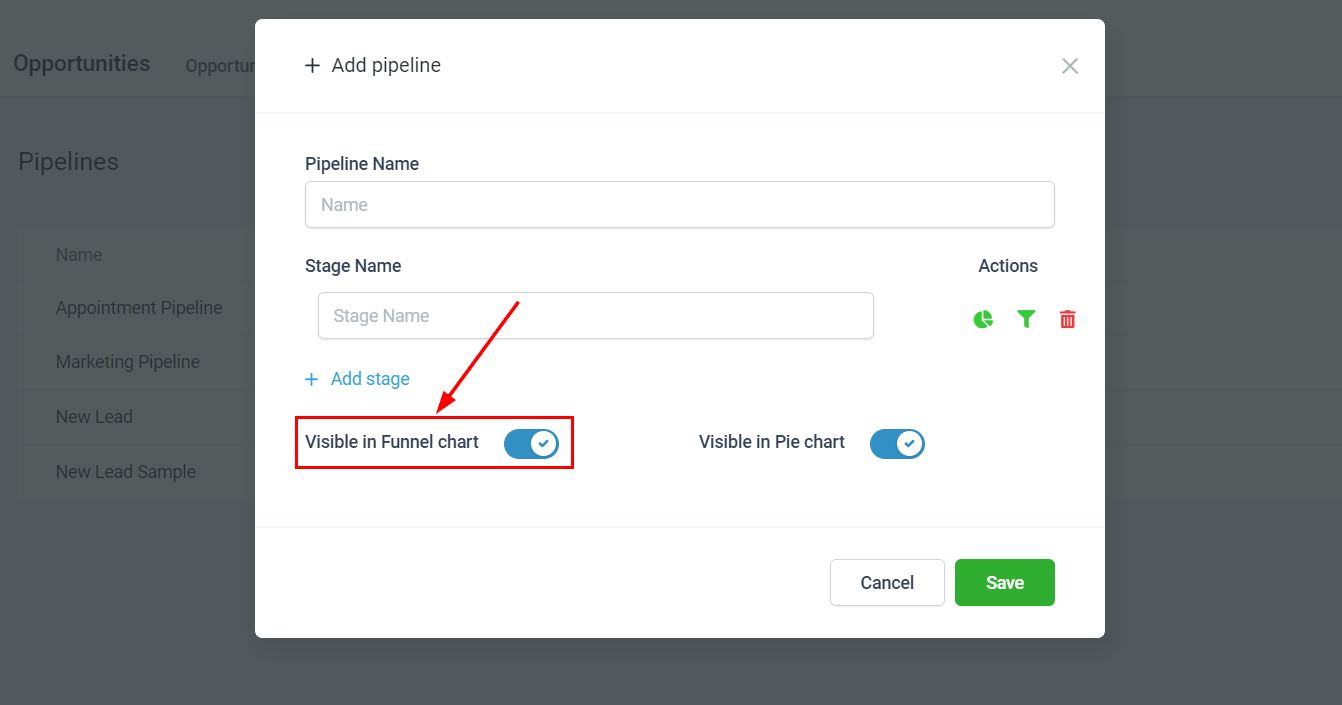
Pipeline Funnel Chart: Show/Hide #
Toggle this option to display or hide the pipeline in your dashboard funnel charts.
Pipeline Pie Chart: Show/Hide #
Toggle this option to display or hide the pipeline in your dashboard pie charts.
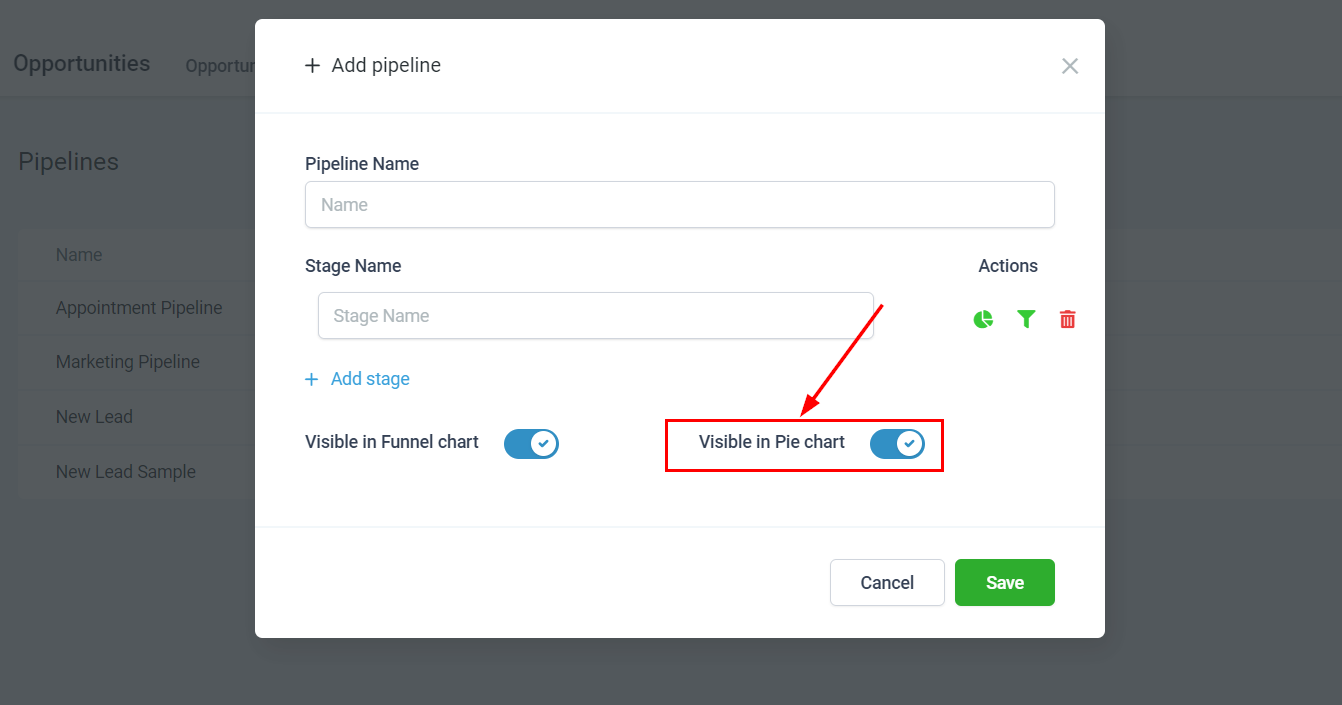
Save/Cancel #
To discard changes, select the “Cancel” button. To save your changes and add the pipeline to the pipeline list, click the “Save” button.

With these tools at your disposal, you will be better able to enhance your business workflows and guide leads or customers through every stage with precision.
What's your Reaction?
You have reacted on"Managing your Pipelines"
A few seconds ago


 Subscriptions
 My Orders
 My Wishlist
 Refer & Earn💸
 My Projects
 Conversations
 Website Services
 New Website Request
 Website Addons
 eCommerce Addons
 eCommerce Modules
 Software Development
 Graphic Design
 Video Production
 Content Writing
 Marketing Services
 Marketing Products
 Get a Marketing Plan
 Local SEO Audit
 Sales Automation
 Service Automation
 Operations Automation
 Marketing Automation
 Payments Automation
 Premium Modules
 Support Tickets
 Latest Updates
 Consultation Calls
 Tools & Extensions
 Tech Tips & Tricks
 Domains & Emails









