When offering a Course, or any learning experience, there are two important aspects clients are looking for the experience they will get and a way to leverage that experience into opportunities. Certificates allow you to offer the latter to your clients, this way you can add extra value to your clients and make your course even more desirable.
The Benefits of the Certificates Feature #
Before diving into the step-by-step process, let’s explore the advantages of utilizing the Certificates feature:
- Enhance Member Engagement: Motivate your course members by offering personalized certificates, fostering a sense of accomplishment and loyalty.
- Brand Recognition: Customize certificates with your unique signatures, images, badges, and brand colors, ensuring each certificate reflects your professional image.
- Automated Issuance: Streamline the certification process with automated email notifications, providing instant gratification to members upon course completion.
Step-by-Step Guide to Creating Certificates #
1. Create a Course
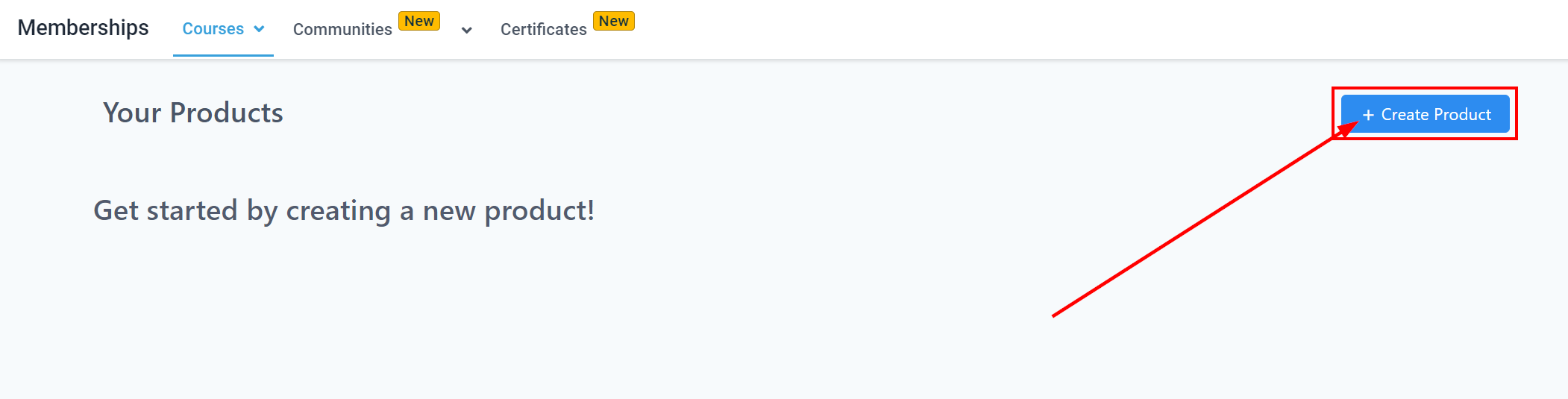
- Navigate to the “Memberships” section on the left panel.
- Click on “Courses” and then “Products.”
- Select “Create Product” at the top right to initiate a new course.
2. Set Up Course Offers
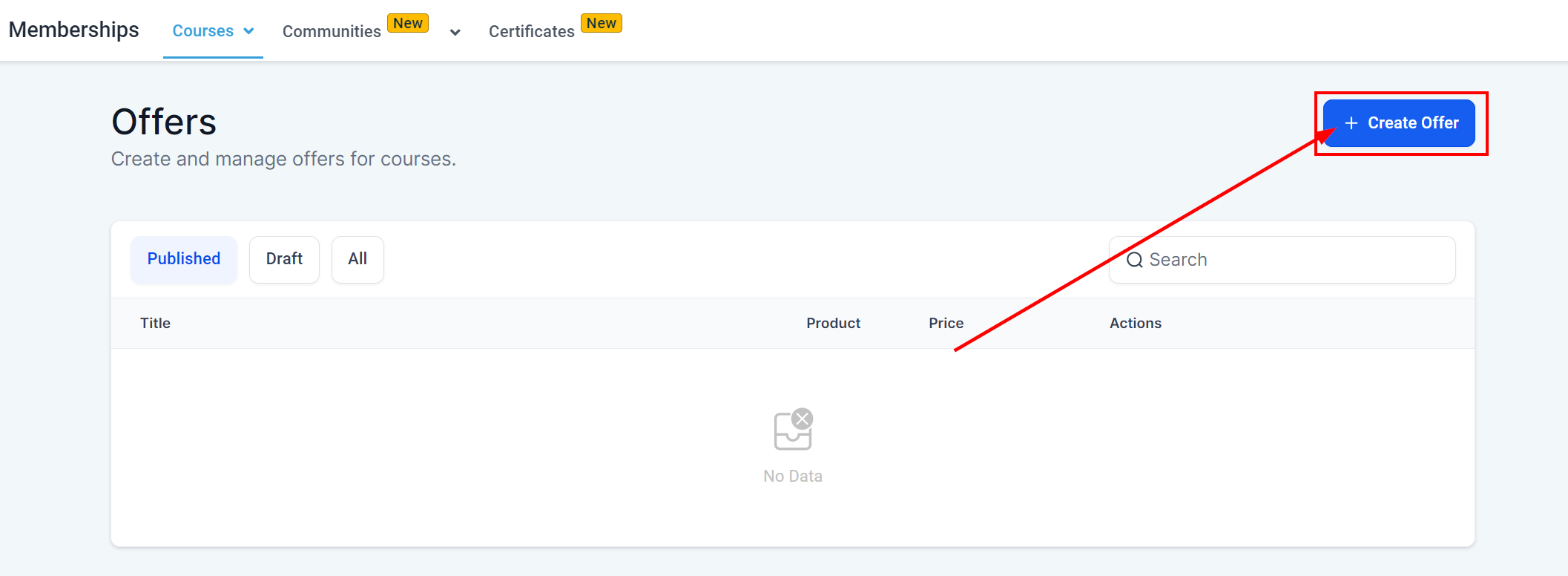
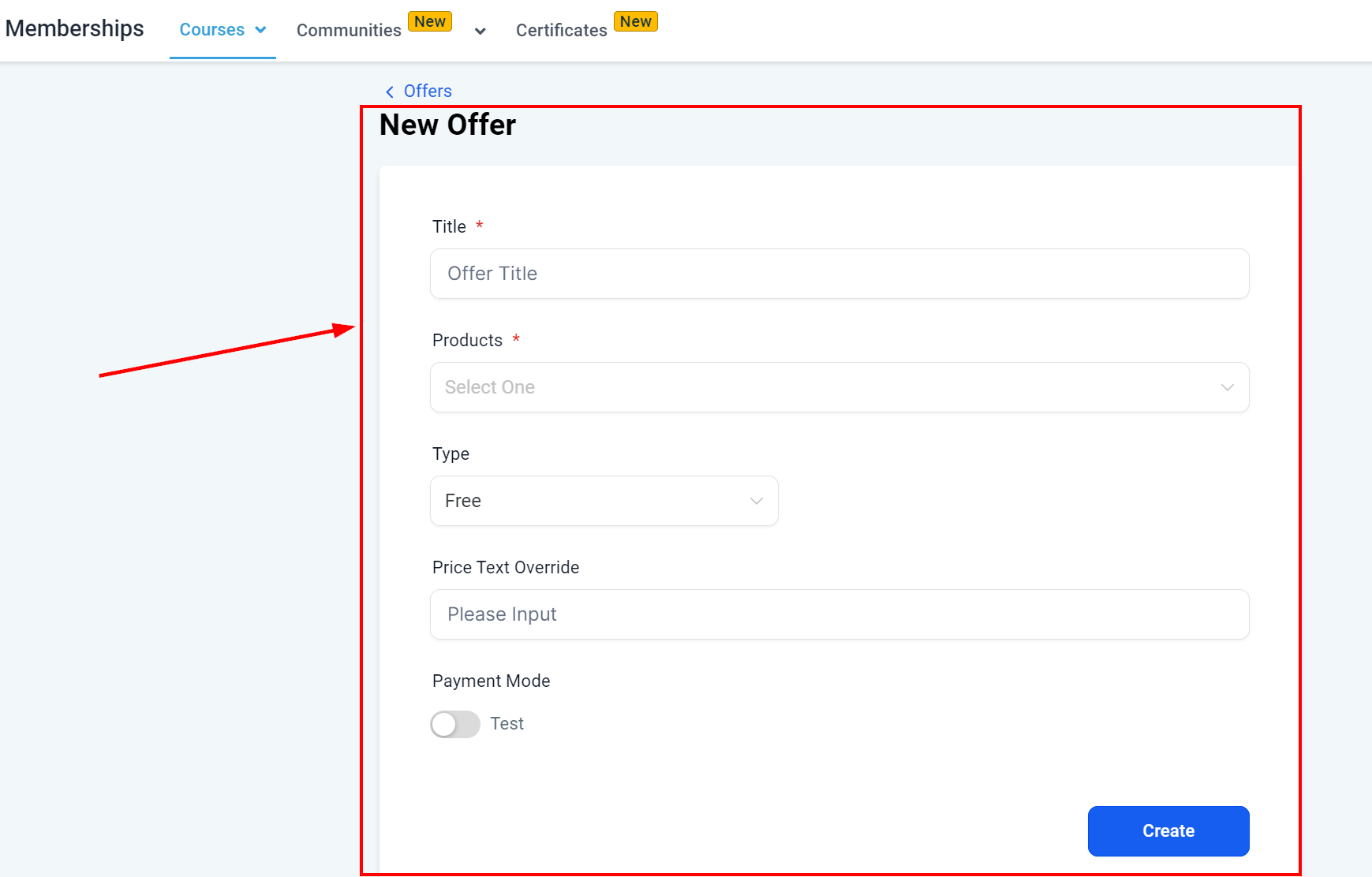
- Under the “Offers” tab, decide whether your course will be paid or free, setting the appropriate parameters for access.
3. Creating Certificates for Course Completion
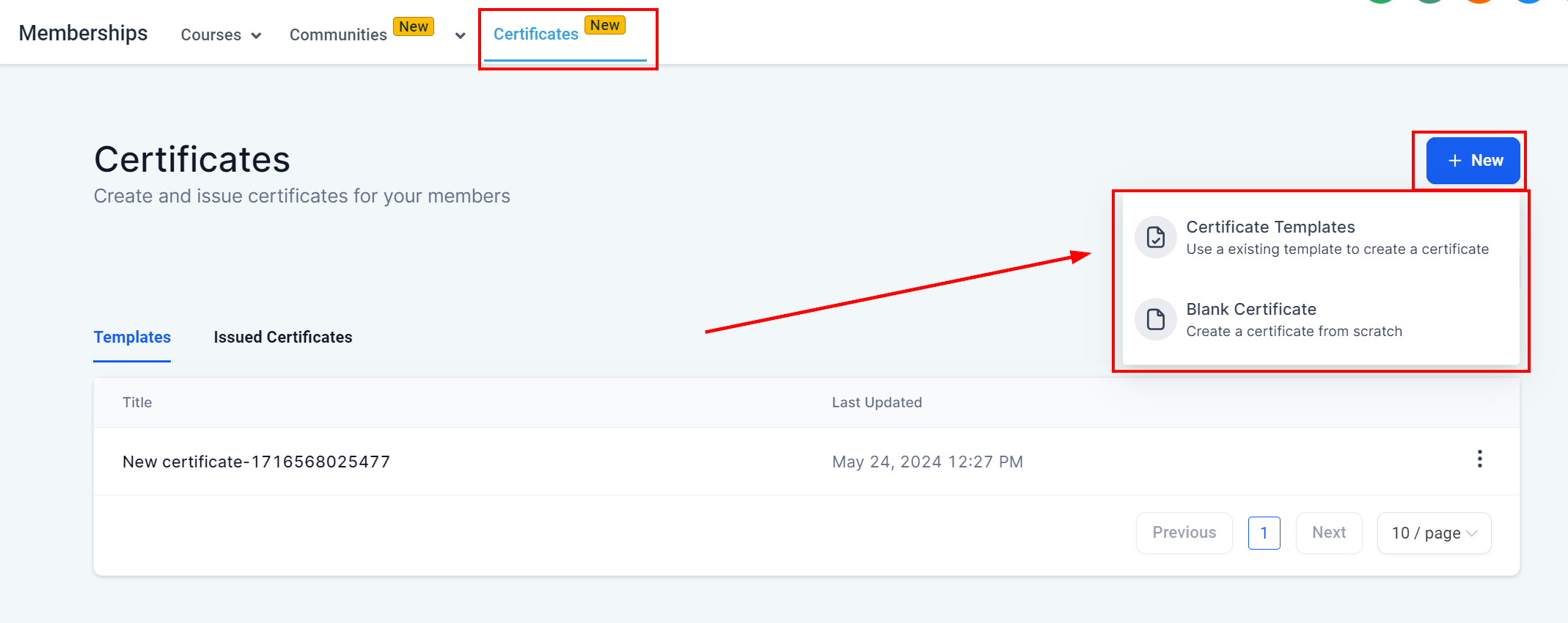
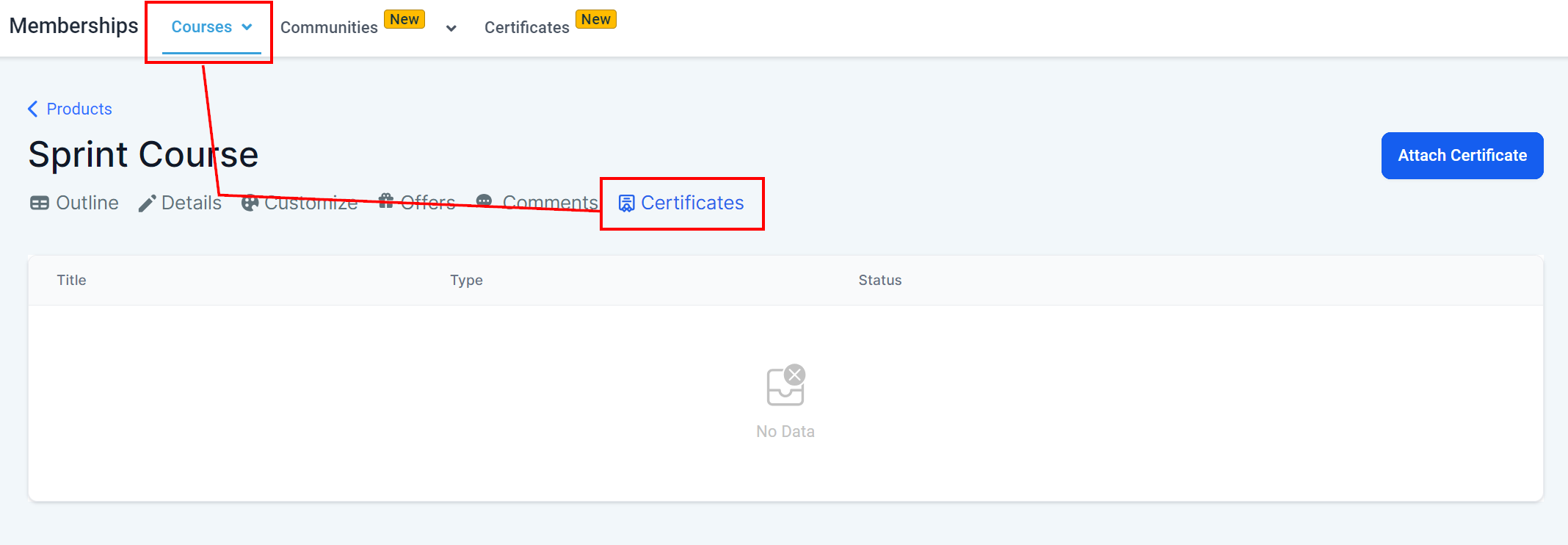
- Access the “Certificates” tab within the course settings.
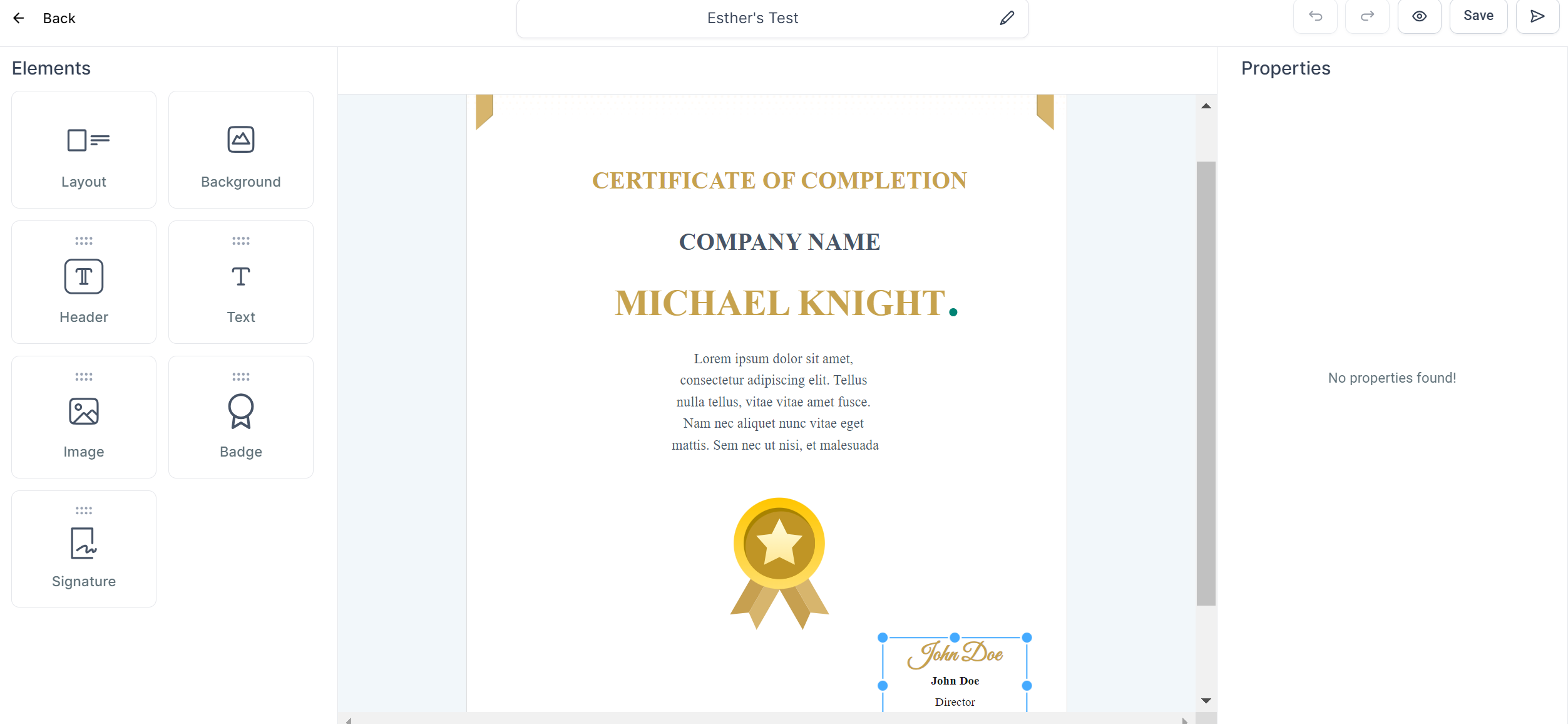
- Click the “New” button on the right to introduce a new certificate.
- Choose a template or start from scratch, depending on your preference.
- Customize the certificate design with your desired elements and branding.
- Save the certificate once the design is finalized.
4. Adding Certificates to Your Course
- Return to the “Courses” section and select the course you’ve created.
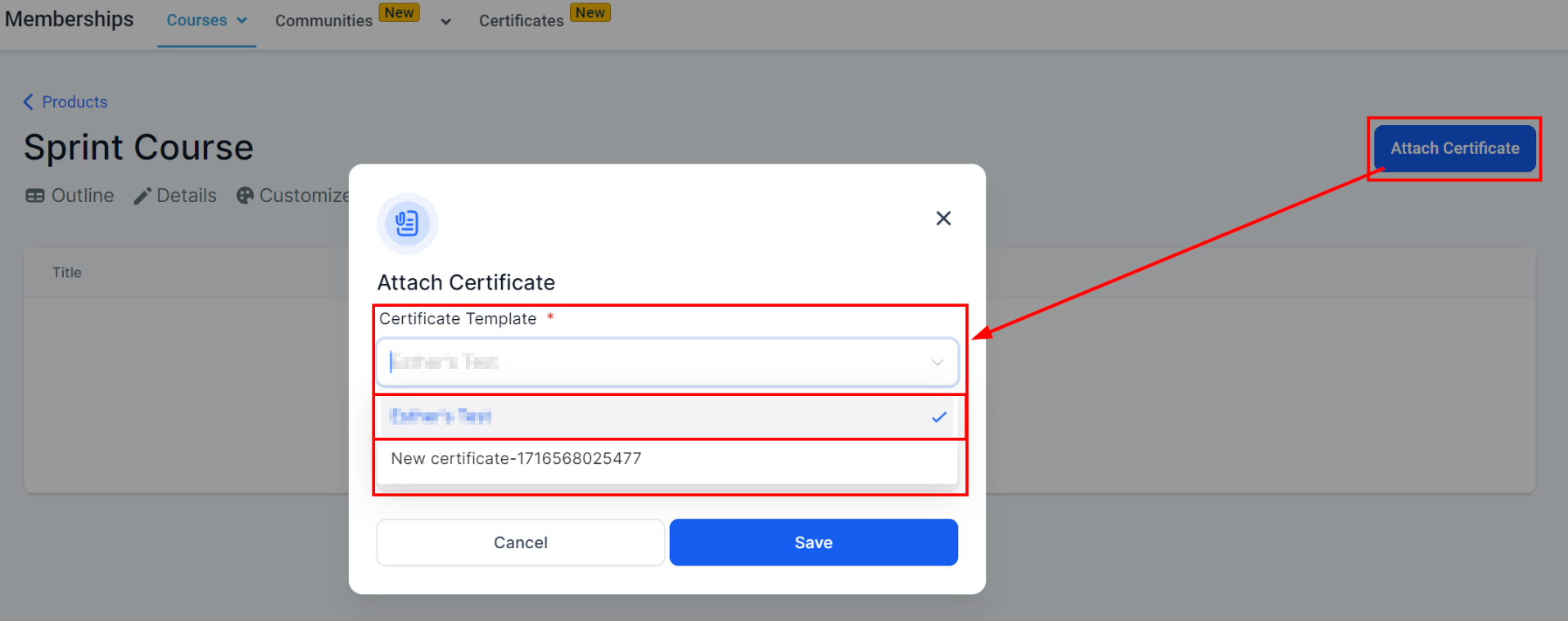
- In the “Certificates” tab, add the certificate you’ve previously designed.
- Save the changes to ensure the certificate is linked to your course.
5. Issuing and Previewing Certificates
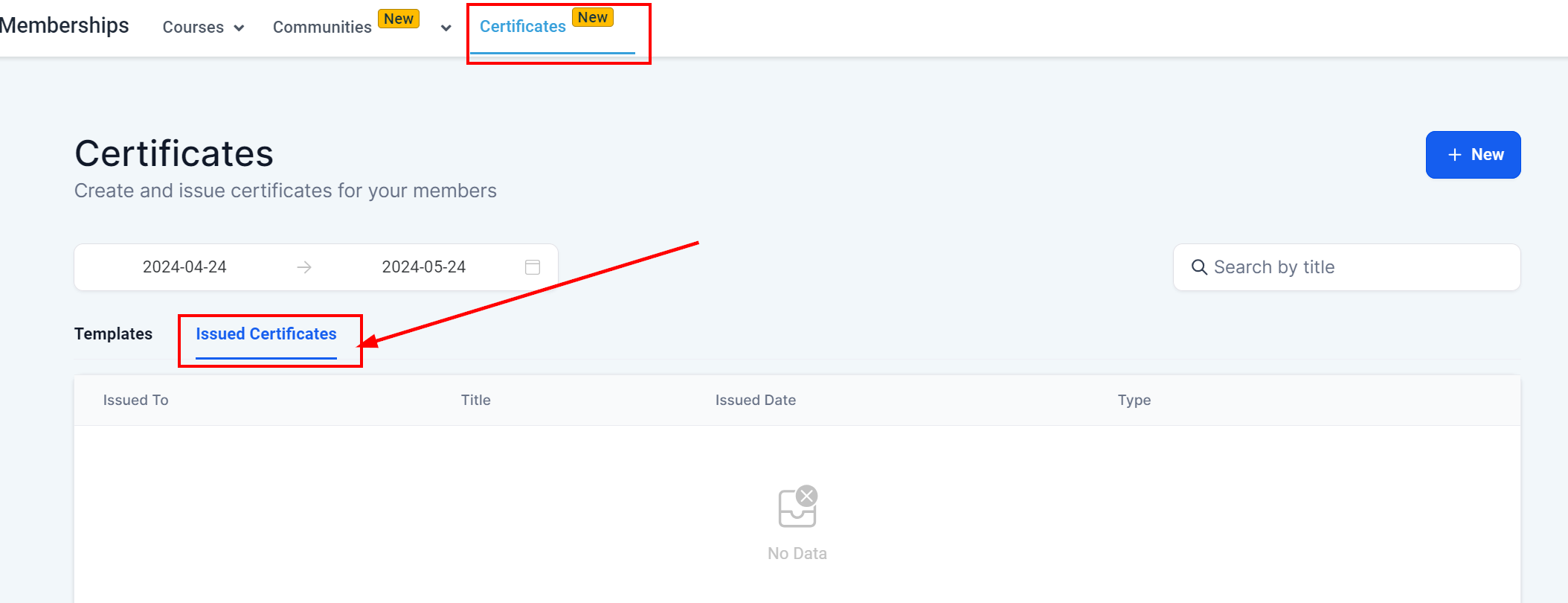
- Members who successfully complete the course will automatically receive an email congratulating them, along with a link to access their personalized certificate.
- Utilize the “Issued Certificates” tab to view and manage all certificates issued.
- Preview the certificate to ensure it meets your expectations and provides a positive experience for members.
Manually Sending Certificates #
You can send offline certificates to any contacts directly from the Builder. These offline certificates make it easier to test the look before sending it out to an actual member. Here are the steps to follow to do so:
1. Create or edit your certificate.
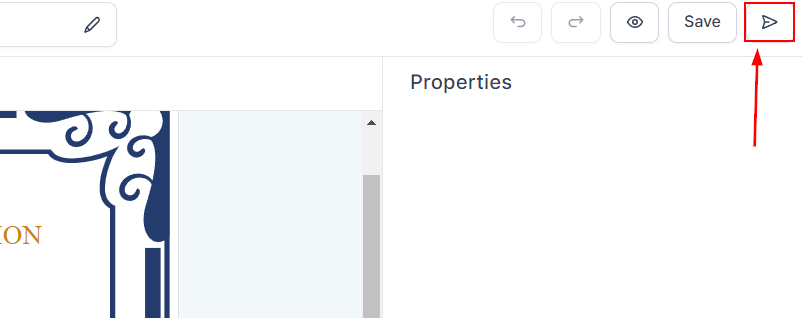
2. Click on the Airplane Icon to send the certificate.
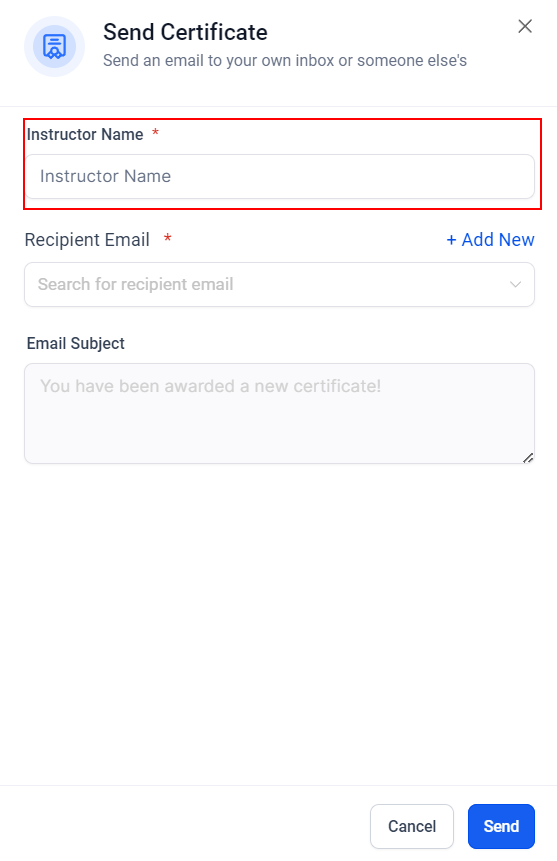
3. Fill out the instructor’s name.
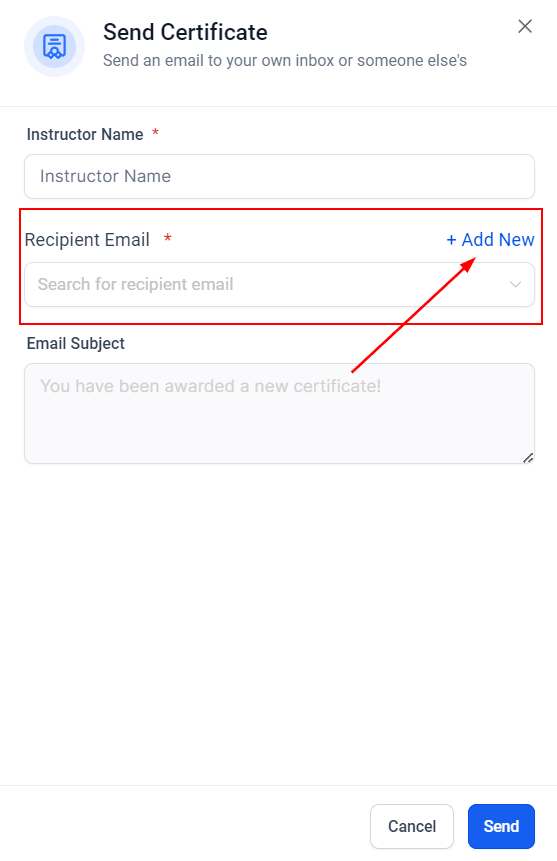
4. Select the recipient’s email from your contacts. If you want to send it to someone who has not been added, click the Add New button to input their information. Any custom value you’ve added to the certificate will be replaced with a blank space if the information is not added already.
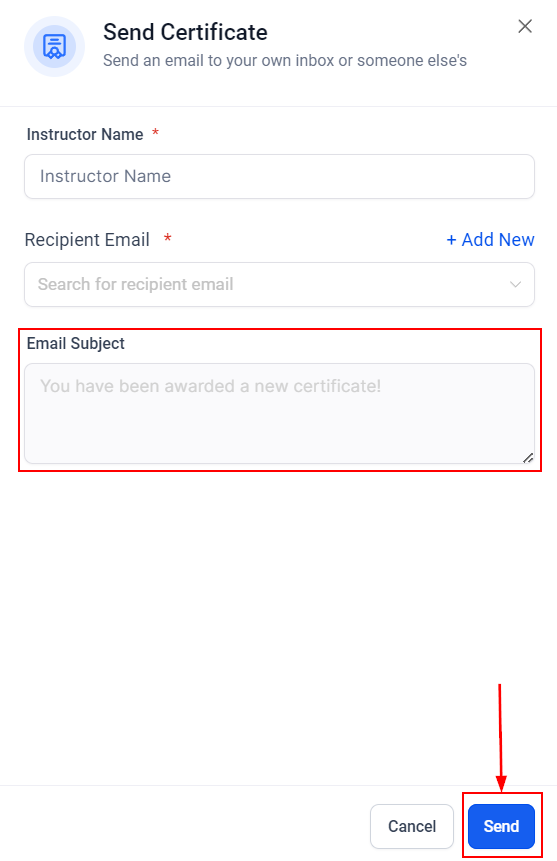
5. Set the Subject for the email and click Send.
One of the most satisfying and important parts of completing a course is receiving a completion certificate, it allows your clients to prove their expertise and provide additional legitimacy to your lessons. So leverage this tutorial to add prestige to your courses and offer the best experience to your audience.
Troubleshooting Tips and FAQs #
Q: What if a member doesn’t receive their certificate? A: Check the member’s course completion status and ensure their email address is correct. Additionally, advise them to check their spam or junk folders.
Q: Can I customize certificates for each course? A: Absolutely! You can create and customize unique certificates for each course, allowing for a tailored recognition experience.
Q: How do I update a certificate after it’s been issued? A: To update a certificate, you’ll need to edit the original design and reissue the certificate to the affected members manually.
What's your Reaction?
You have reacted on"Creating and Issuing Certificates for Course Co..."
A few seconds ago


 Subscriptions
 My Orders
 My Wishlist
 Refer & Earn💸
 My Projects
 Conversations
 Website Services
 New Website Request
 Website Addons
 eCommerce Addons
 eCommerce Modules
 Software Development
 Graphic Design
 Video Production
 Content Writing
 Marketing Services
 Marketing Products
 Get a Marketing Plan
 Local SEO Audit
 Sales Automation
 Service Automation
 Operations Automation
 Marketing Automation
 Payments Automation
 Premium Modules
 Support Tickets
 Latest Updates
 Consultation Calls
 Tools & Extensions
 Tech Tips & Tricks
 Domains & Emails









