The Sales Tab provides quick access to your funnel’s sales data, helping you monitor performance and track customer purchases. Here’s an overview of how to navigate and use this feature effectively.
Sales Tab Overview #
To access the sales info for a specific funnel, navigate to the “Funnels” tab. Select the funnel you wish to analyze and click on “Sales” to view detailed data for that funnel.
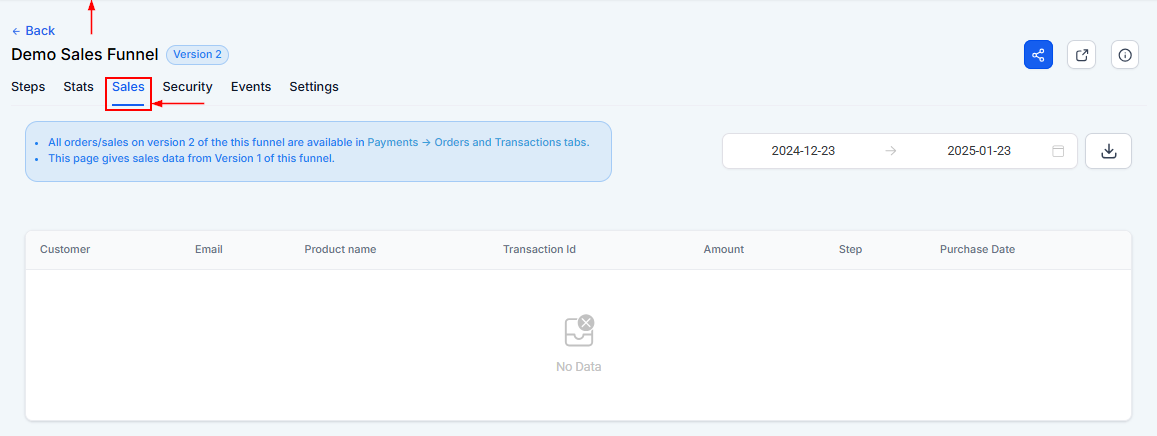
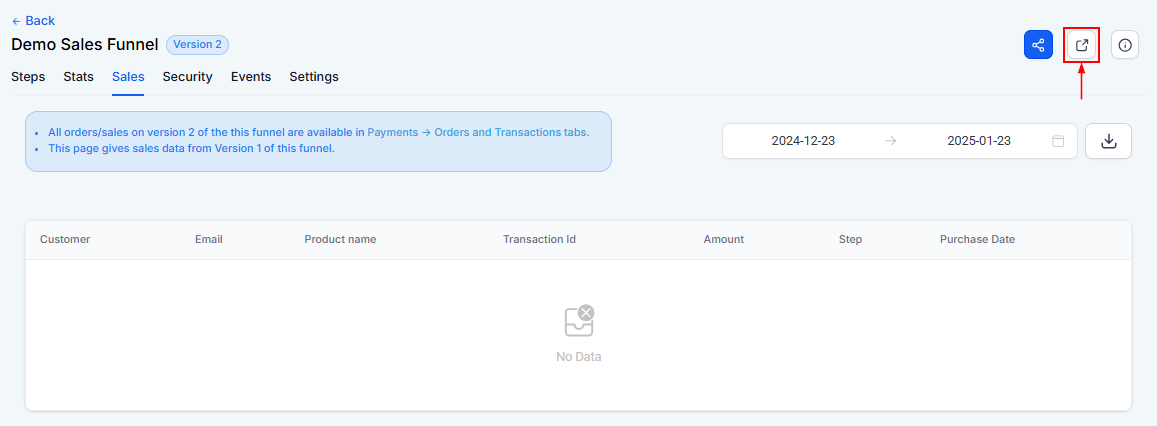
Funnel URL #
The Funnel URL directs visitors to the first page of your funnel. Customize the domain or path in the Funnel Settings to suit your needs.
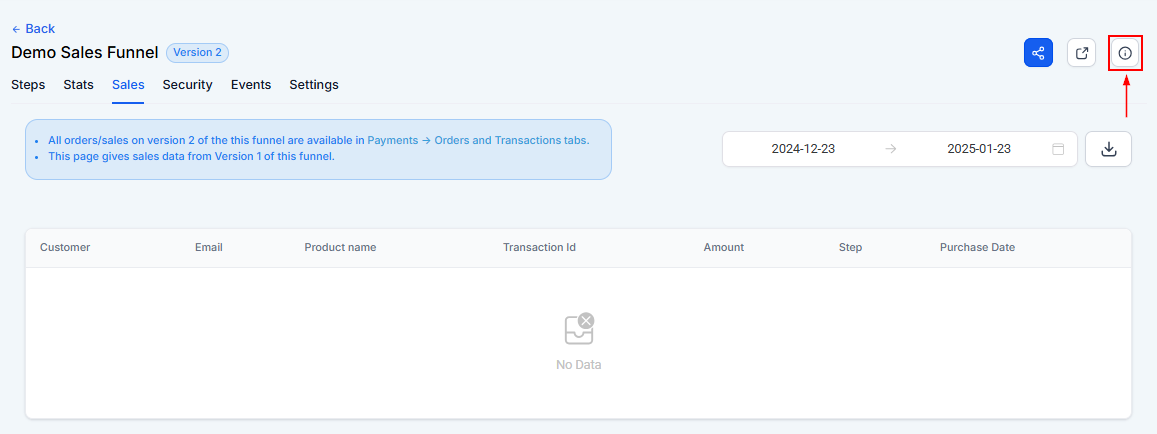
Funnel Info #
Click the Funnel Info icon for additional details about the funnel URL and its configuration.
Date Range #
Filter sales data by time frame using the Date Range feature. Click the icon, select a date range from the calendar, and apply it to focus your analysis.

Download #
Export your funnel’s sales data as a CSV file by clicking the Download button.

Sales Table #
The Sales Table breaks down every transaction detail.
- Customer: This column shows the names of all customers who purchased your product/services.
- Email: This shows the email of the customer who purchased your product/services.
- Product Name: Here you will see the names of the products/services purchased by customers.
- Transaction ID: This column shows the unique transaction ID of each product purchased by customers.
- Amount: This shows the price each customer purchased your products/services.
- Step: The “Step” column shows the type of the product.
- Purchase Date: This shows the date and time at which each purchase is made.

The Sales Tab simplifies sales tracking, giving you essential insights into your funnel’s performance. Use its features to analyze data efficiently and optimize your funnel strategy.
What's your Reaction?
You have reacted on"Sales Tab – Funnels"
A few seconds ago


 Subscriptions
 My Orders
 My Wishlist
 Refer & Earn💸
 My Projects
 Conversations
 Website Services
 New Website Request
 Website Addons
 eCommerce Addons
 eCommerce Modules
 Software Development
 Graphic Design
 Video Production
 Content Writing
 Marketing Services
 Marketing Products
 Get a Marketing Plan
 Local SEO Audit
 Sales Automation
 Service Automation
 Operations Automation
 Marketing Automation
 Payments Automation
 Premium Modules
 Support Tickets
 Latest Updates
 Consultation Calls
 Tools & Extensions
 Tech Tips & Tricks
 Domains & Emails












