Survey creators have the option to customize the footer, adding both style and functionality. You can keep your current layout while enhancing the look and feel. Adjustments to your survey are displayed instantly, thanks to the real-time preview feature, allowing for immediate feedback and modifications.
Access the Survey Builder #
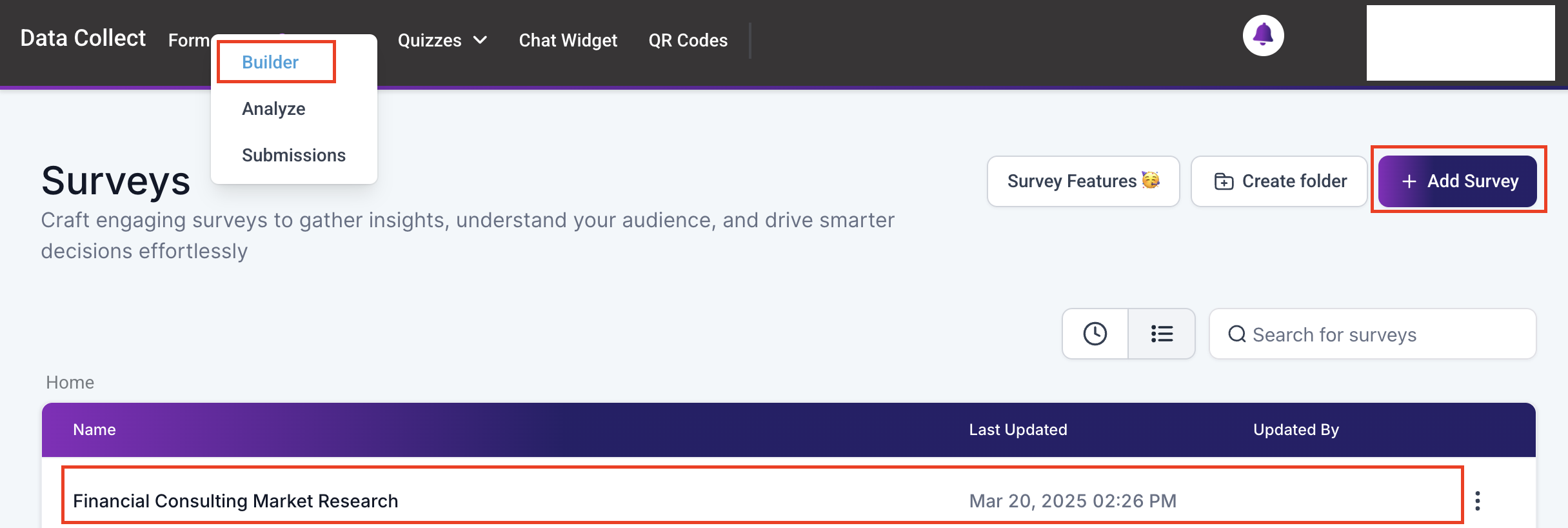
From the CRM Dashboard, navigate to the Sites > Survey > Builder. You either Create a new Survey or Edit a survey already in progress.
Inside the Survey Builder, click the Hamburger Menu, navigate to Styles, and select the Footer dropdown. This will open the footer customizer for further adjustments.

Customize Design #
Modify the survey’s design elements, including backgrounds, fonts, progress bars, button colors, and positions, to match your desired aesthetic.

Real-time Preview #
As you make changes, use the real-time preview function to see how your survey will appear to respondents, allowing for immediate adjustments.

For surveys, the footer customization options are enabled by default. If you’re working on a survey and wish to modify its appearance, you can opt to switch to the footer style.
Best Practices and Tips #
To ensure you’re making the most out of the survey customization feature, consider the following tips:
- Brand Consistency: Use the customization options to align your survey’s design with your brand’s visual identity, enhancing recognition and trust among respondents.
- User Experience: Pay attention to the overall user experience. Ensure that fonts are readable, colors are accessible, and the progress bar indicates survey completion status.
- Feedback and Iteration: Utilize feedback from survey respondents to make iterative improvements to your survey designs, optimizing for engagement and completion rates.
With footer customization options, you can create surveys that not only look great but also provide a seamless experience for respondents. Whether you’re starting from scratch or modifying a survey, these tools make it easy to align your surveys with your brand and gather valuable insights.
Troubleshooting and FAQs #
Q: Can I apply the footer style to a survey?
- A: Yes, surveys can incorporate the footer style, though they will retain their original style by default.
What's your Reaction?
You have reacted on"Customizing Survey Footer in Survey Builder"
A few seconds ago


 Subscriptions
 My Orders
 My Wishlist
 Refer & Earn💸
 My Projects
 Conversations
 Website Services
 New Website Request
 Website Addons
 eCommerce Addons
 eCommerce Modules
 Software Development
 Graphic Design
 Video Production
 Content Writing
 Marketing Services
 Marketing Products
 Get a Marketing Plan
 Local SEO Audit
 Sales Automation
 Service Automation
 Operations Automation
 Marketing Automation
 Payments Automation
 Premium Modules
 Support Tickets
 Latest Updates
 Consultation Calls
 Tools & Extensions
 Tech Tips & Tricks
 Domains & Emails










