The date format and picker features in forms and surveys are designed to provide improved clarity, flexibility, and usability, catering to a diverse range of preferences and international standards. Whether you are gathering data for research, feedback, or appointments, these features will ensure a smoother and more efficient process.
How to Get Started #
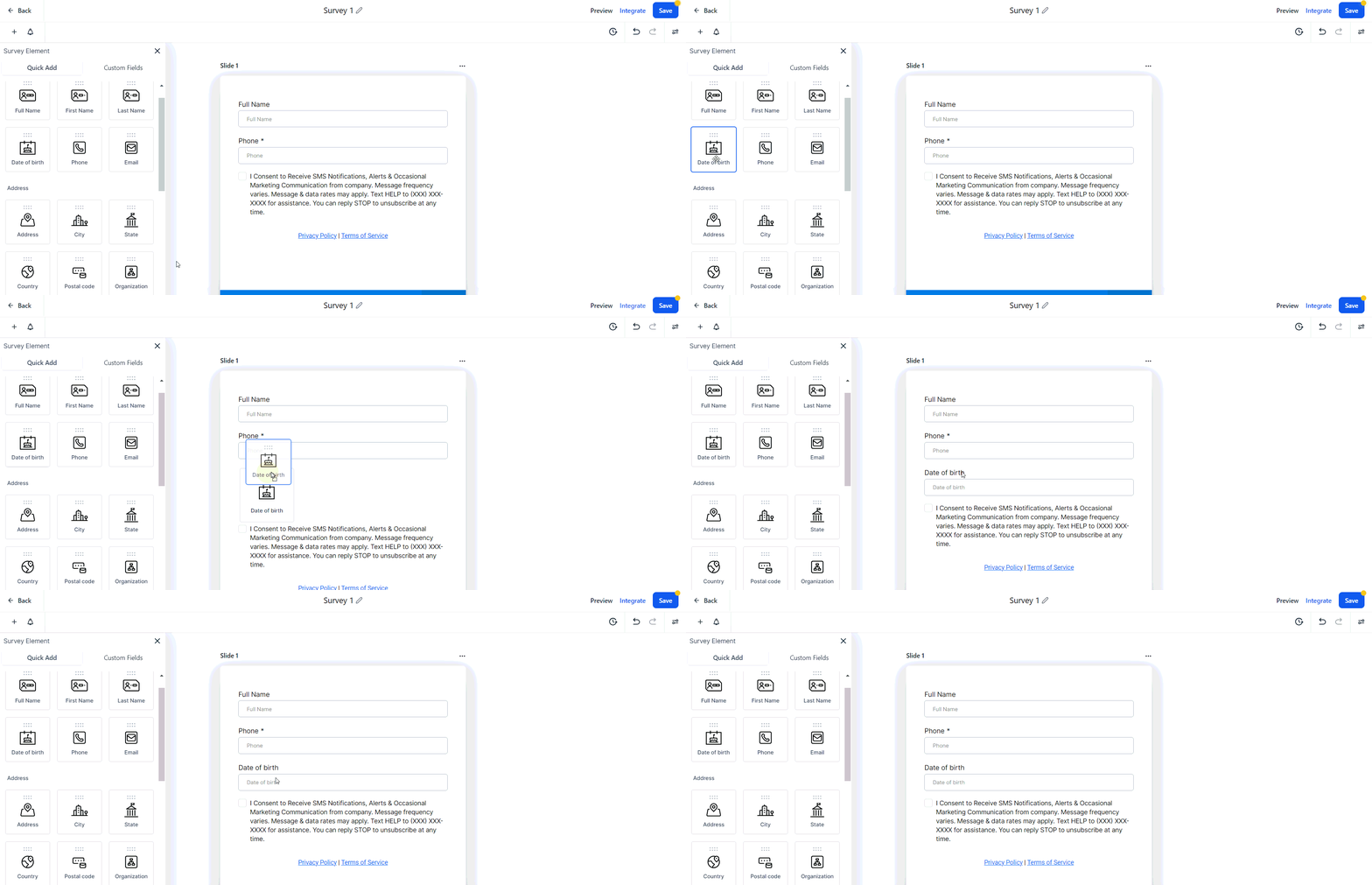
Add a Date Field #
- Incorporate a date field into your form or survey.
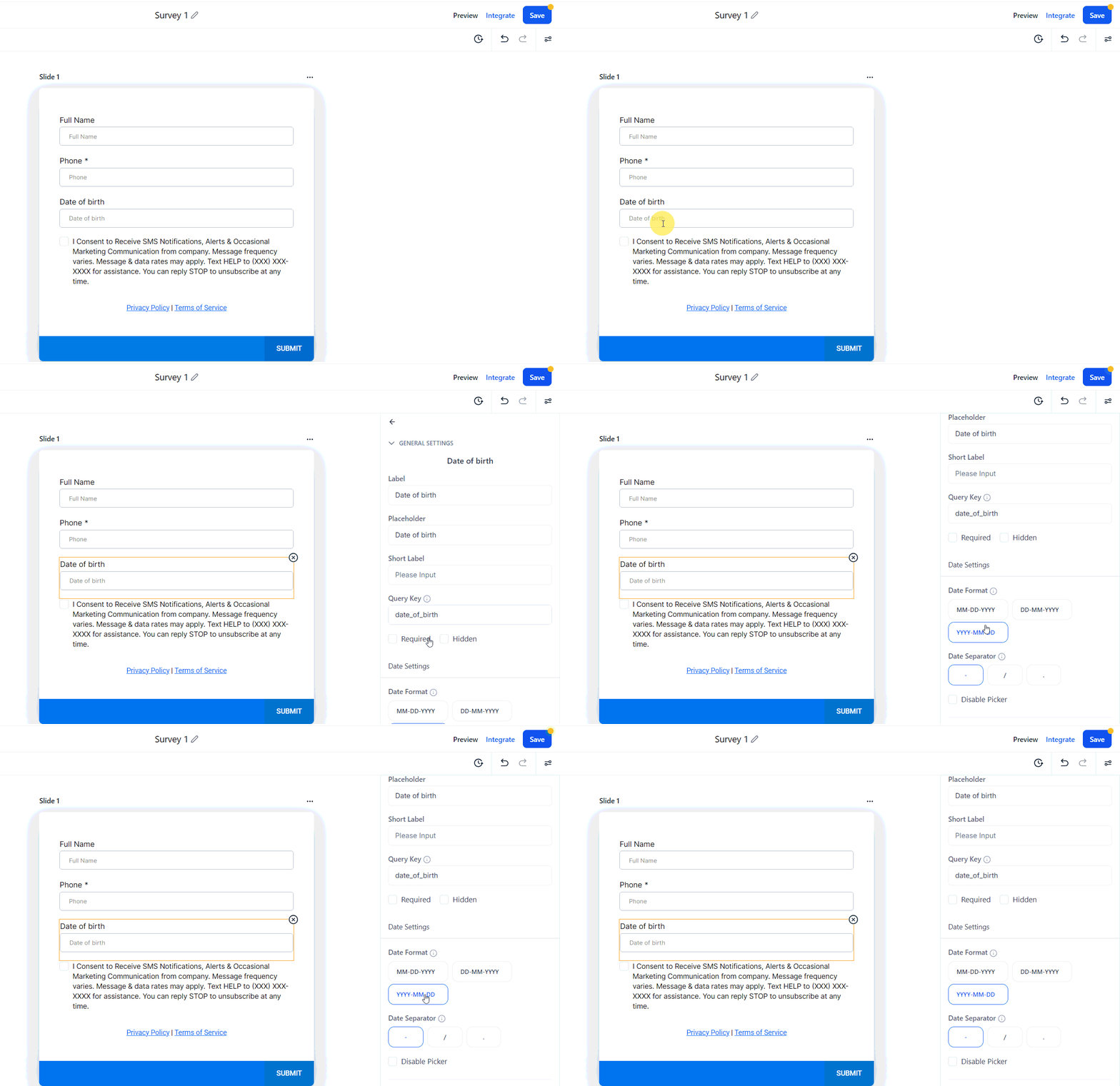
Open Settings #
- Click on the date field to open the settings menu.
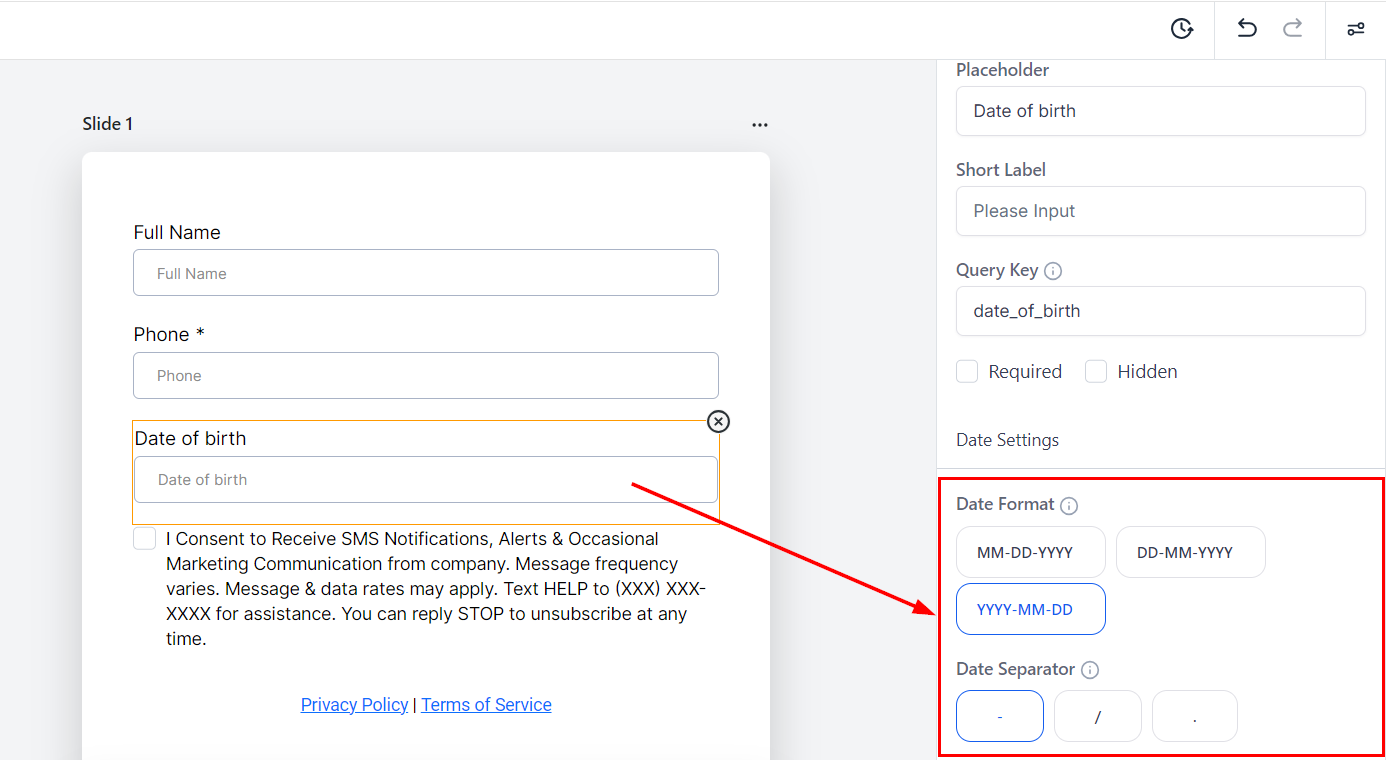
Choose Preferred Format and Separator #
- Select your preferred date format and separator from the available options.
Effect on Existing Forms #
Existing forms will continue to function with the default date format YYYY-MM-DD. You can choose to edit existing forms to adopt date formats if desired.
By taking advantage of the date formats and the date picker, you can enhance the clarity and usability of your forms and surveys. Implement these changes today to provide a better experience for your respondents and streamline your data collection process.
Troubleshooting Tips #
Date Field Not Displaying Correctly:
- Ensure that you have saved your settings after selecting the preferred date format and separator. Refresh the page if the changes do not appear immediately.
Date Picker Not Functioning:
- Check your internet connection and ensure that your browser is up to date. Clear your browser cache and cookies if the date picker is still unresponsive.
Incorrect Date Format in Submissions:
- Confirm that the correct date format was selected in the settings. Re-open the settings menu for the date field and verify your choices.
What's your Reaction?
You have reacted on"Date Fields in Forms/Surveys"
A few seconds ago


 Subscriptions
 My Orders
 My Wishlist
 Refer & Earn💸
 My Projects
 Conversations
 Website Services
 New Website Request
 Website Addons
 eCommerce Addons
 eCommerce Modules
 Software Development
 Graphic Design
 Video Production
 Content Writing
 Marketing Services
 Marketing Products
 Get a Marketing Plan
 Local SEO Audit
 Sales Automation
 Service Automation
 Operations Automation
 Marketing Automation
 Payments Automation
 Premium Modules
 Support Tickets
 Latest Updates
 Consultation Calls
 Tools & Extensions
 Tech Tips & Tricks
 Domains & Emails









