Understanding the source and activities of your contacts is vital for effective marketing and sales strategies. Our Attribution Parameters on Contacts Widgets feature empowers users to gain deeper insights into their contact sources and activities. This functionality allows users to filter contacts based on first or latest attribution, utilize key UTM parameters, and create detailed, custom widgets, enabling users to group and view data by properties such as Activity, Session Source, and Medium, creating interactive donut and line graphs.
Additionally, the feature facilitates comprehensive reporting with the inclusion of new properties in the granular insights table and CSV exports, as well as customizable columns in the Table widget. This article will guide you through leveraging these powerful features, providing troubleshooting tips, and answering frequently asked questions.
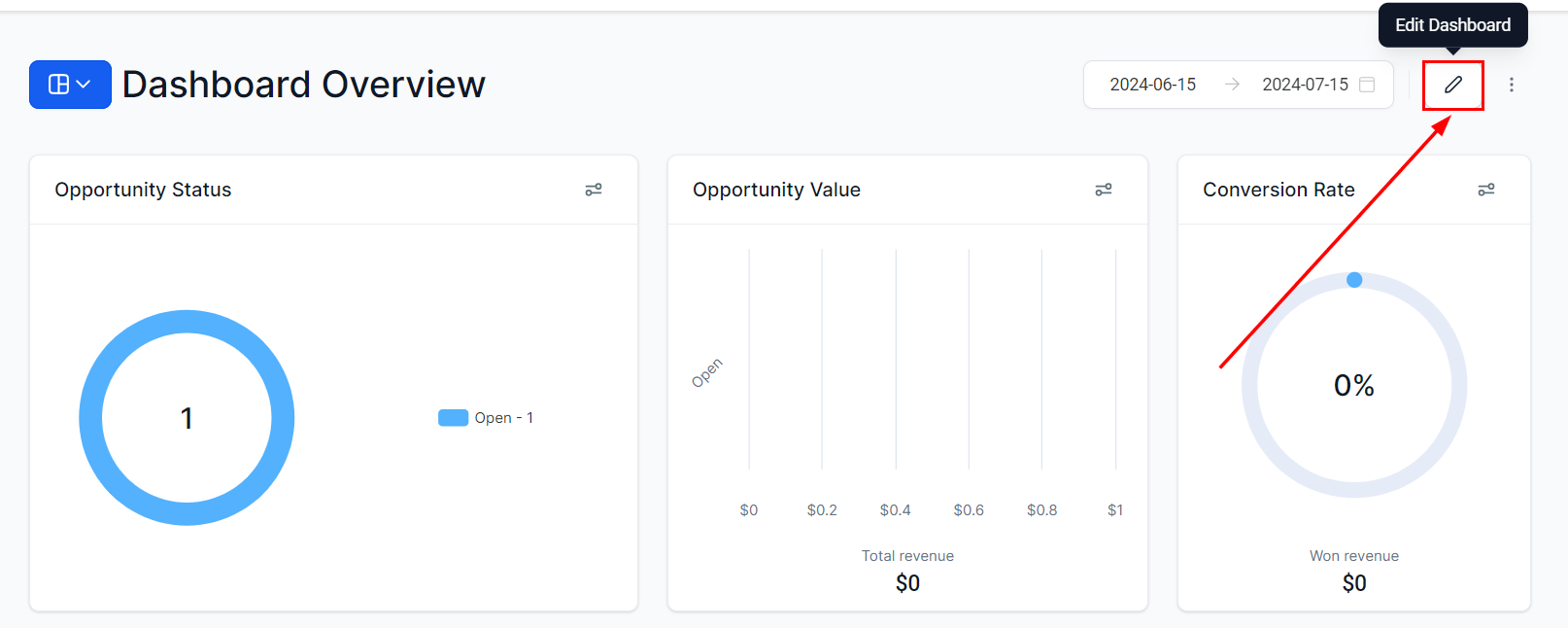
Edit Dashboard #
Click on the edit icon on your dashboard.
Add Widget #
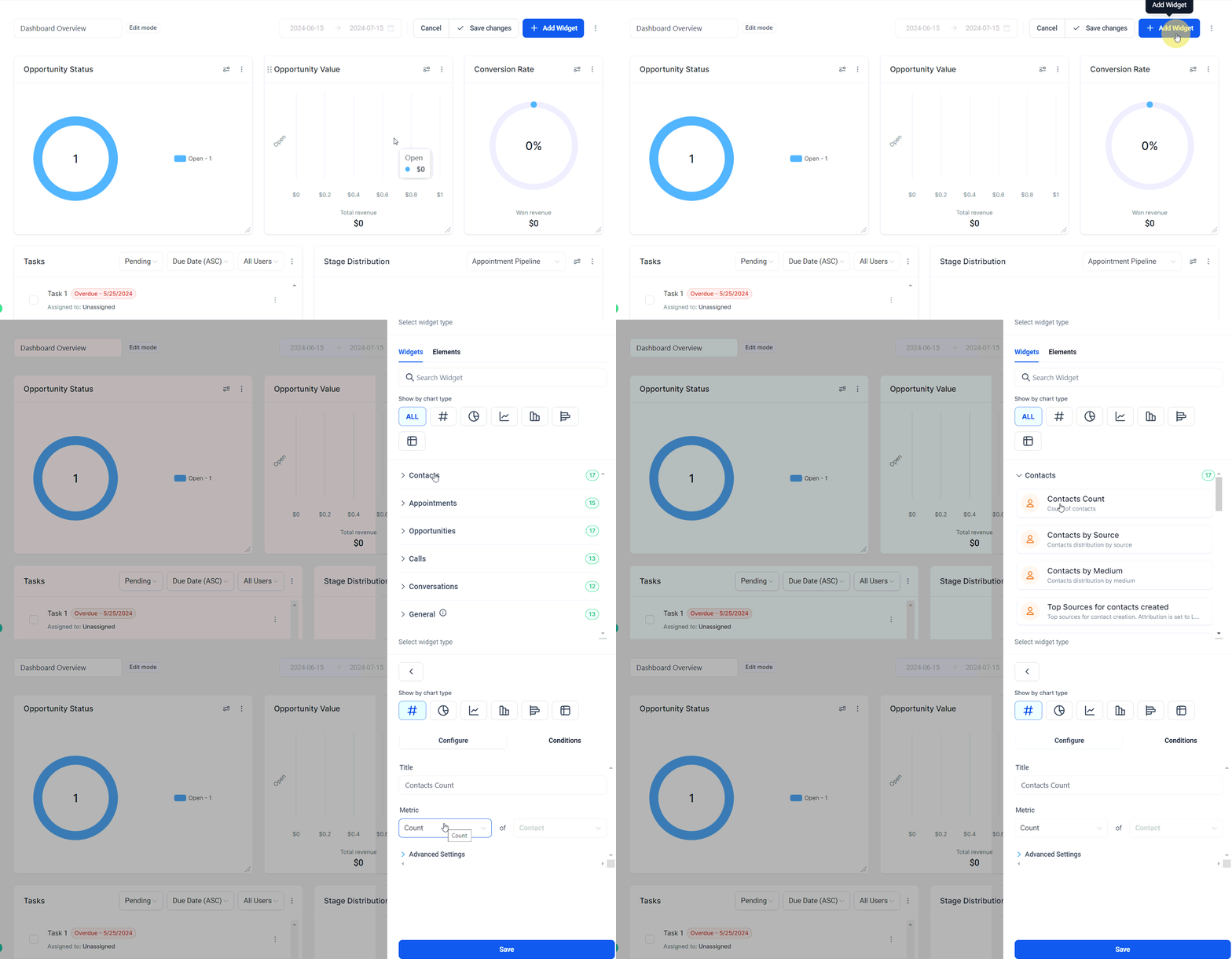
Click on Add widget and choose any widget under the Contact category.
Add Attribution Condition #
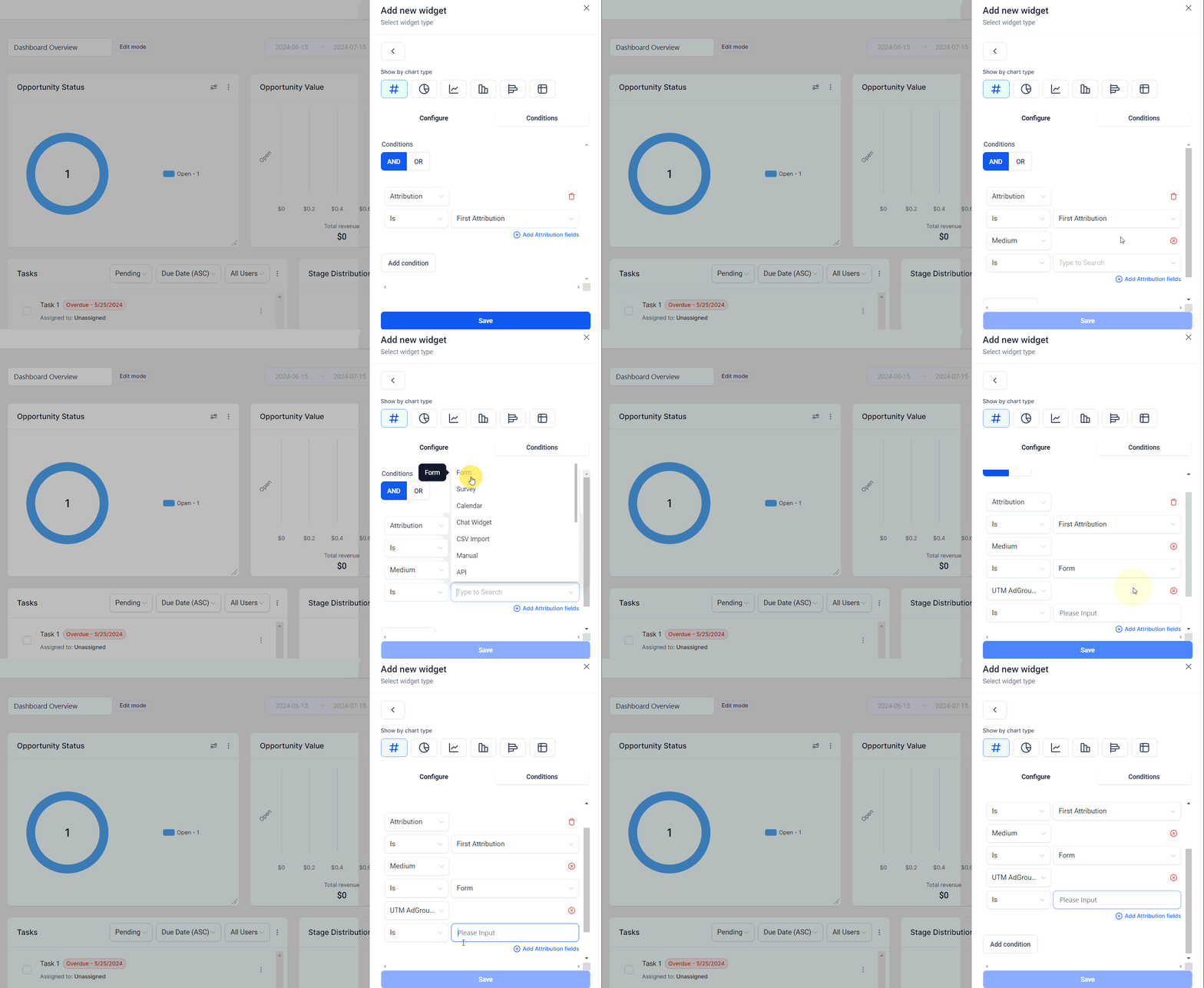
Switch to the Condition tab and click on “Add Condition.” From the dropdown menu, select Attribution, and then choose whether you’d like to filter based on First or Latest Attribution.

Add Attribution/UTM Fields #
After selecting the attribution type, click on “Add Attribution Fields.” From the dropdown menu, choose the property you wish to use. If you need to add more attribution fields, simply click on “Add Attribution Fields” again.
Supported Attribution Fields: #
- UTM Campaign
- UTM CampaignId
- UTM Content
- UTM Keyword
- UTM Matchtype
- UTM Medium
- UTM AdId
- UTM AdGroupId
- UTM Source
- Other Attribution properties like Medium and Session Source
Save the Widget #
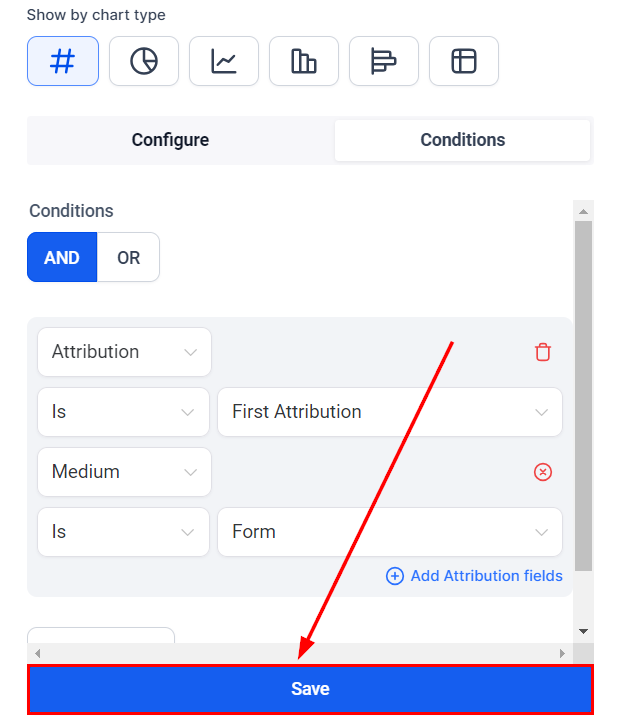
Once you are satisfied with your configurations, save the widget to add it to your Dashboard.
Grouping Donut Charts or Line Graphs with Session Source or Medium #
Once you have selected a contact widget to be added to your Dashboard, you can group donut charts by session source or medium.
Choose Donut or Line Graph #
Select the Donut or Line graph on the chart selector bar.

Add Attribution Condition #
Switch to the Conditions tab and click on “Add Condition.” From the dropdown menu, select Attribution and specify whether you want to filter based on First Attribution or Latest Attribution.
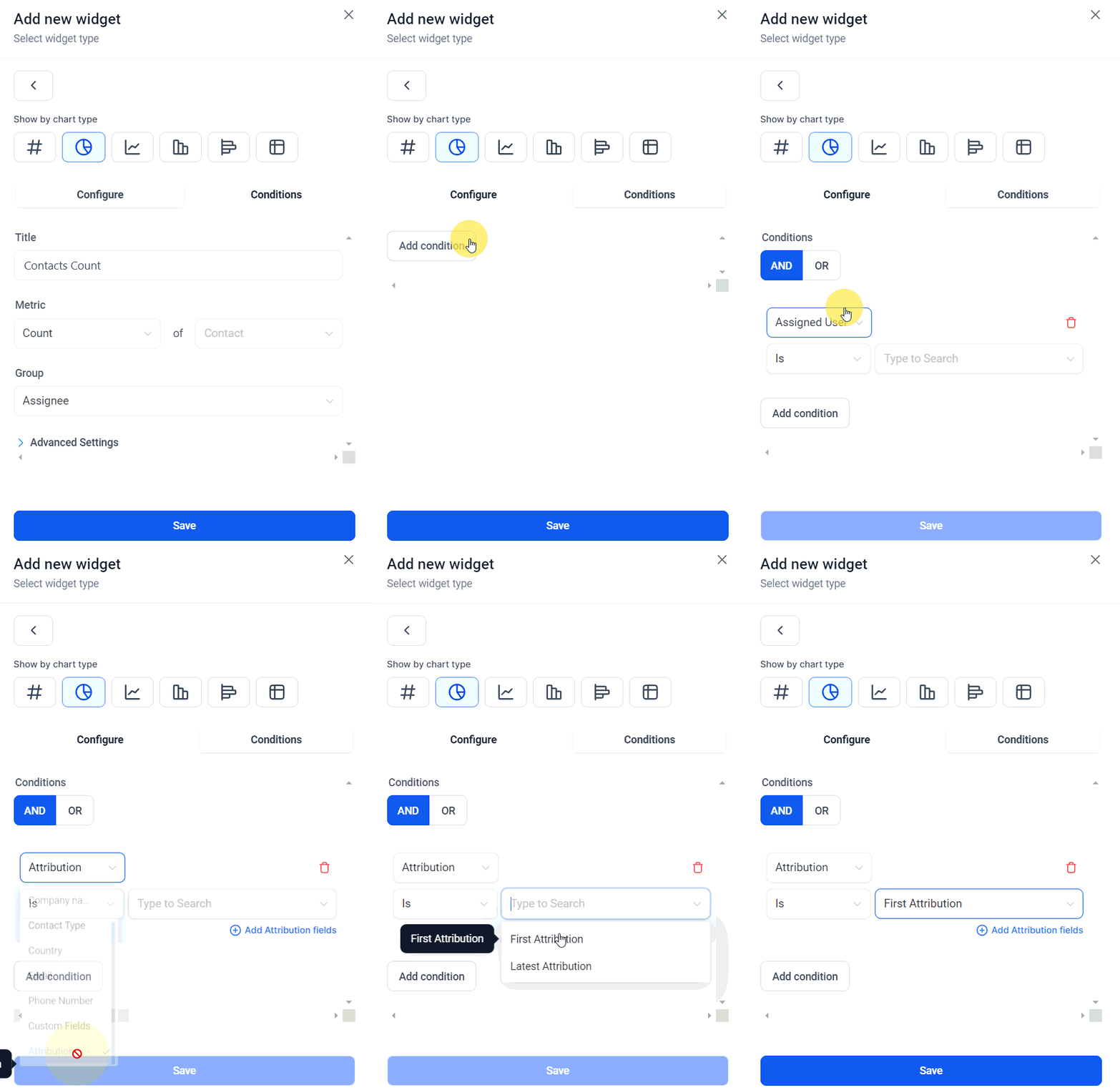
Update the Group/View by Property #
Switch to the Configuration tab and select from the following properties in the Group dropdown:
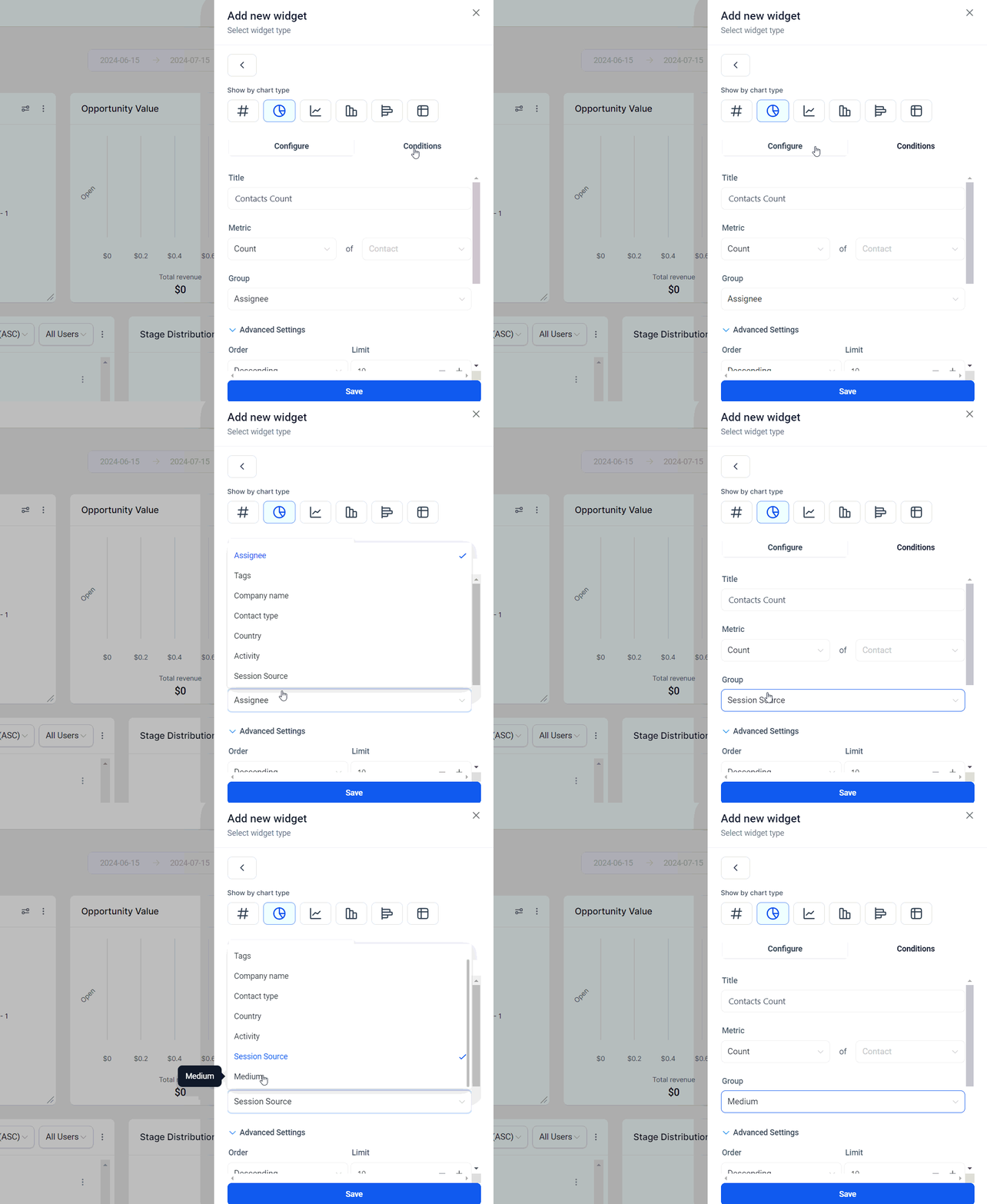
Save the Widget #
Once you are satisfied with your configurations, save the widget to add it to your Dashboard.
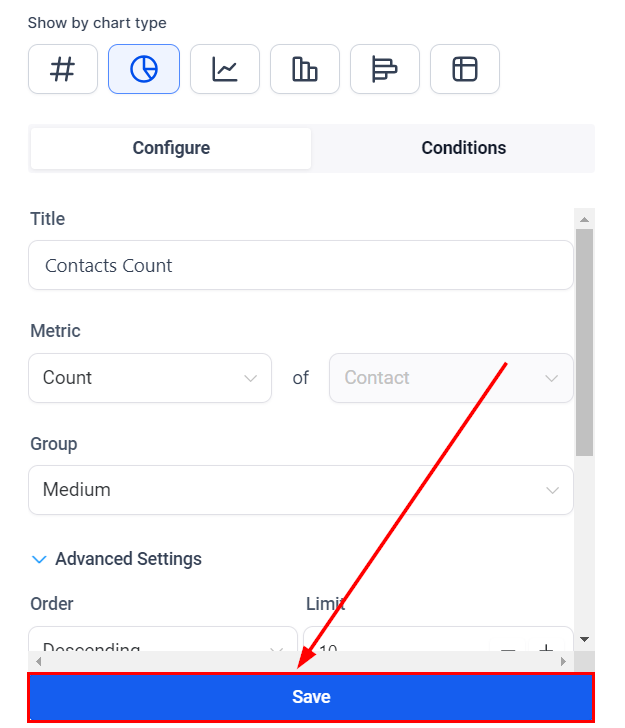
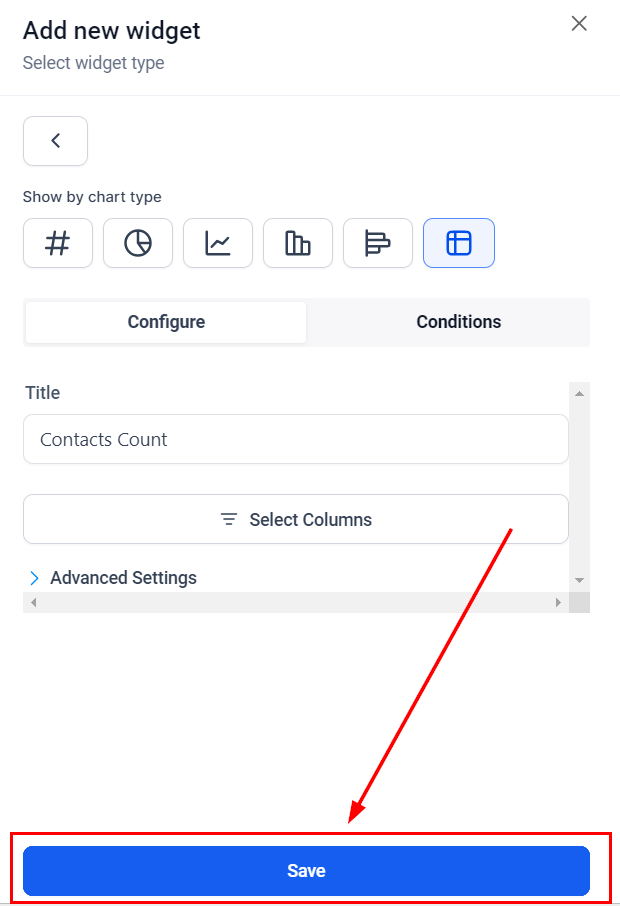
Adding Attribution Fields and UTM Parameters as Table Chart Columns #
After selecting a contact widget to be added to your Dashboard, you can add attribution fields and UTM Parameters as table chart columns.
Choose Table Chart #
Select the Table Chart on the chart selector bar.
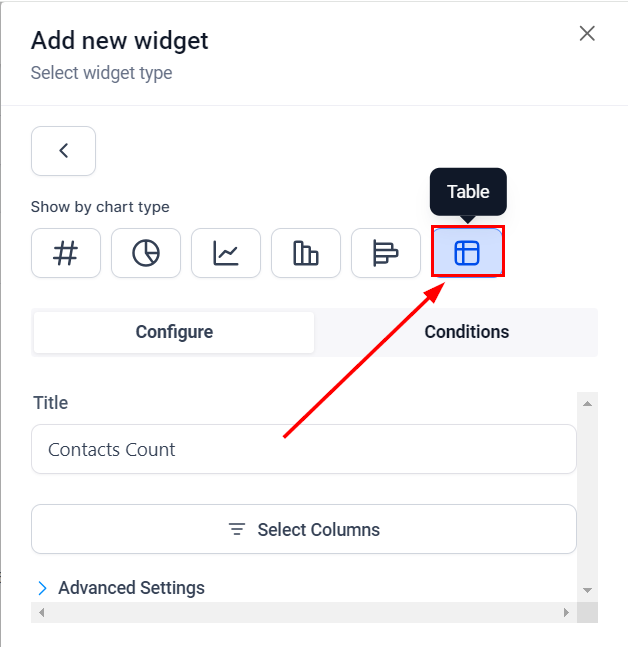
Select Columns #
Click on “Select Columns” and choose the columns you wish to display on the Table chart.

Save the Widget #
Once you are satisfied with your configurations, save the widget to add it to your Dashboard.
By leveraging these features, you can gain deeper insights into your contact sources and activities, enhancing your ability to track and optimize your marketing efforts effectively.
✍️Important Notes: #
- UTM parameters and fields will only be visible on the Table and Granular insights view if Attribution type (First or Latest) is added in widget conditions.
- Group/View by properties – Session Source and Medium can only be selected if Attribution type (First or Latest) is added in widget conditions.
Frequently Asked Questions #
Q: What are Attribution Parameters and why are they important?
- Attribution Parameters help you understand the source and activities of your contacts, allowing for better tracking and optimization of marketing efforts.
Q: How can I filter contacts based on UTM parameters?
- By adding attribution conditions and selecting the desired UTM parameters in the custom widget settings.
Q: Why are my UTM fields not appearing in the table view?
- Ensure that you have added an Attribution type (First or Latest) in the widget conditions.
Q: Can I use multiple attribution fields in a single widget?
- Yes, you can add multiple attribution fields to a single widget for comprehensive analysis.
Troubleshooting Tips #
Attribution Fields Not Showing:
- Ensure that the Attribution type (First or Latest) is selected in the widget conditions.
Incorrect Data Display:
- Double-check the attribution and UTM parameters selected. Ensure they align with the data you wish to display.
Widget Configuration Issues:
- Refresh the dashboard and reconfigure the widget if necessary. Ensure all fields and conditions are correctly set.
Export Issues:
- If exporting data to CSV, ensure that all desired attribution fields are selected and configured correctly in the widget settings.
What's your Reaction?
You have reacted on"Filtering by Attribution in Contact Custom Widgets"
A few seconds ago


 Subscriptions
 My Orders
 My Wishlist
 Refer & Earn💸
 My Projects
 Conversations
 Website Services
 New Website Request
 Website Addons
 eCommerce Addons
 eCommerce Modules
 Software Development
 Graphic Design
 Video Production
 Content Writing
 Marketing Services
 Marketing Products
 Get a Marketing Plan
 Local SEO Audit
 Sales Automation
 Service Automation
 Operations Automation
 Marketing Automation
 Payments Automation
 Premium Modules
 Support Tickets
 Latest Updates
 Consultation Calls
 Tools & Extensions
 Tech Tips & Tricks
 Domains & Emails









