This guide will walk you through the steps to add a form to your website using the embed code. Although you can utilize the Form element within the builder, embedding options for forms offer greater control over the visibility and behavior of forms on websites or funnels. This provides flexibility in managing when and how forms appear, with advanced options to trigger and deactivate forms based on specific conditions. Whether you want forms to display after a certain user action or deactivate once a lead is collected, these options allow for a tailored, dynamic user experience.
How It Works #
Start by accessing the Form Builder section of your account. Here, you can create a new form, or click a form in the list to access its options.
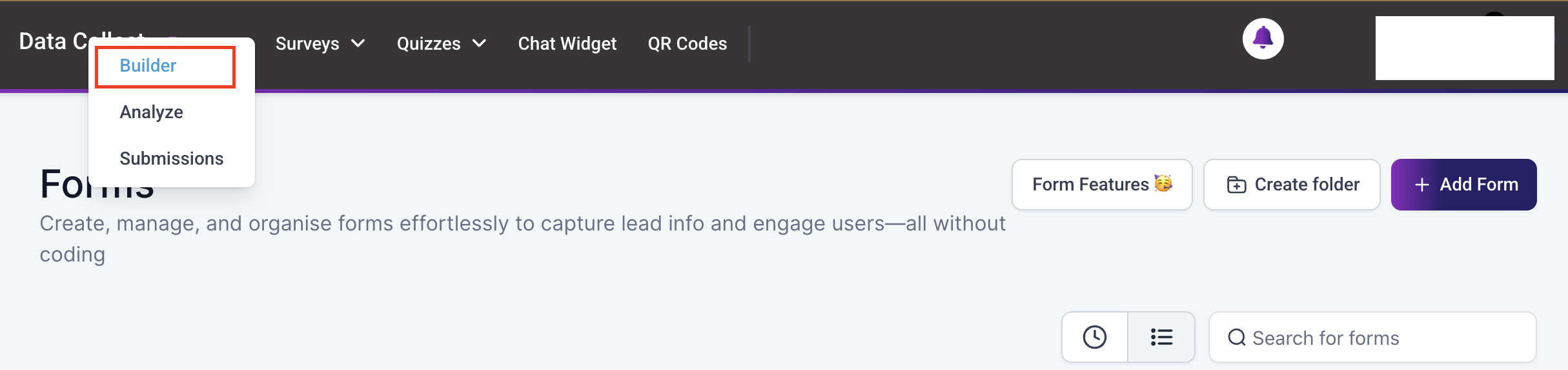
Click the “Integrate” button once you are satisfied with the selected elements and design. This action will automatically save any changes made to your form.

Embed Layout Type #
Choose how the form will be displayed on your website. The available options include:
- Sticky Sidebar: The form is positioned as a sticky element on either the left or right side of the screen, remaining visible as the user scrolls. It can be minimized or expanded as needed, offering a non-intrusive experience.
- Polite Slide-In: The form gently slides in from the left or right, subtly drawing the user’s attention. It can also be minimized to ensure it doesn’t disrupt the browsing experience.
- Popup: The form appears in a modal window, overlaying the page content. This format captures immediate attention but requires user action to close before interacting with the underlying content.
- Inline: The form is seamlessly embedded within the page content as a native element, allowing for a smooth and uninterrupted user experience.

Trigger Type #
Trigger options determine when the form will appear on your site. Choose from the following options:
- Show on Scrolling [X]%: The form appears once the user scrolls a specified percentage of the page (e.g., 50%).
- Show After [X] Seconds: The form appears after a predefined delay (e.g., 5 seconds).
- Always Show: The form is continuously visible without relying on user interaction.

Activation Options #
Determine when the form should be activated:
- Activate on [X] Visit: The form appears only after the user has visited the page a set number of times (e.g., on their third visit).
- Always Activated: The form remains active at all times, regardless of user behavior.

Deactivation Options #
Define when the form should stop being displayed:
- Deactivate After Showing [X] Times: The form will stop showing after being displayed a specified number of times (e.g., 3 times).
- Deactivate Once Lead Is Collected: The form automatically deactivates once the user submits their information.
- Never Deactivate: The form remains active and visible indefinitely.

After configuring each setting, copy the embed code to save it to your clipboard.

Modifying Your Website #
Now that you have obtained the code, access the Websites section of your account, and either select an existing site or create a new one where you wish to embed the form.
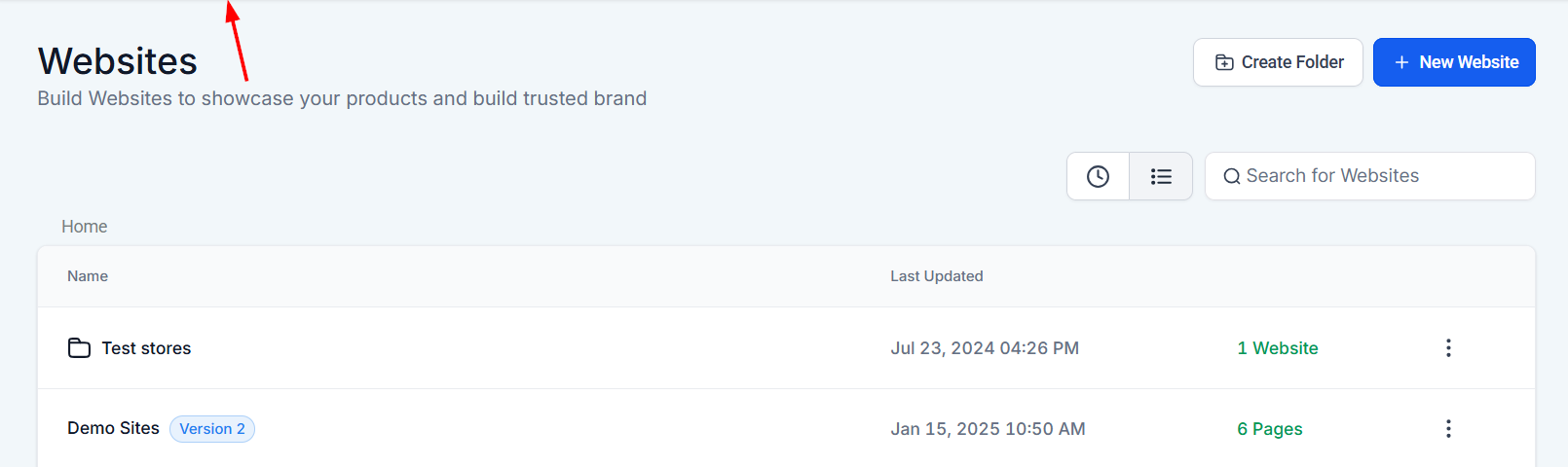
Add a Code element to your page and paste the embed code into this element.

Before saving the embed code, locate the script within the embed code responsible for auto-adjusting the form’s height. Remove or comment out this script to disable the automatic height adjustment feature.
With the auto-adjust script removed, you’ll need to manually set the height of the form. Do this by adding a height attribute directly in the embed code or through CSS styling. Start with a reasonable height, such as 200px, and adjust as necessary.

Test and Adjust #
After embedding the form, preview your website to see how the form appears. If the form is not displaying correctly, incrementally adjust the height until you achieve the desired result.
By configuring the form layout and options, you’ve ensured that the form is both functional and visually appealing. With this feature, your form should now fit perfectly within your website.
Frequently Asked Questions #
Q: What if I’m not comfortable editing HTML or CSS?
- Integrate forms built on the platform using the “Form” element instead.
Q: Can embedded forms work dynamically if I change my options?
- Embedded forms are static once placed on a website, meaning any changes to the form’s settings (such as triggers or deactivation options) require you to generate a new embed code. After generating the updated code, you must replace the old embed code on your site for the new settings to take effect.
What's your Reaction?
You have reacted on"How to Embed a Form into Your Website"
A few seconds ago


 Subscriptions
 My Orders
 My Wishlist
 Refer & Earn💸
 My Projects
 Conversations
 Website Services
 New Website Request
 Website Addons
 eCommerce Addons
 eCommerce Modules
 Software Development
 Graphic Design
 Video Production
 Content Writing
 Marketing Services
 Marketing Products
 Get a Marketing Plan
 Local SEO Audit
 Sales Automation
 Service Automation
 Operations Automation
 Marketing Automation
 Payments Automation
 Premium Modules
 Support Tickets
 Latest Updates
 Consultation Calls
 Tools & Extensions
 Tech Tips & Tricks
 Domains & Emails











