If you’re experiencing trouble with a page not loading, you may see a loading icon in the center of the screen. It is also possible a page just simply won’t load at all. The most common resolution for this is to clear your cache/cookies/history. The steps vary slightly depending on what web browser you’re using. Here’s steps for how to resolve in a Google Chrome browser, the most common option for users of this system. (Scroll down for some Safari troubleshooting tips.)
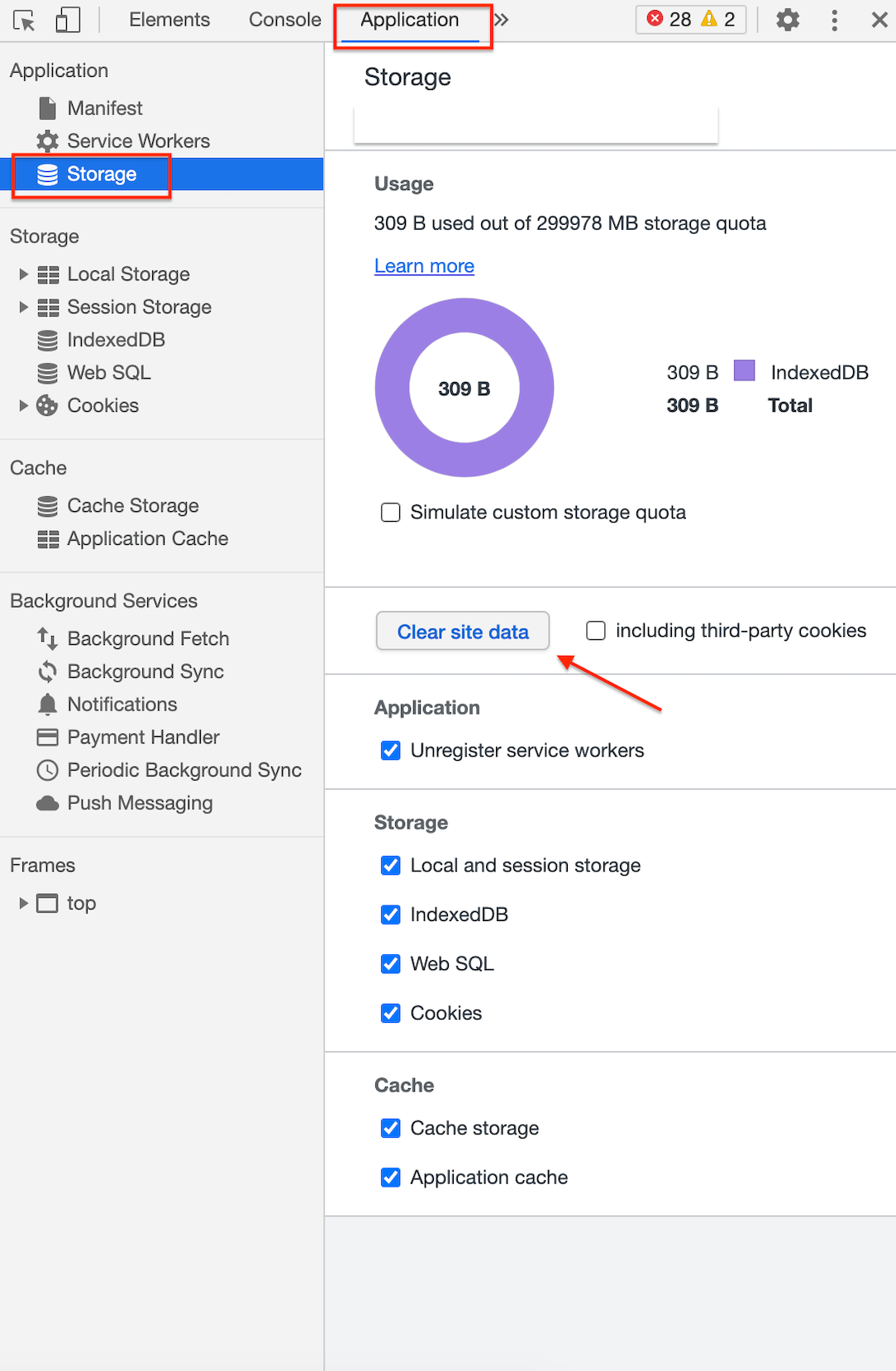
Step 1: Clear Your Site Data.
- Right-click on the screen.
- Select “Inspect” > “Application”.
- (You may need to click the >> to view “Application”).
- Choose “Storage” from the menu.
- Click the “Clear Site Data” button
Step 2: Clear Your Cookies.
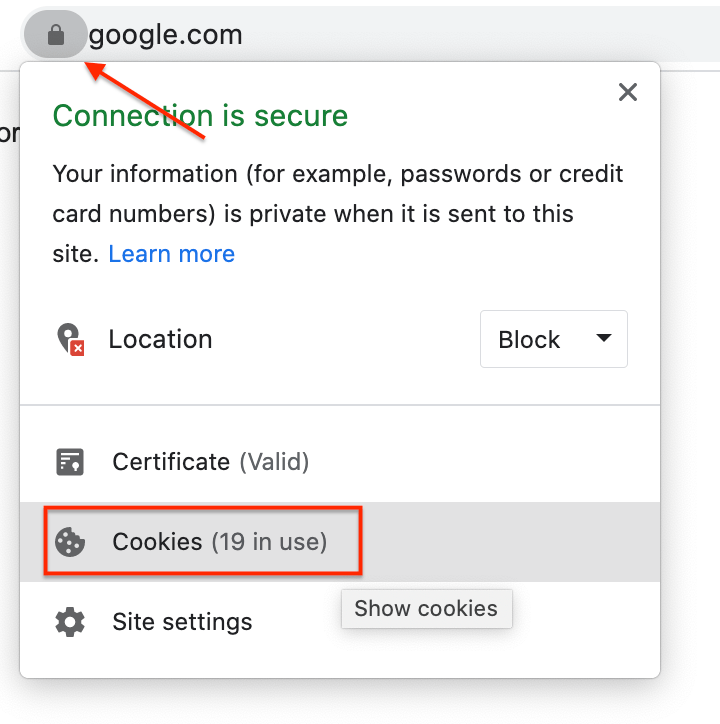
- Click the lock icon next to the url of the page (in this example we use google.com but you’ll want to use the actual page that isn’t loading)
- Select “Cookies”.
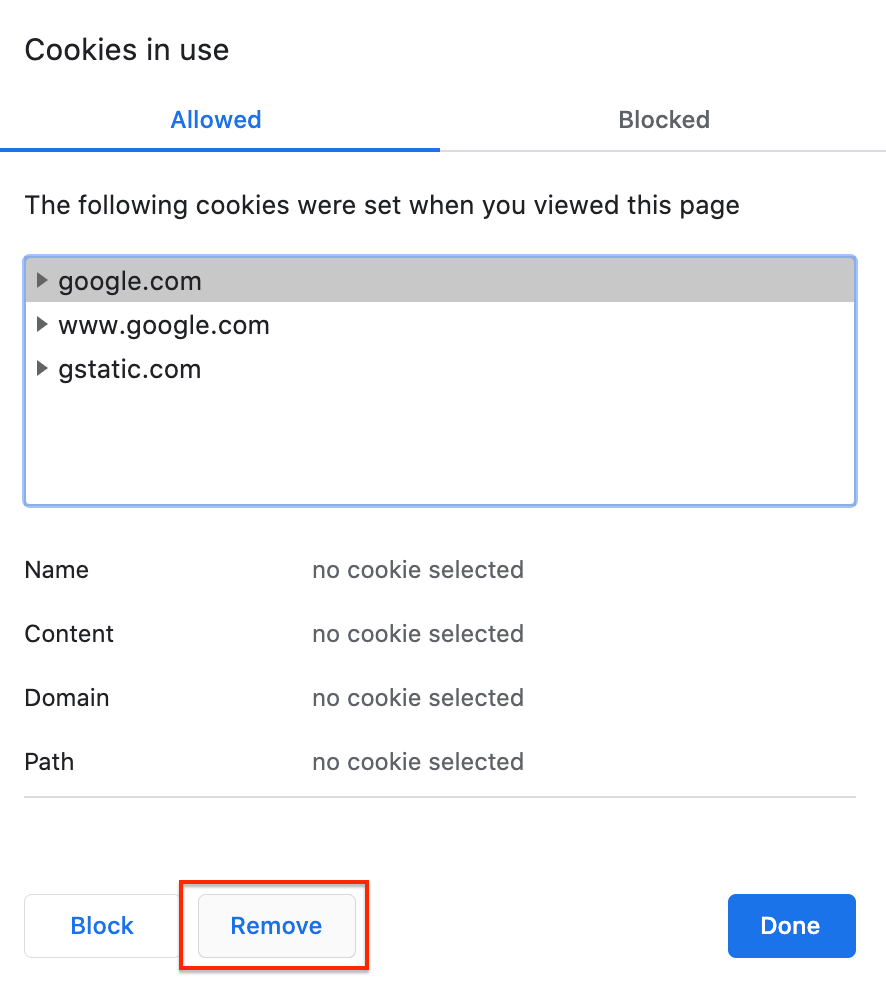
- Click the “Remove” button in the popup window that appears.
Step 3: Do a hard refresh of the web browser.
- On a PC, use the command Control + F5.
- On a Mac, use the command Command + R.
Step 4: Reset Chrome Flags.
- If the hard refresh of the web browser still didn’t work, enter this into your search bar: chrome://flags/
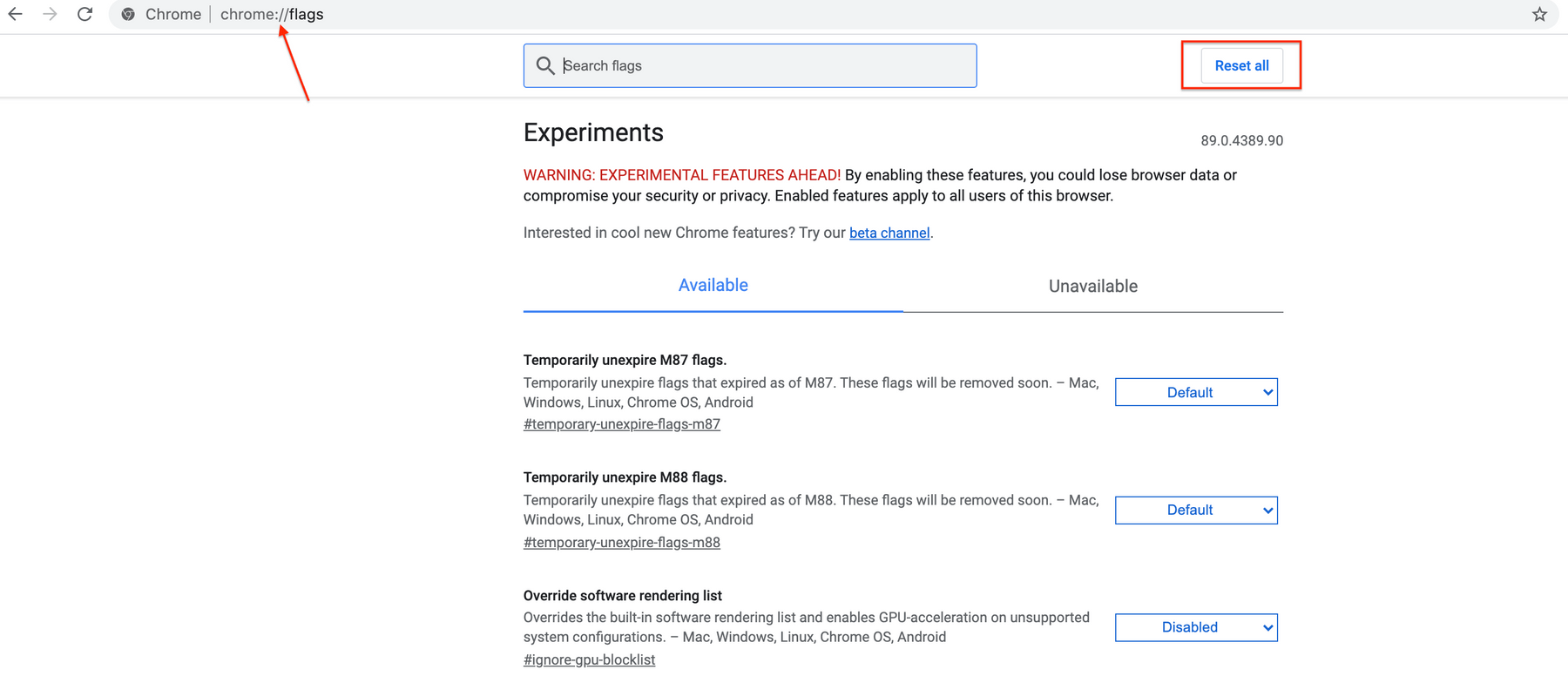
- When the page loads, reset all to default.
- Then do another hard refresh the browser.
To clear your cache in Safari, follow these steps:
Step 1: Click the “Safari” drop-down menu.
Step 2: Select “Preferences”. Click on the “Advanced” tab.
Step 3: Choose the “Show Develop” menu in menu bar checkbox, and then close the Preferences window.
Step 4: Choose the “Develop” drop-down menu.
Step 5: Click “Empty Cache”.
Step 6: Refresh your web browser.
What's your Reaction?
You have reacted on"What To Do If A Page Won’t Load"
A few seconds ago


 Subscriptions
 My Orders
 My Wishlist
 Refer & Earn💸
 My Projects
 Conversations
 Website Services
 New Website Request
 Website Addons
 eCommerce Addons
 eCommerce Modules
 Software Development
 Graphic Design
 Video Production
 Content Writing
 Marketing Services
 Marketing Products
 Get a Marketing Plan
 Local SEO Audit
 Sales Automation
 Service Automation
 Operations Automation
 Marketing Automation
 Payments Automation
 Premium Modules
 Support Tickets
 Latest Updates
 Consultation Calls
 Tools & Extensions
 Tech Tips & Tricks
 Domains & Emails









