Here’s an overview of the Contacts section of your system. We’ll show you how to add, export, search, and filter through your contact records to stay organized.
Step 1: Access your Contacts section.
- Navigate to Contacts.
- The main page displays a list of all your contacts and basic information like name, phone number, email, when they were created, last activity, and tags.
- By dropping down the columns menu at the top, you can update which columns are displayed.
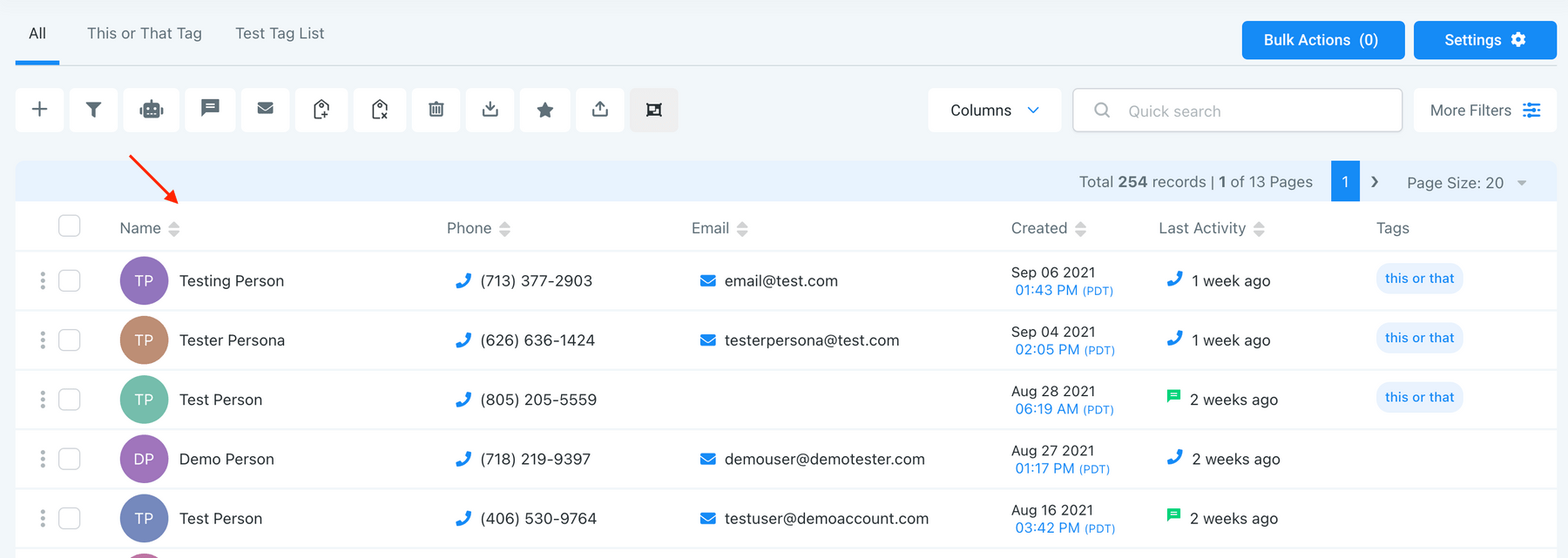
Step 2: How to Search and Filter through your contacts.
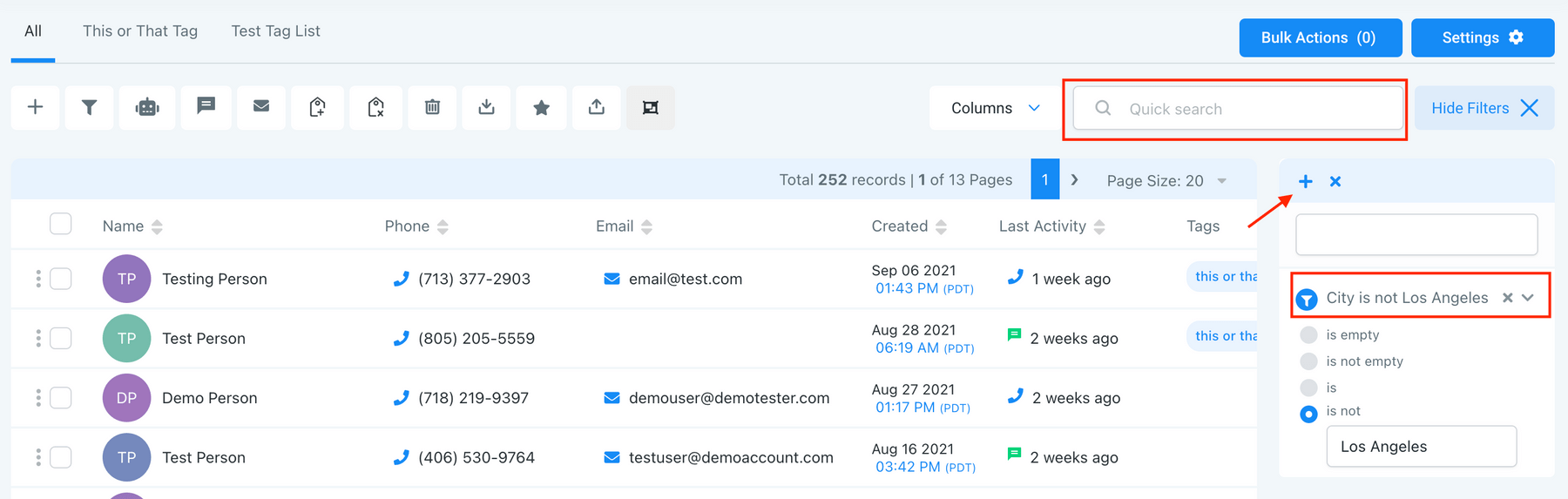
- You can also use the Quick Search feature to do a quick search by name, email, business name, tag, or phone number.
- Under More Filters you can Filter through contacts using a variety of specific options including Tag is ___, City is Not ___, Phone Number Field is Empty, and more…
Note: Check out our Smartlist video/article to learn more in depth about how to use and save these filters. You can use multiple at once to filter out Contacts very specifically.
Step 3: Additional Actions
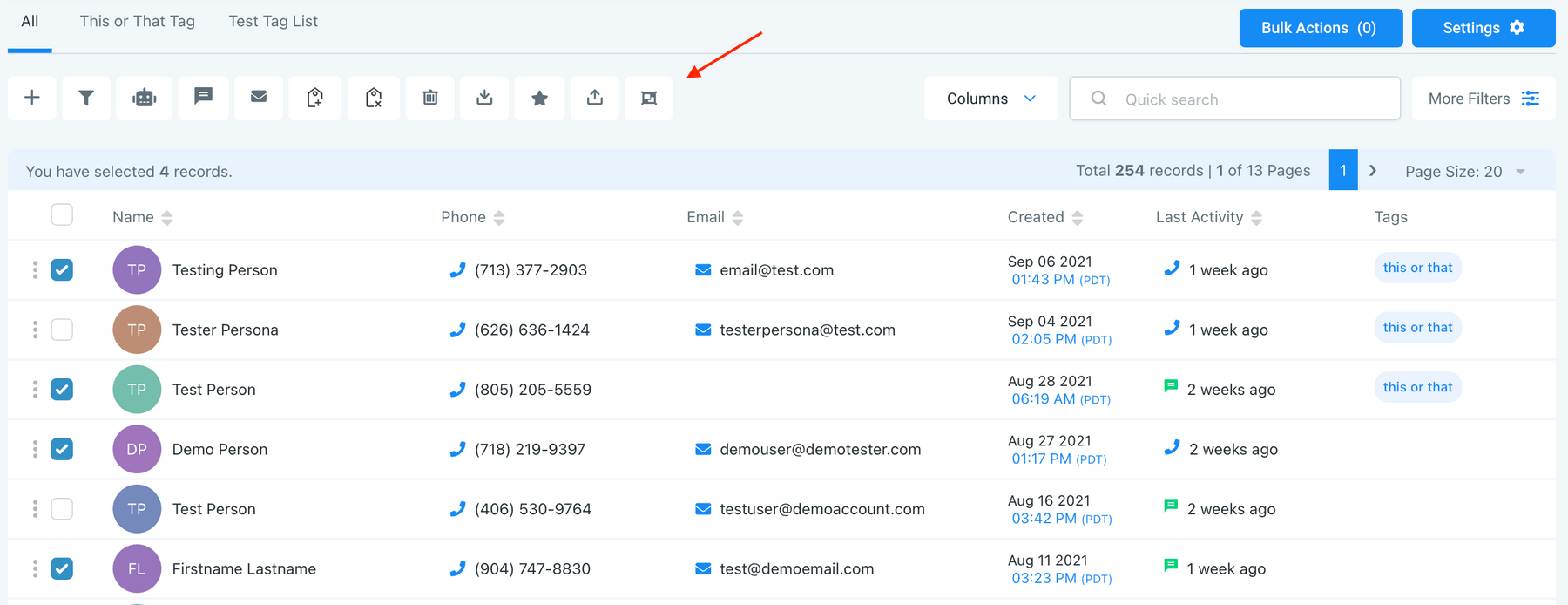
- Using these Actions icons at the top, you have several options for adding or removing contacts, and applying bulk actions. Our Bulk Actions tutorial gives a full overview of each of these actions. The most foundational are:
- Add contact: manually add an individual contact record
- Export Contacts: select a list of contacts to export to your computer (the file will download as a .csv Excel file)
- Import Contacts: Add a list of contacts into your system, using a .csv file
What's your Reaction?
You have reacted on"Contacts Overview"
A few seconds ago


 Subscriptions
 My Orders
 My Wishlist
 Refer & Earn💸
 My Projects
 Conversations
 Website Services
 New Website Request
 Website Addons
 eCommerce Addons
 eCommerce Modules
 Software Development
 Graphic Design
 Video Production
 Content Writing
 Marketing Services
 Marketing Products
 Get a Marketing Plan
 Local SEO Audit
 Sales Automation
 Service Automation
 Operations Automation
 Marketing Automation
 Payments Automation
 Premium Modules
 Support Tickets
 Latest Updates
 Consultation Calls
 Tools & Extensions
 Tech Tips & Tricks
 Domains & Emails









