Your phone number is more than a direct line to your company, it is a memorable part of your brand. It can help establish a stronger brand image and reassure your customers that they are in good hands. In your CRM, you can find the Phone Numbers section, which is dedicated to helping you acquire and manage phone numbers specifically for your business communication needs. These acquired numbers can be utilized for various purposes, such as making calls, sending text messages, or monitoring and tracking communication activities.
Manage Numbers #
This is the tab where you can purchase and manage your Phone Numbers, as well as, Number Pools, and Verified Caller IDs.

Adding a Phone Number #
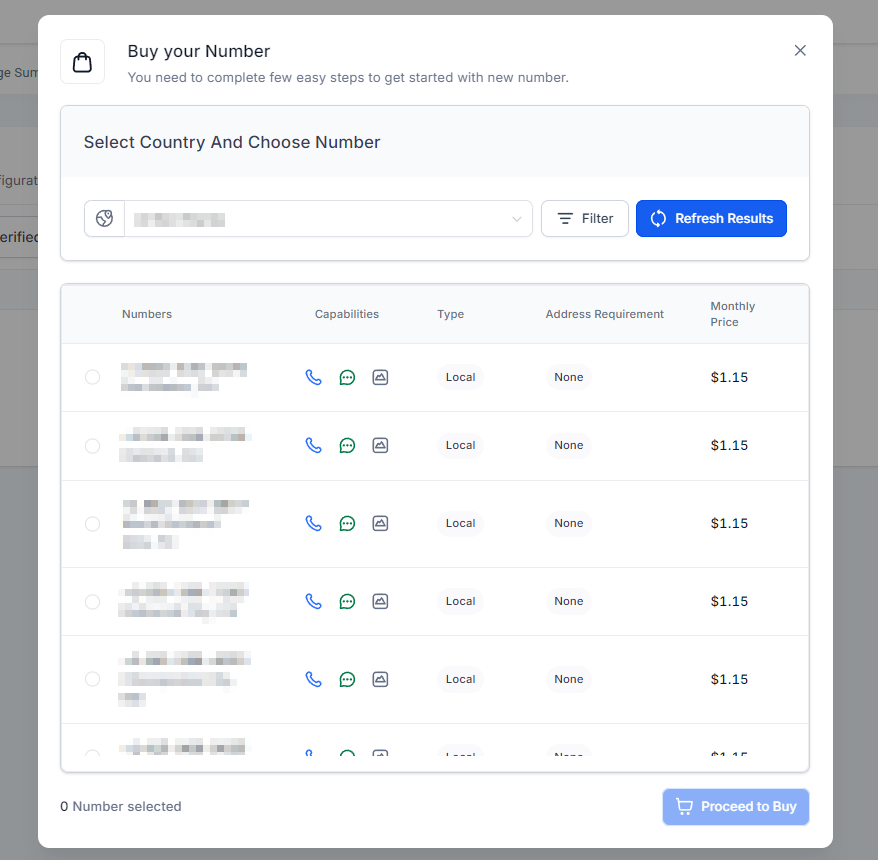
Click on the + Add number and then select Add a Phone Number to purchase a new number.

This will open a pop-up window for you to select a number, which you can filter to your particular needs.
Phone Number Options #
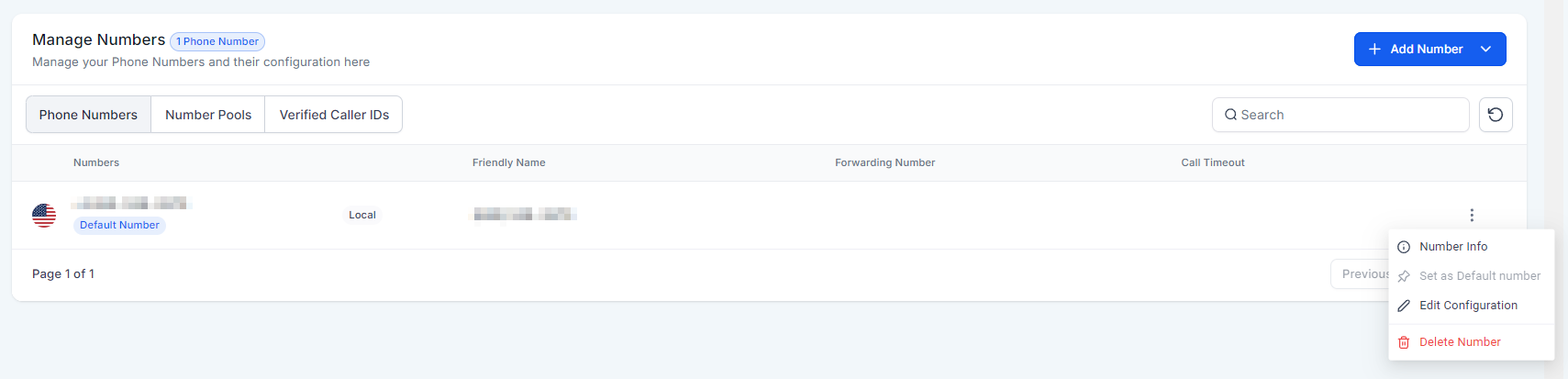
By clicking the three dots icon next to the phone number, you can access the configuration options, which will be:
- Number Info: This allows you to see the phone number details.
- Set as Default number: To change the phone number used to call and SMS by default.
- Edit Configuration: These are the settings for how it works, such as the forwarding number.
- Delete Number: This will remove the phone number from our list.
Usage Summary #
The Usage Summary shows the total number of calls and SMS messages sent and received. It helps track communication activity and ensures you stay within usage limits. You can also monitor costs and detect any unusual spikes in activity.

Regulatory Bundle / Address #
Here’s where you can handle your phone number registration for users outside the United States or Canada.

Trust Center #
Here’s where you can handle your phone number registrations for users inside the United States or Canada. The Trust Center also provides products that improve brand recognition, such as your caller ID.

Messaging Analytics #
This section provides additional data and insight into the success of your SMS messages and campaigns.

Advanced Settings #
The advanced settings allow you to modify how your phone number works.
SMS Provider #
The SMS Provider section displays the service handling your text messages, like Lead Connector. Here, you can check message delivery, update settings, and troubleshoot any SMS issues. This ensures smooth and compliant messaging.

Number Intelligence #
Here, you can manage Number Intelligence, which checks a number’s validity before sending the first SMS, detects incoming spam calls, and looks up the names of unknown callers before answering the phone.

Voice Calls #
Here, you can manage Voice Intelligence, which transcribes calls for you, the Inbound and Outbound Call settings, and how the system stores your Call Recordings.

Voicemail & Missed Call Textback #
Here, you can manage the voicemail message your contacts hear when calling in, the automatic missed call text back, and their settings

SMS Compliance #
To customize the SMS Customizations and Optout texts

Messaging Limit #
Here, you can view your messaging use and the total number of messages you can send within a monthly cycle.

Restriction History #
Here, you can review any issues or restrictions your messages have encountered.

Now, you know where to start to acquire and set up your phone communications. Even if you think the line will not receive any calls, having a contact line presents a level of support and credibility in your favor.
What's your Reaction?
You have reacted on"Settings: Phone Numbers Overview"
A few seconds ago


 Subscriptions
 My Orders
 My Wishlist
 Refer & Earn💸
 My Projects
 Conversations
 Website Services
 New Website Request
 Website Addons
 eCommerce Addons
 eCommerce Modules
 Software Development
 Graphic Design
 Video Production
 Content Writing
 Marketing Services
 Marketing Products
 Get a Marketing Plan
 Local SEO Audit
 Sales Automation
 Service Automation
 Operations Automation
 Marketing Automation
 Payments Automation
 Premium Modules
 Support Tickets
 Latest Updates
 Consultation Calls
 Tools & Extensions
 Tech Tips & Tricks
 Domains & Emails









