The ability to record calls and listen back to them later is amazing. Especially if you work in teams where multiple people handle client communication or sales, even if you aren’t working in a team these will be helpful. Did you forget something your client said? No worries you can listen back on your call at any time!
1. Setting Call Recording Up #
To turn on call recording go to Settings in the bottom left-hand corner & then find Phone Numbers. Click the 3-dot icon, then select Edit Configuration to enable the call recording option.

Start Recording Calls #
Check this box to turn on call recordings.

In the text box area, highlighted in red on the image, you can enter an automated message for the receiver to hear to inform them that the call is being recorded. The message says “This call is being recorded for quality assurance” by default. It is up to you to choose what to say in the message. To do so remove all text & add a space in the box to remove any automated message.

Don’t forget to click “Save” once you are done.

Note: Before enabling this feature please check your state for phone call recording laws.
Step 2: Listening to Recordings #
- Navigate to Contacts and choose the contact you wish to listen to a recorded call with.
- Click into that contract record. Within the contact recorded for that individual contact, the center panel of the contact page should display communication you’ve had with the contact- from texts to emails to calls.
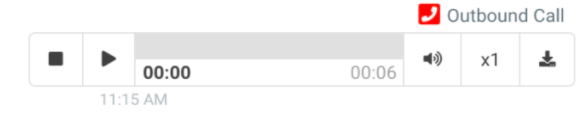
- Recorded calls with feature a play button, and you can click that to listen within the contact record. You will also see a stop button, volume button, and download button.
What's your Reaction?
You have reacted on"How To Enable & Listen to Call Recordings"
A few seconds ago


 Subscriptions
 My Orders
 My Wishlist
 Refer & Earn💸
 My Projects
 Conversations
 Website Services
 New Website Request
 Website Addons
 eCommerce Addons
 eCommerce Modules
 Software Development
 Graphic Design
 Video Production
 Content Writing
 Marketing Services
 Marketing Products
 Get a Marketing Plan
 Local SEO Audit
 Sales Automation
 Service Automation
 Operations Automation
 Marketing Automation
 Payments Automation
 Premium Modules
 Support Tickets
 Latest Updates
 Consultation Calls
 Tools & Extensions
 Tech Tips & Tricks
 Domains & Emails









