The ClickFunnels Importer simplifies funnel migration, allowing you to integrate your ClickFunnels pages into your CRM effortlessly. This guide will walk you through the process of importing funnels efficiently.
NOTE: Use the publishable (live) link, not the shareable ClickFunnels link. Importing one Funnel Step at a time from ClickFunnels ensures a smooth experience.
To get started, navigate to the Funnels/Sites section in your CRM, and click on the Funnels. Click on “+ New Funnel” to initiate the process and start building or importing a funnel.
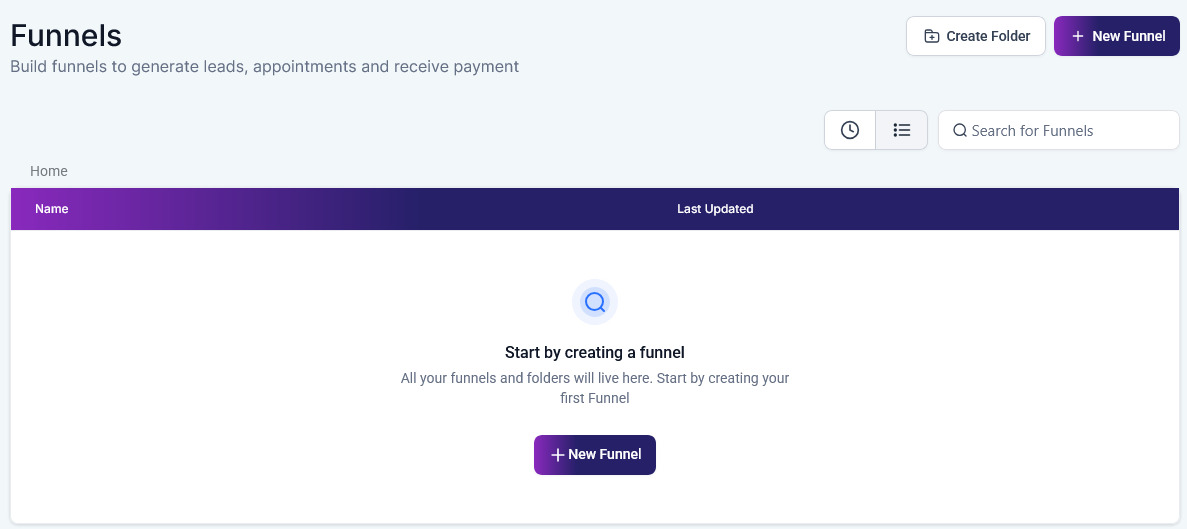
You can create from blank, use Funnel AI, or a prebuilt template. If you opt to create from scratch, enter a name for your funnel and hit “Create.”

Once in the funnel step interface click on “Add new step or Import.”

In the popup page, add the name for the page, path, and ClickFunnels link.

Mark the checkbox to confirm that the page you’re about to import either belongs to you or that you have permission to use the assets within the page.

Click “Create funnel Step” to complete the process.

There you have it. With the ClickFunnels Importer, transitioning your funnels to your CRM has never been easier. Whether you’re working with ClickFunnels Classic or exploring the capabilities of ClickFunnels 2.0, expect a seamless and efficient process.
FAQ #
Q: What is supported with the ClickFunnels Importer?
- A: The importer supports a variety of essential elements to help you replicate your funnel designs. Here’s what you can expect:Text Elements: Headline, Sub-Headline, Paragraph, Bullet List.Media Elements: Image, Video.Interactive Elements: Buttons.
- Text Elements: Headline, Sub-Headline, Paragraph, Bullet List.
- Media Elements: Image, Video.
- Interactive Elements: Buttons.
Q: Are there any limitations when importing funnels?
- A: While the ClickFunnels importer is robust, some elements are not currently supported in the beta version. These include:Layout Elements: Flex Section, Row.Interactive and Specialized Elements: Icon, Video Popup, Audio, Blogs, Posts, Countdown Timer, Checkout, Nav Menu, and Progress Bar.
- Layout Elements: Flex Section, Row.
- Interactive and Specialized Elements: Icon, Video Popup, Audio, Blogs, Posts, Countdown Timer, Checkout, Nav Menu, and Progress Bar.
Q: Is the ClickFunnels 2.0 Importer fully functional?
- A: The ClickFunnels 2.0 Importer is currently in its beta version. While most essential elements are supported, some advanced and specialized features may not yet be available.
Q: Can I import multiple funnel steps at once?
- A: No, the importer currently supports importing one funnel step at a time. This ensures a seamless and error-free experience.
What's your Reaction?
You have reacted on"How to Import a Funnel From ClickFunnels"
A few seconds ago


 Subscriptions
 My Orders
 My Wishlist
 Refer & Earn💸
 My Projects
 Conversations
 Website Services
 New Website Request
 Website Addons
 eCommerce Addons
 eCommerce Modules
 Software Development
 Graphic Design
 Video Production
 Content Writing
 Marketing Services
 Marketing Products
 Get a Marketing Plan
 Local SEO Audit
 Sales Automation
 Service Automation
 Operations Automation
 Marketing Automation
 Payments Automation
 Premium Modules
 Support Tickets
 Latest Updates
 Consultation Calls
 Tools & Extensions
 Tech Tips & Tricks
 Domains & Emails









