QR codes make it easy to share information instantly with just a scan. Whether you’re directing customers to a website, collecting reviews, or providing contact details, creating a QR code takes just a few steps. This guide will show you how to generate, customize, and download a QR code for your needs.
Accessing the QR Code Generator #
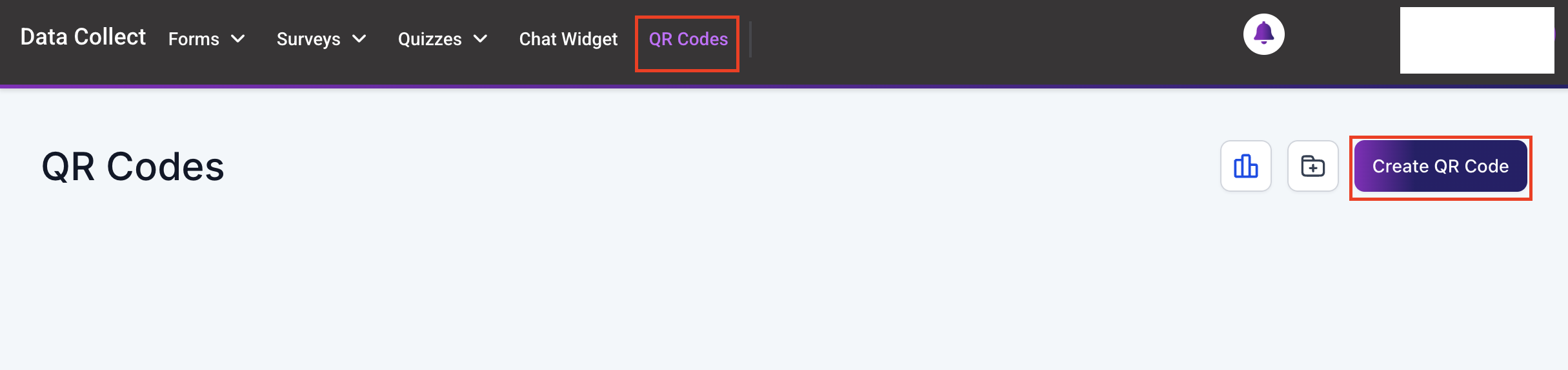
To create a QR code, go to Data Collect > QR Codes in your system. This section allows you to generate different types of QR codes based on your needs.
Creating a QR Code #
Give your QR code a recognizable name so you can easily identify it later. Choose the type of QR code you need. Available options include:
- Website
- Review Link
- Call
- SMS
- Email
Click Next to proceed.

Additional Information #
If you selected Website as the QR type, enter the URL where the QR code will redirect users. Each QR type has specific settings based on its function. For example:
- A Call QR code requires a phone number.
- An SMS QR code needs A recipient number and a predefined message.
- An Email QR code requires an email address, subject, and predefined message.
Once the necessary details are filled in, click Next to continue.

Customizing the QR Code #
Make your QR code stand out by adjusting the following settings,
- Color: Choose a color and shape that fits your brand or style.
- Shape & Form: Adjust the form of the QR code to match your design preferences.
- Logo: Add a logo for easy recognition.
- Page Background: Select a background color or pattern to enhance visibility.

Downloading and Saving the QR Code #
Once your QR code is customized, click the Download button to save your QR code immediately. Choose the desired format: PNG, SVG, or PDF. Click Save to store your QR code for future use.

This is what an existing QR code looks like in your CRM.

QR codes are a quick and effective way to connect with customers or share information. With just a few simple steps, you can create a customized QR code that suits your needs.
FAQ #
Q: What is the SVG format, and why should I use it?
- A: The SVG format allows for infinite scaling without quality loss. This means you can resize your QR codes effortlessly without affecting their clarity. You can also modify their SVG QR codes using various editing tools.
Q: How does the PDF format help with printing?
- A: The PDF format is ideal for printing QR codes on A4-sized documents. If you need a high-quality, scalable version of your QR code for posters, flyers, or other printed materials, the PDF format ensures optimal clarity.
Q: How is the PNG quality?
- A: The PNG format has a higher PPI (pixels per inch), ensuring sharper, clearer QR codes. However, due to browser limitations, Safari may retain the previous quality.
Q: How do I choose the download format for my QR code?
- A: When generating a QR code, you can select the desired format—PNG, SVG, or PDF. These download options are conveniently available in the QR code listing.
Q: Are PNG quality enhancements applied automatically?
- A: All PNG QR codes have improved resolution by default when downloaded.
What's your Reaction?
You have reacted on"How to Create and Download a QR Code"
A few seconds ago


 Subscriptions
 My Orders
 My Wishlist
 Refer & Earn💸
 My Projects
 Conversations
 Website Services
 New Website Request
 Website Addons
 eCommerce Addons
 eCommerce Modules
 Software Development
 Graphic Design
 Video Production
 Content Writing
 Marketing Services
 Marketing Products
 Get a Marketing Plan
 Local SEO Audit
 Sales Automation
 Service Automation
 Operations Automation
 Marketing Automation
 Payments Automation
 Premium Modules
 Support Tickets
 Latest Updates
 Consultation Calls
 Tools & Extensions
 Tech Tips & Tricks
 Domains & Emails










