Integrating the Facebook Pixel into your funnel is a critical step for tracking visitor actions, optimizing ad performance, and gaining valuable insights into user behavior. This guide will walk you through the process of adding both the main Pixel code and event-specific codes to your funnel, ensuring seamless tracking and accurate data collection.
Add Pixel Code to Your Funnel #
First, go to Facebook Events Manager and copy the main pixel code. In the platform, within the Funnels/Sites section choose the Funnel you wish to add the Pixel.
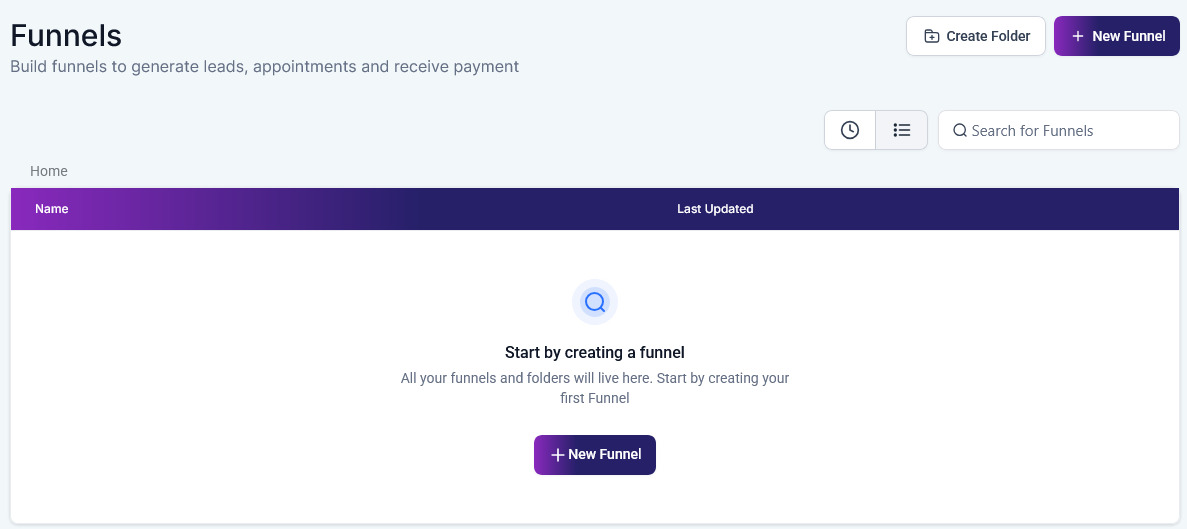
Once in the funnel, click on “Settings” and look for the “Head Tracking Code” section. Paste the copied Facebook Pixel code into the Head Tracking Code Section. Ensure you save the changes to successfully integrate the Pixel code into your funnel.

Add Event-Specific Code to Individual Pages #
Determine which step of the funnel corresponds with the event you want to track (e.g., a Checkout page). Click on the step to edit it.

Choose “Tracking Code”. In the “Footer Code” section, paste the event-specific code you want to track. Make sure to save your changes to ensure the event code is added correctly.

Resource #
For a comprehensive list of events you can track, visit Facebook’s Standard Events documentation.
By successfully adding the Facebook Pixel and event-specific codes to your funnel, you unlock powerful tools to monitor visitor activity and improve your ad strategy. With proper setup and troubleshooting, your tracking efforts will provide actionable insights, helping you optimize your campaigns and drive better results.
Troubleshooting and FAQs #
Q: My Pixel isn’t tracking correctly. What should I do?
- A: Ensure the Pixel code is correctly placed in the Head Tracking Code Section of your funnel settings and that event codes are correctly placed in the Footer Code section of the relevant funnel steps. Also, verify that your Pixel ID and event names are correctly inputted without typos.
Q: How long does it take for Pixel data to show up?
- A: It can take up to 24 hours for Pixel data to appear in your Facebook Events Manager. If you don’t see data after this period, double-check your code placement and settings.
What's your Reaction?
You have reacted on"How to Add Facebook Pixel to Funnels for Enhanc..."
A few seconds ago


 Subscriptions
 My Orders
 My Wishlist
 Refer & Earn💸
 My Projects
 Conversations
 Website Services
 New Website Request
 Website Addons
 eCommerce Addons
 eCommerce Modules
 Software Development
 Graphic Design
 Video Production
 Content Writing
 Marketing Services
 Marketing Products
 Get a Marketing Plan
 Local SEO Audit
 Sales Automation
 Service Automation
 Operations Automation
 Marketing Automation
 Payments Automation
 Premium Modules
 Support Tickets
 Latest Updates
 Consultation Calls
 Tools & Extensions
 Tech Tips & Tricks
 Domains & Emails









