The address element allows you to collect customer addresses as a customizable entry that results in a cohesive field in the contact details. Let’s go over how to use it and the options it provides.
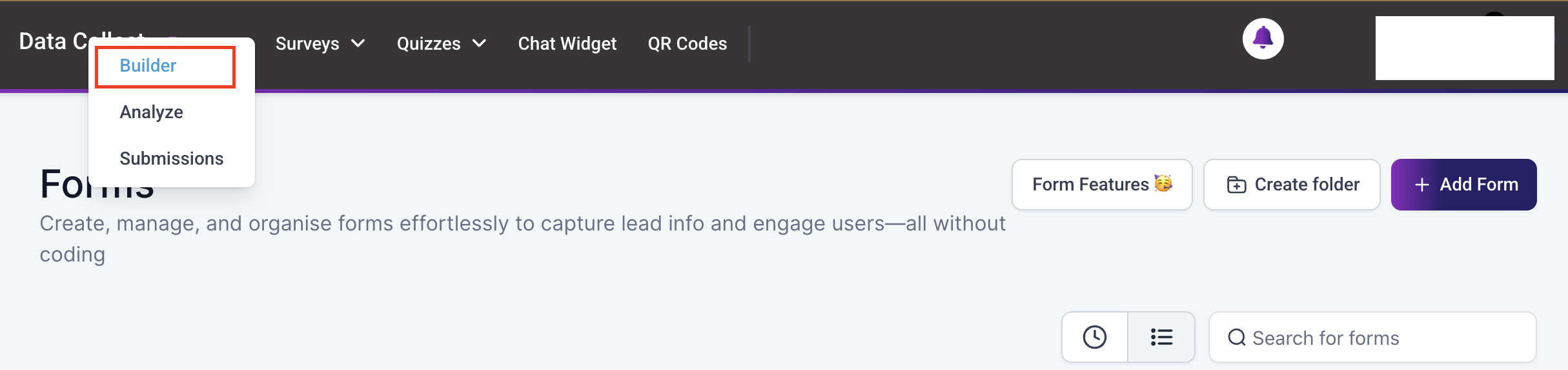
To access the builder, navigate to the Forms/Survey tab inside the Data Collect section and create or edit a form or survey.
Once in the form/survey builder, click the plus sign icon to open the elements menu. Next, select the Address element and drag and drop it into place.

Click the element to open its settings. Here, you can customize the element, starting with checking/unchecking the box next to a field to add/remove it.

Click the downward pointing arrow to open the details of a field. You can change:
- Label: The name atop the field.
- Placeholder: The example of how to respond inside the field box.
- Short Label: This will show underneath the field and can contain any extra information you add.
- Query Key: This can be used as a URL parameter to populate this field.
- Required: Checking this box will make this an obligatory field.
- Hidden: This will make the field invisible when submitting the form/survey.

The Auto-Complete Address field has two modes: Auto-complete and Mandatory Search Bar.
- Auto-Complete Address: This element integrates Google Places for address suggestions and details, providing a quick and easy way to add contact addresses including Street, City, Zip Code, State, and Country.

- Mandatory Search Bar: If the Mandatory Search Bar is enabled, users must choose an address from the autocomplete suggestions before moving forward. If it’s disabled, they can manually enter an address instead.

This will remove the search bar field prompting customers to fill in their details.

Once submitted, this information will be added to each contact as separate fields that can be accessed as a single custom value.

And there you have it, now you can easily collect contact addresses by auto-complete for added accuracy or manually for a personal experience.
What's your Reaction?
You have reacted on"Address Element"
A few seconds ago


 Subscriptions
 My Orders
 My Wishlist
 Refer & Earn💸
 My Projects
 Conversations
 Website Services
 New Website Request
 Website Addons
 eCommerce Addons
 eCommerce Modules
 Software Development
 Graphic Design
 Video Production
 Content Writing
 Marketing Services
 Marketing Products
 Get a Marketing Plan
 Local SEO Audit
 Sales Automation
 Service Automation
 Operations Automation
 Marketing Automation
 Payments Automation
 Premium Modules
 Support Tickets
 Latest Updates
 Consultation Calls
 Tools & Extensions
 Tech Tips & Tricks
 Domains & Emails










