This section gives you a quick yet decluttered view of your calendar. It also allows you to switch seamlessly between all created calendars in your CRM, whether you need to look at your or your sales team’s calendars.
Remember, these calendars are synced to your Google or Outlook account and can be controlled/edited using your Google or Outlook calendars outside the CRM.
Note: Depending on your user permissions, you may not have access to all of the components.
In-App Calendar view #
Streamline your calendar view by filtering to only what you need; with multiple calendars connected, look at the blue My Calendar drop-down tab and pick which one works best for you. Simply click the button and choose the primary calendar, a specific user calendar, a group calendar, or other calendars created in your CRM. When you click on the calendar you would like to view, it will automatically populate the calendar on the same page.

Change Date Range #
You can keep track of upcoming appointments with ease by adjusting the date range on your calendar. View scheduled events for this month, week, or even day! The calendar is automatically set to show the week view. To change to a month or day view, simply click on the blue button labeled Weekly and choose the view you want to use.

Availability #
You can filter your calendar view to show all, appointments, or blocked slots. The calendar is automatically set to show all events on the calendar. To change this view, click on the blue button labeled All, and select which you want to view.

Quick Action – Today #
To quickly switch back to a daily view of what your daily schedule looks like, simply click on the Today button on the top left of the page. When you click on the button, you will see the present day highlighted to quickly view your current schedule.

Cycle Date Range #
To cycle through the days, weeks, or months on your schedule, click on the right or left arrows on the top left of the page, to the right of the Today button. Here you can easily view past or future events on your calendar, depending on which button you choose.

Calendar Annotation #
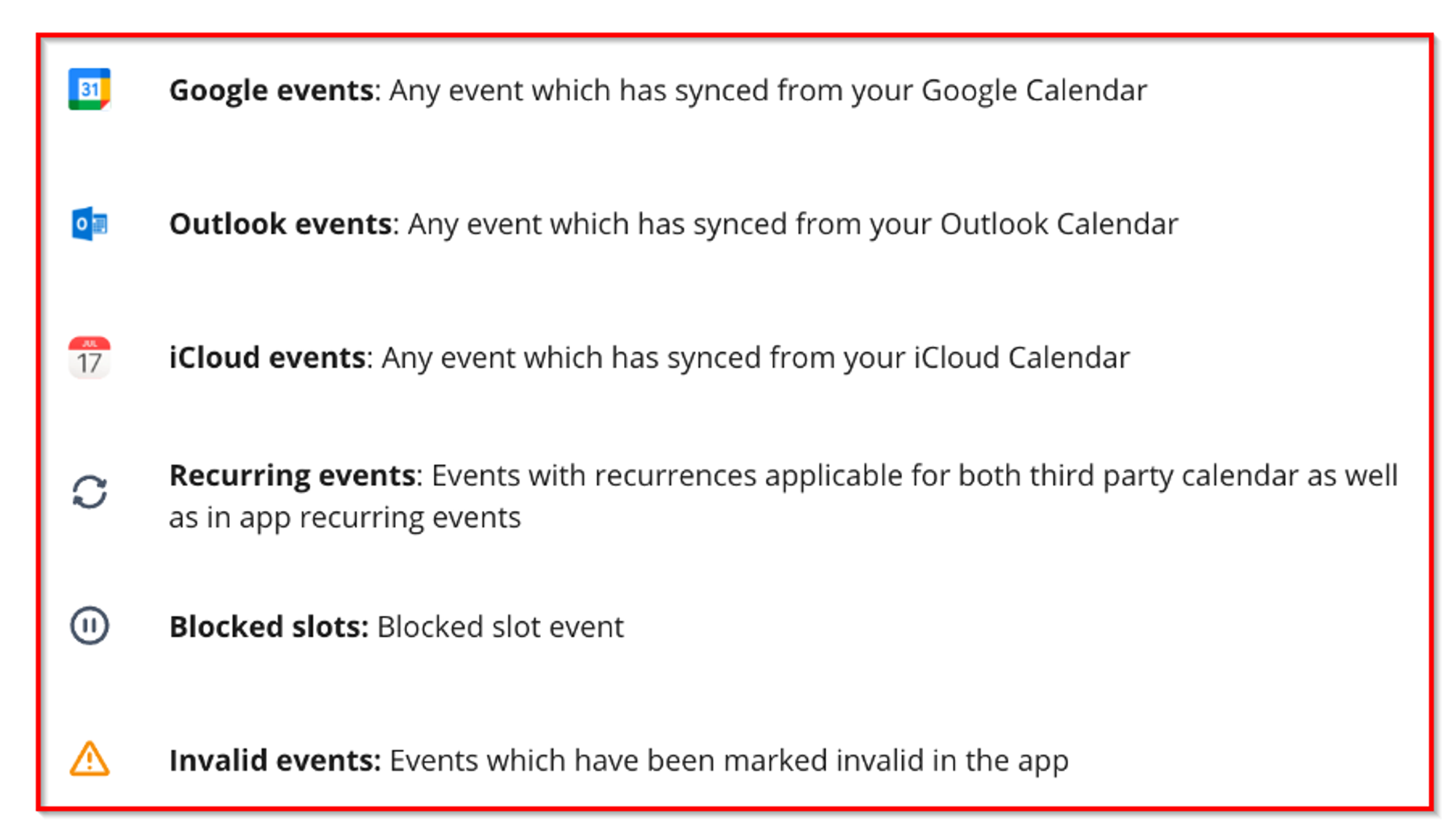
You will find all the different calendar patterns and icons that your CRM calendar uses. These are meant to give you a quick and easy analysis of your calendar so you do not need to click into each event and look for specific data.


Filtering Options #
By User #
Here you can filter your calendar by selecting the team member calendar you want to see.

By Calendars #
Filtering by calendar helps you narrow down the events of each calendar for a particular duration.

By Groups #
To see events for any of your group calendars, check the box next to it.

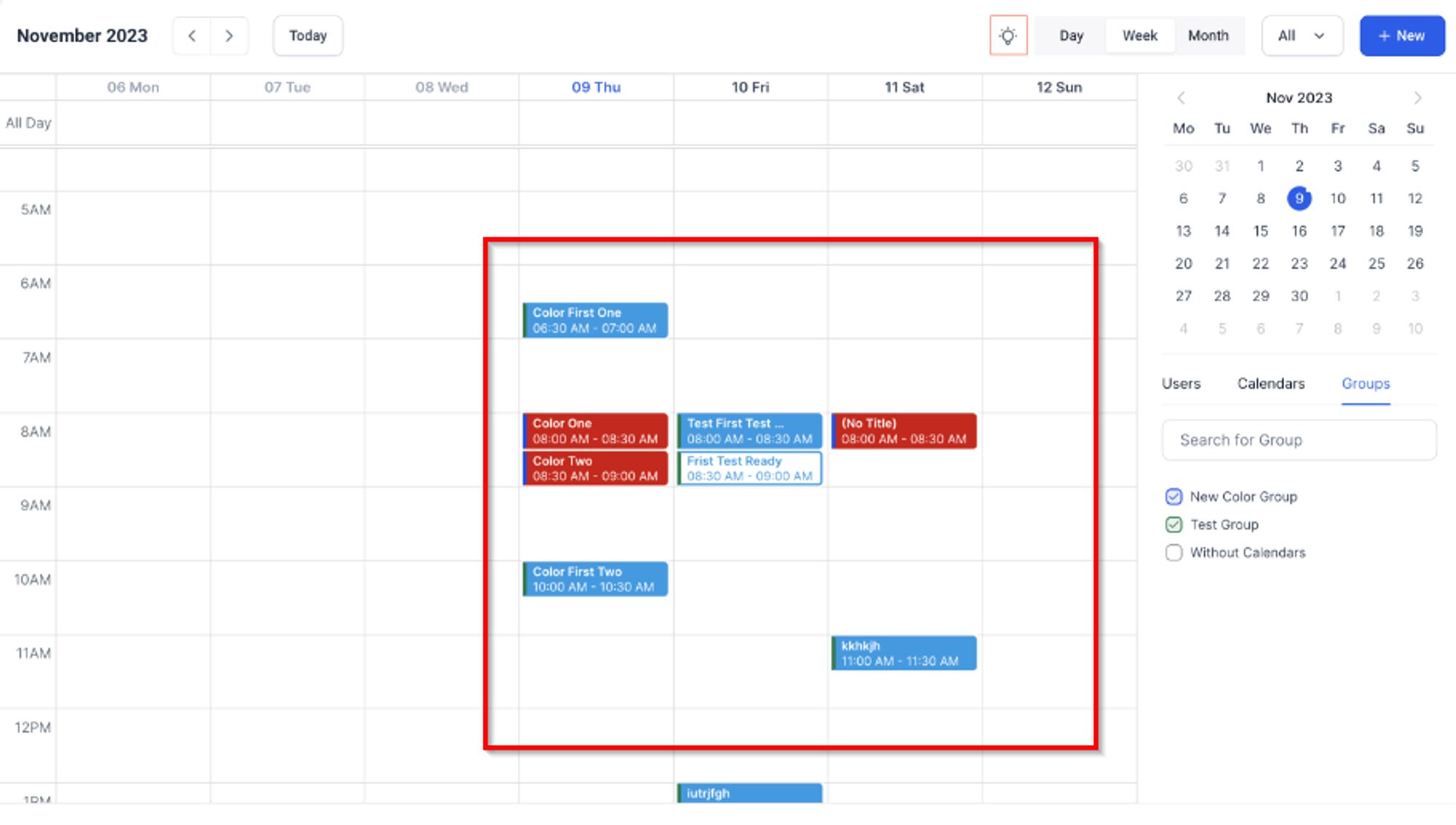
Color Coding for Clarity #
- Users: Each user’s appointments are color-coded, allowing quick and easy identification.
- Groups and Calendars: Appointments are displayed in colors based on your customized settings, ensuring clarity in identification.
Intuitive Icons #
Instantly recognize events with our new set of intuitive icons.
Persistent Multi-Select #
Your selected calendars and users are remembered, ensuring your preferred view is just a click away when you return.
Additional Info on Hover #
Hover over any appointment for a detailed snapshot, including event type, title, start, and end times. Stay informed with a simple hover—no need to click.

And there you have it! Now you know the basis of the CRM calendars and how they work, if you’d like to learn more please check the other articles in this section!
What's your Reaction?
You have reacted on"Calendars Overview▶️"
A few seconds ago


 Subscriptions
 My Orders
 My Wishlist
 Refer & Earn💸
 My Projects
 Conversations
 Website Services
 New Website Request
 Website Addons
 eCommerce Addons
 eCommerce Modules
 Software Development
 Graphic Design
 Video Production
 Content Writing
 Marketing Services
 Marketing Products
 Get a Marketing Plan
 Local SEO Audit
 Sales Automation
 Service Automation
 Operations Automation
 Marketing Automation
 Payments Automation
 Premium Modules
 Support Tickets
 Latest Updates
 Consultation Calls
 Tools & Extensions
 Tech Tips & Tricks
 Domains & Emails









