What does the QuickBooks integration do? #
The QuickBooks integration creates a seamless connection between your CRM and QuickBooks, ensuring your customer data, invoices, and payments stay in sync without manual intervention.
Your CRM → QuickBooks #
1. Automatically create or update customers #
Customers are automatically created in QuickBooks whenever they engage in billable activity inside your CRM.
If a matching email already exists in QuickBooks, the existing customer is updated instead of duplicated.
2. Sync payment activity as sales receipts #
Whenever a payment is made through your CRM—such as via order forms, subscriptions, membership checkouts, or calendar payments—a corresponding sales receipt is automatically created in QuickBooks.
3. Create and sync invoices #
When an invoice is marked as sent inside your CRM, a matching invoice is created in QuickBooks. The integration continues to sync invoice updates, including:
Invoice number
Payment status (paid, voided, etc.)
Issue and due dates
Customer details
Billing email
Total invoice value
Amount paid
Line item names
Discounts & taxes (for U.S. regions, they adjust within the item pricing; for all other regions, they sync as individual fields)
Important:
✔️ Only newly created invoices in your CRM will sync to QuickBooks.
❌ Existing invoices created before the integration are not synced unless imported.
QuickBooks → Your CRM #
1. Sync existing & new QuickBooks contacts #
All existing contacts stored in QuickBooks will be imported into your CRM.
The system continues to sync new QuickBooks contacts automatically (may take up to 5 minutes).
2. Trigger review automation (optional) #
When QuickBooks records a customer’s first fully paid invoice (balance = $0), your CRM can automatically send a review request.
This feature can be turned on or off in the integration settings.
3. Import historical invoices #
If enabled during the initial setup, your CRM will import previously created invoices from QuickBooks.
Note:
Editing these imported invoices inside your CRM will not sync changes back to QuickBooks.
This process will not create a sync loop. Invoices imported from QuickBooks are not pushed back into QuickBooks.
How To Integrate QuickBooks #
- Navigate to Settings > Integrations > “Connect” or “Manage”
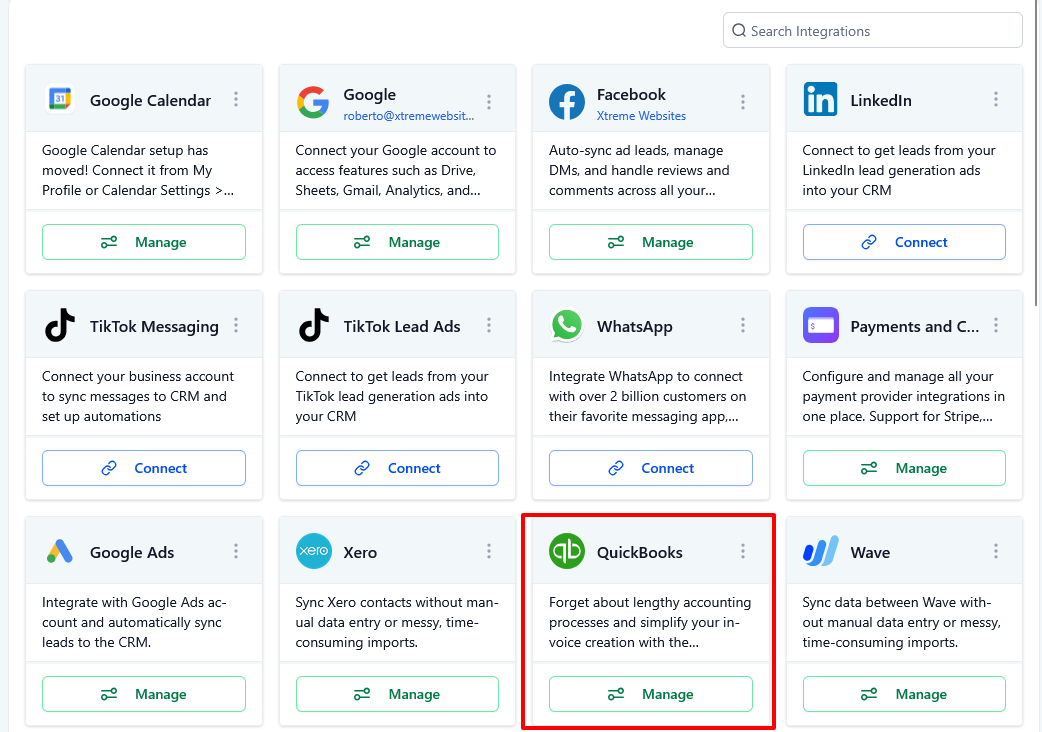
2. Authorize Import Job
By default, all contacts will be imported upon initial connection. (Optional) Enable “Import Invoices” to bring in historical QuickBooks invoices

3. (Optional) Enable Review Automation
This is an optional automation that triggers a review request once the invoice is paid. If you would rather send this manually, then leave this off.

4. Click Connect and log in using your QuickBooks credentials. Accept all permission prompts to complete the integration

Frequently Asked Questions #
Q: QuickBooks Integration Features #
- Automatically syncs new contacts created in QuickBooks.
- Sends a review request in your CRM after the first invoice is paid.
- Records sales receipts in QuickBooks for payments made in your CRM (e.g., orders, subscriptions).
- Syncs new invoices from CRM to QuickBooks, including status updates (e.g., paid, voided, or discounted).
Q: Will the integration sync existing QuickBooks invoices to my CRM? #
Yes—if you enable Import Invoices during setup, the system will pull in all previously created QuickBooks invoices into your CRM.
Edits made to these historical invoices in your CRM will not sync back to QuickBooks.
If you do not enable this option, only new invoices created in your CRM will sync to QuickBooks going forward.
Q: How does the integration handle customers that already exist in QuickBooks? #
If QuickBooks already has a customer with the same email address, the integration updates that customer’s record and associates transactions with it.
If no match exists, a new customer record is automatically created in QuickBooks.
Q: Are taxes and discounts included in synced invoices? #
Yes. Taxes and discounts are fully included:
Q: How does the Invoice Sync From CRM To QuickBooks work? #
Invoices created in your CRM are synced with QuickBooks for seamless accounting. Updates to the invoice (status changes, payments, etc.) are reflected in QuickBooks. Integrating QuickBooks into your CRM enhances efficiency and provides control over review requests, benefiting both your business and customer relations.
Q: Will my Automator account replace QuickBooks? #
No, you still need QuickBooks for accounting, and you should provide your accountant with access to it. QuickBooks integrations sync payments (estimates/invoices/payments, etc.) activity across both platforms, so you don’t have to enter data twice.
What's your Reaction?
You have reacted on"How to Integrate QuickBooks"
A few seconds ago


 Subscriptions
 My Orders
 My Wishlist
 Refer & Earn💸
 My Projects
 Conversations
 Website Services
 New Website Request
 Website Addons
 eCommerce Addons
 eCommerce Modules
 Software Development
 Graphic Design
 Video Production
 Content Writing
 Marketing Services
 Marketing Products
 Get a Marketing Plan
 Local SEO Audit
 Sales Automation
 Service Automation
 Operations Automation
 Marketing Automation
 Payments Automation
 Premium Modules
 Support Tickets
 Latest Updates
 Consultation Calls
 Tools & Extensions
 Tech Tips & Tricks
 Domains & Emails









