This tab allows you to surveys to capture data for all kinds of scenarios like capturing new leads on the website or collecting data when someone schedules on your calendar.
Note: Depending on your user permissions, you may not have access to all of the components.
Builder #
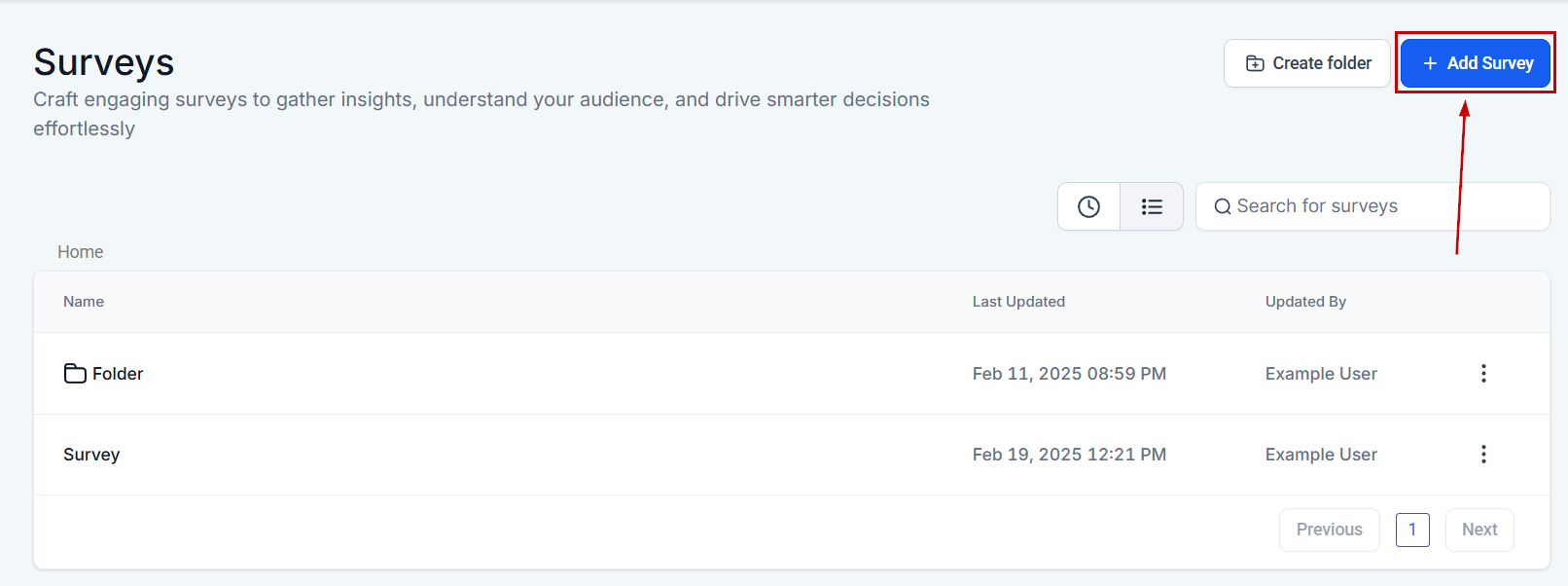
Add New Survey #
When you are ready to create your own survey, you simply click the “Add new Survey” button!
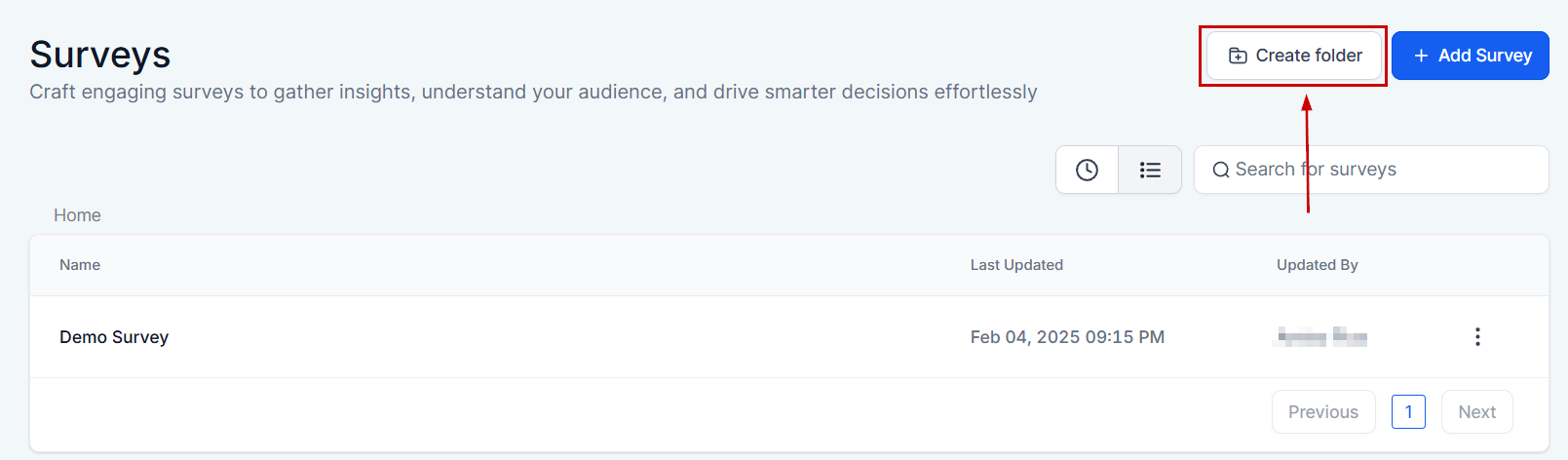
Create Folder #
If you want to create a new folder click the “create folder” button.
Give the folder a name then click “confirm” to save it!

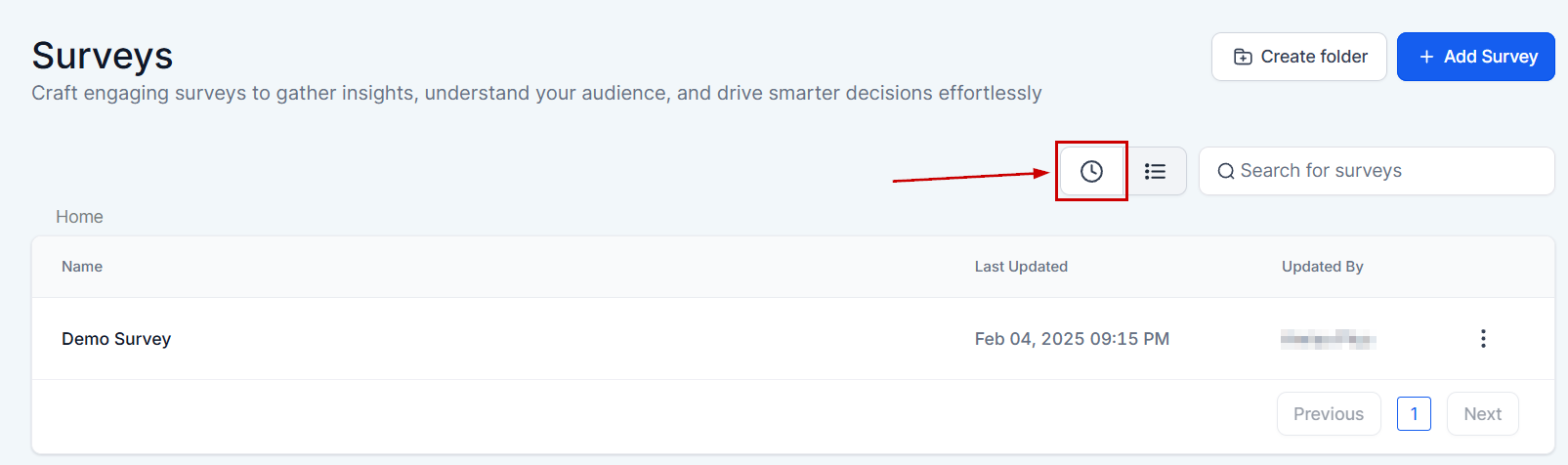
Recent tab #
Click the clock icon to view the surveys you’ve accessed recently.
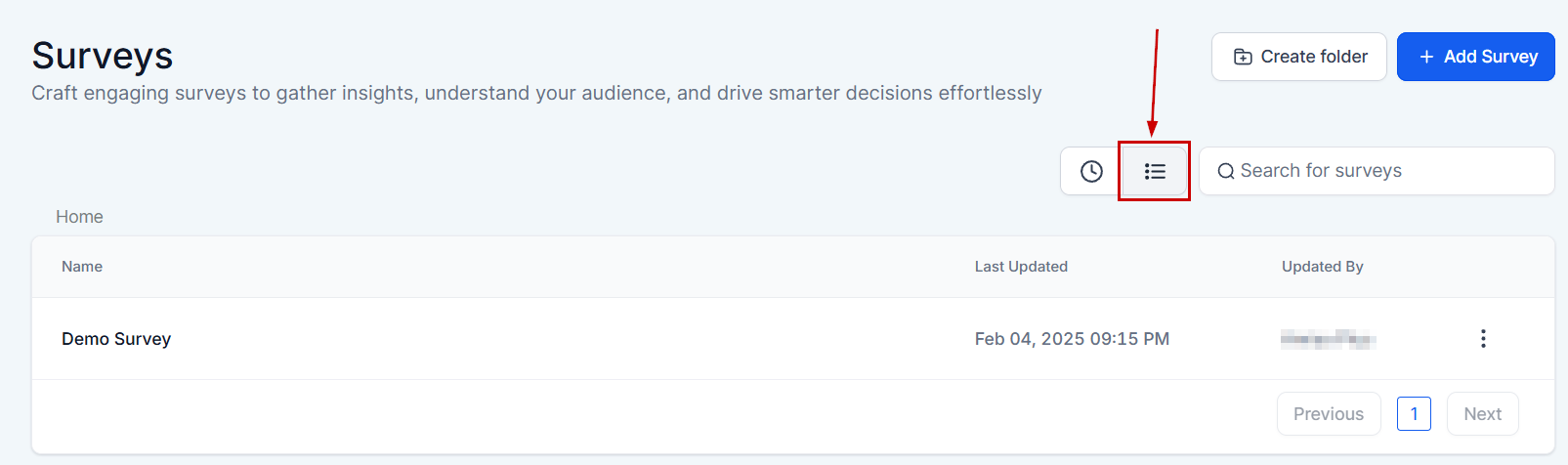
Survey List #
This option organizes the surveys in alphabetical order.
Search Surveys By Name #
If you have a long list of surveys, you can search for a particular form by typing the name of that form here.
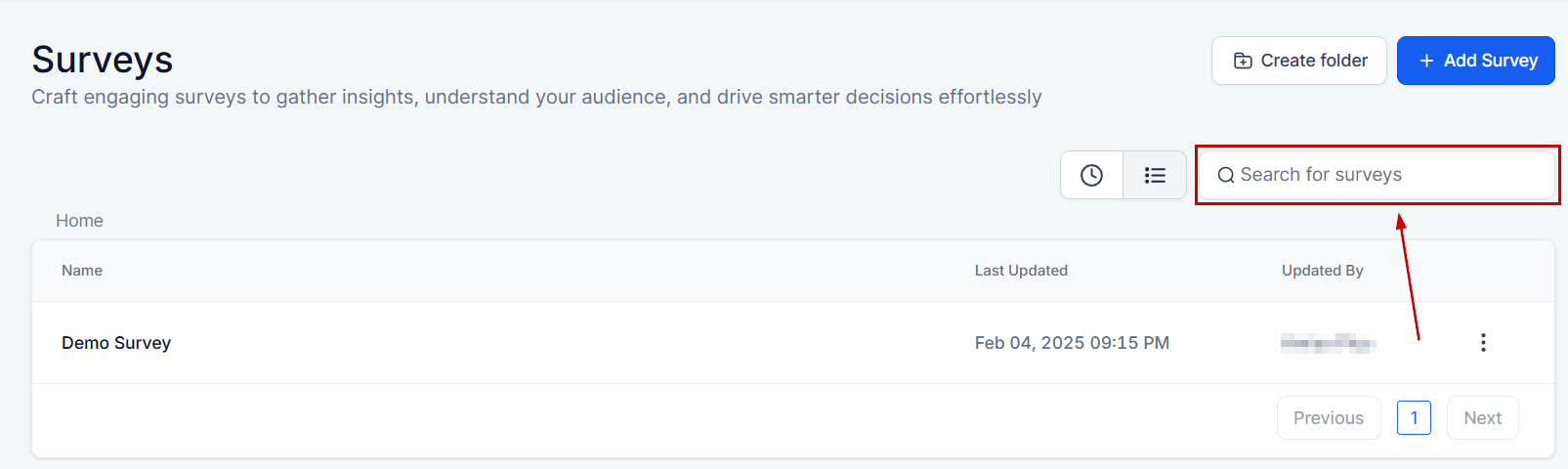
Survey List #
Name #
You can see the name of each Survey or Survey Folder displayed here.

Last updated #
This column shows you the date and time each survey or folder was updated.

Updated By #
In this column, you will see the name of the CRM user who last updated the survey or a folder.

Survey Actions #
- Edit: Click this button to edit a current survey.
- Preview:
- View Submission:
- Duplicate: Click “duplicate” If you’d like to have a copy of a survey.
- Upload to Survey Templates: If you have created a survey that you may want to use frequently then you can create a template out of it.
- Share: If you’d like to share a survey from this location or another within your CRM, click on the “Share” button and select the location you want.
- Move To Folder: If you’d like to move a survey from your list to a folder simply click on this button and select the folder.
- Delete: You can also select “delete” if you wish to delete this survey. If you delete a survey, it will be permanently deleted.

Survey Folder #
All the survey folders you have created will have a folder icon like this.

Folder Actions #
- Edit: Click this button to edit a current survey folder.
- Delete: You can also select “delete” if you wish to delete this Survey. If you delete a survey, it will be permanently deleted.

There you have it, now you’re an expert on the Builder tab’s layout of your Survey builder!
What's your Reaction?
You have reacted on"Survey Builder Tab Overview"
A few seconds ago


 Subscriptions
 My Orders
 My Wishlist
 Refer & Earn💸
 My Projects
 Conversations
 Website Services
 New Website Request
 Website Addons
 eCommerce Addons
 eCommerce Modules
 Software Development
 Graphic Design
 Video Production
 Content Writing
 Marketing Services
 Marketing Products
 Get a Marketing Plan
 Local SEO Audit
 Sales Automation
 Service Automation
 Operations Automation
 Marketing Automation
 Payments Automation
 Premium Modules
 Support Tickets
 Latest Updates
 Consultation Calls
 Tools & Extensions
 Tech Tips & Tricks
 Domains & Emails












