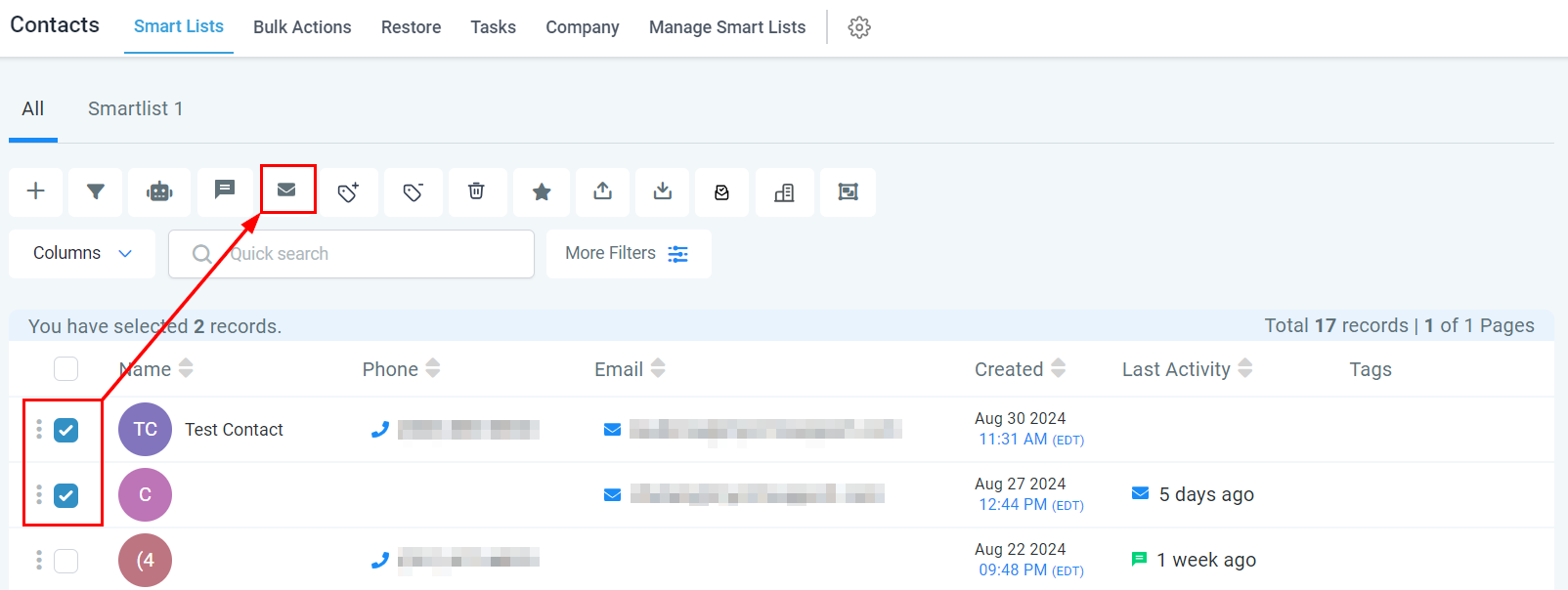
The ‘Send Email’ button allows you to efficiently send an email to one or multiple contacts in a single step. Simply select the desired contacts within the Contacts tab, and click the “Send Email” button to begin.
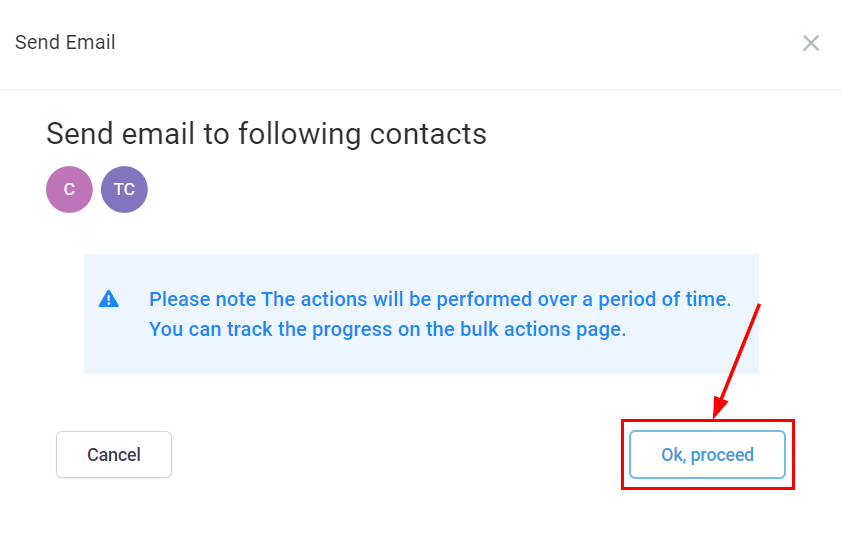
Review your selected contacts and proceed once you have confirmed your choices.
Drafting Your Email #
Begin by selecting the email template you’d like to use.

Enter the sender’s name in the “From Name” field and the sender’s email address in the “From Email” field.

Don’t overlook the crucial step of adding a compelling subject line to your email.
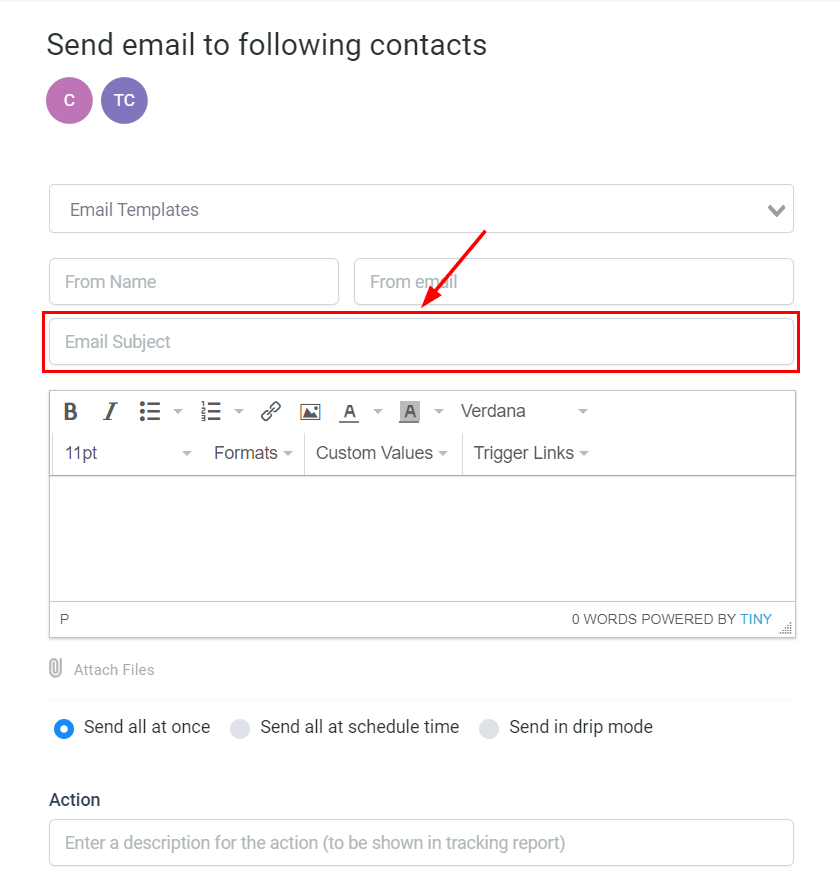
If you prefer a custom approach, you can create your email directly within this space. Take advantage of various customization options—adjusting fonts, colors, and sizes, adding files, and more—to craft a unique email that resonates with your audience.

Send All at Once #
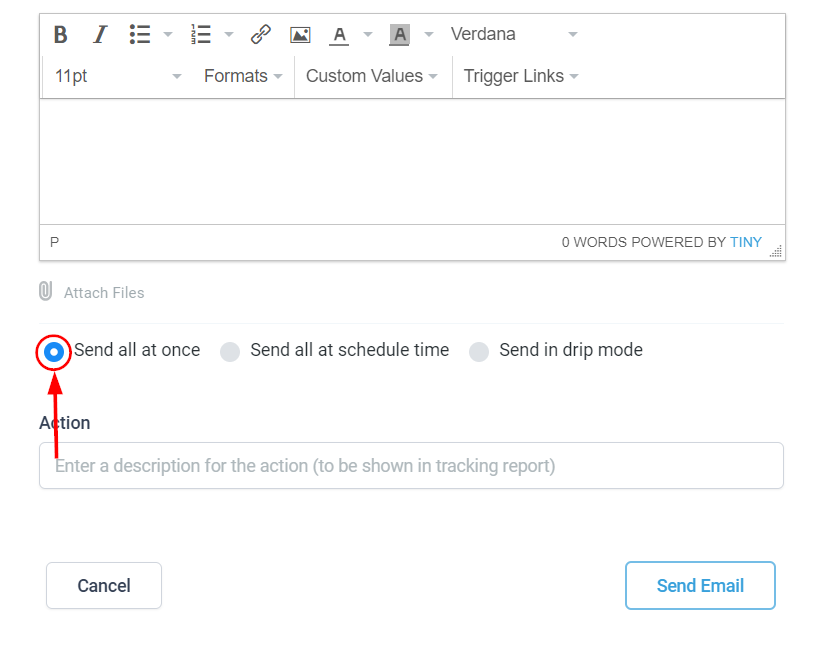
Select the “Send All at Once” feature to instantly send your message to all selected contacts. This option allows for rapid execution, ensuring timely communication with your audience.
Send All at Schedule Time #
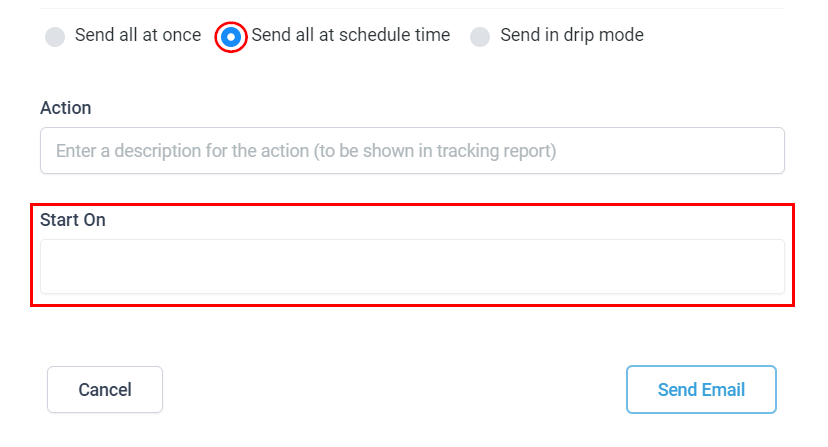
Choose the “Send all at Schedule Time” option to plan your message delivery at a specific date and time. This feature ensures that your communications are strategically timed.
- Start On: Set the date and time for your email to be delivered. This customization ensures your message is sent at the most impactful time for your audience.
Add in Drip Mode #
When sending emails to a large number of contacts, using ‘Drip Mode’ is recommended. This feature allows you to send emails in batches according to your selected settings, ensuring a controlled and organized delivery process.
- Start On: Select the exact date and time for message delivery to your contacts to begin.
- Batch Quantity: Specify the number of contacts to receive each batch of emails.
- Repeat After: Choose the interval between sending each batch, ranging from seconds to days.
- Send On: Select the specific days of the week you wish to send each batch.
- Process Between Hours (Optional): Define the time range during which the batches will be sent.

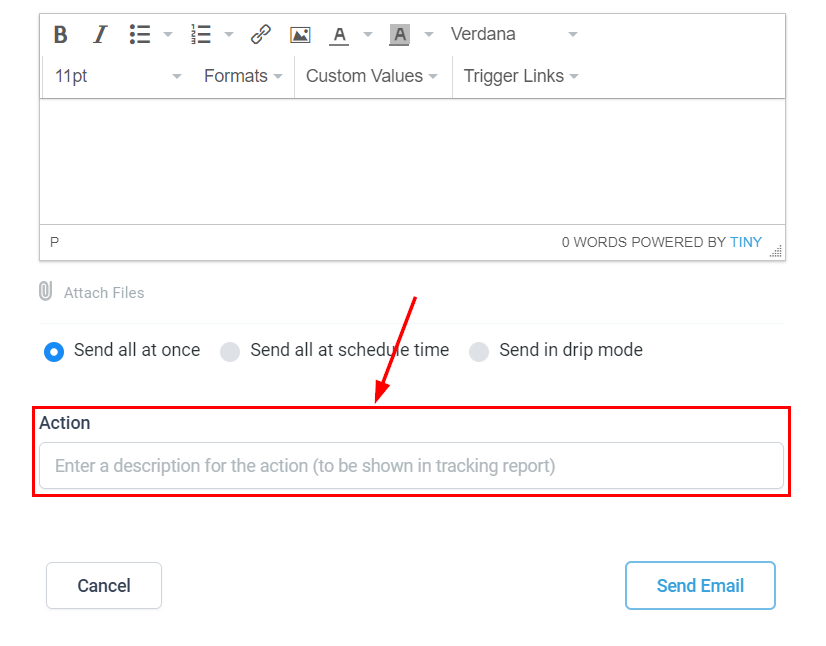
Action #
Label the action by entering a descriptive name, which will be displayed in the tracking report, allowing you to monitor the progress and effectiveness of your email campaign.
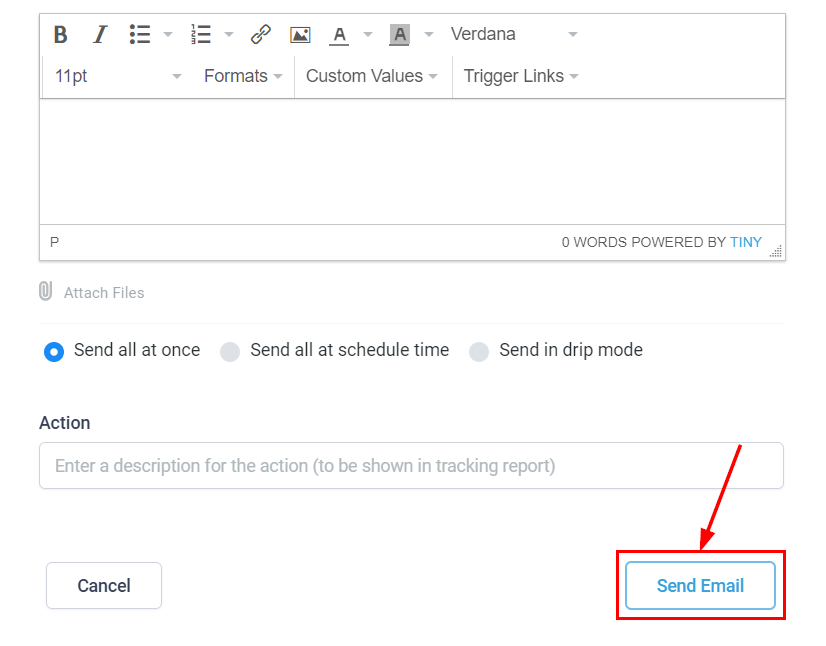
Send Email #
Queue the bulk email action for sending according to your selected preferences.
This comprehensive guide ensures that your email communications are not only effective but also tailored to your specific needs, maximizing impact and engagement with your audience.
What's your Reaction?
You have reacted on"How to Send Bulk Emails"
A few seconds ago


 Subscriptions
 My Orders
 My Wishlist
 Refer & Earn💸
 My Projects
 Conversations
 Website Services
 New Website Request
 Website Addons
 eCommerce Addons
 eCommerce Modules
 Software Development
 Graphic Design
 Video Production
 Content Writing
 Marketing Services
 Marketing Products
 Get a Marketing Plan
 Local SEO Audit
 Sales Automation
 Service Automation
 Operations Automation
 Marketing Automation
 Payments Automation
 Premium Modules
 Support Tickets
 Latest Updates
 Consultation Calls
 Tools & Extensions
 Tech Tips & Tricks
 Domains & Emails









