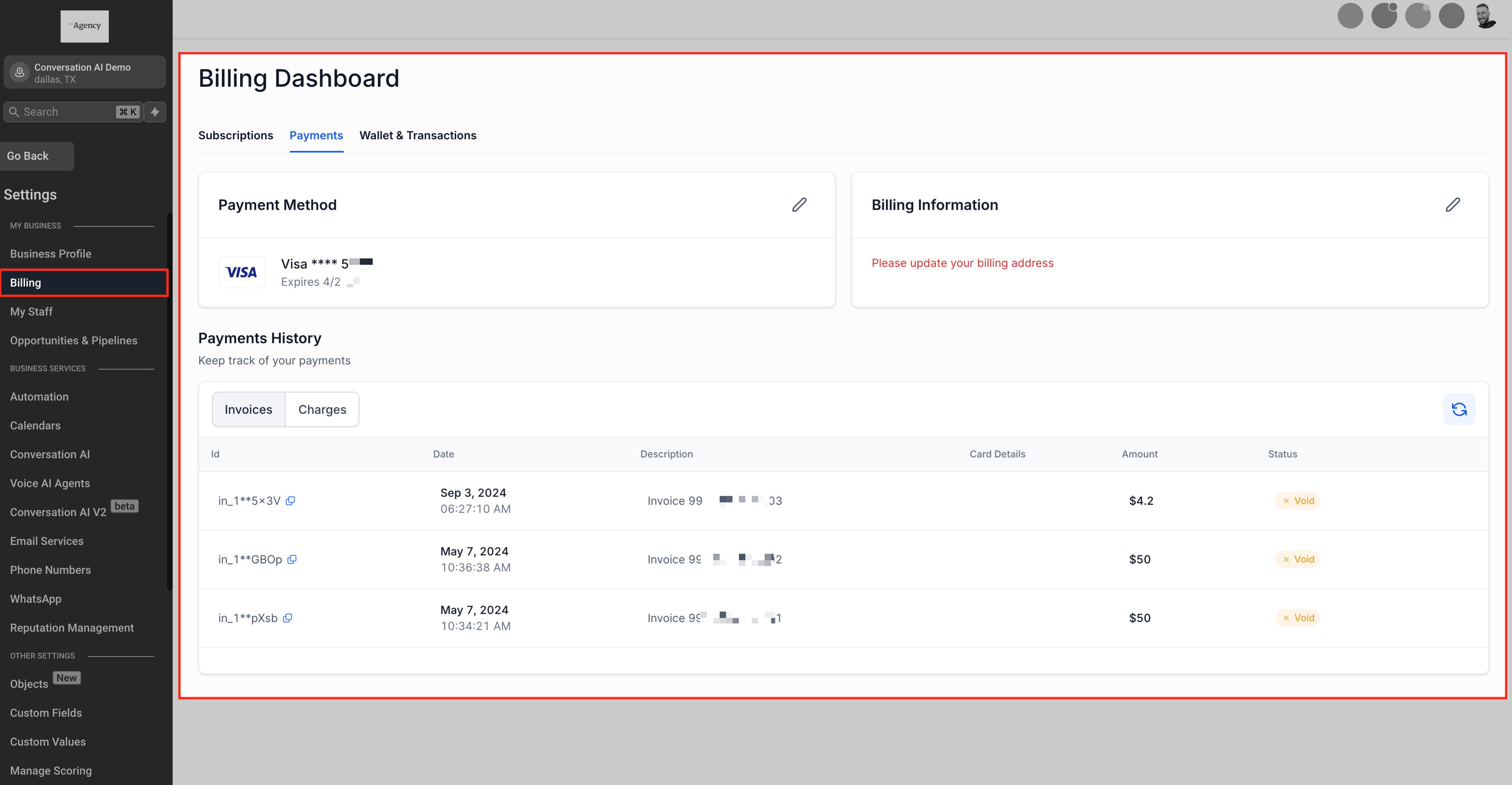
The Billing section serves as the central hub for all billing-related actions inside your Automator account. It offers a user-friendly interface to:
- Manage Addons
- Payment Methods
- Billing Information
- Transaction History
- and Wallet Balances.
This centralized approach ensures that all billing-related tasks are accessible and manageable in one place.
Manage Addon Subscriptions #
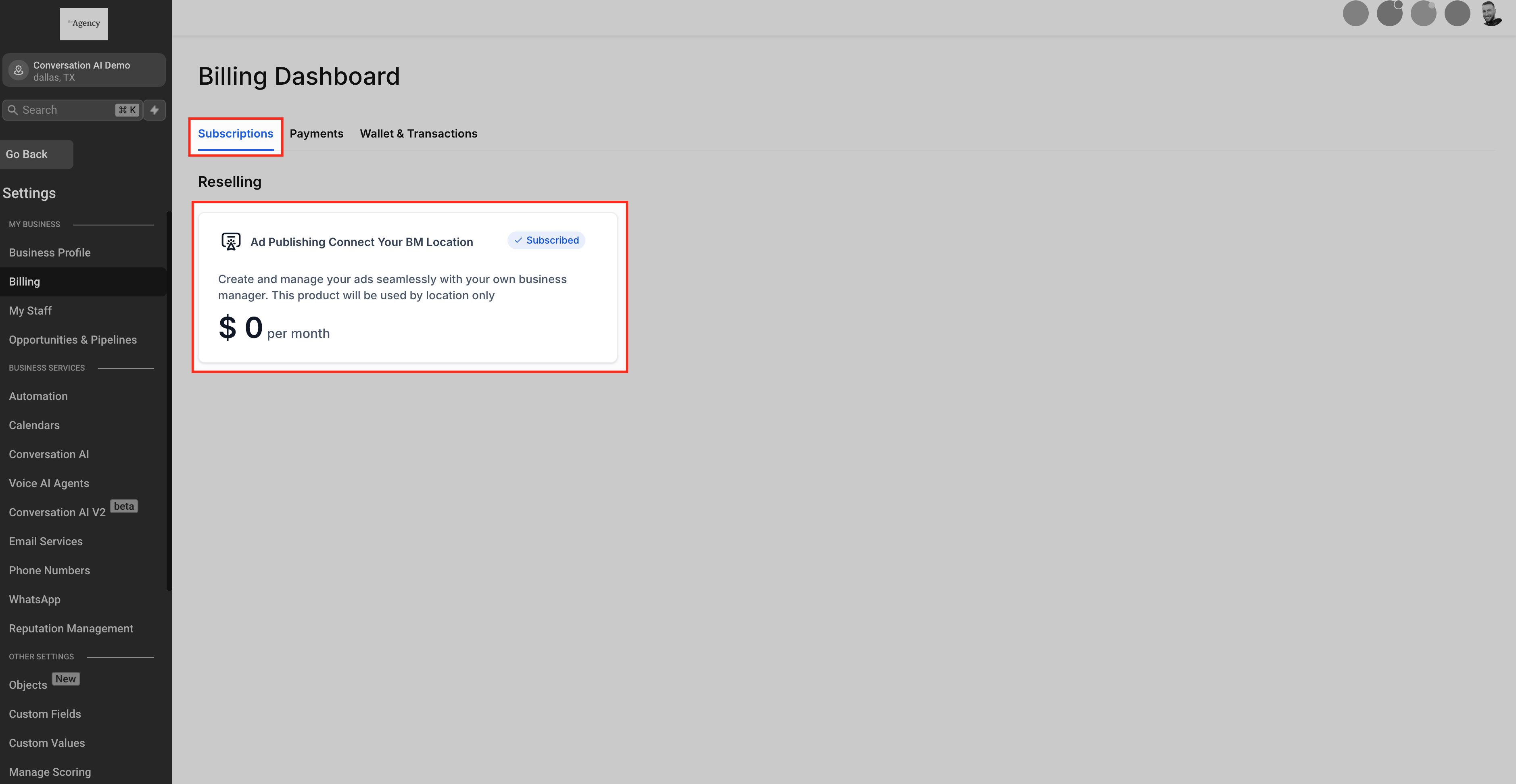
In the Billing section, you can oversee all active addon subscriptions associated with your account, including:
- Premium Modules: Manage the subscription of any premium modules chosen.
- Addon Subscriptions: Handle any addon subscriptions tailored to your business needs.
- Marketplace App Subscriptions: Oversee subscriptions for various marketplace apps integrated into your workflow.
This consolidated view allows for efficient monitoring and management of all your subscriptions.
Payment Methods #
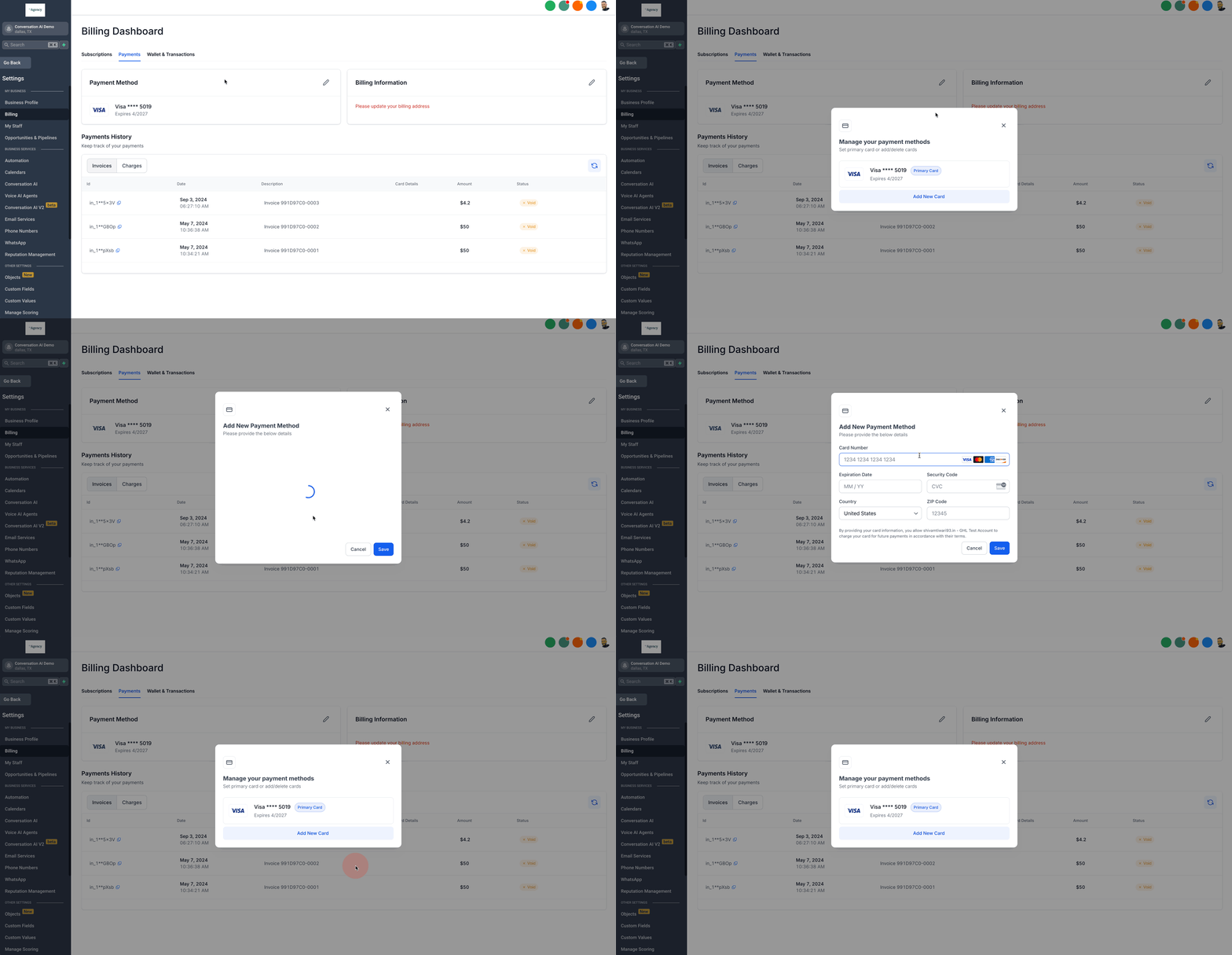
The Payment Methods area enables you to:
- Add New Cards: Introduce new payment methods as needed.
- Delete Existing Cards: Remove outdated or unused payment methods.
- Set Primary Card: Designate a default card for all transactions to ensure seamless billing processes.
This flexibility in managing payment methods ensures that your billing preferences are always up to date.
Update Billing Information #
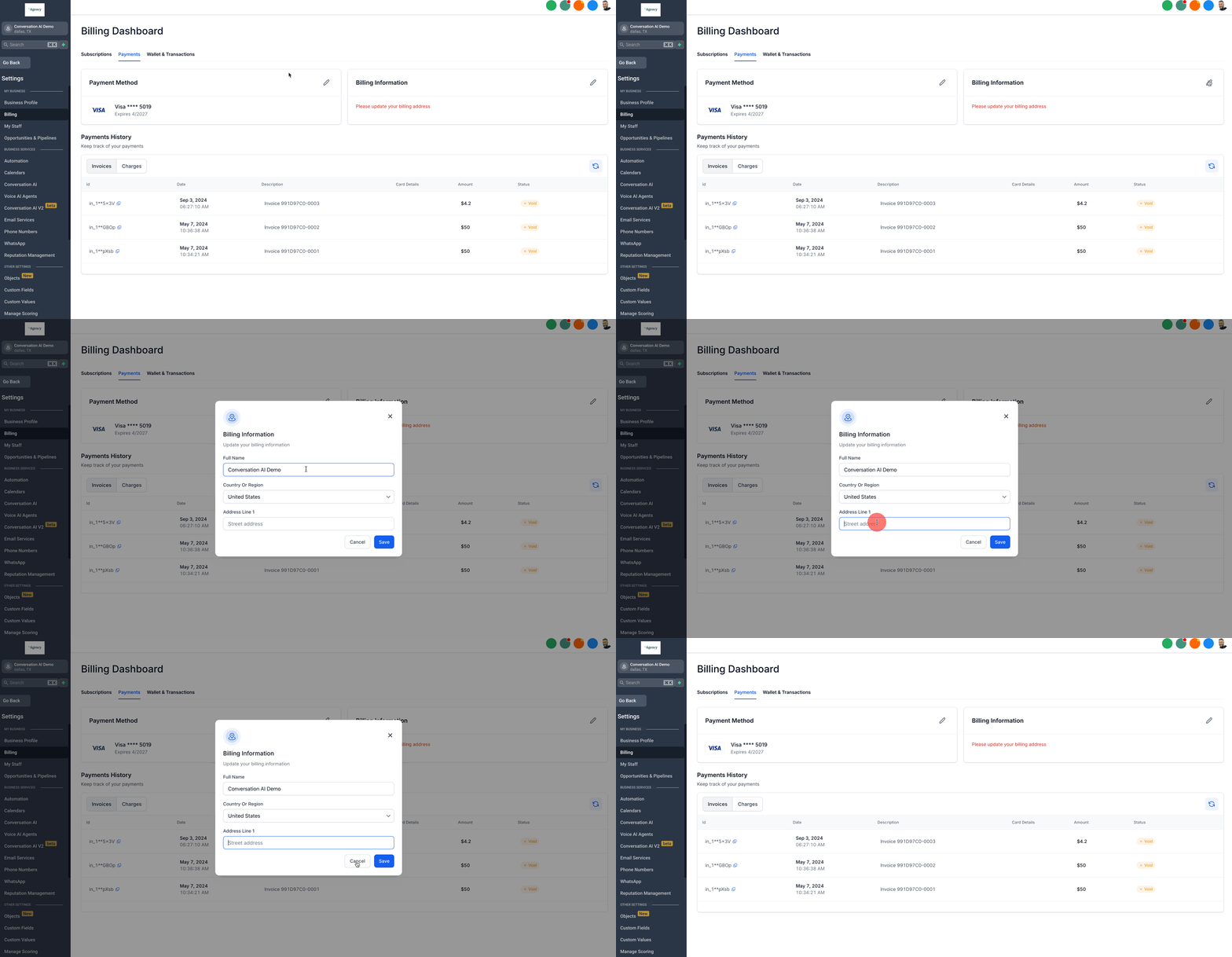
Maintaining accurate billing information is crucial for compliance and successful transactions. Within the Billing section, you can:
- Update Billing Address: Modify your billing address to reflect current information, which is essential in regions where accurate billing details are mandatory for recurring products.
This feature empowers you to keep your billing information current without external assistance.
View Charges and Transaction History #
Transparency in financial transactions is vital. The Billing section provides:
- Detailed Charges Overview: Access a comprehensive list of all charges incurred.
- Invoices: View and download invoices for your records.
- Transaction History: Review past transactions to monitor spending and manage finances effectively.
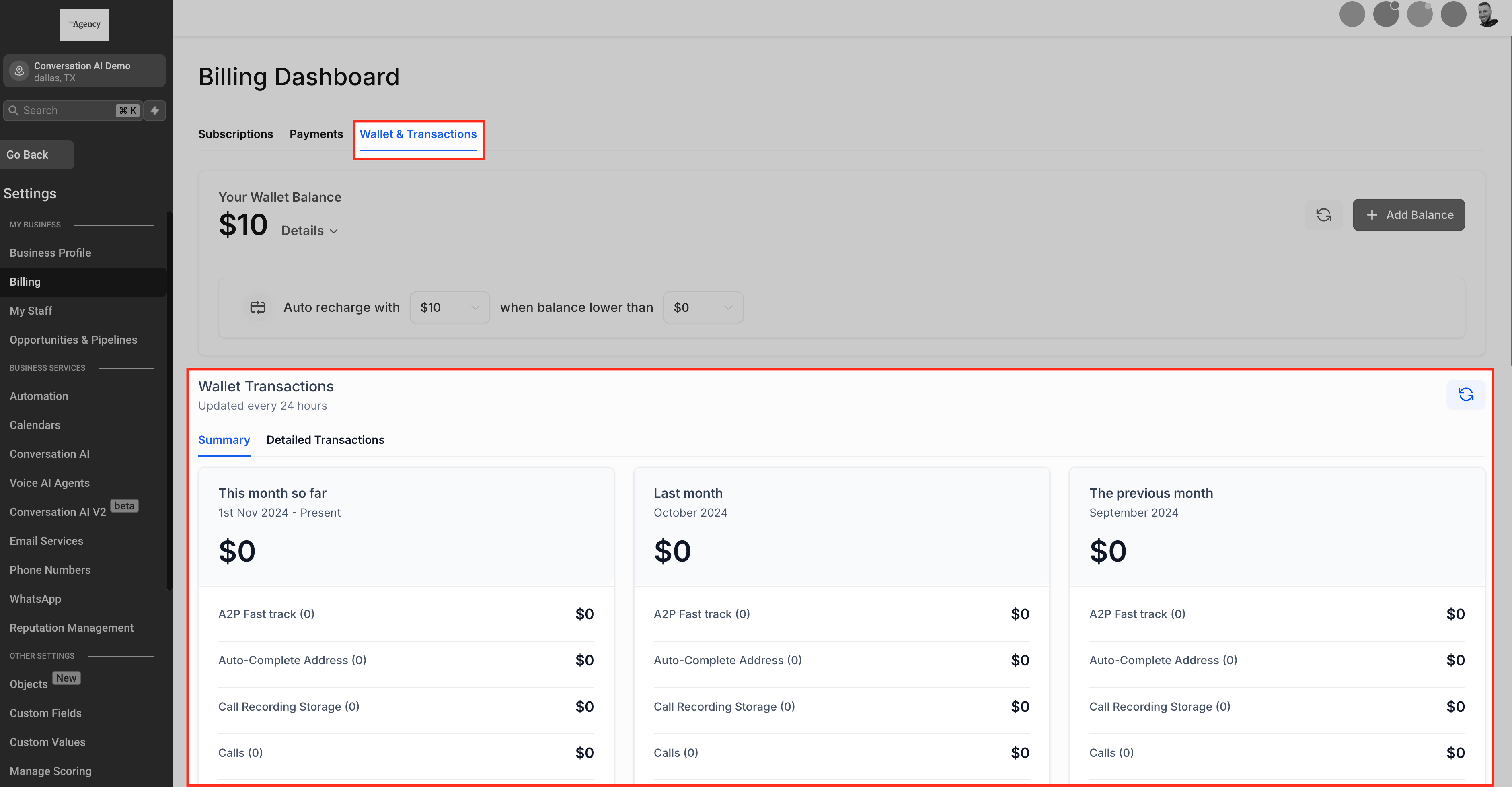
Understanding Wallet Balances #
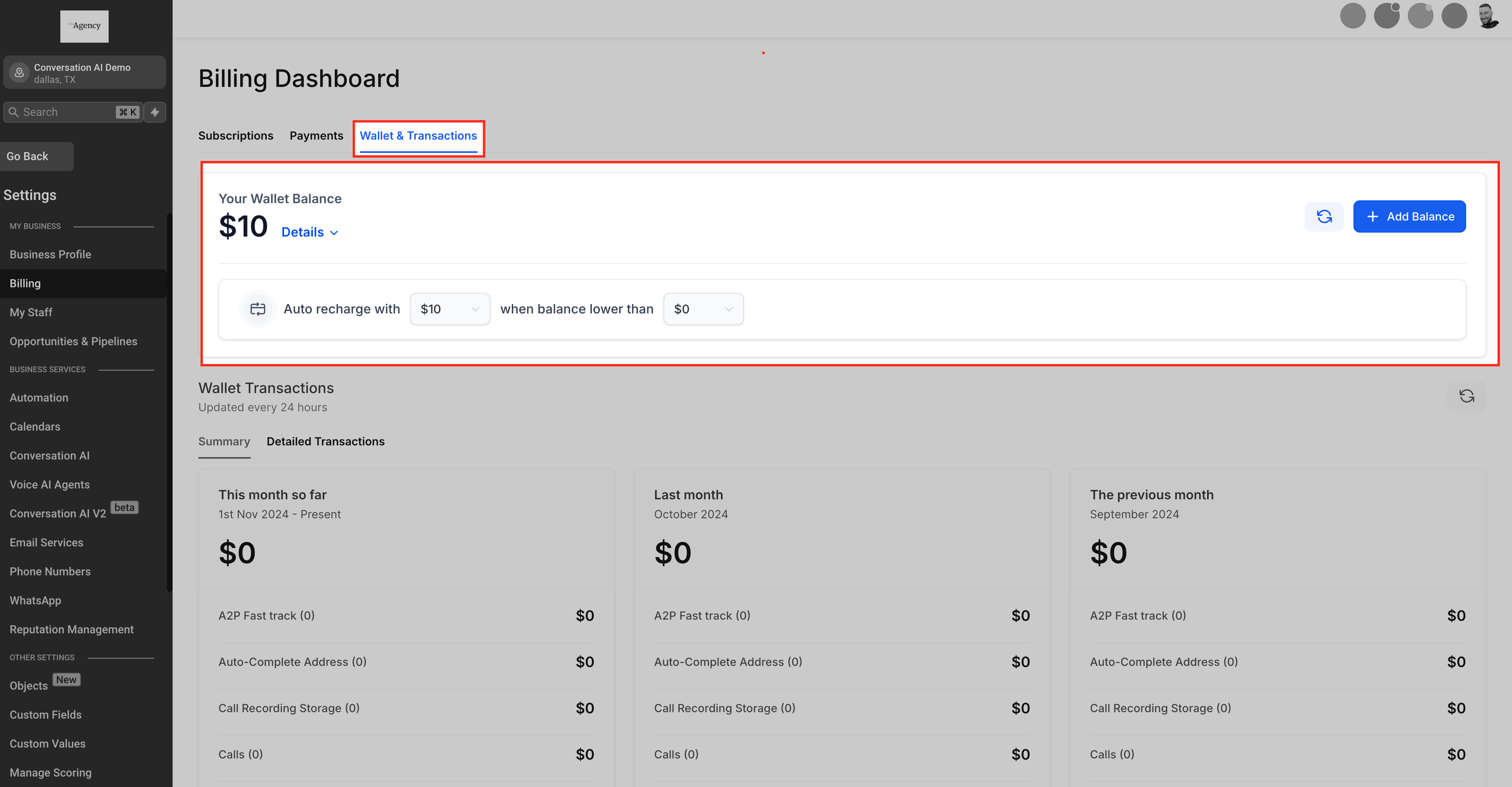
The Wallet feature allows you to add a bulk amount of money to your account in a single transaction, and that money is then converted into credits. When you use services that would cost your account money, you would spend credits instead.
Once your wallet credits go below a certain amount (determined by the account user/owner), your default credit card will automatically be charged and more credits will be added to your wallet, preventing any interruption from paid services.
Some of the benefits of the wallet system are:
- View Current Balance: See your available funds at a glance.
- Monitor Complimentary Credits: Track any complimentary credits provided.
- Manage Funds: Add funds to your wallet to ensure uninterrupted services.
Frequently Asked Questions #
Q: How can I add a new payment method?
Navigate to the Payment Methods section within the Billing area, click on ‘Add New Card,’ and enter the required card details.
Q: How do I update my billing address?
In the Billing section, locate the Billing Information area and click on ‘Edit’ to update your billing address.
Q: Where can I view my past invoices?
Access the Charges and Transaction History section within Billing to view and download past invoices.
Q: How do I add funds to my wallet?
In the Wallet section, click on ‘Add Funds’ and follow the prompts to add the desired amount to your wallet balance.
What's your Reaction?
You have reacted on"Billing Dashboard Overview"
A few seconds ago


 Subscriptions
 My Orders
 My Wishlist
 Refer & Earn💸
 My Projects
 Conversations
 Website Services
 New Website Request
 Website Addons
 eCommerce Addons
 eCommerce Modules
 Software Development
 Graphic Design
 Video Production
 Content Writing
 Marketing Services
 Marketing Products
 Get a Marketing Plan
 Local SEO Audit
 Sales Automation
 Service Automation
 Operations Automation
 Marketing Automation
 Payments Automation
 Premium Modules
 Support Tickets
 Latest Updates
 Consultation Calls
 Tools & Extensions
 Tech Tips & Tricks
 Domains & Emails