Conditional logic allows you to create dynamic forms that change based on the user’s input. It can be used for:
- Qualifying or disqualifying leads: Based on the answers provided, you can automatically segment leads into different categories, helping your team focus on the most promising prospects.
- Redirecting users or displaying custom messages: After form submission, users can be directed to specific pages or shown tailored messages based on their responses.
Read on to learn how to implement conditional logic in forms.
Access the Form Builder #
First, navigate to the Data Collect section and select the Form Builder. Choose to create a new form from scratch or edit a form in your list.
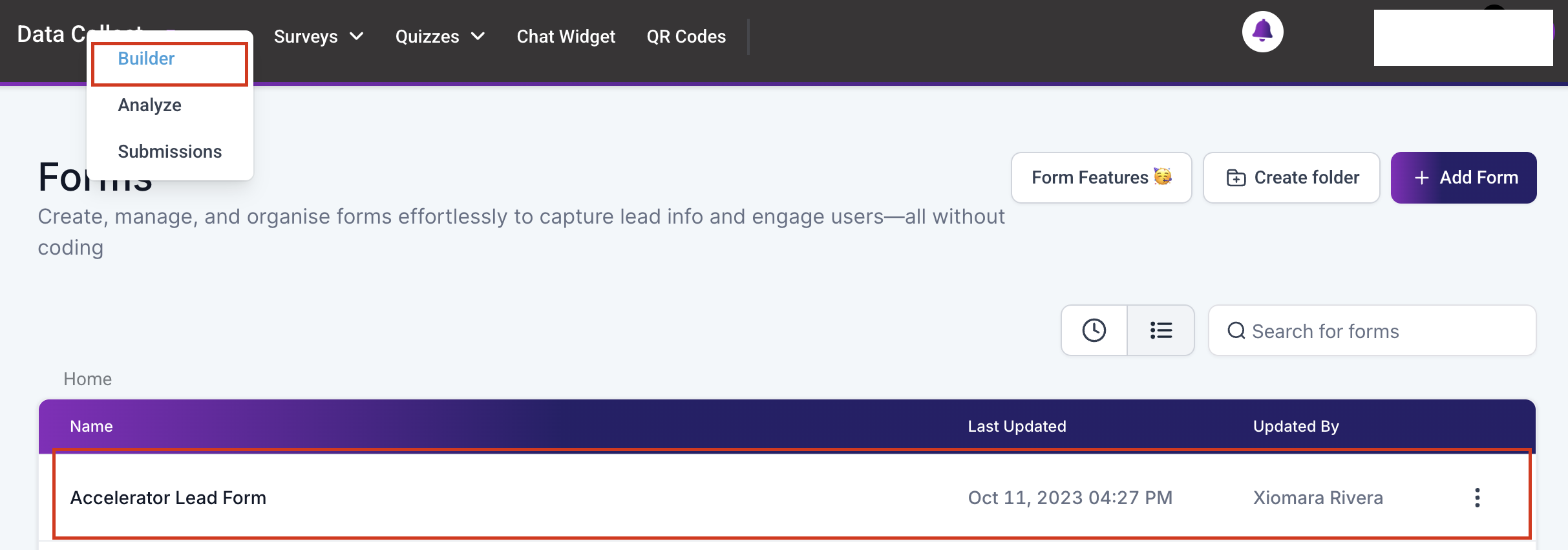
Customize Your Form #
Customize the form to suit your needs by including fields for full name, phone number, and email. Ensure that essential fields are marked as required to obtain user input.

Additionally, you can enhance the functionality of your form by including custom fields. If you have not created the custom field as yet, you may do so in this section. Utilize dropdown menus, checkboxes, or other input types that support binary or multiple-choice answers. For example, you might add a dropdown asking if the user has already scheduled an appointment, with ‘Yes’ and ‘No’ as options.

Set Up Conditional Logic #
Once you have added the field that should trigger the conditions, click the Add Conditional Logic button on the upper left-hand panel.

You will be presented with options to redirect users to different URLs, display custom messages, show or hide fields, or disqualify leads based on their answers.

Each option requires you to select the field from the dropdown menu, select an operator, and insert a value if required.

Check for multiple criteria using the And/Or operations, then finish configuring the condition according to your preferences.

Save the condition once satisfied, then add more criteria if you so desire.

Note: Conditions will be executed in a top-down order and can be modified or deleted at any time.
Once satisfied, remember to save and test your form! This feature is extremely beneficial to qualify leads and segment them based on their responses, allowing for more targeted follow-up.
Troubleshooting Tips #
My conditional logic isn’t working as expected. What should I do?
- Ensure all conditions are correctly set and that there are no conflicting rules. Review each step to confirm that the logic matches your intended outcome.
What's your Reaction?
You have reacted on"How to Use Conditional Logic in Forms"
A few seconds ago


 Subscriptions
 My Orders
 My Wishlist
 Refer & Earn💸
 My Projects
 Conversations
 Website Services
 New Website Request
 Website Addons
 eCommerce Addons
 eCommerce Modules
 Software Development
 Graphic Design
 Video Production
 Content Writing
 Marketing Services
 Marketing Products
 Get a Marketing Plan
 Local SEO Audit
 Sales Automation
 Service Automation
 Operations Automation
 Marketing Automation
 Payments Automation
 Premium Modules
 Support Tickets
 Latest Updates
 Consultation Calls
 Tools & Extensions
 Tech Tips & Tricks
 Domains & Emails










