The text and title widgets in Turnkey Websites™ offer extensive customization options through a user-friendly text toolbar. This interface allows you to easily modify font, color, alignment, and style to highlight key information and effectively organize your site content.
Types of Text Widgets #
In the widget library, you’ll find three primary text widgets:
- Text
- H1 (Large Title)
- H3 (Small Title)
Once a text widget is added, you can switch between different text types using the toolbar, allowing you to transform a Text widget into an H2, for example. Available text types include Paragraph, H1, H2, H3, H4, H5, and H6.
Editing Text (Paragraphs and Titles) #
To edit text on your site:
- Enter Editing Mode:
- Click the text you want to modify.
- Select Text:
- Click and drag over the text to select it.
- Use Inline Editing Options:
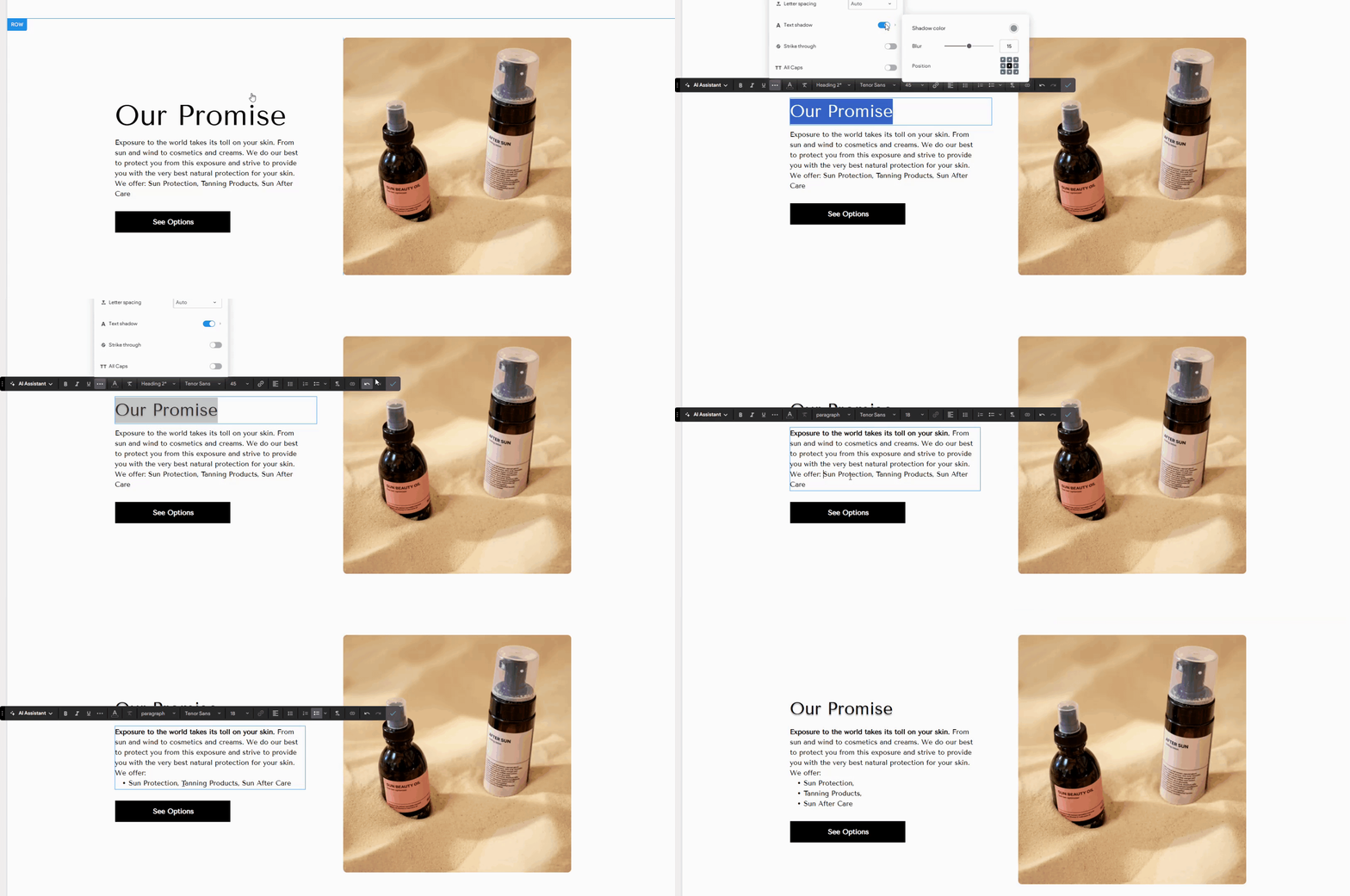
- Utilize the toolbar above the text to adjust styles, sizes, fonts, alignment, add links, and more.
Text Toolbar Features #
- AI Assistant: Quickly generate content and enhance productivity.
- Basic Formatting: Apply bold, italics, and underline.
- Additional Formatting: Access letter spacing, text shadow, strike-through, and all caps via the three-dot icon.
- Text Color: Change the color of selected text.
- Clear Formatting: Reset text to the site’s theme format.
- Text Type Selection: Choose from Paragraph to Heading 6.
- Typography Settings: Change font family and size.
- Link Text: Add hyperlinks to selected text.
- Alignment: Adjust text alignment within the widget.
- Line Height: Customize the line height for selected text.
- List Options: Create numbered or bulleted lists. Change bullet style as needed.
- Text Direction: Alter the direction of text flow.
- Connect to Data: Link text to data rather than the full widget.
- Undo and Redo: Revise changes easily.
- Exit Edit Mode: Click the check mark to finalize edits.
Bullet and Number Lists #
Create lists to group content for easy comparison:
- Create a List:
- Highlight text and click the Bullet or Number list icon.
- Customize Bullets:
- Use the down arrow to select different bullet styles.
- Nested Lists:
- Press Tab to create indented, nested lists.
Design Editor #
Access the design editor to adjust widget settings:
- Open Design Panel:
- Right-click the element and select Edit Design
- Design Options:
- Apply styles such as background colors. For data-connected widgets, text settings are in the design editor, overriding theme settings.
Features and Limitations #
- Text Sizes: Up to 500 px.
- Mixed Text Types: Combine different text types in one element.
- Font Weights: Access different weights within the font list.
- Copy and Paste: Retain theme styles and inline formatting.
- Custom Line Height: Select custom line heights.
- Letter Spacing: Choose from auto, narrow, wide, or custom.
- Special Effects: Add shadows, strike-throughs, and all caps.
By utilizing these text and title widgets, you can effectively style and organize your content, ensuring a polished and professional appearance for your Turnkey Websites™ site.
What's your Reaction?
You have reacted on"Customizing Text and Titles with Widgets"
A few seconds ago


 Subscriptions
 My Orders
 My Wishlist
 Refer & Earn💸
 My Projects
 Conversations
 Website Services
 New Website Request
 Website Addons
 eCommerce Addons
 eCommerce Modules
 Software Development
 Graphic Design
 Video Production
 Content Writing
 Marketing Services
 Marketing Products
 Get a Marketing Plan
 Local SEO Audit
 Sales Automation
 Service Automation
 Operations Automation
 Marketing Automation
 Payments Automation
 Premium Modules
 Support Tickets
 Latest Updates
 Consultation Calls
 Tools & Extensions
 Tech Tips & Tricks
 Domains & Emails