The Text & Image widget enables you to seamlessly integrate an image with text that wraps around it. This feature allows for dynamic content presentation, enhancing the visual appeal of your site.
Adding the Widget #
- Access the Widgets Panel:
- Click on Widgets in the side panel.
- Add the Widget:
- Search for Text & Image and drag it to your desired location on the canvas.
Content Editor #
To customize the Text & Image widget:
- Accessing the Content Editor:
- Right-click the widget and select Edit Content, or use the floating menu in flex mode or Editor 2.0.
- Image Position:
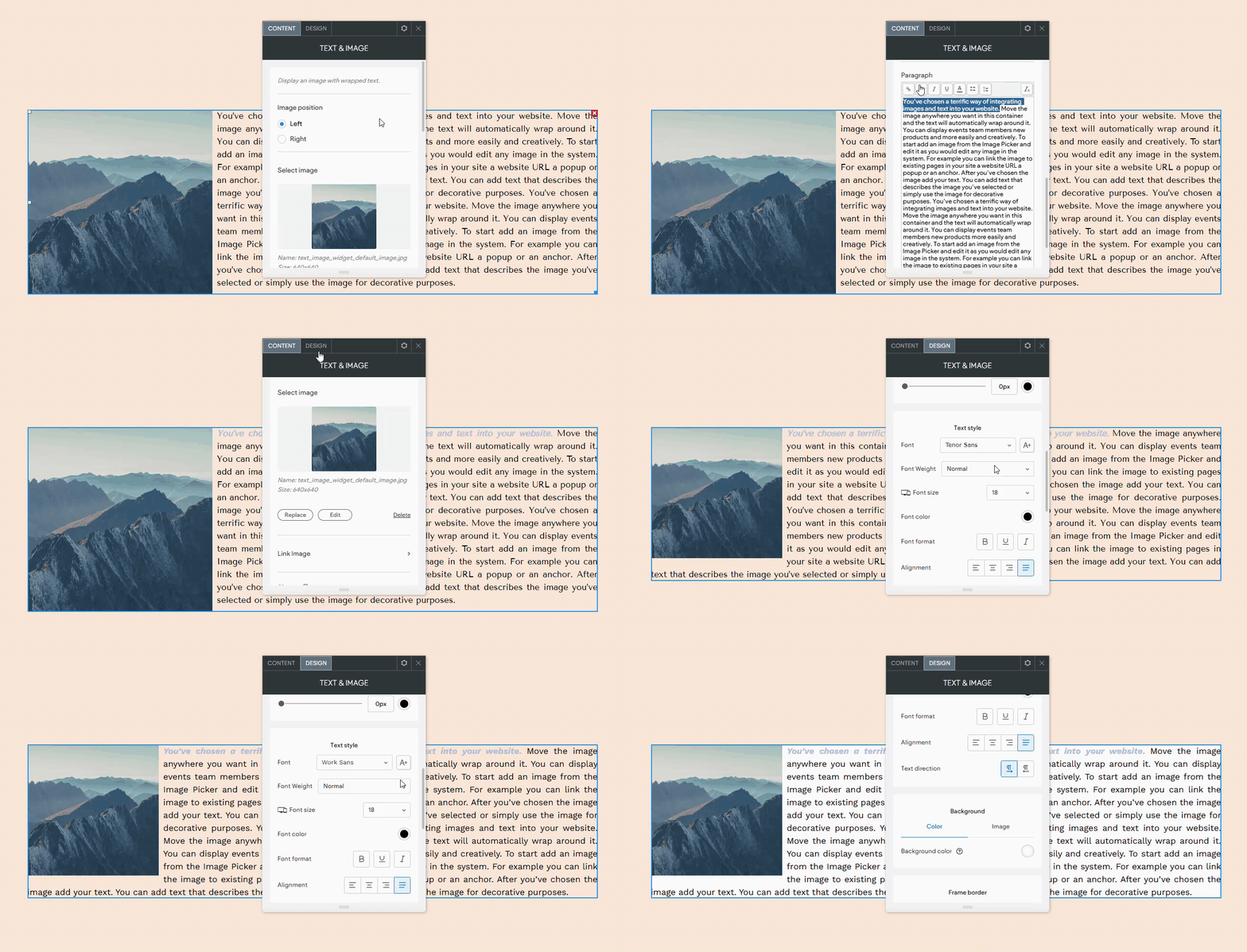
- Choose either Left or Right for the image position.
- Select or Replace Image:
- Click on the image or Replace to choose an image from the Image Picker. You have the following options:
- Link Image: Connect the image to other pages, URLs, popups, anchors, email addresses, or downloadable files. Visitors clicking the image will be redirected to the link.
- Alt Text: Describe the image to help search engines recognize its content.
- Text Entry:
- Enter the text you want to display around the image in the Paragraph field.
- Use text formatting options like italic, bold, and underline to enhance your content.
Design Editor #
To refine the appearance of the Text & Image widget:
- Accessing the Design Editor:
- Right-click the element and select Edit Design.
- Customization Options:
- Adjust the image size and position, and add borders to both the image and widget frame.
- Modify text style to fit your design needs.
Note: Use the Keep proportions toggle to maintain the image’s dimensions when resizing.
By incorporating the Text & Image widget, you can create visually engaging content that captivates your audience and enriches the user experience on your Turnkey Websites™ site.
What's your Reaction?
You have reacted on"Utilizing the Text & Image Widget"
A few seconds ago


 Subscriptions
 My Orders
 My Wishlist
 Refer & Earn💸
 My Projects
 Conversations
 Website Services
 New Website Request
 Website Addons
 eCommerce Addons
 eCommerce Modules
 Software Development
 Graphic Design
 Video Production
 Content Writing
 Marketing Services
 Marketing Products
 Get a Marketing Plan
 Local SEO Audit
 Sales Automation
 Service Automation
 Operations Automation
 Marketing Automation
 Payments Automation
 Premium Modules
 Support Tickets
 Latest Updates
 Consultation Calls
 Tools & Extensions
 Tech Tips & Tricks
 Domains & Emails