The Countdown widget is a powerful tool to boost engagement and excitement on your site. By adding a real-time countdown, you inform visitors and generate interest, encouraging them to act before a sale, event, or promotion ends, or before a new product, collection, or page launches.
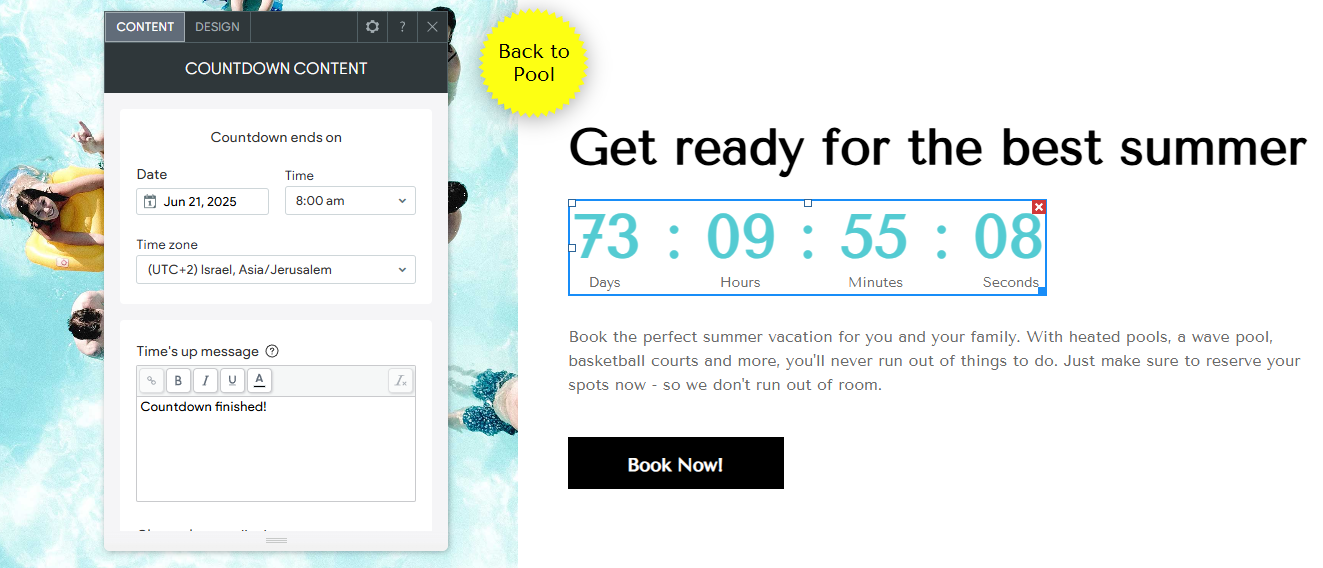
Adding the Widget #
- Access the Widgets Panel:
- Click on Widgets in the side panel.
- Add the Widget:
- Search for Count Down and drag it to your desired location on the canvas.
Content Editor #
To set up your countdown:
- Accessing the Content Editor:
- Right-click the widget and select Edit Content.
- Configure Countdown Settings:
- Set the end date and time for the countdown, selecting the appropriate timezone.
- Enter a specific time using the format hh:mm am/pm (e.g., 11:45pm).
- Type a Time’s Up message to display after the countdown ends.
- Display Options:
- Choose to show the counter at 0000 with the message beneath it, or remove the counter and display the message only.
- Enter a title for the countdown or hide it using the eye icon.
Design Editor #
To customize the appearance of your countdown:
- Accessing the Design Editor:
- Right-click the element and select Edit Design.
- Layout and Design:
- Change the countdown display layout to suit your site’s design.
- Ensure design settings are appropriate for each device, adjusting spacing, image size, and more as needed.
By using the Countdown widget effectively, you can create a sense of urgency and anticipation, enhancing visitor engagement and driving action on your Turnkey Websites™ site.
What's your Reaction?
You have reacted on"Utilizing the Countdown Widget"
A few seconds ago


 Subscriptions
 My Orders
 My Wishlist
 Refer & Earn💸
 My Projects
 Conversations
 Website Services
 New Website Request
 Website Addons
 eCommerce Addons
 eCommerce Modules
 Software Development
 Graphic Design
 Video Production
 Content Writing
 Marketing Services
 Marketing Products
 Get a Marketing Plan
 Local SEO Audit
 Sales Automation
 Service Automation
 Operations Automation
 Marketing Automation
 Payments Automation
 Premium Modules
 Support Tickets
 Latest Updates
 Consultation Calls
 Tools & Extensions
 Tech Tips & Tricks
 Domains & Emails