The Audio widget, categorized under Media, allows you to share songs, podcasts, concerts, audio tutorials, and other audio files on your site. This widget enables you to embed any SoundCloud or Mixcloud audio file or playlist directly into your site. Simply upload your audio file to one of these services, or use an existing public file, copy the link, and integrate it into your site via the audio widget.
Adding the Audio Widget #
- Access the Widgets Panel:
- Click on Widgets in the side panel.
- Add the Widget:
- Search for Audio and drag it to your desired location on the canvas.
Content Editor #
To configure your audio content:
- Accessing the Content Editor:
- Right-click the widget and select Edit Content.
- Select or Upload Audio:
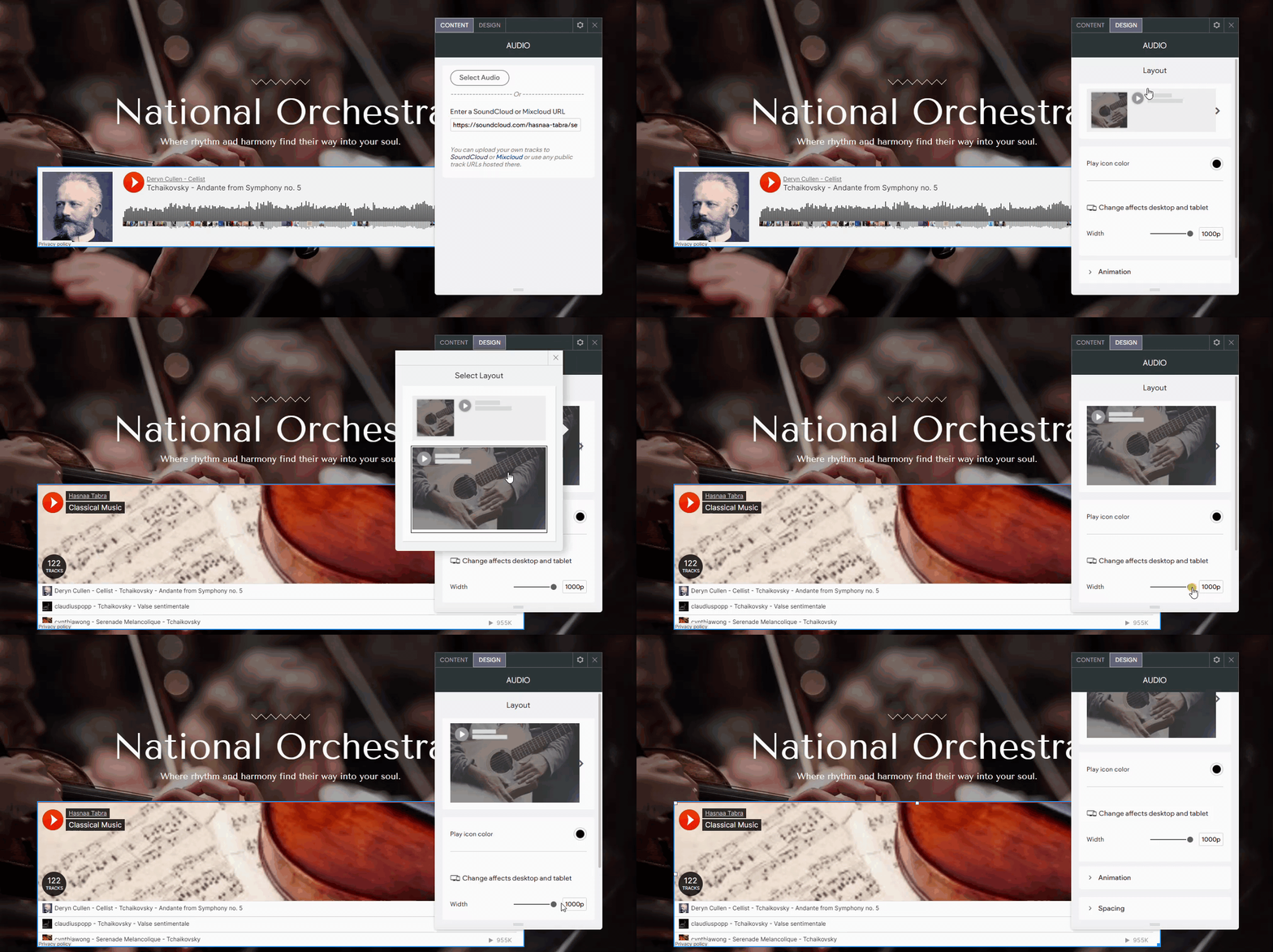
- Click Select Audio to choose an existing file, upload a new one, or paste the SoundCloud or Mixcloud URL in the provided field.
Design Editor #
To customize the appearance of your audio widget:
- Accessing the Design Editor:
- Right-click the element and select Edit Design.
- Available Design Options:
- Mixcloud: Customize layout, thumbnail display, color scheme (light/dark), and width.
- SoundCloud: Adjust layout, play icon color, and width.
- Uploaded Files: Only the width is adjustable; other design elements are not editable.
Note: Layout options differ between SoundCloud and Mixcloud files. To maintain a consistent design across all audio widgets, ensure all audio files are sourced from the same platform.
By incorporating the Audio widget into your Turnkey Websites™ site, you can enrich your content offering, captivate your audience with engaging audio experiences, and enhance the overall user interaction.
What's your Reaction?
You have reacted on"Sharing Audio Content with the Audio Widget"
A few seconds ago


 Subscriptions
 My Orders
 My Wishlist
 Refer & Earn💸
 My Projects
 Conversations
 Website Services
 New Website Request
 Website Addons
 eCommerce Addons
 eCommerce Modules
 Software Development
 Graphic Design
 Video Production
 Content Writing
 Marketing Services
 Marketing Products
 Get a Marketing Plan
 Local SEO Audit
 Sales Automation
 Service Automation
 Operations Automation
 Marketing Automation
 Payments Automation
 Premium Modules
 Support Tickets
 Latest Updates
 Consultation Calls
 Tools & Extensions
 Tech Tips & Tricks
 Domains & Emails