The Widgets Library in Turnkey Websites™ offers a versatile range of tools to enhance your site’s functionality and aesthetics. These widgets help you customize your site and create engaging content for your audience.
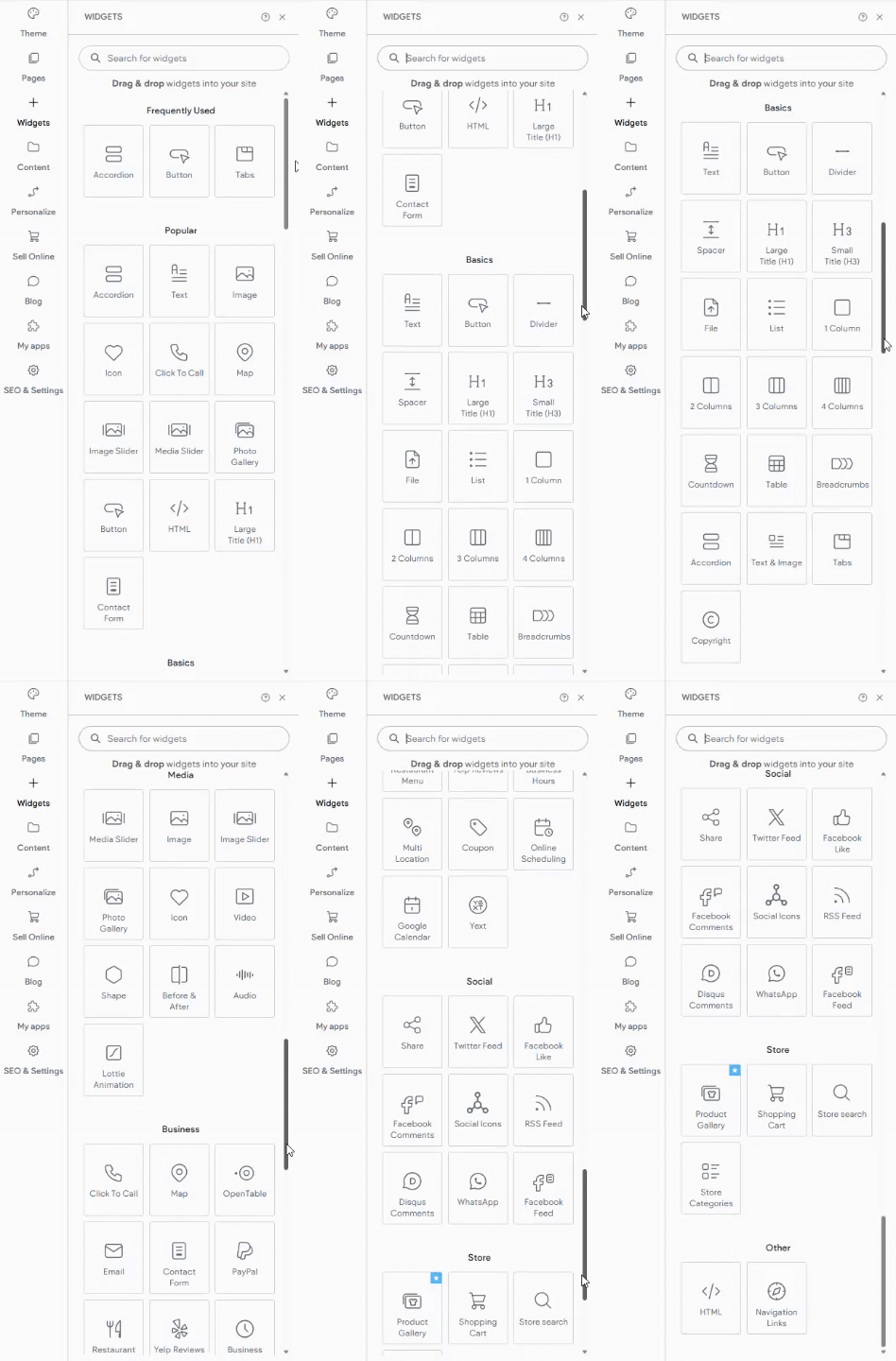
Accessing the Widgets Library #
- Navigate to the Editor:
- Open your site in the editor mode.
- Locate the Widgets Panel:
- In the side panel, click on Widgets to access the library.
- Explore Widget Categories:
- Browse through various categories to find the widget that suits your needs, such as Text, Media, E-commerce, Social, and more.
Types of Widgets #
Text Widgets
- Text Box: Add and customize text anywhere on your site.
- Heading: Highlight important sections with bold headings.
Media Widgets
- Image: Upload and display images to enhance visual appeal.
- Video: Embed videos from platforms like YouTube or Vimeo.
E-commerce Widgets
- Product Gallery: Showcase your products with dynamic displays.
- Cart: Facilitate easy shopping with a user-friendly cart interface.
Social Widgets
- Social Icons: Link to your social media profiles.
- Comments: Enable visitors to leave comments and engage with your content.
Customizing Widgets #
- Add a Widget:
- Drag and drop the desired widget onto your page.
- Configure Settings:
- Click on the widget to open its settings panel.
- Adjust properties such as size, color, and alignment to fit your design.
- Preview and Publish:
- Use the preview feature to see how the widget looks on different devices.
- Once satisfied, publish the changes to make them live on your site.
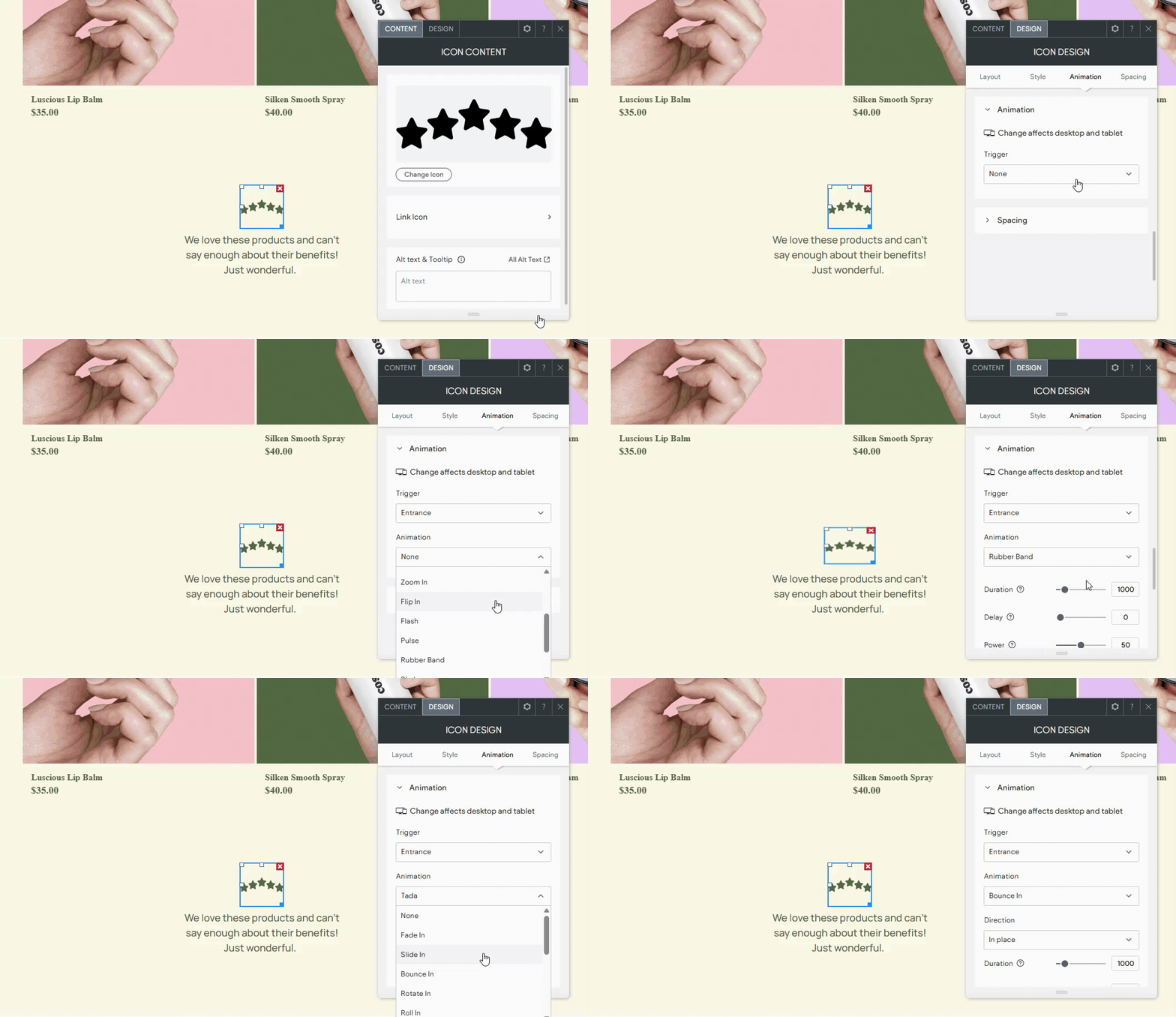
Enhancing Your Site with Animations #
Animations can make your site more interactive and memorable by emphasizing key sections.
Adding Animations
- Edit Design:
- Right-click the element and select Edit Design from the floating menu to open the design panel.
- Navigate to Animation:
- Go to the Animation section.
- Select a Trigger and Animation:
- Choose between triggers like Entrance or Scroll, and select an animation style.
- Customize the animation, such as its entry direction.
- Reset Animations:
- Click Reset to default to remove current settings.
- Scroll Animation Pause:
- Use Pause Animation to stop animations while editing; they remain active in preview mode.
Animation Considerations
- Use Sparingly: Too many animations can distract users.
- Check All Elements: Ensure no unexpected animations are applied to rows or widgets.
Removing Animations
- Edit Design:
- Right-click the element, select Edit Design, then navigate to Animation.
- Remove Animation:
- Choose None from the Animation dropdown menu.
Widget Positioning in Editor #
Fixed Widgets
Fixed widgets remain visible as users scroll down the page, ideal for important calls to action.
- Set as Fixed:
- Click the widget, open the design panel, and select Fixed in the Position section.
- Margin Settings:
- Adjust margins to position the widget in the viewport.
- Single Page Display:
- Enable Show on this page only to keep the widget fixed on the current page.
Pinned Widgets
Pinned widgets stick to their parent element as long as it’s in the viewport.
- Set as Pinned:
- Click the widget, open the design panel, and select Pinned in the Position section.
- Offset Configuration:
- Adjust the offset in the Position section to control where the widget pins on scroll.
Alignment in Classic Editor
- Set Widget Alignment:
- Right-click the widget and choose alignment options: Align Left, Align Center, or Align Right.
Benefits of Using Widgets #
- Enhance Functionality: Widgets add interactive features and content to your site.
- Improve Aesthetics: Customize design elements to create a visually appealing layout.
- Engage Visitors: Use widgets to create a dynamic and interactive user experience.
By utilizing the Widgets Library in Turnkey Websites™, you can effectively build and manage a professional and engaging website tailored to your audience’s needs.
What's your Reaction?
You have reacted on"Utilizing the Widgets Library for Enhanced Site..."
A few seconds ago


 Subscriptions
 My Orders
 My Wishlist
 Refer & Earn💸
 My Projects
 Conversations
 Website Services
 New Website Request
 Website Addons
 eCommerce Addons
 eCommerce Modules
 Software Development
 Graphic Design
 Video Production
 Content Writing
 Marketing Services
 Marketing Products
 Get a Marketing Plan
 Local SEO Audit
 Sales Automation
 Service Automation
 Operations Automation
 Marketing Automation
 Payments Automation
 Premium Modules
 Support Tickets
 Latest Updates
 Consultation Calls
 Tools & Extensions
 Tech Tips & Tricks
 Domains & Emails








