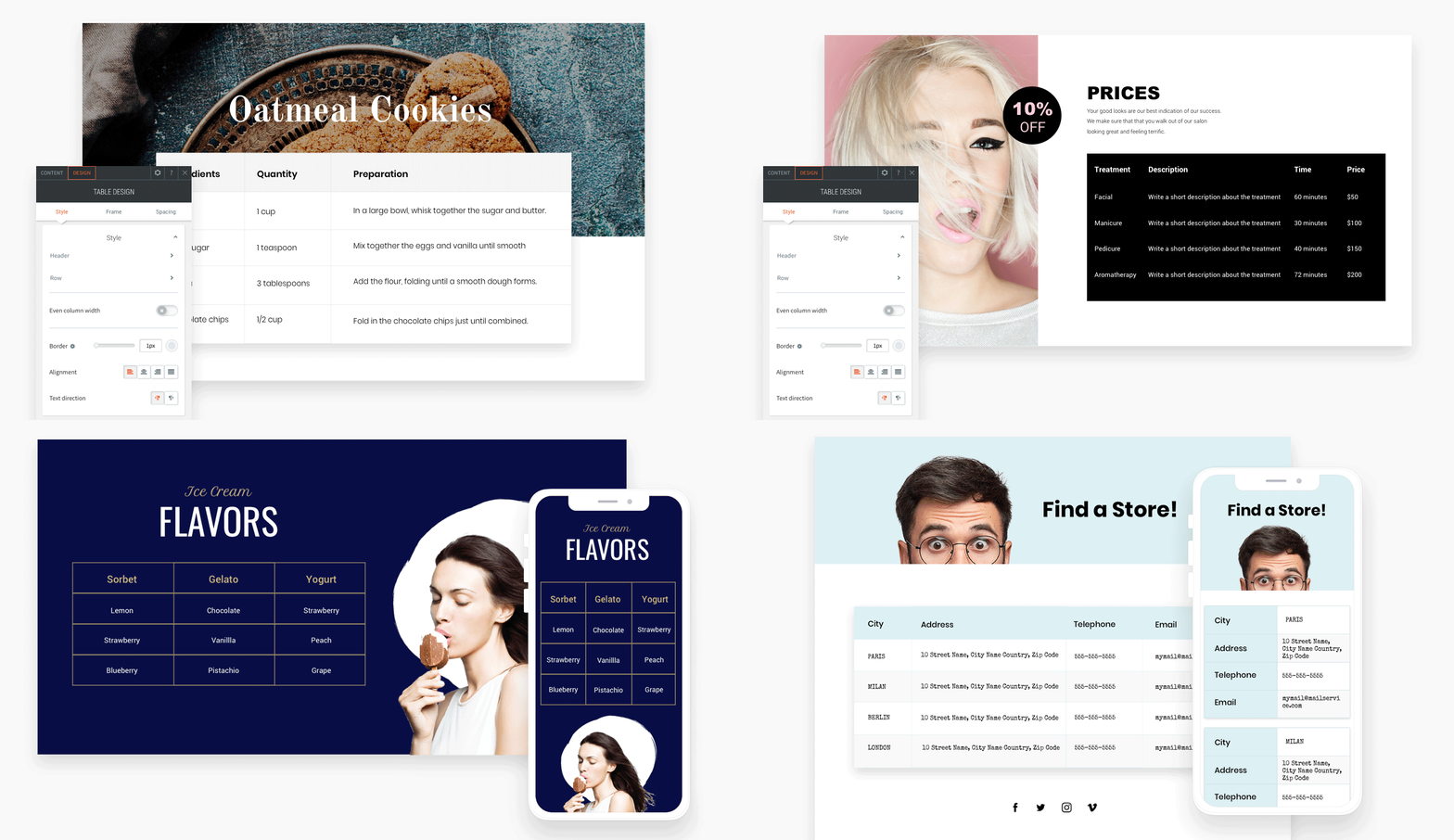
The Table widget enables you to present text data in a structured layout of rows and columns. You can populate the table by typing directly, copying and pasting an existing table, or uploading a CSV file.
Adding the Table Widget #
- Access the Widgets Panel:
- Click on Widgets in the side panel.
- Add the Widget:
- Search for Table and drag it to your desired location on the canvas.
Important Notes #
- CSV Uploads: You can upload a CSV file exported from Google Sheets or Excel (non-RTL languages only).
- Content Limitations: The table supports only text and links. For images, buttons, or other widgets, consider using rows, columns, or a List widget.
- Browser Compatibility: The Table editor is not supported in Edge version 17 but works in Edge 18.
- Row and Column Limits: The table can have up to 30 rows and columns. When connected to data, the row limit follows the collection type’s limit.
Content Editor #
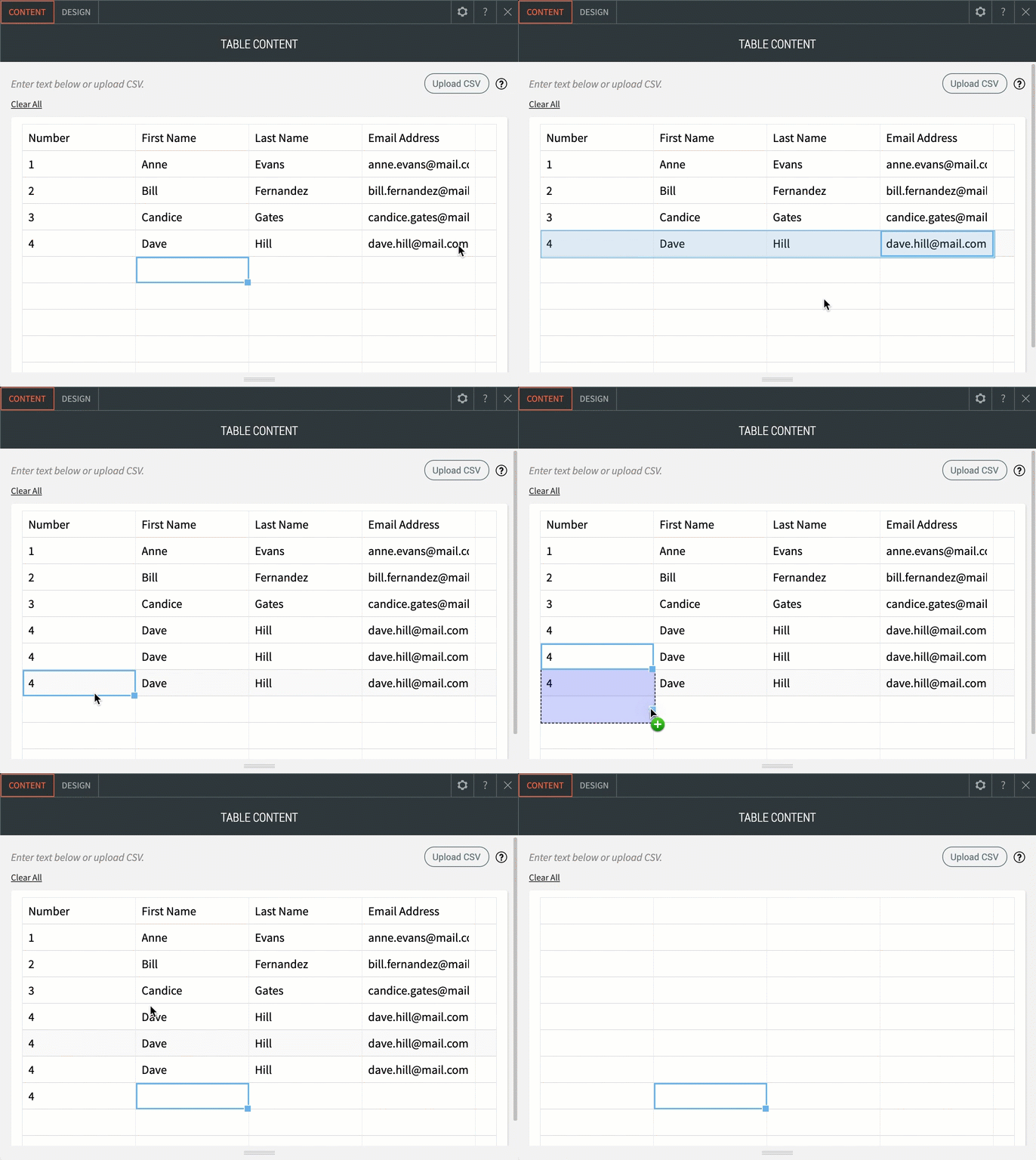
To manage table content:
- Accessing the Content Editor:
- Right-click the widget and select Edit Content.
- Adding Data:
- Type directly in the editor.
- Copy and paste an existing table.
- Upload a CSV.
- Clear All: Use this function to remove all data from your table.
Design Editor #
Customize your table’s appearance:
- Accessing the Design Editor:
- Right-click the element and select Edit Design.
- Customization Options:
- Adjust the table’s border, title bar, background color, and text style for the header, rows, and first column.
- Customize text direction and alignment for the entire table, but not individual cells.
- Customize the first column’s background color, font type, size, and color.
- Set colors for even and odd rows for better readability.
- Choose column width: equal or based on the title’s width.
- Mobile Display Options:
- Squish: Ideal for 2-3 columns, fitting content to screen width.
- Scroll: Suitable for many columns, allowing vertical scrolling if needed.
- Collapse: Provides a detailed view, not recommended for too many rows.
Adding Connected Data #
Display data from various collections in a Table widget. Connect with internal or external collections like Google Sheets or Airtable for efficient data management.
- Connecting to Data:
- Right-click the Table widget and select Connect to data.
- Choose a collection from the dropdown menu.
- Select fields to display, which will be ordered as selected.
- Click Done.
Once connected, your Table widget will be marked with a blue Connected Data icon, indicating successful integration with the Content Library.
By utilizing the Table widget in Turnkey Websites™, you can present information in a clear and organized manner, enhancing both data accessibility and site aesthetics for your visitors.
What's your Reaction?
You have reacted on"Utilizing the Table Widget"
A few seconds ago


 Subscriptions
 My Orders
 My Wishlist
 Refer & Earn💸
 My Projects
 Conversations
 Website Services
 New Website Request
 Website Addons
 eCommerce Addons
 eCommerce Modules
 Software Development
 Graphic Design
 Video Production
 Content Writing
 Marketing Services
 Marketing Products
 Get a Marketing Plan
 Local SEO Audit
 Sales Automation
 Service Automation
 Operations Automation
 Marketing Automation
 Payments Automation
 Premium Modules
 Support Tickets
 Latest Updates
 Consultation Calls
 Tools & Extensions
 Tech Tips & Tricks
 Domains & Emails