The Tabs widget, part of the Basic Widget category, provides an efficient way to organize and display content on your site. Instead of scrolling through long pages, visitors can click between tabs to explore related content, making it ideal for showcasing Services, Plans, or Team Members in a compact and organized manner.
Adding the Table Widget #
- Access the Widgets Panel:
- Click on Widgets in the side panel.
- Add the Widget:
- Search for Tabs and drag it to your desired location on the canvas.
Content Editor #
To manage your tab content:
- Accessing the Content Editor:
- Right-click the widget and select Edit Content.
- Adding and Editing Tabs:
- Click Add Tab to introduce a new tab.
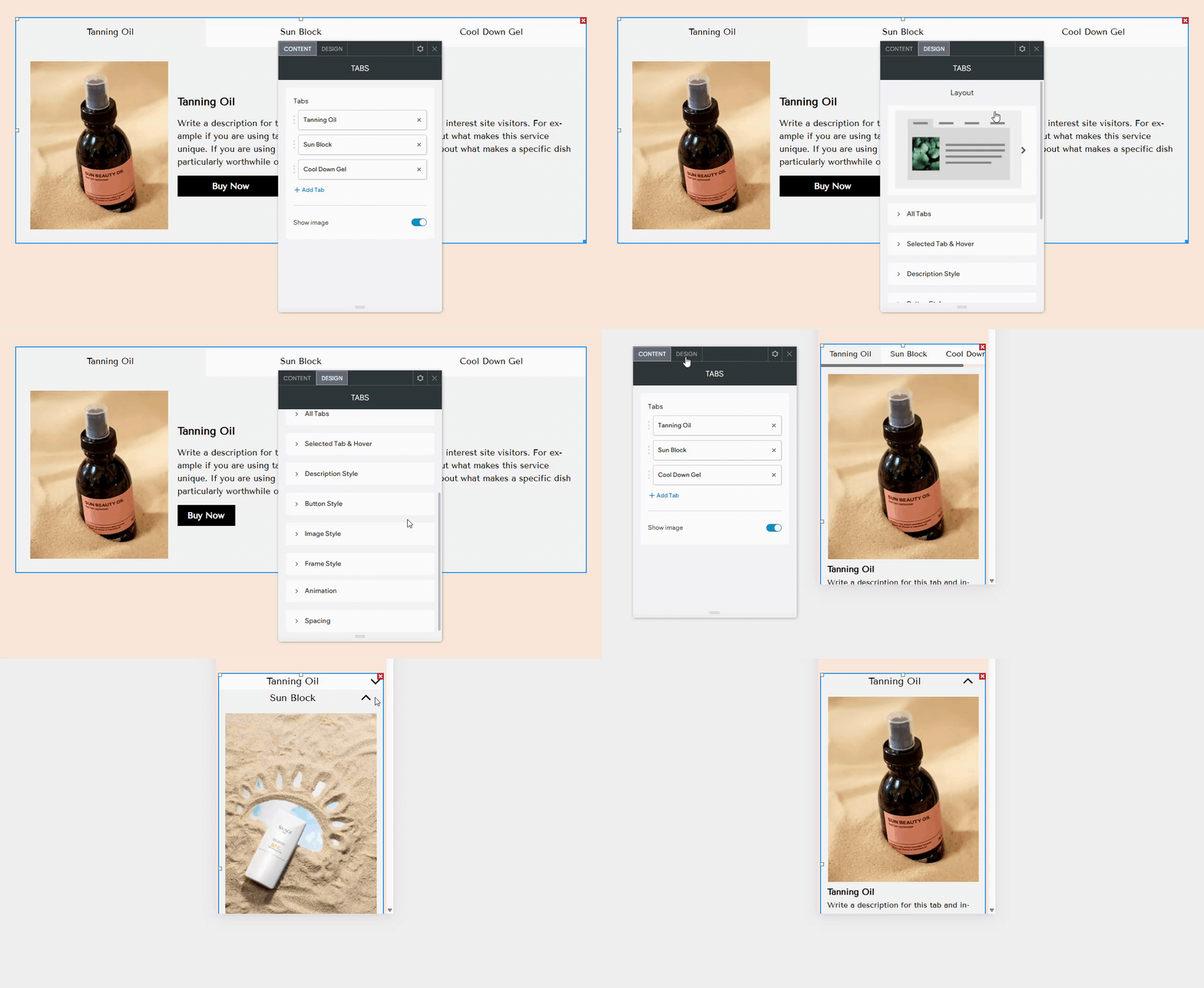
- Click on a tab to edit elements such as the image (and alt text), tab label, label heading type, title, description, and button.
- To enhance SEO, use header tags, with H3 recommended for the Label Heading Type.
- The alt text field for images is located at the bottom of the editor.
- To display images on the tabs, enable the Show image toggle.
Design Editor #
To refine the appearance of your tabs:
- Accessing the Design Editor:
- Right-click the element and select Edit Design.
- Customizing Layout and Style:
- Choose a different layout for the tabs by clicking the layout option.
- Use All Tabs to adjust the style of unselected tabs, reverse tab direction, and manage mobile tab layout.
- Customize the text style and background for selected tabs and hover effects by clicking Selected Tab & Hover.
- Adjust the Description Style, Button Style, and Image Style as needed.
Note: While you can have as many tabs as needed, keep in mind that each additional tab reduces the space available for labels.
Mobile View #
For mobile display, there are two layout options: tabs and accordion. The tabs layout can be controlled by swiping, although not all browsers support this feature, making the accordion view a suitable alternative.
Changing the Tabs Widget for Mobile #
- Switch to Mobile View:
- Use the top navigation bar to switch to mobile view.
- Adjusting Design:
- Right-click the widget and select Edit Design.
- Click All Tabs and enable the Display as Accordion toggle.
By leveraging the Tabs widget, you can create an organized and interactive content display that enhances the user experience on your Turnkey Websites™ site.
What's your Reaction?
You have reacted on"Utilizing the Tabs Widget"
A few seconds ago


 Subscriptions
 My Orders
 My Wishlist
 Refer & Earn💸
 My Projects
 Conversations
 Website Services
 New Website Request
 Website Addons
 eCommerce Addons
 eCommerce Modules
 Software Development
 Graphic Design
 Video Production
 Content Writing
 Marketing Services
 Marketing Products
 Get a Marketing Plan
 Local SEO Audit
 Sales Automation
 Service Automation
 Operations Automation
 Marketing Automation
 Payments Automation
 Premium Modules
 Support Tickets
 Latest Updates
 Consultation Calls
 Tools & Extensions
 Tech Tips & Tricks
 Domains & Emails