

 Subscriptions
 My Orders
 My Wishlist
 Refer & Earn💸
 My Projects
 Conversations
 Website Services
 New Website Request
 Website Addons
 eCommerce Addons
 eCommerce Modules
 Software Development
 Graphic Design
 Video Production
 Content Writing
 Marketing Services
 Marketing Products
 Get a Marketing Plan
 Local SEO Audit
 Sales Automation
 Service Automation
 Operations Automation
 Marketing Automation
 Payments Automation
 Premium Modules
 Support Tickets
 Latest Updates
 Consultation Calls
 Tools & Extensions
 Tech Tips & Tricks
 Domains & Emails
10
Jun
Smarter eCommerce Product Management at Scale📦
Manage Turnkey eCommerce™products at scale with less friction, more features and more speed.
June 10, 2026





June 10, 2026
June 10, 2026

June 3, 2026

May 26, 2026

May 20, 2026

The File widget allows you to effortlessly share downloadable content with your site visitors. Whether it’s flyers, ebooks, or other documents, this widget enables downloads with a simple button click, making it easy for visitors to share your content via email or social media. Before offering downloads, consider the potential for your content to be shared widely. Be cautious with sensitive or personal documents and only upload files you own or have permission to use, respecting copyright protections.
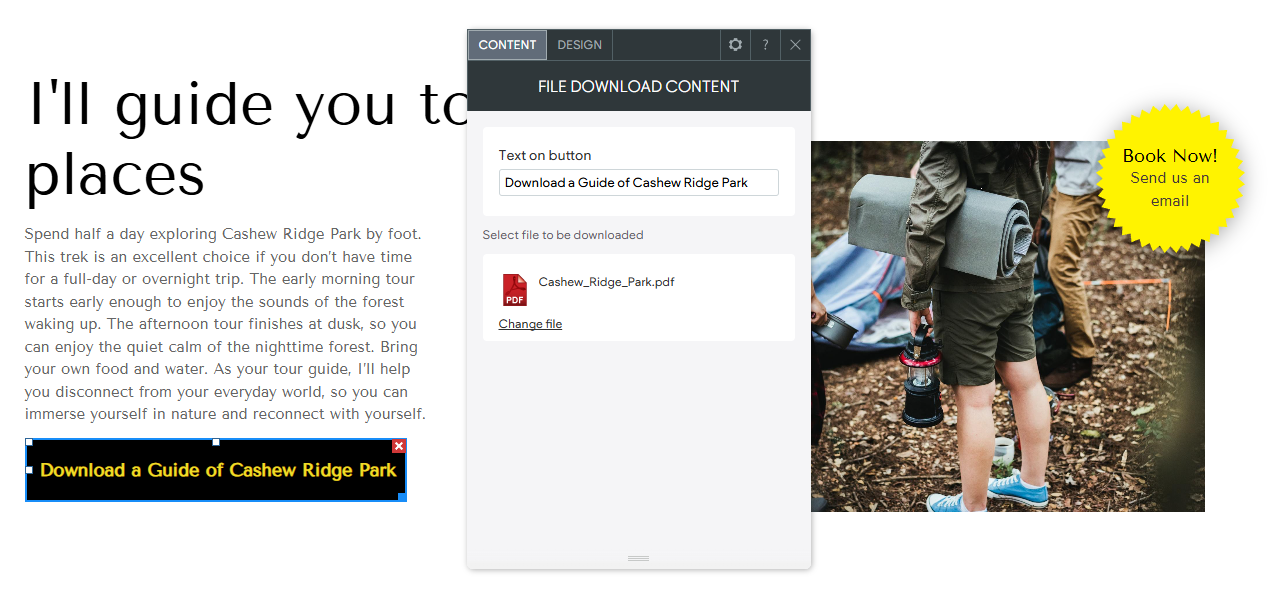
To set up your file download button:
To customize the button’s appearance:
By using the File widget effectively, you can provide valuable resources to your visitors while ensuring your content is shared responsibly and securely on your Turnkey Websites™ site.